Use free NVIDIA AI in n8n
n8n has a ready-made NVIDIA Nemotron Chat Model step. This guide connects it to an AI Agent, so your workflow answers with a free NVIDIA model instead of Claude.
| Time needed | 10 minutes |
| You need | Your n8n agent, a workflow with a chat trigger and an AI Agent (like the one in Sign in and build your first AI agent), and a free NVIDIA API key (see Get free AI from NVIDIA) |
| Result | Your AI Agent answers with an NVIDIA Nemotron model |
Read this first
- NVIDIA's free key is "for API testing use only" and has a speed limit (about 40 requests per minute). Use it to try things and for light use, not for a workflow your customers depend on.
- An AI Agent uses one chat model. To move an existing agent from Claude to NVIDIA, delete its Anthropic Chat Model step first, or try it on a copy of the workflow.
- Change the model after you connect the key (step 4). The model n8n fills in by default no longer exists at NVIDIA and the workflow fails with 410 status code.
1. Add the NVIDIA chat model to your AI Agent
Open your workflow. Under the AI Agent step, click the + under Chat Model.
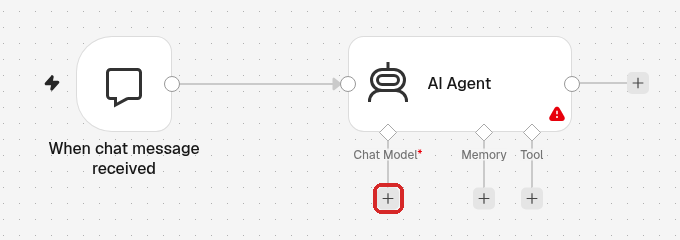
The Language Models list opens on the right:
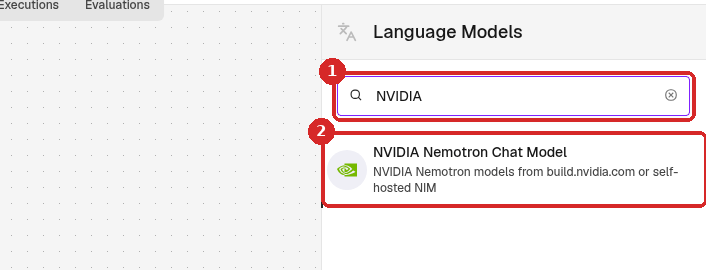
- Type
NVIDIAin the search box. - Click NVIDIA Nemotron Chat Model (NVIDIA Nemotron models from build.nvidia.com or self-hosted NIM).
2. Connect your NVIDIA key
The step opens. Under Credential, click Connect to NVIDIA Nemotron.
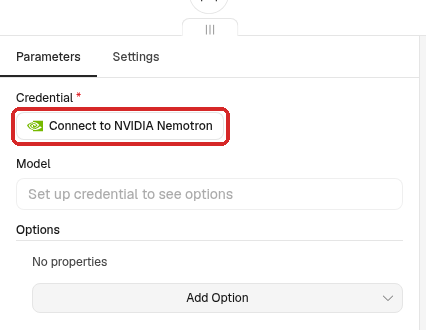
The NVIDIA Nemotron account window opens:
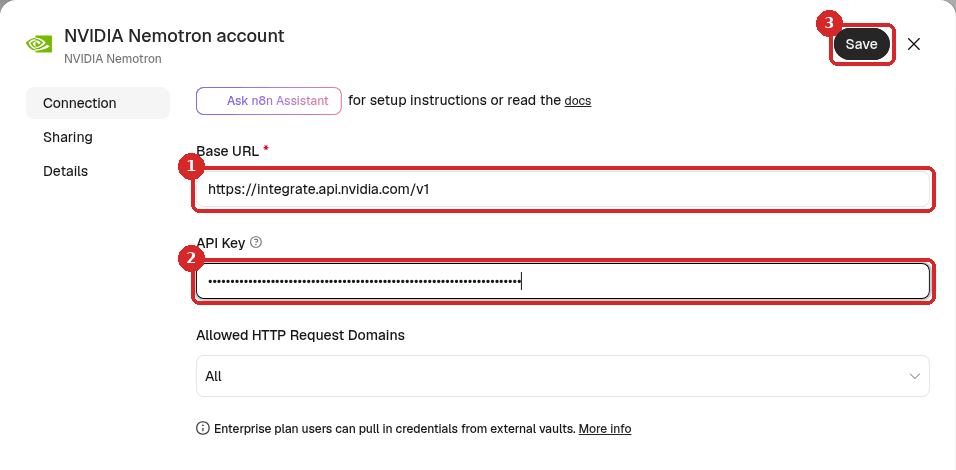
- Base URL is already
https://integrate.api.nvidia.com/v1. Leave it as it is. - API Key: paste your NVIDIA key (it starts with
nvapi-). n8n shows it as dots. - Click Save.
n8n saves the key and closes the window. The step now shows NVIDIA Nemotron account under Credential.
3. What happens with the default model
Right after you connect the key, Model shows nvidia/llama-3.3-nemotron-super-49b-v1. We tried it as it was, and the chat answered Error in workflow:
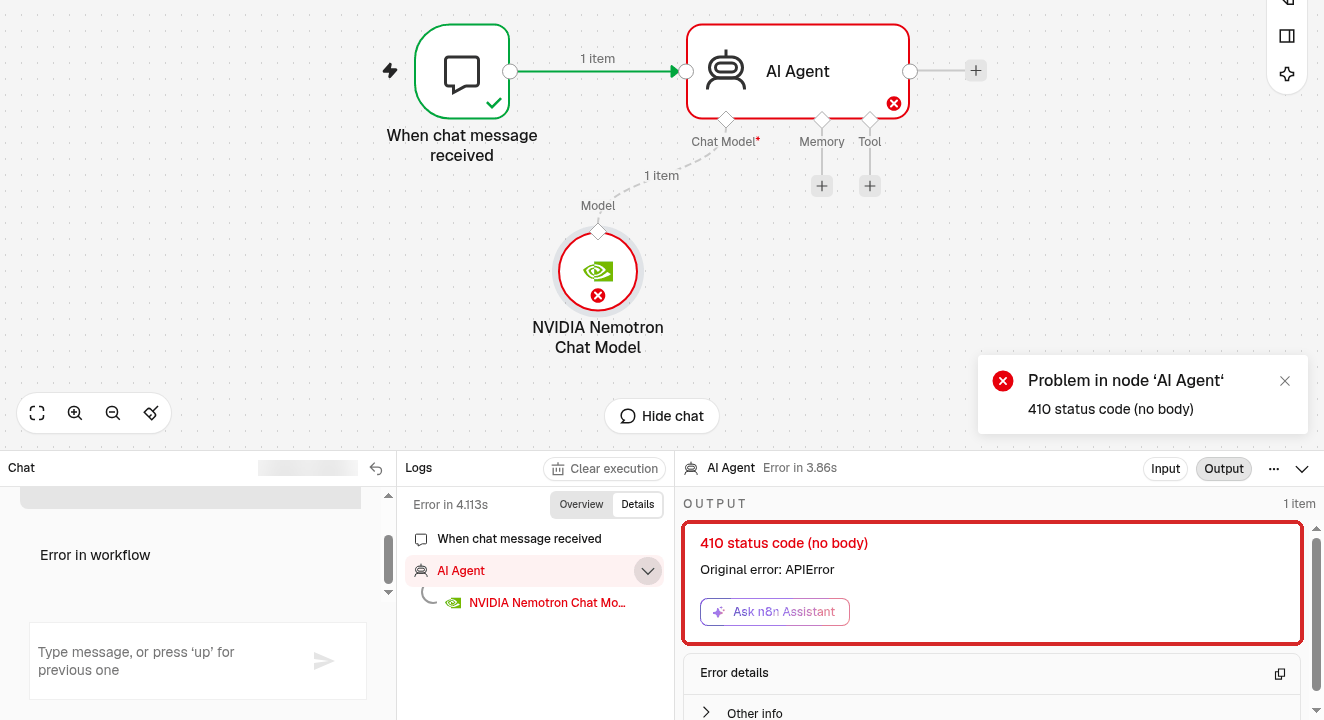
The AI Agent step showed 410 status code (no body). NVIDIA answers that this model "has reached its end of life on 2026-08-26 and is no longer available". Pick another model, as in the next step.
4. Choose a model that works
Click in the Model box (1). The list shows the NVIDIA models n8n offers for your key. Click nvidia/nemotron-3-nano-omni-30b-a3b-reasoning (2).
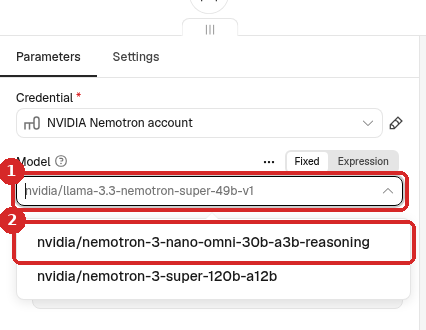
Results of our test (November 2026)
nvidia/nemotron-3-nano-omni-30b-a3b-reasoning: worked, answer in about 2 seconds.nvidia/nemotron-3-super-120b-a12b(the other model in the list): NVIDIA answered Not Found for our free key.- A model that is not in the list: click Expression next to Model and type its exact name.
nvidia/nemotron-3.5-super-vl-120b-a12bworked this way (answer in about 2 seconds). Model names are on build.nvidia.com.
Close the step with the X at the top right. n8n saves your changes by itself.
5. Test it in the chat
Click Open chat at the bottom of the canvas and send a message. We asked "Reply in English: which model are you, and what is 17 x 23?":
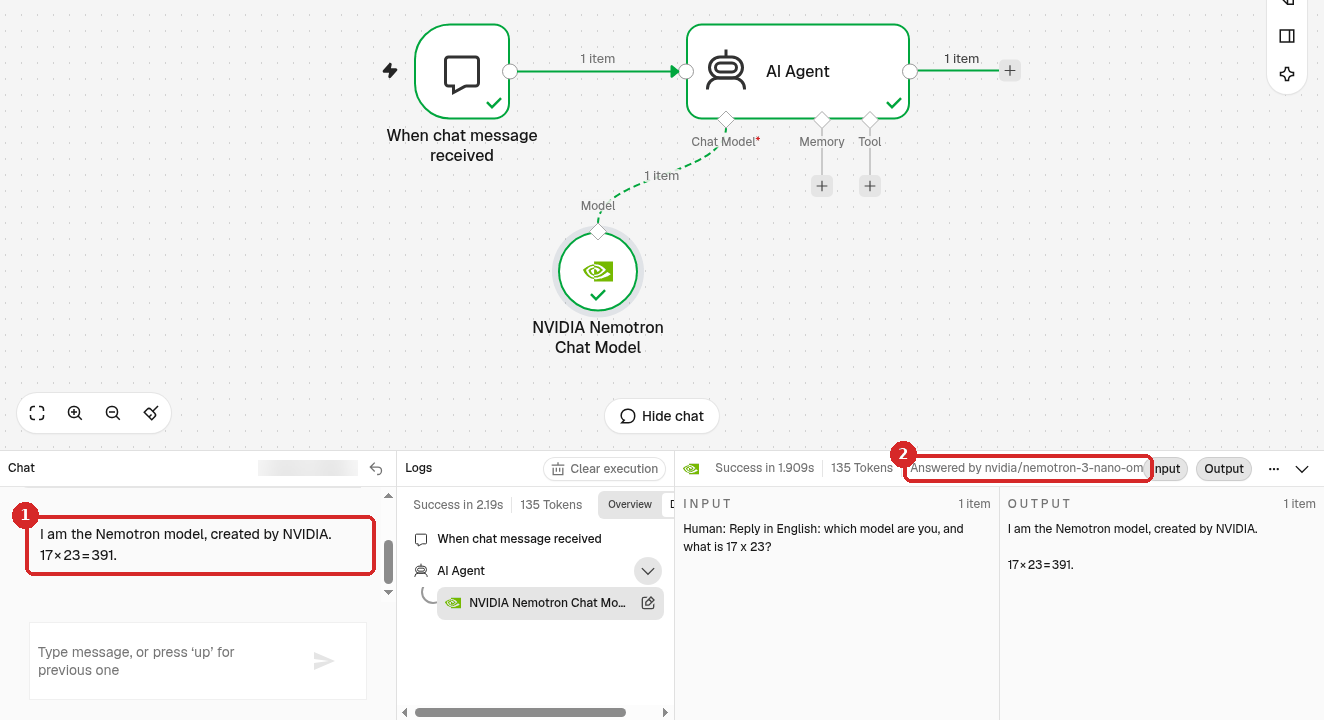
- The answer: "I am the Nemotron model, created by NVIDIA. 17 × 23 = 391." (correct).
- In Logs, click NVIDIA Nemotron Chat Model: the top line says Answered by and the model name, here
nvidia/nemotron-3-nano-omni-30b-a3b-reasoning. The whole run took 2.19 seconds.
Check that it worked
- All three steps on the canvas have a green tick.
- Logs shows Success and Answered by an
nvidia/...model.
Common problems
Error in workflow: 410 status code (no body)
The model in the Model box no longer exists at NVIDIA (this is what happens with the default nvidia/llama-3.3-nemotron-super-49b-v1). Open the NVIDIA Nemotron Chat Model step and pick another model (step 4).
The model answers 'Not Found'
Not every model is available with a free key. Pick another model, for example nvidia/nemotron-3-nano-omni-30b-a3b-reasoning.
Too many requests, or the answer is slow
The free key allows about 40 requests per minute, and NVIDIA may slow busy models down. Wait a minute and try again. A workflow that runs often (for example every minute, or on every message of a busy chat) can reach this limit.
How do I go back to Claude?
Delete the NVIDIA Nemotron Chat Model step, click + under Chat Model again and choose Anthropic Chat Model with your Claude credential (see Sign in and build your first AI agent). Your NVIDIA credential stays in Overview → Credentials until you delete it (see Manage your credentials).