Copy files with SFTP
SFTP copies files between your computer and your agent's server, with the same user and password as SSH.
| Time needed | 5 minutes |
| You need | Your agent's SSH user (client area → Overview tab) and the service password, or an SSH key |
| Result | A file from your computer in the agent's folder, and a file from the agent on your computer |
Prefer the browser?
The client area Files tab uploads and downloads files without any app or password. See Terminal and files in the browser.
1. Go to the folder with your file
Open Terminal (macOS: Applications → Utilities; Linux: your terminal app) and go to the folder that holds the file you want to send, for example cd Documents. Files you download also land in this folder.
Windows
Windows 10 and 11 PowerShell also has the sftp command. Not shown in this guide: we tested on Linux only.
2. Connect, upload and download
Type the SSH command from the client area Overview tab, with sftp instead of ssh:
(vm123 is an example: use your own user.) Then type the commands below. This is a real session with an OpenClaw agent:
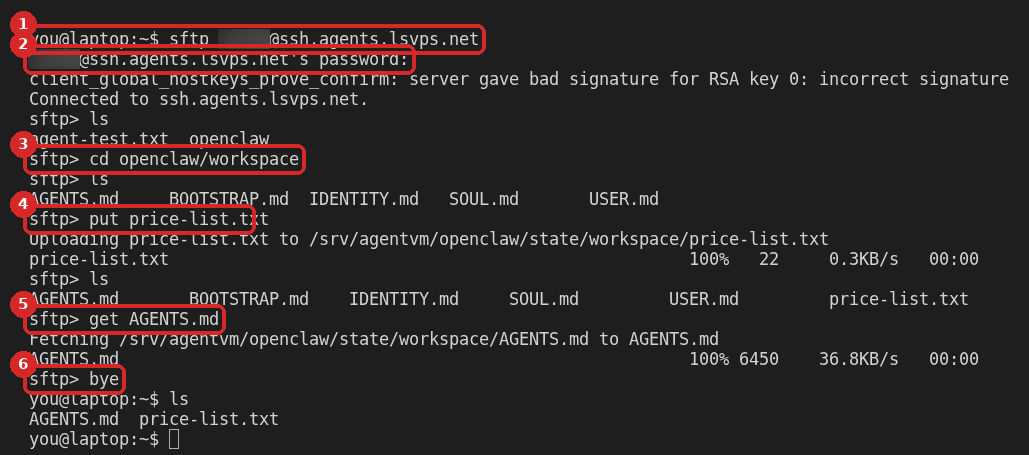
sftpand your user. The first time, answeryesto the server question, as in Connect with SSH.- Type the service password (nothing appears while you type). With an SSH key this question does not appear. The
client_global_hostkeys_prove_confirm…line that follows can be ignored. Connected to ssh.agents.lsvps.net. and thesftp>prompt mean you are in. lslists the files on the server;cdopens a folder. You start in root's home folder, which has a shortcut to the agent's folder (hereopenclaw).cd openclaw/workspaceopens the agent's working folder.put price-list.txtuploadsprice-list.txtfrom your computer into the current folder on the server.get AGENTS.mddownloadsAGENTS.mdfrom the server to your computer.byecloses SFTP. Back on your computer,lsshows the downloaded file.
The Uploading … to /srv/agentvm/… line shows where the agent's folder really is on the server. Inside the agent, the same file is in the agent's folder (here /home/node/.openclaw/workspace/price-list.txt).
Where to put files for the agent
Put files in the agent's folder. Everything else inside the agent's container is reset when you save the settings or update the agent.
| Agent | Agent's folder | Agent's working folder |
|---|---|---|
| Hermes | cd hermes |
cd hermes/workspace |
| n8n | cd n8n-files |
— |
| OpenClaw | cd openclaw |
cd openclaw/workspace |
put sends files from the folder where you started sftp on your computer, so cd there first (step 1).
Check that it worked
After put, type ls: your file is in the list. When we tested this guide, the uploaded file was visible to the OpenClaw agent, with the same content and owned by the agent's own user, a minute later.
Other SFTP apps
Graphical apps such as FileZilla or WinSCP work with the same details: protocol SFTP, server ssh.agents.lsvps.net, port 22, your SSH user and the service password. Not shown in this guide: we tested only the sftp command.
Common problems
Permission denied, please try again
The password is wrong. Use the service password from the "Your agent is ready" email, not your client area password.
Connection closed straight away
After several failed logins the server refuses new connections for a few minutes. See Connect with SSH: Common problems.
My uploaded file disappeared after an update
It was outside the agent's folder. Upload it again into the agent's folder (see the table above).