Recipe: Telegram alert when your website is down
Every 5 minutes, n8n opens your website and sends you a Telegram message only if the site does not answer normally.
| Time needed | 20 minutes |
| You need | An n8n agent from LusoVPS (Sign in to n8n), your Telegram bot saved in n8n (step 1 of the contact form recipe), your numeric Telegram ID, and the address of the website to watch |
| Result | A message like Website alert: https://example.com/this-page-does-not-exist-404 is not working. Status: 404 when something is wrong, and silence when all is well |
This recipe does not use AI, so it needs no Claude key.
This is the finished workflow, after a test with a broken page:
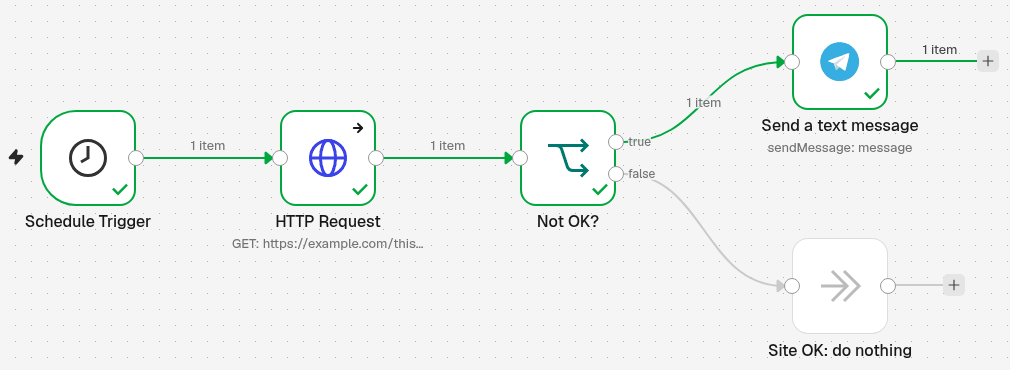
Schedule Trigger (every 5 minutes) → HTTP Request opens the website → Not OK? checks the answer → Send a text message alerts you. When the site is fine, the run ends at Site OK: do nothing.
What is a status code?
Each time a browser opens a page, the website answers with a number. 200 means OK. 404 means page not found, and numbers from 500 mean the server has a problem. This workflow alerts you for anything that is not 200, and also when the website does not answer at all.
1. Check every 5 minutes
- Click the + at the top of the menu on the left, choose New workflow and name it, for example Website down alert.
- Click Add first step and choose On a schedule.
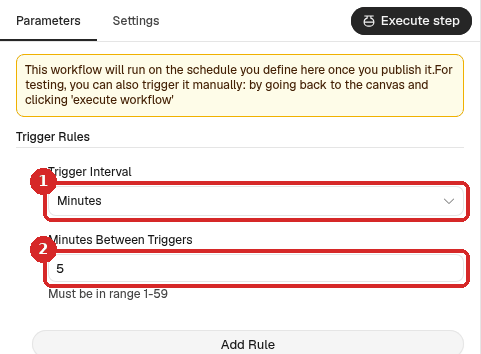
- Set Trigger Interval (1) to Minutes and Minutes Between Triggers (2) to
5.
2. Open the website (HTTP Request)
- Close the panel. Click the small + at the right of the Schedule Trigger, search for
HTTP Requestand click it. - Keep Method GET. In URL, type your website address (1). We used
https://example.comfor the test. - Under Options, click Add option and choose Response. Switch on:
- Include Response Headers and Status (2), so the step tells you the status code;
- Never Error (3), so a 404 or 500 does not stop the workflow before it can alert you.
- Optional: set Response Format to Text (the page is kept as plain text) and add the Timeout option (in milliseconds; we used
10000, 10 seconds).
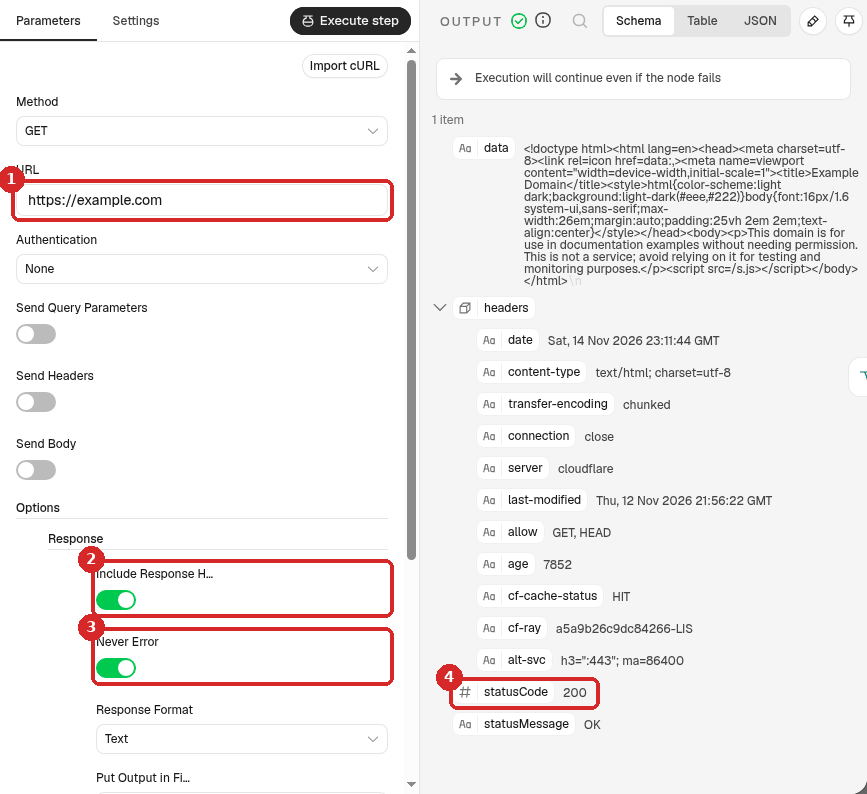
After a test, the OUTPUT shows statusCode (4): 200 for our working site.
-
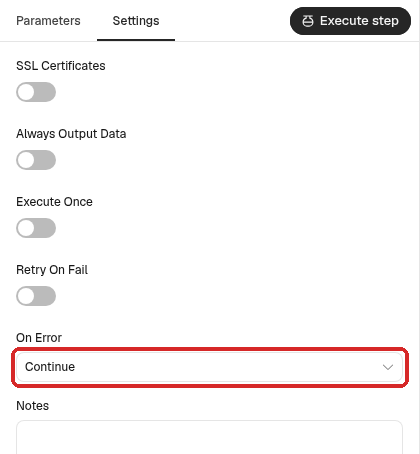
Open the Settings tab of the same step and set On Error to Continue. Without it, a website that does not answer at all (server off, wrong domain) stops the workflow with an error, and you get no alert.
3. Is the answer not OK?
- Close the panel. Add an If step after HTTP Request (the +, search
If). We renamed it Not OK?. -
Set one condition:
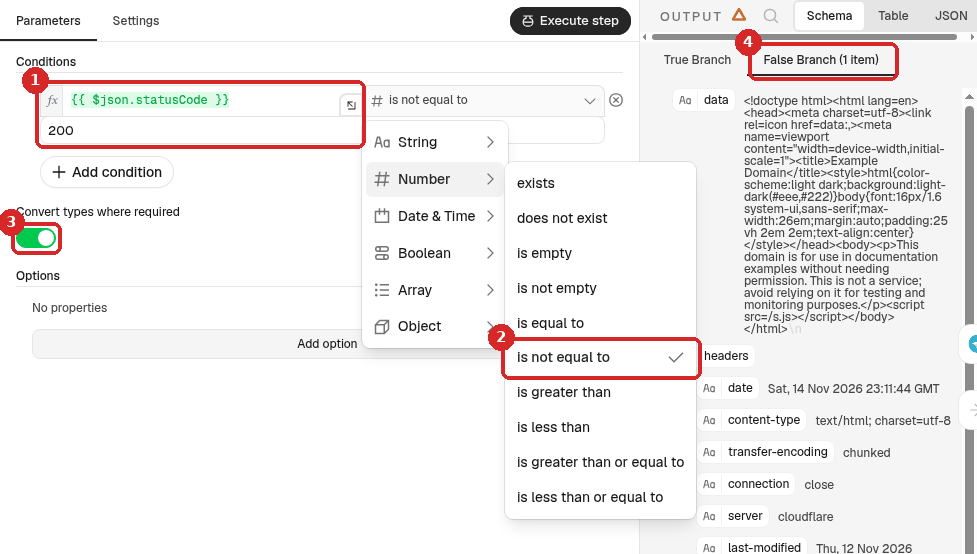
- Left box: click Expression and paste
{{ $json.statusCode }}. Right box:200. - Click the operator in the middle, go to Number and choose is not equal to.
- Switch on Convert types where required.
- After a test, the OUTPUT shows which exit got the result. With our working site, it went to the False Branch (1 item): no alert.
- Left box: click Expression and paste
The true exit gets the problems, the false exit gets the good answers. We put a No Operation, do nothing step on the false exit (named Site OK: do nothing); you can leave it empty.
4. Send the alert to Telegram
- Click the + on the true exit, search for
Telegramand choose Send a text message (under MESSAGE ACTIONS). -
Set it:
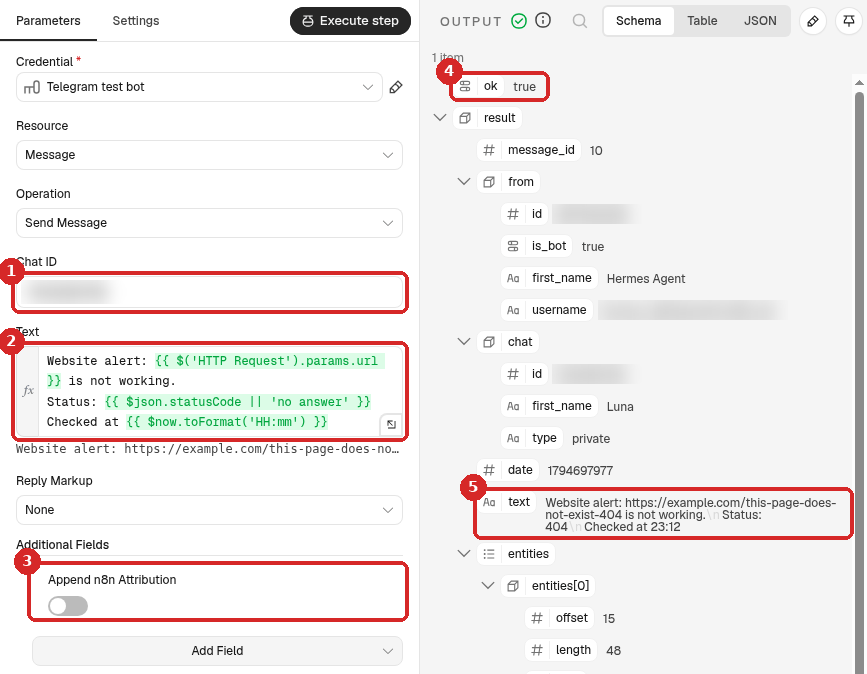
- Chat ID: your numeric Telegram ID. (Credential: your Telegram bot.)
-
Text: click Expression and paste:
Website alert: {{ $('HTTP Request').params.url }} is not working.
Status: {{ $json.statusCode || 'no answer' }}
Checked at {{ $now.toFormat('HH:mm') }}
{{ $('HTTP Request').params.url }}writes the address you are checking, so you can copy the workflow for another site without changing the text. -
Additional Fields → Add Field → Append n8n Attribution, switch off.
Boxes 4 and 5 show the result of a test: see step 5.
5. Test the three cases
Click Execute at the bottom of the canvas after each change. You do not have to wait 5 minutes.
| Test | URL we used | What happened |
|---|---|---|
| Working site | https://example.com |
statusCode 200, False Branch, no message |
| Missing page | https://example.com/this-page-does-not-exist-404 |
statusCode 404, true exit, Telegram alert |
| Site that does not answer | https://this-shop-does-not-exist.example |
no status code, true exit, Telegram alert with Status: no answer |
For the 404 test, the Telegram step shows ok true (4) and the exact message sent (5): Website alert: https://example.com/this-page-does-not-exist-404 is not working. Status: 404 Checked at 23:12.
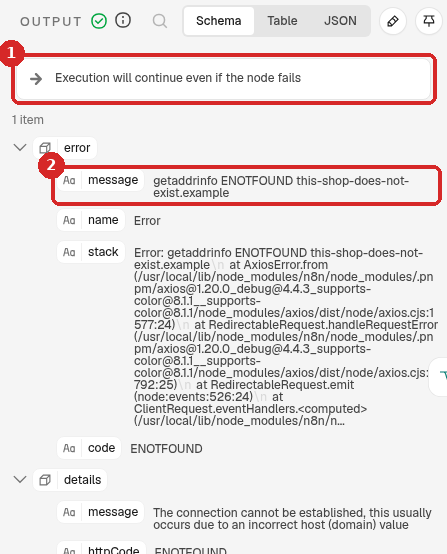
For the site that does not answer, the HTTP Request step shows Execution will continue even if the node fails (1) and an error (2) instead of a status code (here getaddrinfo ENOTFOUND, the domain does not exist). Thanks to On Error → Continue, the alert still went out.
When the three tests work, put your real address back in URL.
6. Publish it
Click Publish at the top right, then Publish in the window. The check now runs every 5 minutes, even when n8n is closed in your browser. To stop it, click the arrow next to Published and choose Unpublish (details).
Check that it worked
- The tests with Execute went down the right exit, and the alerts show ok true in the Telegram step.
- The workflow says Published, and the Executions tab gets a new run every 5 minutes.
- Most runs end at Site OK: do nothing: that is good news.
Make it yours
- Several websites: duplicate the workflow (... next to the name → Duplicate) and change the URL, or add more HTTP Request steps.
- Check a word on the page: add a second condition in the If step, for example
{{ $json.data }}String → does not containAdd to cart, and choose OR between the conditions, to be alerted when your shop page loads but is broken. - Less often: every 15 minutes is enough for most small sites. Each check is a run in Executions.
- Alert by email too: add a Send Email step on the true exit.
Common problems
I get an alert every 5 minutes
That is the design while the site has a problem. Fix the site, or Unpublish the workflow until it is fixed. If the site works in your browser, open the last run in Executions and look at statusCode (or error) in the HTTP Request step to see what n8n got. Check that URL is exactly the address you open in your browser.
My site works but n8n says it does not answer (ECONNREFUSED or timeout)
The check runs from your agent's server, not from your computer. A firewall on your website's server may block it. Allow your agent's server address in that firewall, or ask your web host.
The workflow fails with a red step when the site is off
On Error in the HTTP Request Settings tab is not set to Continue (step 2.5).
Telegram says: Bad Request: chat not found
The Chat ID is wrong, or you never pressed Start in your bot. See the contact form recipe.