See, download and pay your invoices
Every payment for your agent goes through an invoice in the LusoVPS client area. This guide shows where to find your invoices, how to pay one and how to download it as a PDF.
| Time needed | 5 minutes |
| You need | Your client area login (the email address and password you chose when ordering) |
| Result | Your invoice is paid, and you have a PDF copy for your records |
1. Open My Invoices
Sign in to the client area.
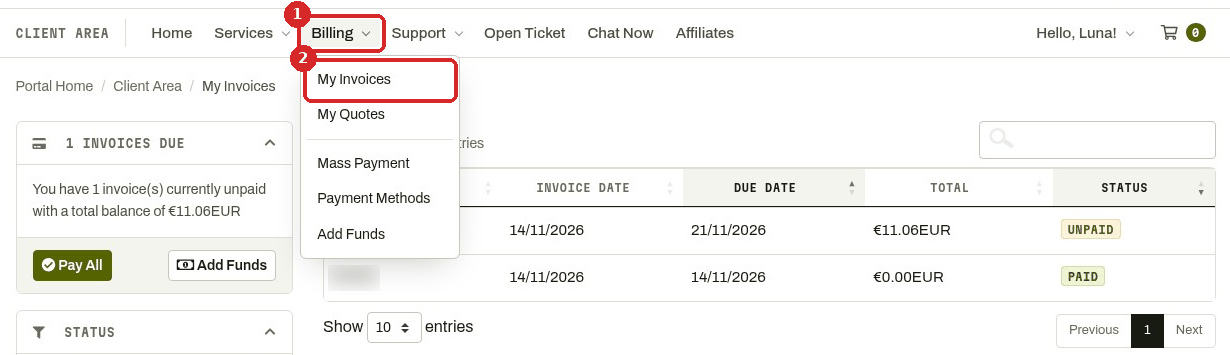
- Click Billing in the top menu.
- Click My Invoices.
2. Find the invoice
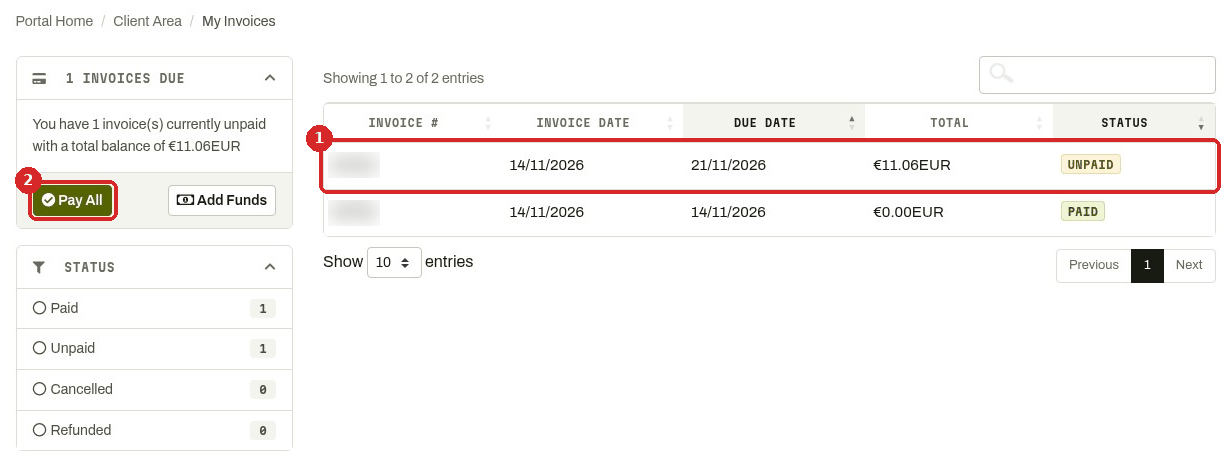
Each line is one invoice, with its INVOICE DATE, DUE DATE, TOTAL and STATUS: UNPAID or PAID.
- Click an invoice to open it.
- Pay All (in the INVOICES DUE box on the left) is a shortcut to pay what you owe. When you have only one unpaid invoice, it opens that invoice.
Ordered with a free trial code?
The first invoice is €0.00 and already PAID. The invoice for the next period, at the full price, appears in the list straight away, with a DUE DATE at the end of the free period. Pay it before that date to keep your agent.
3. Read the invoice
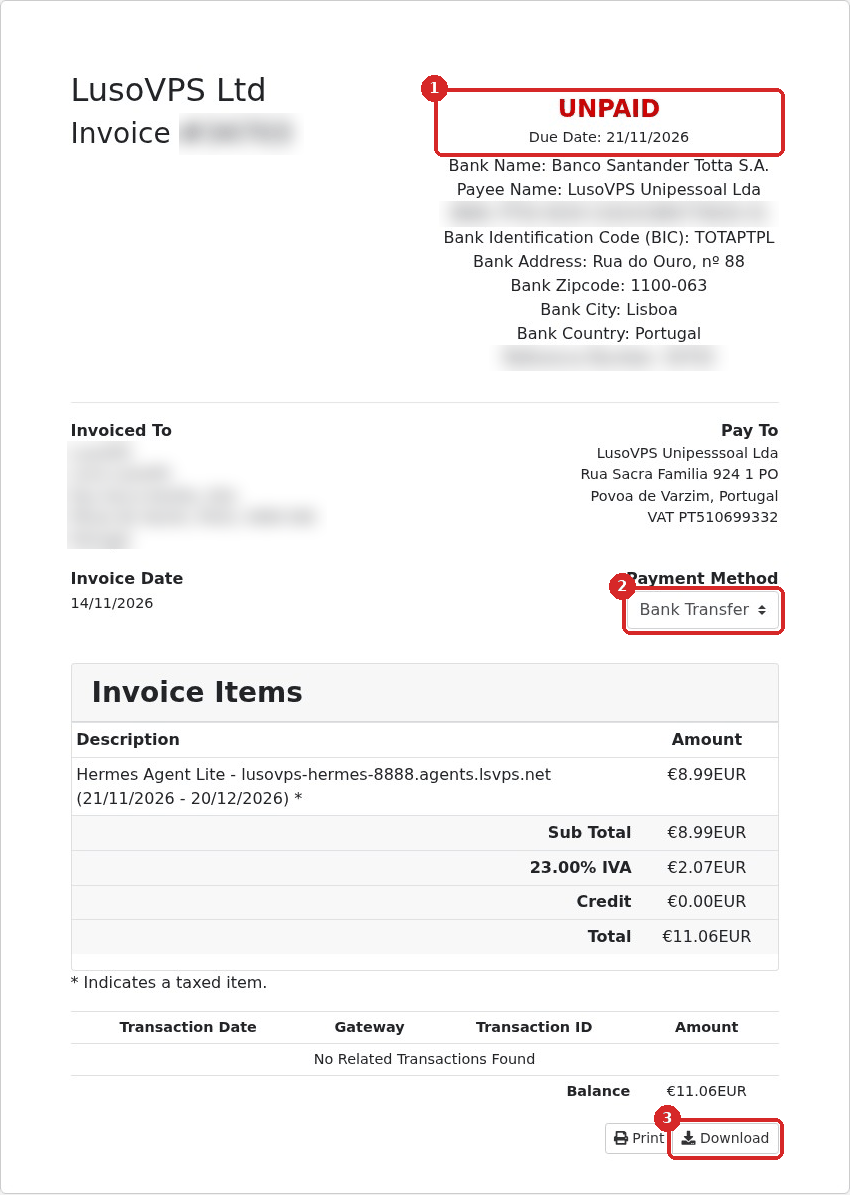
- The status (UNPAID or PAID) and the Due Date.
- Payment Method: how you want to pay this invoice.
- Download saves the invoice as a PDF file. Print prints it.
Under Invoice Items you see your agent, its address and the period the invoice covers (for example 21/11/2026 - 20/12/2026). The plan price is shown without VAT; IVA (Portuguese VAT, 23% on our test invoice) is added on the line below, and Total is what you pay.
4. Choose how to pay
Click the Payment Method box and pick one of the options. On the invoice we tested, these were offered:
- Credit Card
- PayPal
- Bank Transfer
- Multibanco
The page reloads and shows how to pay with the method you picked.
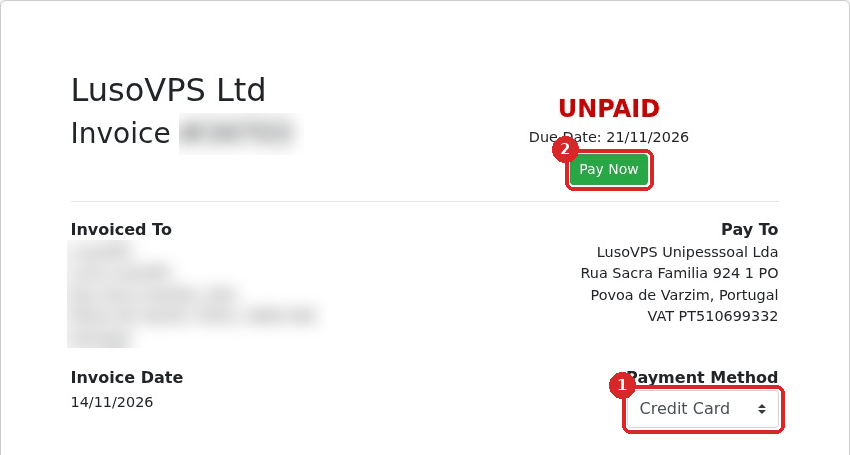
- Payment Method is Credit Card.
- Click Pay Now.
The Make Payment page opens:
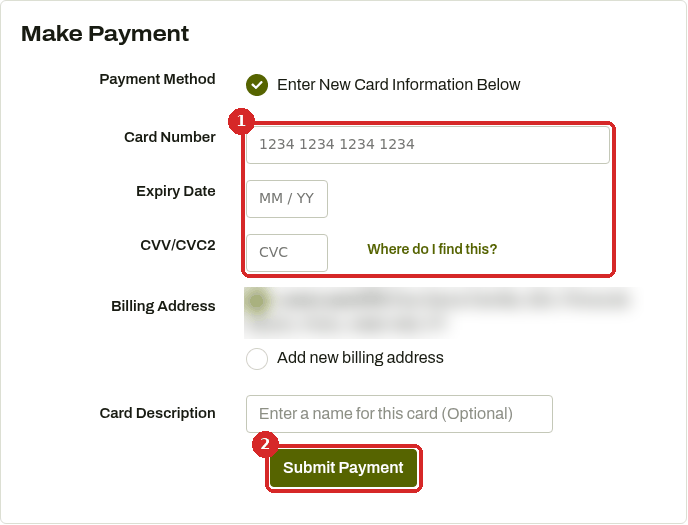
- Type your Card Number, Expiry Date and CVV/CVC2 (the 3 digits on the back of the card).
- Click Submit Payment.
The right side shows the invoice and the Balance Due, so you can check the amount before you pay.
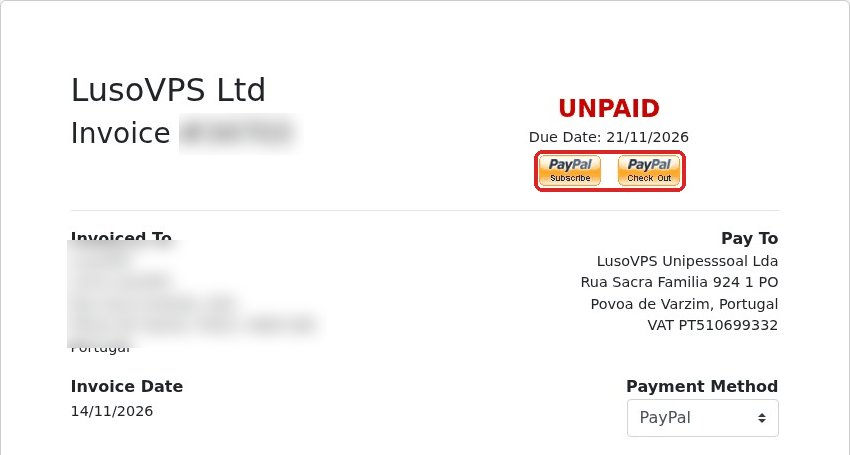
With PayPal selected, PayPal buttons appear under the Due Date. Click one and finish the payment on the PayPal website.
The bank details appear at the top of the invoice (see the picture in step 3): bank name, payee name, IBAN and BIC, and a Reference Number. Make the transfer from your bank and write the Reference Number in the transfer description, so we can match your payment to the invoice.
A bank transfer is marked as paid when the money arrives, which can take a working day or more.
Changed your mind?
You can pick another Payment Method on the invoice as often as you like before you pay.
Where renewal invoices come from
Your agent is billed for a period (for example monthly). Open your agent's page (Services → My Services, then click the agent) to see when the next invoice is due:
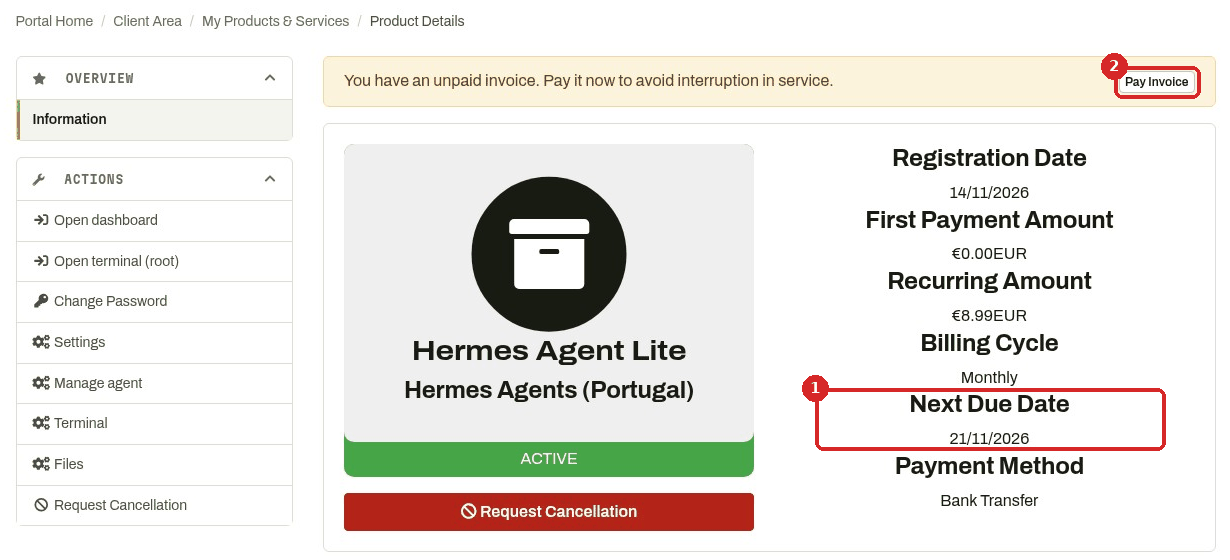
- Next Due Date is the day the next period must be paid. Recurring Amount and Billing Cycle above it show the price (without VAT) and how often you pay.
- While an invoice is unpaid, a yellow bar says You have an unpaid invoice. Pay it now to avoid interruption in service. Click Pay Invoice to open it.
The renewal invoice is created before the Next Due Date: on our test agent it was already in My Invoices 7 days before. We also email it to you, with the subject Customer Invoice, from billing@lusovps.com.
Check that it worked
Open Billing → My Invoices again. The invoice now shows PAID. (For bank transfers, this happens when the money arrives.)
Common problems
I paid, but the invoice still says UNPAID
Bank transfers are only marked as paid when the money reaches our account. If you paid by card or PayPal and the invoice still shows UNPAID, click Open Ticket in the client area menu, choose Billing Support and tell us the invoice number and how you paid.
I need my company name or VAT number on the invoice
The invoice uses the details of your account (shown under Invoiced To). To check them, click your name at the top right (Hello, …!) and choose Account Details. For an invoice that was already issued, open a ticket with Billing Support.
Where do I find old invoices?
All of them are in Billing → My Invoices. Use the STATUS filter on the left (Paid, Unpaid, Cancelled, Refunded) or the search box above the list.