Recipe: a simple order or booking form
n8n can make a web form for you, with no website needed. A customer fills it in, Claude writes a short confirmation that the customer sees on the screen, and the order arrives on your phone on Telegram.
| Time needed | 30 minutes |
| You need | An n8n agent with your Claude key (Sign in and build your first AI agent), your Telegram bot saved in n8n (step 1 of the contact form recipe) and your numeric Telegram ID (from @userinfobot) |
| Result | A form at a web address you can share. After each order the customer reads Thank you for your order! with a personal confirmation, and you get New order from Rui Costa ... Product: Box of 6 custard tarts, Pick-up: 2026-11-18 on Telegram |
In this recipe we make a cake order form for a small bakery. Change the fields to what you sell: a booking form (service, date, time) works the same way.
This is the finished workflow:
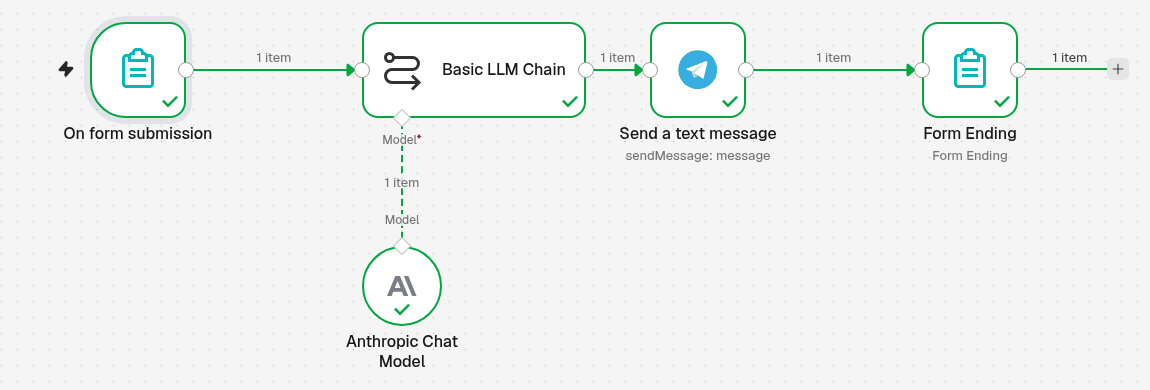
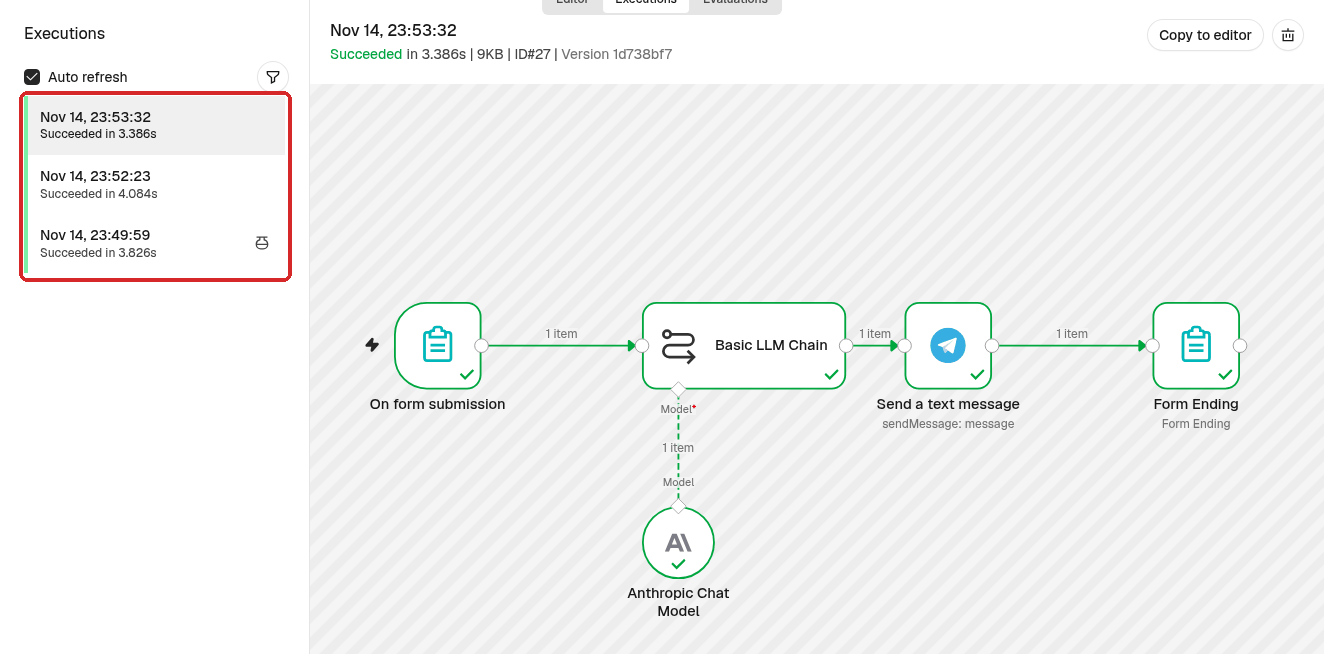
On form submission shows the form and receives the answers → Basic LLM Chain (with Anthropic Chat Model) writes the confirmation → Send a text message sends the order to Telegram → Form Ending shows the confirmation to the customer.
Send /start to your bot first
A Telegram bot can only write to people who have opened it. Open your bot in Telegram and tap Start once before you test.
1. Start with a Form trigger
- Click the + at the top of the menu on the left, choose New workflow and name it, for example Cake order form.
-
Click Add first step and choose On form submission (1).
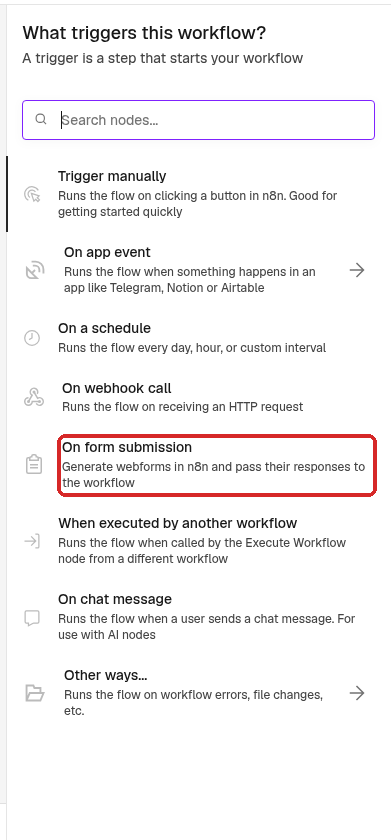
2. Build the form
The On form submission step opens. Fill it in:
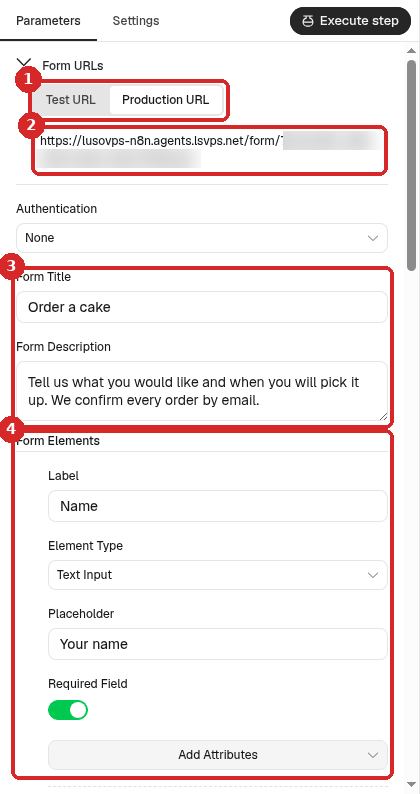
- Form URLs: the form has two addresses. Test URL works only while you test (step 6). Production URL is the one you give to customers, and it works only when the workflow is published (step 7).
- The address itself. Ours was
https://lusovps-n8n.agents.lsvps.net/form/followed by a long code; yours starts with your own n8n address. - Form Title (
Order a cake) and Form Description (Tell us what you would like and when you will pick it up. We confirm every order by email.). The customer sees them at the top of the form. - Form Elements: one block per question. For each one, type the Label, choose the Element Type, an optional Placeholder (grey example text) and switch Required Field on if it must be filled in. Click Add Form Element at the bottom for the next one.
We made these five elements:
| Label | Element Type | Required |
|---|---|---|
Name |
Text Input | on |
Email |
on | |
Product |
Dropdown | on |
Pick-up date |
Date | on |
Notes |
Textarea | off |
For the Dropdown, add one Option per product:
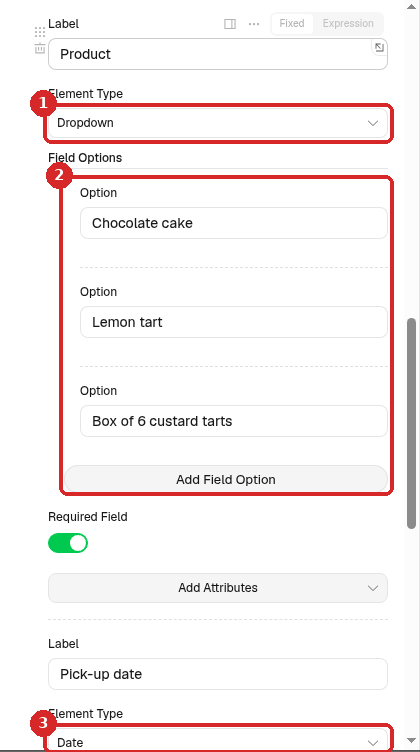
- Element Type: Dropdown.
- Under Field Options, type the first product in Option, then click Add Field Option for each next one. We used Chocolate cake, Lemon tart and Box of 6 custard tarts.
- The next element, Pick-up date, has Element Type Date: the customer picks the day in a calendar.
A booking form instead
Use labels such as Service (Dropdown: Haircut, Colour...), Date (Date) and Preferred time (Dropdown with your time slots).
3. Let Claude write the confirmation
- Close the panel. Click the small + at the right of On form submission, search for
Basic LLM Chainand click it. -
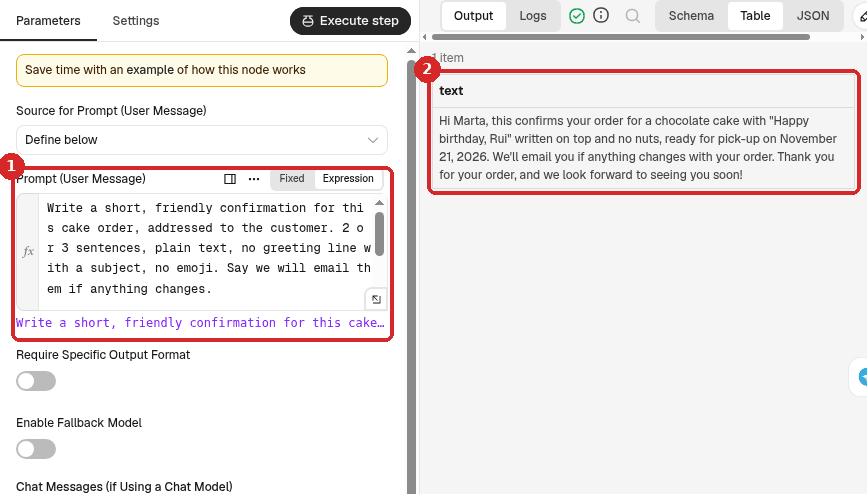
Fill it in:
-
Source for Prompt (User Message): Define below. In Prompt (User Message), click Expression and paste:
Write 2 or 3 friendly sentences that confirm this cake order, speaking directly to the customer. Plain text only: no subject line, no emoji. Say we will email them if anything changes.

Name: {{ $json.Name }}
Product: {{ $json.Product }}
Pick-up date: {{ $json['Pick-up date'] }}
Notes: {{ $json.Notes }}
The names in
{{ }}are the Labels of your form elements. A label with a space or a dash needs the$json['Pick-up date']form. -
After a test (step 6), the OUTPUT shows the text Claude wrote.
-
-
At the bottom of the panel, click the + under Model and choose Anthropic Chat Model. n8n picks your Anthropic account credential. The suggested model is fine.
Why \"no subject line\"
In our first try, without these words, Claude started the confirmation with Subject: Order Confirmation – ..., like an email. Telling it exactly what you want (and what you do not want) fixes that.
4. Send the order to Telegram
- Close the panel. Click the + at the right of Basic LLM Chain, search for
Telegramand choose Send a text message (under MESSAGE ACTIONS). -
Set it:
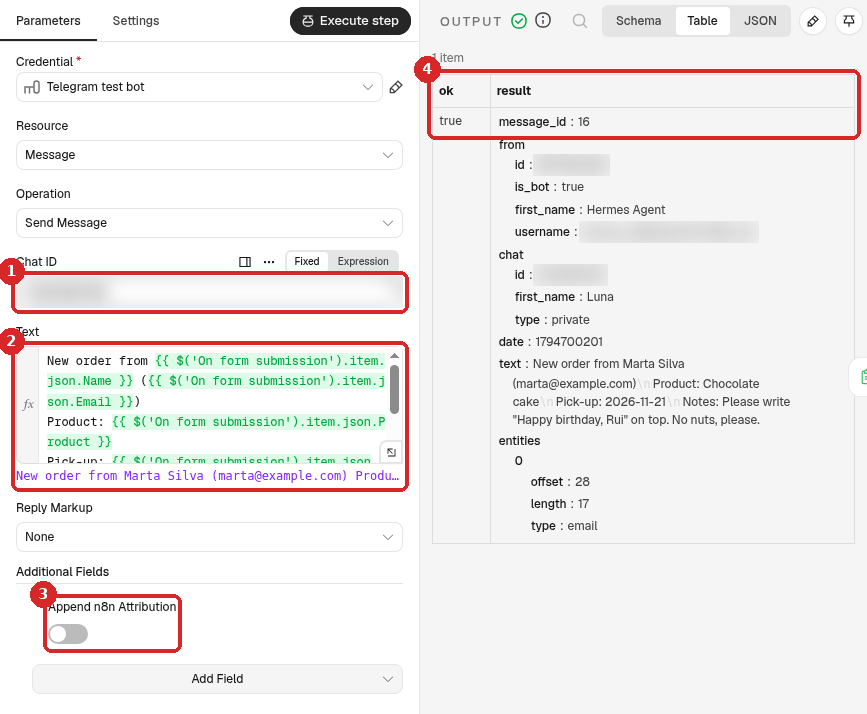
- Chat ID: your numeric Telegram ID. (Credential: your Telegram bot.)
-
Text: click Expression and paste:
New order from {{ $('On form submission').item.json.Name }} ({{ $('On form submission').item.json.Email }})
Product: {{ $('On form submission').item.json.Product }}
Pick-up: {{ $('On form submission').item.json['Pick-up date'] }}
Notes: {{ $('On form submission').item.json.Notes || '-' }}
$('On form submission')takes the answers from the form step, two steps back.|| '-'writes a dash when the customer left Notes empty. -
Additional Fields → Add Field → Append n8n Attribution, switch off (otherwise Telegram adds This message was sent automatically with n8n).
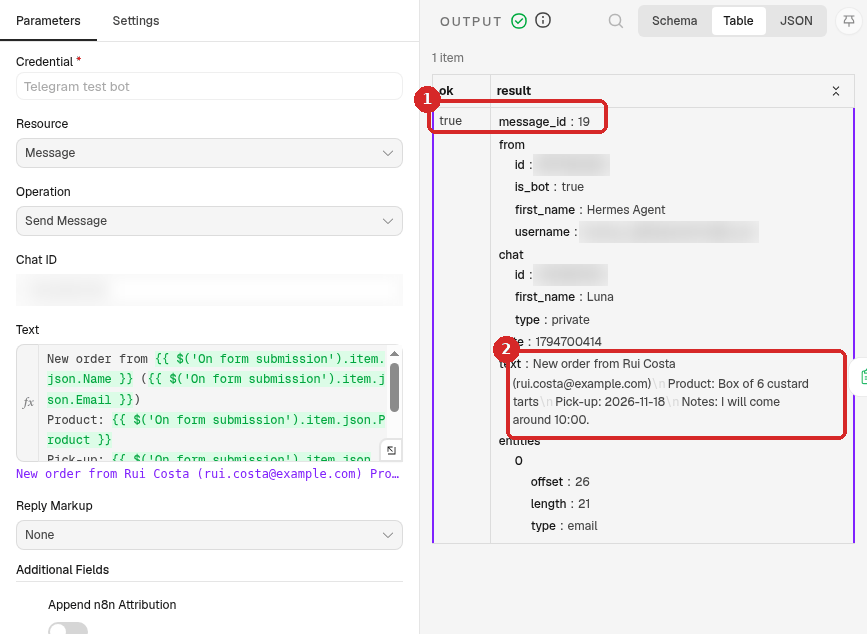
- After a test, the OUTPUT shows ok true and a message_id: Telegram accepted the message.
5. Show the confirmation to the customer (Form Ending)
- Close the panel. Click the + at the right of Send a text message, search for
Form, click n8n Form and, under Actions, choose Form Ending. -
Set it:
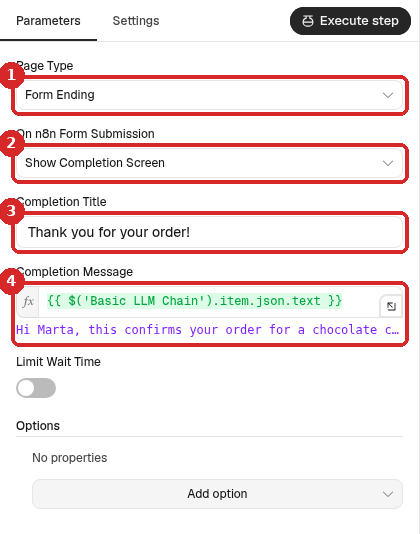
- Page Type: Form Ending.
- On n8n Form Submission: Show Completion Screen.
- Completion Title:
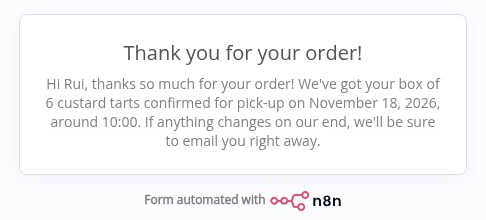
Thank you for your order! - Completion Message: click Expression and paste
{{ $('Basic LLM Chain').item.json.text }}, the confirmation Claude wrote. Under the box, n8n shows a preview after a test.
The customer waits on the form page until the workflow reaches Form Ending. In our tests that took about 4 seconds.
6. Test it
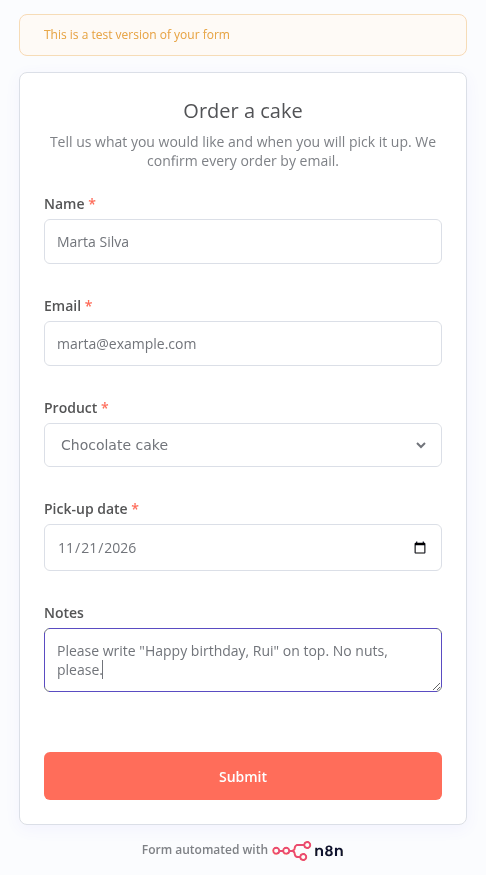
- Close the panel and click Execute workflow at the bottom of the canvas. n8n opens the test form in a new browser tab. It has the yellow banner This is a test version of your form.
-
Fill it in like a customer and click Submit.
-
The tab shows the confirmation, and all the steps on the canvas get a green tick. Our test order from Marta Silva got: Hi Marta, this confirms your order for a chocolate cake with "Happy birthday, Rui" written on top and no nuts, ready for pick-up on November 21, 2026. We'll email you if anything changes with your order. .... The Telegram message arrived at the same time.
7. Publish it and share the form
- Click Publish at the top right, then Publish in the window. The button now says Published.
- Double-click On form submission, click Production URL under Form URLs and click the address. n8n says Form URL copied.
- Share that address: put a link or button on your website, in your Instagram bio, in WhatsApp messages or in an email signature.
Check that it worked
Open the Production URL in your browser (it has /form/, not /form-test/) and send an order as a customer. There is no yellow test banner. After Submit, the customer sees this:
Then open the Executions tab of the workflow. Each order is one run that Succeeded (ours took between 3.4 and 4.1 seconds). The run with the small flask icon was the test of step 6.
Click a run and double-click Send a text message: ok true (1) and the exact text that arrived on Telegram (2).
Make it yours
- Email the customer: add a Send Email step after Telegram (needs an email credential) with the text from Basic LLM Chain and the customer's Email.
- Keep a list of orders: add a Google Sheets step that adds one row per order.
- Stop it for the holidays: Unpublish the workflow. The form address then shows Problem loading form until you publish again.
- Your language: write the form labels in Portuguese and add Answer in European Portuguese to the prompt in step 3. Update the names in
{{ }}if you change the labels.
Common problems
The form says: Problem loading form
The full message is This usually occurs if the n8n workflow serving this form is deactivated or no longer exist. We got it on the Production URL after unpublishing the workflow. Check that you shared the Production URL (with /form/) and that the workflow says Published. The Test URL (with /form-test/) is only for you, while you test.
No Telegram message, or no confirmation for the customer
A step failed. Open Executions, click the run in red and look at the failed step (how). Check your Claude key and the Telegram Chat ID.
The Telegram message shows empty values
The names in {{ }} must be exactly the Labels of your form elements, with the same capitals and spaces. Open On form submission after a test to see the real names in OUTPUT.
Telegram says: Bad Request: chat not found
The Chat ID is wrong, or you never pressed Start in your bot. See the contact form recipe.
I changed the form but customers still see the old one
In n8n, changes to a published workflow go live only when you click Publish again.