Use Hermes from the terminal
Everything you do in the dashboard can also be done with the hermes command, in the terminal that opens in your browser. This is useful to check the agent quickly, or to follow instructions from our support team.
| Time needed | 5 minutes |
| You need | A Hermes agent and your client area login |
| Result | You can check your agent and ask it questions from the terminal |
You do not have to use the terminal
The dashboard does everything most people need. Use this guide when you are curious, or when support asks you to run a command.
1. Open the terminal
- In the client area, open your Hermes agent and click the Terminal tab. See Terminal and files in the browser for the details.
- The terminal greets you with a summary of your agent:
- Agent files:
/opt/data(shortcut~/hermes) is the agent's home, with its settings, skills and memory. - Agent command:
hermes …runs inside the agent.
- Agent files:
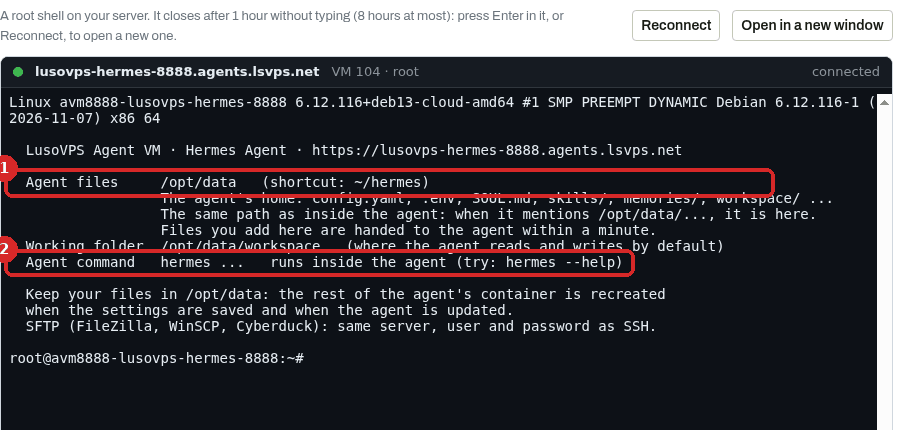
Click inside the black area before you type. Press Enter after each command.
2. Check the agent
Type:
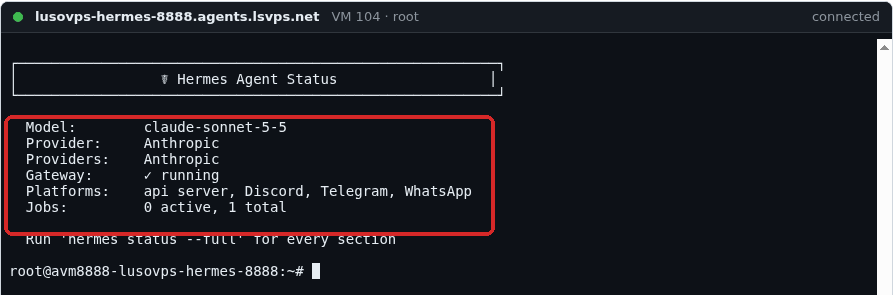
It shows the model and provider in use, whether the Gateway (the part that talks to WhatsApp, Telegram, Discord…) is running, the connected Platforms and the scheduled Jobs.
3. Ask a question
To ask one question and get the answer straight away:
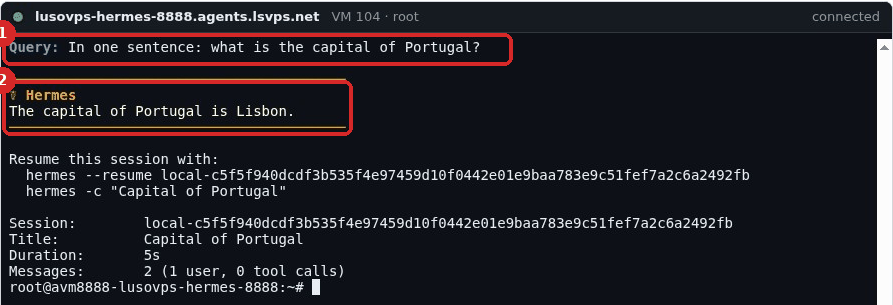
- Your question.
- Hermes' answer. Below it, Hermes shows how long it took and how to continue that conversation later.
For a real conversation, the dashboard Chat page is more comfortable.
4. See all commands
lists every command (model, gateway, whatsapp, send…). Add --help after any command to see its options, for example hermes chat --help.
Check that it worked
hermes status shows Gateway: ✓ running and your model, and the question in step 3 gets an answer.
Common problems
A command seems stuck
Some commands take a while or wait for an answer from you. Press Ctrl+C to stop it and get the prompt back.
The terminal says disconnected
It closes after 1 hour without typing. Click Reconnect.
I changed a file and the change disappeared
Only files in /opt/data are kept when the agent is updated or its settings are saved. Keep your files there.