Recipe: back up all your workflows automatically every night
Every night, n8n saves a copy of each of your workflows as a file in its own folder on your server. If you break or delete a workflow, you import yesterday's file and it is back.
| Time needed | 25 minutes |
| You need | An n8n agent from LusoVPS (Sign in to n8n) and access to the LusoVPS client area (for the Files tab) |
| Result | Every night at 2:00, one file per workflow in the folder backups, for example 2026-11-15_My first AI agent.json, ready to import |
This is the finished workflow:

Schedule Trigger (every day at 2:00) → Get many workflows (the n8n step reads all your workflows) → Convert to File (one JSON file per workflow) → Write file to disk (saves the files in the backups folder). It does not use AI, so it needs no Claude key.
This recipe does automatically what Download a workflow and import it back does by hand, for all workflows at once.
The API key is a password
In step 2 you create an n8n API key: with it, a program can read your workflows (and, with more rights, change them). Keep it secret, give it Read only rights, and remove it when you stop using this recipe: Settings → n8n API → ... next to the key → Revoke → Revoke. n8n warns: Workflows, scripts, and integrations using this key will stop working immediately. This can't be undone.
Keep a copy somewhere else too
The backups are on the same server as n8n. They survive an update of the agent, but they are lost with the server (for example after a Reinstall, which deletes everything). Download the folder to your computer from time to time (step 7).
1. Make a folder for the backups
n8n can only write into a folder that already exists. Create it once in the client area:
- In the LusoVPS client area, open your n8n service and click the Files tab. It opens in Agent files (
/home/node/.n8n-files), the folder n8n can use. More about this tab: Terminal and files in the browser. -
Click New folder (1), type
backups(2) and click OK.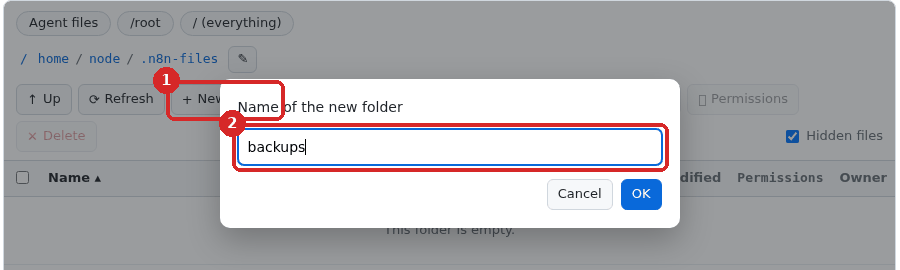
The folder appears in the list. Its full name is /home/node/.n8n-files/backups.
2. Create an n8n API key
The n8n step talks to your n8n through its API, so it needs a key.
-
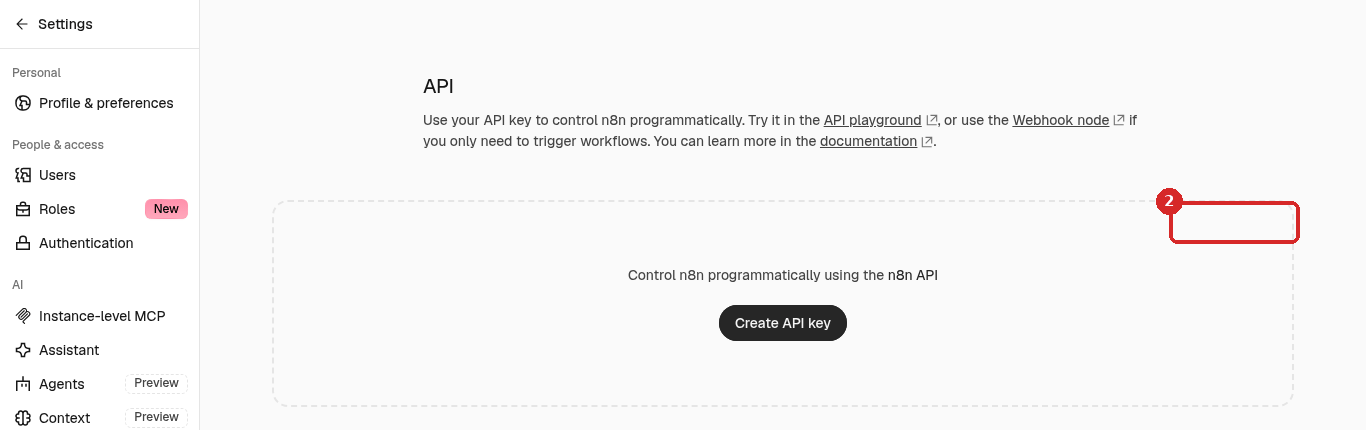
In n8n, open Settings (bottom left) and click n8n API (1). Click Create API key (2).
-
Fill in the window:
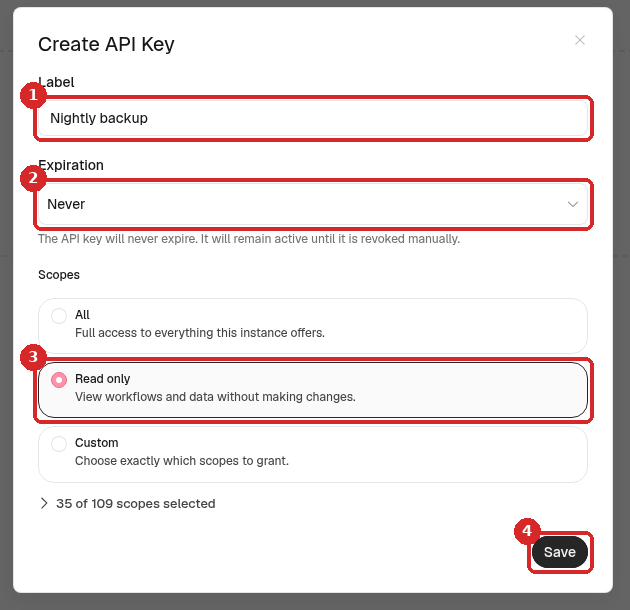
- Label: a name to recognise the key, for example
Nightly backup. - Expiration: the choices are 7 days, 30 days (the default), 60 days, 90 days, Custom and Never. When the key expires, the backup stops working. We chose Never; if you choose a date, put a reminder in your calendar to make a new key.
- Scopes: Read only (View workflows and data without making changes.). The backup only needs to read. In our test this was enough.
- Click Save.
- Label: a name to recognise the key, for example
-
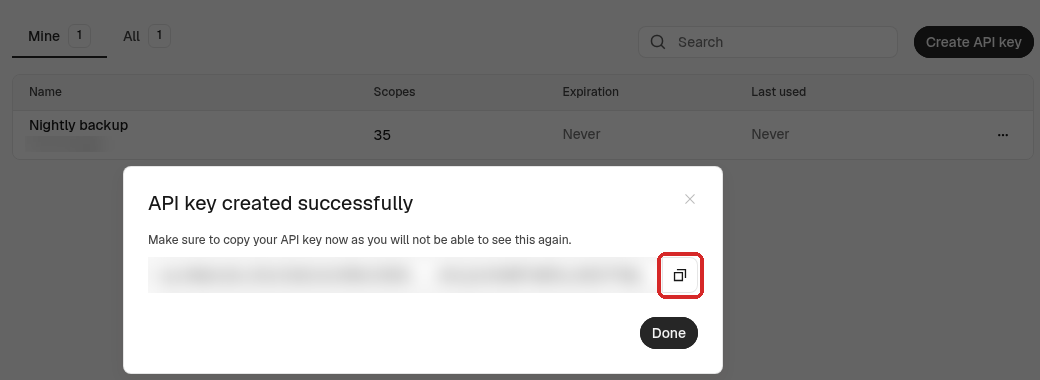
n8n shows the key once: Make sure to copy your API key now as you will not be able to see this again. Click the copy button next to it, then Done.
3. Save the key in n8n (credential)
- Click the house icon (Overview), open Credentials and click Create credential.
- Type
n8n, choose n8n API and click Continue. -
Fill it in:
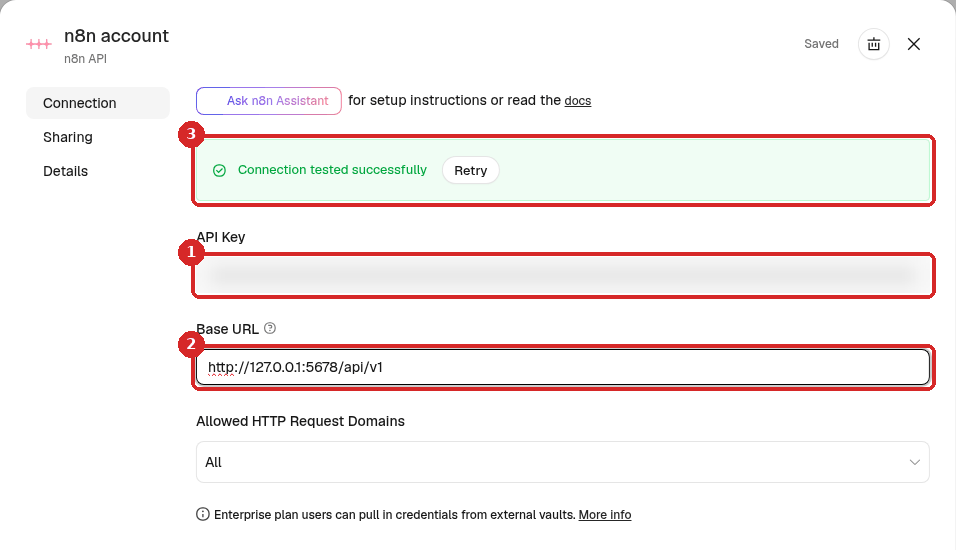
- API Key: paste the key from step 2.
- Base URL: type exactly
http://127.0.0.1:5678/api/v1(this is n8n talking to itself, inside your server). - n8n saves and tests it: Connection tested successfully.
Use 127.0.0.1, not your n8n address
In our test, both https://yourname-n8n.agents.lsvps.net/api/v1 and http://localhost:5678/api/v1 failed with Couldn't connect with these settings (More details: ECONNREFUSED). http://127.0.0.1:5678/api/v1 worked.
4. Run it every night
- Create a new workflow (+ at the top of the menu on the left → New workflow) and name it, for example Nightly workflow backup.
-
Click Add first step → On a schedule and set it:
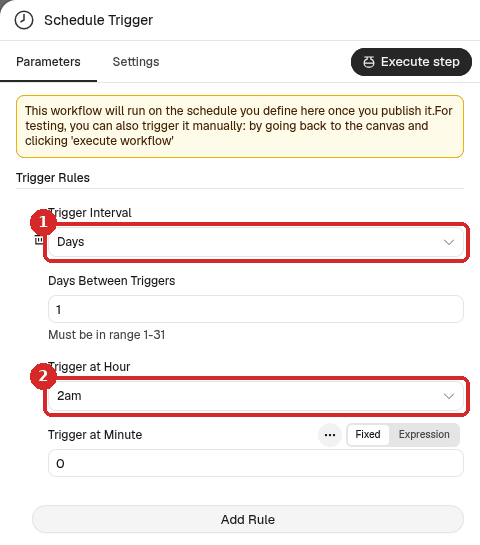
- Trigger Interval: Days (and Days Between Triggers:
1). - Trigger at Hour: 2am (a quiet time). Trigger at Minute:
0.
- Trigger Interval: Days (and Days Between Triggers:
More about schedules and time zones: Run a workflow on a schedule.
5. Read all workflows (n8n step)
-
Close the panel. Click the small + at the right of the Schedule Trigger, search for
n8nand click n8n. Under WORKFLOW ACTIONS, choose Get many workflows: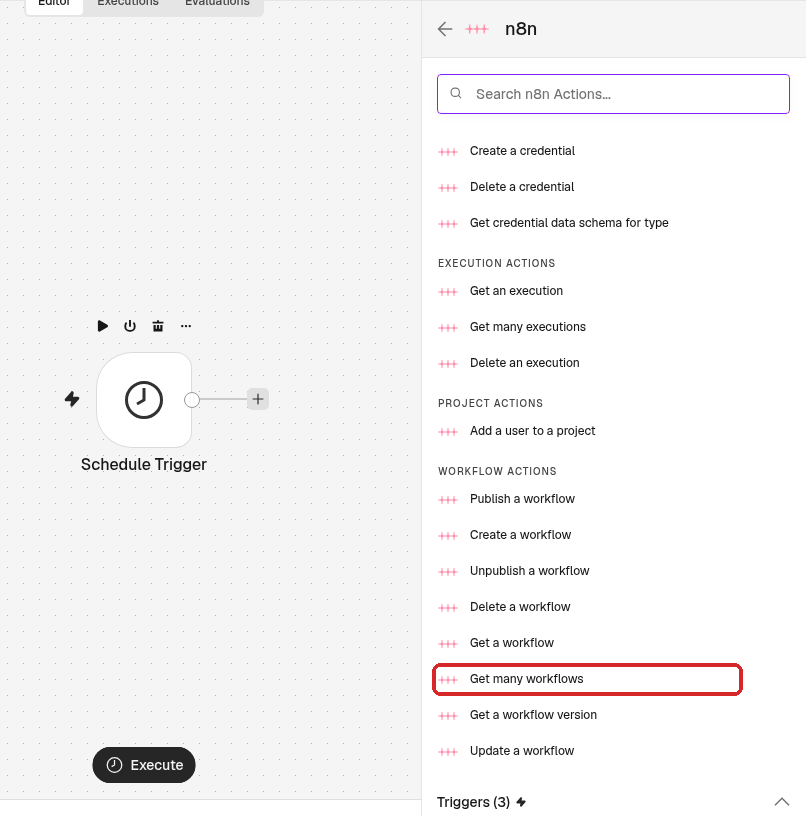
-
Check the settings and click Execute step:
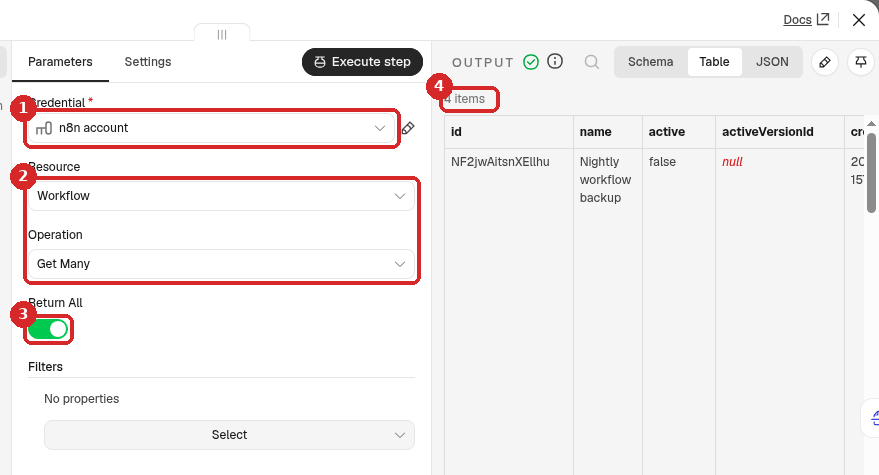
- Credential: the n8n account from step 3.
- Resource: Workflow, Operation: Get Many.
- Return All: on (it was on already).
- OUTPUT: one item per workflow. We had 4 items, our 4 workflows.
6. Turn each workflow into a file and save it
-
Close the panel. Click the + at the right of Get many workflows, search for
Convert to Fileand choose Convert to JSON. Set it: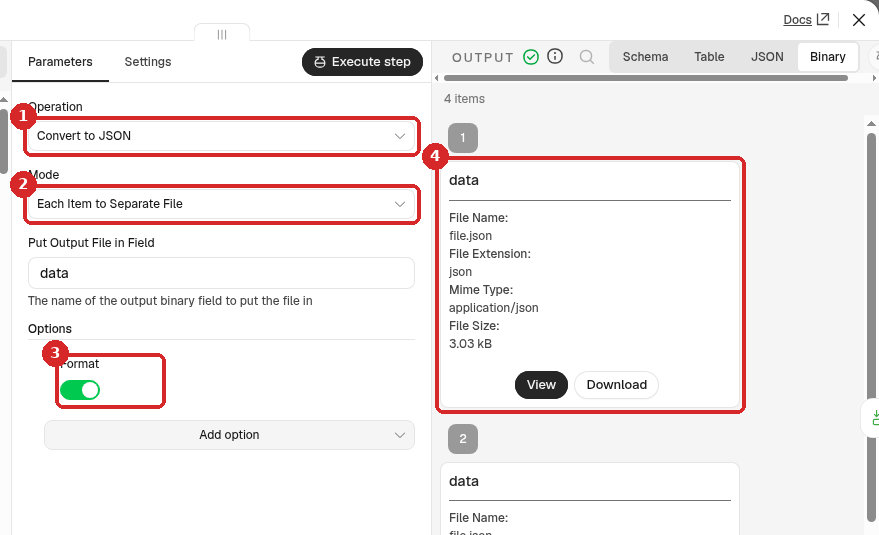
- Operation: Convert to JSON.
- Mode: Each Item to Separate File (one file per workflow).
- Options → Add option → Format: on (the file is easier to read).
- After Execute step, the OUTPUT (Binary view) shows one file per workflow, a few kB each.
-
Close the panel. Click the + at the right of Convert to File, search for
Read/Write Files from Diskand choose Write File to Disk. We renamed it Write file to disk. Set it: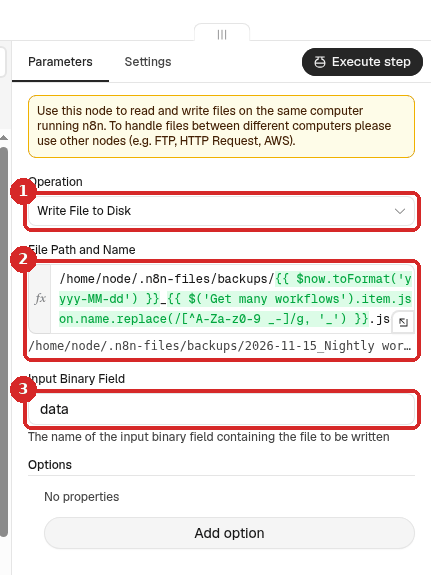
- Operation: Write File to Disk.
- File Path and Name: click Expression and paste the line below. Under the box, n8n shows the result, for example
/home/node/.n8n-files/backups/2026-11-15_Nightly workflow backup.json. - Input Binary Field:
data(the default, the file made by Convert to File).
/home/node/.n8n-files/backups/{{ $now.toFormat('yyyy-MM-dd') }}_{{ $('Get many workflows').item.json.name.replace(/[^A-Za-z0-9 _-]/g, '_') }}.jsonThe first
{{ }}writes today's date, so each night makes new files and older ones stay. The second takes the name of the workflow and replaces characters that are not safe in a file name (for example(and)) with_.
7. Test it and check the files
- Close the panel and click Execute workflow at the bottom of the canvas. All four steps get a green tick (see the picture at the top).
-
In the client area Files tab, open the
backupsfolder (click Refresh if it was already open):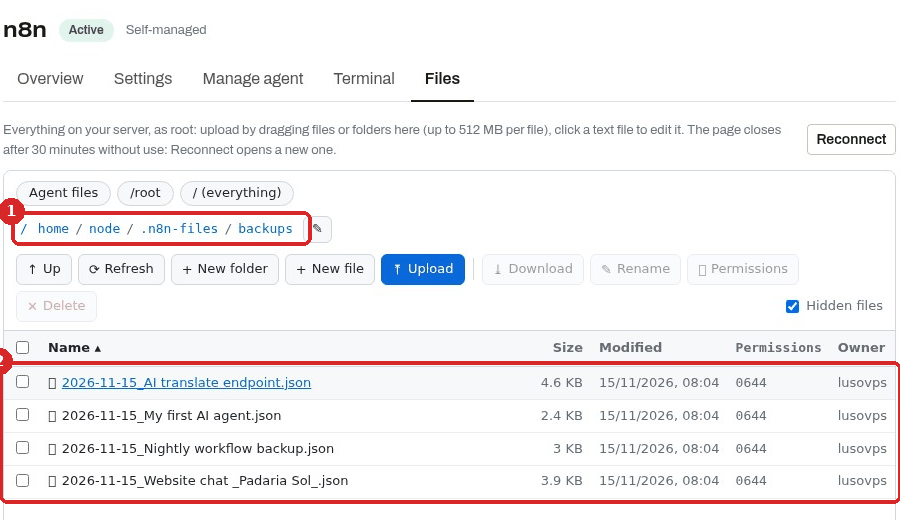
- The folder:
/home/node/.n8n-files/backups. - One file per workflow, with the date in front. Website chat (Padaria Sol) became
2026-11-15_Website chat _Padaria Sol_.json.
- The folder:
-
To keep a copy on your computer, tick a file and use the Download button of the Files tab.
When the test works, click Publish at the top right so the schedule runs every night. We tested this recipe with Execute workflow only; the nightly run uses the same steps.
What is in the files, and how to restore one
We opened 2026-11-15_My first AI agent.json: it has the steps, their settings and the connections, and for the Claude step only the name of the credential (Anthropic account), not the key. Like an exported workflow (details), it does contain everything you typed into the steps.
To restore a workflow: download its file, create a New workflow, click ... next to the name → Import → From file and choose the file (details). We did this with the backup of My first AI agent: the steps came back, under the same name. Rename it or delete the old one so you do not end up with two workflows with the same name.
Check that it worked
- Execute workflow gives four green ticks, and Write file to disk shows one item per workflow.
- The
backupsfolder in the Files tab has one file per workflow with today's date. - After publishing: the next morning there are files with the new date, and the Executions tab has a run that Succeeded.
Make it yours
- Clean up old backups: the files add up (ours were 2 to 5 KB each). Delete old ones now and then in the Files tab: tick them, click Delete, and confirm with Delete (This cannot be undone.).
- Only published workflows: Get many workflows has a filter Return Only Published Workflows (under Filters). We did not use it in our test.
- Get an alert when it fails: set an error workflow (Get a Telegram message when a workflow fails), for example for an expired API key.
Common problems
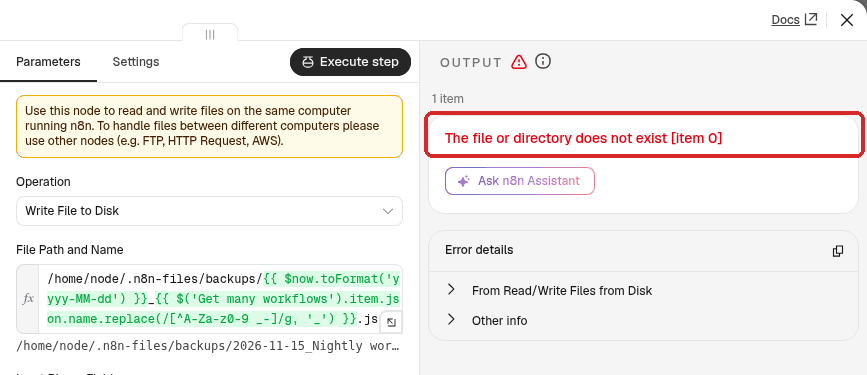
Write file to disk: The file or directory does not exist
The backups folder does not exist. Create it in the Files tab (step 1) and run again. This is what we got before we made the folder:
The credential says: Couldn't connect with these settings (ECONNREFUSED)
The Base URL is wrong. Use http://127.0.0.1:5678/api/v1 (see the note in step 3).
Get many workflows fails after some weeks
Check the Expiration of the key in Settings → n8n API. If it expired, create a new key and paste it in the n8n account credential.
I cannot see the files in the Files tab
Make sure you are in Agent files → backups, then click Refresh. If the tab says it closed after 30 minutes without use, click Reconnect.