Schedule a recurring task in OpenClaw
OpenClaw can run a task on its own on a schedule: a short text every morning, a daily summary, a weekly check. These are called Automations. This guide creates one, runs it once to test it, shows where the result is, and then removes it.
| Time needed | 10 minutes |
| You need | An OpenClaw agent with an AI key (First steps) |
| Result | An automation that runs every day at 09:00, and you know where to read its results |
Every run uses AI credit
Each run is a full conversation with the AI model. In our test, one run of a task that writes a single sentence used 18.6k tokens. A task that runs every 30 minutes costs about 50 times more per day than a daily one. See How much AI your OpenClaw uses.
1. Open Automations
- In the client area, click Manage agent → Open dashboard (see First steps).
- Click the Pages icon on the left and choose Automations.
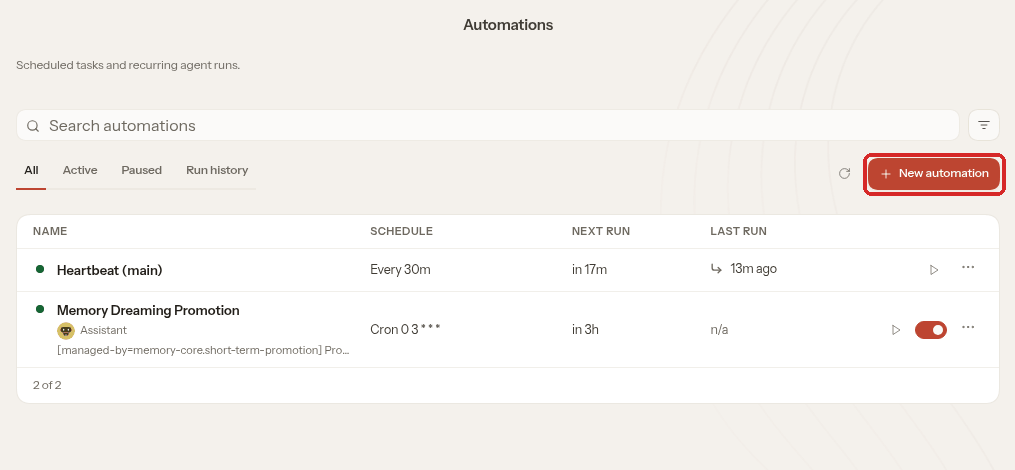
The list already has two automations that come with OpenClaw: Heartbeat (main) and Memory Dreaming Promotion. They are part of how OpenClaw works: leave them as they are.
Click New automation.
2. Say what to do
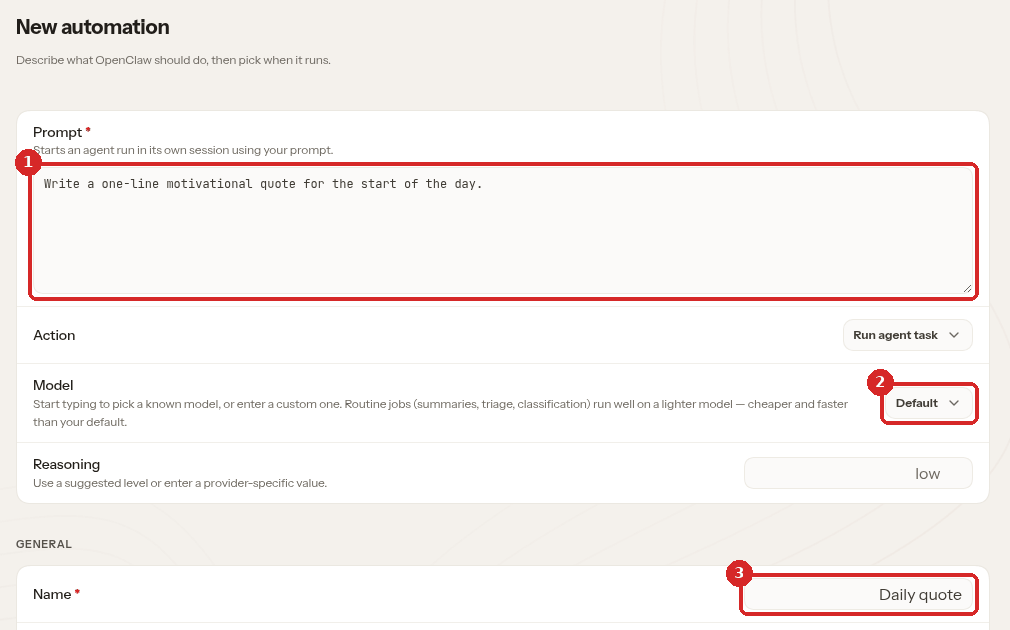
- Prompt: what OpenClaw should do, in plain words. We wrote:
Write a one-line motivational quote for the start of the day. - Model: leave Default to use your normal model. The page suggests a lighter model for routine jobs, because it is cheaper.
- Name: a short name for the list, for example
Daily quote.
Leave Action (Run agent task), Agent and Runs in (Isolated session) as they are.
3. Choose when it runs
Scroll down to SCHEDULE.
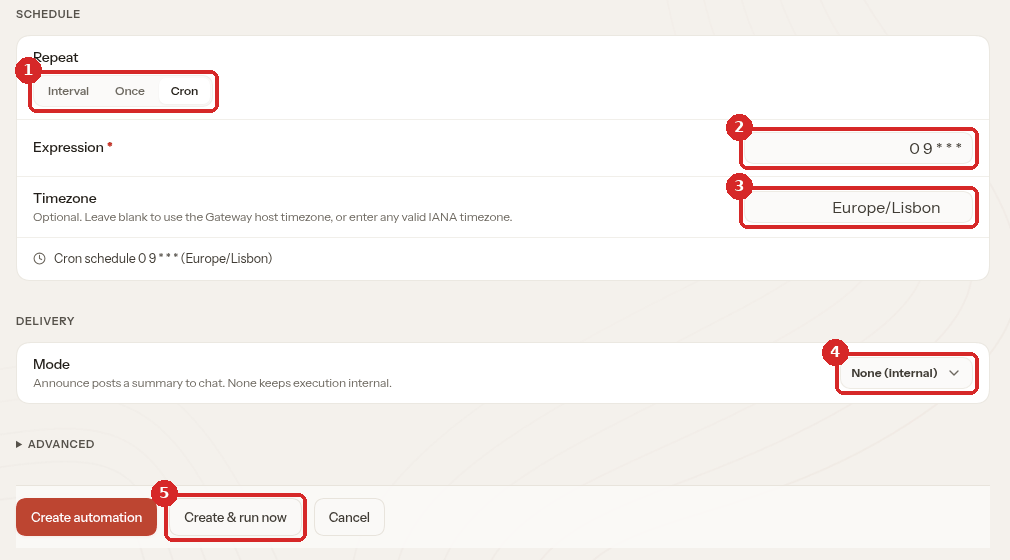
- Repeat: choose Cron to run at a fixed time. (Interval repeats every so many minutes, for example Every 30 minutes. Once runs one time only.)
- Expression:
0 9 * * *means every day at 09:00. Below the box, the page repeats the schedule in plain text so you can check it. - Timezone: type your time zone, for example
Europe/Lisbon. If you leave it empty, OpenClaw uses the server's time zone. - DELIVERY → Mode: leave None (internal). The result is kept in OpenClaw (step 4). The other choices, Announce summary and Webhook POST, send the result somewhere else; we did not test them.
- Click Create & run now to save the automation and run it once straight away. (Create automation only saves it.)
Cron in plain words
0 9 * * * = 09:00 every day. 30 8 * * 1-5 = 08:30 Monday to Friday. 0 18 * * 0 = 18:00 every Sunday.
The automation appears in the list with Running in the NEXT RUN column. When it finishes, LAST RUN shows a green tick and just now.
4. Read the result
Click the Run history tab.
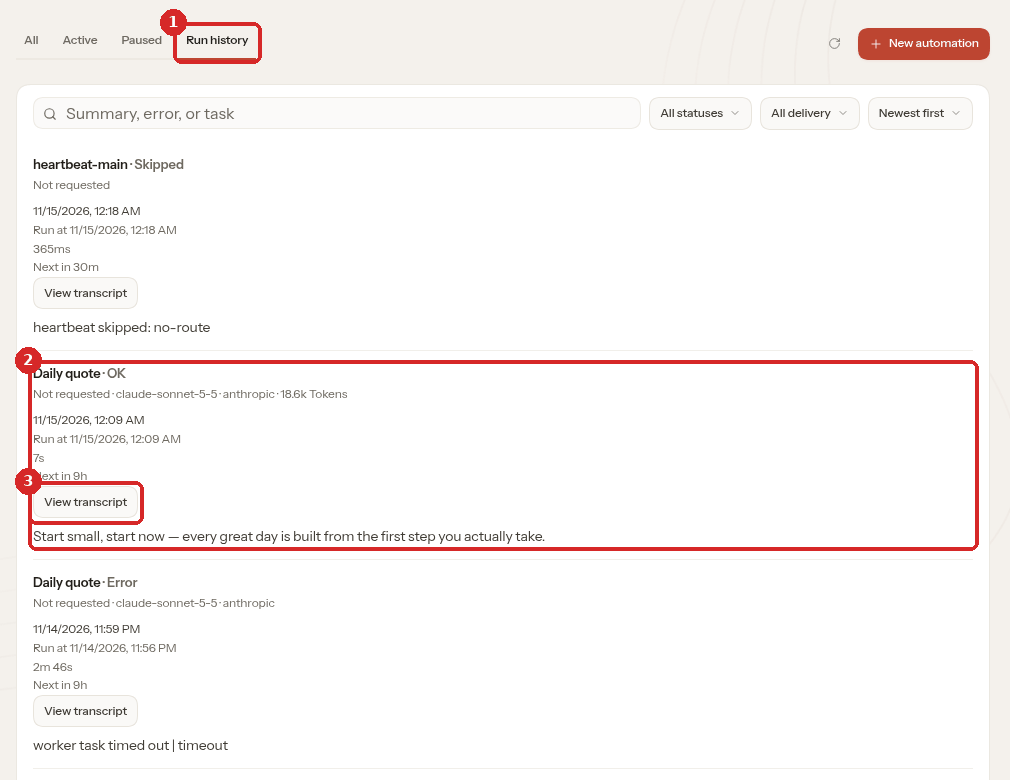
- Run history lists every run of every automation, newest first.
- Our run: Daily quote · OK, the model used (
claude-sonnet-5-5), the tokens (18.6k Tokens), the time it took (7s) and the next run (Next in 9h). The last line is the result: "Start small, start now — every great day is built from the first step you actually take." - View transcript shows the whole run.
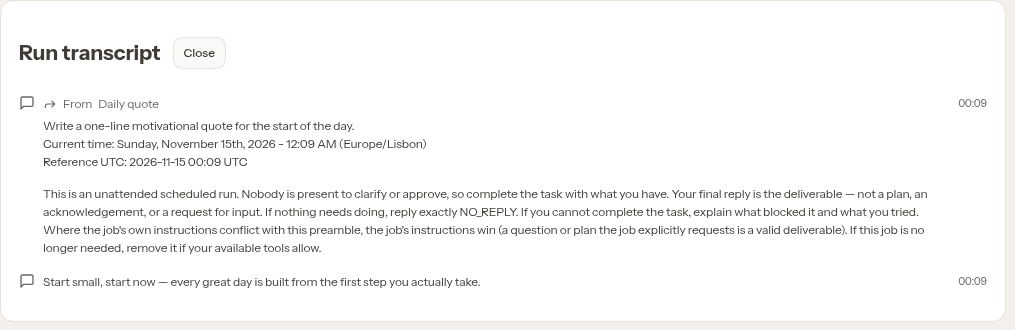
The transcript shows your prompt, the instructions OpenClaw adds to every scheduled run (nobody is there to answer questions, so the agent must finish the task on its own), and the agent's answer. Click Close to go back.
Results stay in OpenClaw unless you connect a channel
With Mode: None (internal), nothing is sent to your phone or email: you read the results in Run history. To receive them in a chat app, connect a channel first (Settings → Channels in the dashboard, or Telegram in the client area Settings tab).
You will also see many heartbeat-main · Skipped lines (heartbeat skipped: no-route). That is OpenClaw's own check every 30 minutes. It is normal when no chat channel is connected.
5. Run, pause or remove an automation
Go back to the All tab. Each automation has buttons on the right:
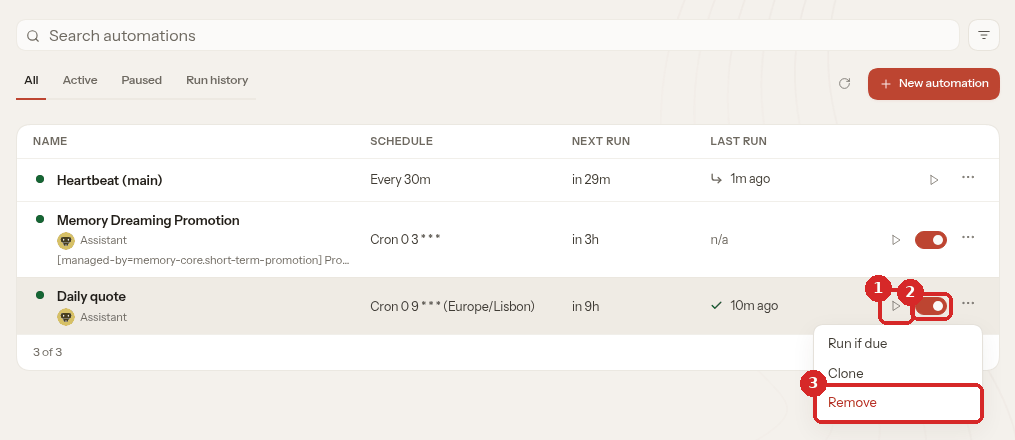
- Run now (the triangle): runs it immediately, without changing the schedule.
- The switch: red means the automation is on.
- Remove, in the … menu: deletes the automation. The same menu has Run if due and Clone (a copy you can change).
Remove asks for confirmation:
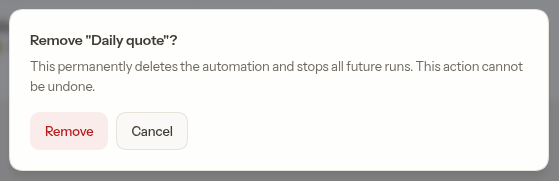
Click Remove. The automation disappears from the list and will not run again. This cannot be undone.
To change the prompt or the schedule later, click the name of the automation: the same form opens, with Save changes.
Check that it worked
- Automations → All shows your automation with the schedule you chose (
Cron 0 9 * * * (Europe/Lisbon)) and NEXT RUN at the right time. - After Create & run now or Run now, Run history shows a line with OK and the result.
Common problems
The run says Error: \"worker task timed out | timeout\"
The agent was too busy to finish in time. This happened on our Lite test agent the first time: the run stopped after 2 minutes 46 seconds with this error. A few minutes later we clicked Run now again and it finished in 7 seconds. If it happens often, the agent is short of memory: see When OpenClaw misbehaves. On Lite, schedule few automations and not at short intervals.
It runs at the wrong time
Fill in Timezone (for example Europe/Lisbon). Without it, OpenClaw uses the server's time zone. Check the line Cron schedule … under the fields before you save.
Nothing arrives on my phone
With DELIVERY → Mode: None (internal) the result is only kept in Run history. Sending results to a chat app needs a connected channel.
Run history stays on \"Loading...\"
Wait a minute and click the Run history tab again. On our Lite agent this happened while the agent was busy.