Terminal and files in the browser
Every LusoVPS agent comes with a root terminal and a file manager that open in your browser, from the client area. You do not need SSH, PuTTY or FileZilla, and you do not type a password.
| Time needed | 2 minutes |
| You need | An agent (Hermes, n8n or OpenClaw) and your client area login |
You are the administrator (root)
Both tools work as root: changes apply at once and there is no undo. Only change things you understand, and keep a copy of files before you edit them.
Open them
- Sign in to the client area, open Services → My Services and click your agent.
- In the Manage panel, click Terminal or Files. You can also use Open terminal (root) in the ACTIONS menu on the left.
The terminal
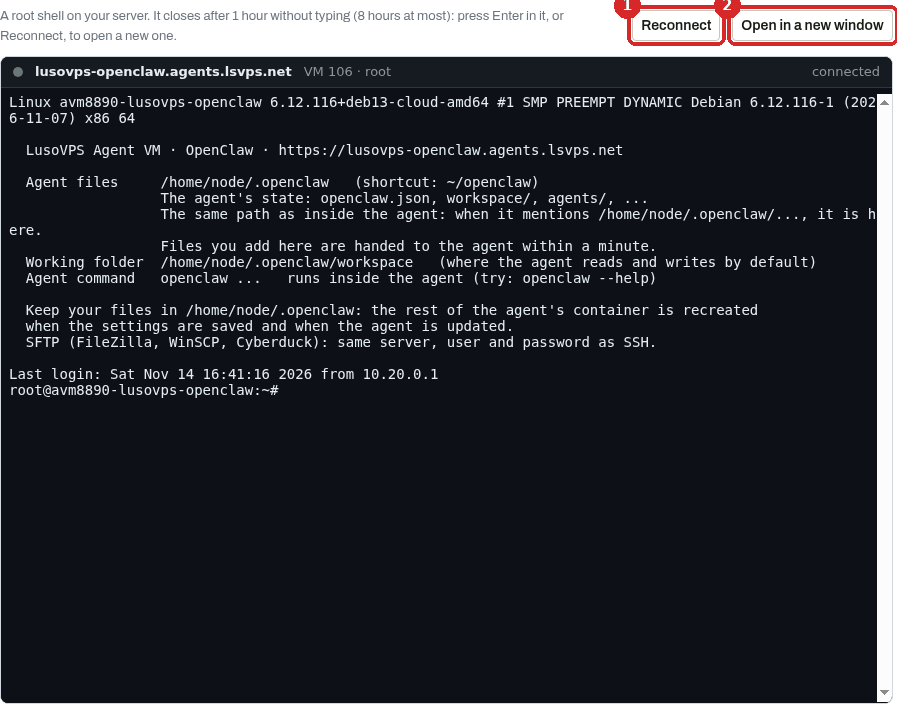
When it opens, the terminal shows a short summary of your agent: where its files are, its working folder and the command that runs inside the agent (hermes, n8n or openclaw).
- Reconnect opens a new terminal. The terminal closes after 1 hour without typing (8 hours at most).
- Open in a new window gives you a bigger terminal in its own browser tab.
Click inside the black area before you type.
The file manager
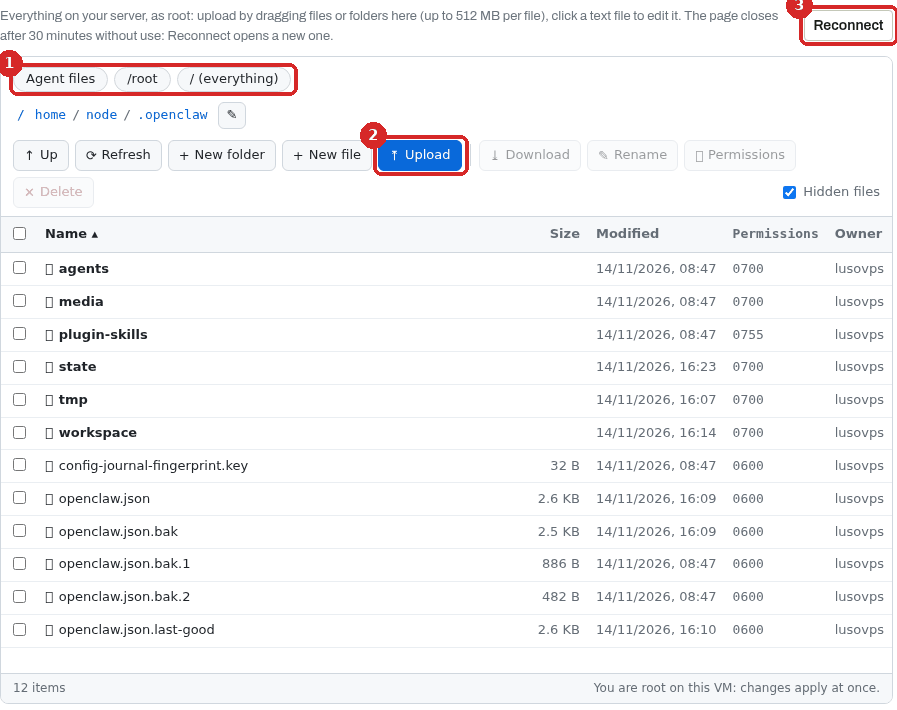
- The shortcuts at the top jump to Agent files (the agent's own folder), /root or / (the whole server).
- Upload sends files from your computer. You can also drag files or whole folders onto the list. Up to 512 MB per file.
- Reconnect reopens the file manager. It closes after 30 minutes without use.
Click a text file to open it in the editor. Tick a file to Download, Rename, change Permissions or Delete it. Hidden files shows files whose names start with a dot.
Where to put your files
Each agent has one folder that is kept when you save the settings or update the agent. Everything else inside the agent's container is reset.
| Agent | Agent files | Shortcut |
|---|---|---|
| Hermes | /opt/data |
~/hermes |
| n8n | /home/node/.n8n-files |
~/n8n-files |
| OpenClaw | /home/node/.openclaw |
~/openclaw |
When the agent asks you to "put a file in its folder", this is the folder it means. Click Agent files in the file manager to go straight there.
Common problems
The terminal or file manager is blank or says disconnected
It closed after the idle time. Click Reconnect.
I can't type in the terminal
Click once inside the black area first.
A file I uploaded disappeared after an update
It was outside the agent's folder. Upload it again into Agent files (see the table above).