n8n: use data from earlier steps (expressions)
Most workflows take a value from one step and use it in the next one: the customer's name from a form, a temperature from a weather service, the text Claude wrote. In n8n you do that with expressions, small formulas between {{ }}. This guide shows the easy way (drag and drop), how to read and change what n8n writes for you, and how to reach a step that is further back.
| Time needed | 15 minutes |
| You need | An n8n agent from LusoVPS (Sign in to n8n) |
| Result | You can put any value from an earlier step into a field, and check the result before you run the workflow |
We use a small practice workflow. It needs no keys and sends nothing:

- When clicking 'Execute workflow': you start it by hand.
- Customer: an Edit Fields step with three fixed values: name
Ana Costa, cityBraga, total42.5. - Discount: an Edit Fields step that works out 10% of the total.
- Message: an Edit Fields step that writes a sentence with the name and the discount.
To build it: create a new workflow, choose Trigger manually as first step, then add three Edit Fields steps one after the other (the + at the right of each step, search Edit Fields). Rename them by clicking their name at the top of the panel. In Customer, click Add Field three times and type the names and values above (choose Number as type for total). Then click Execute workflow once: n8n needs one run to know what data each step gives.
1. Drag a field from INPUT
Open Discount (double-click it). On the left, INPUT shows what arrives from the step before: Customer, with name, city and total.
-
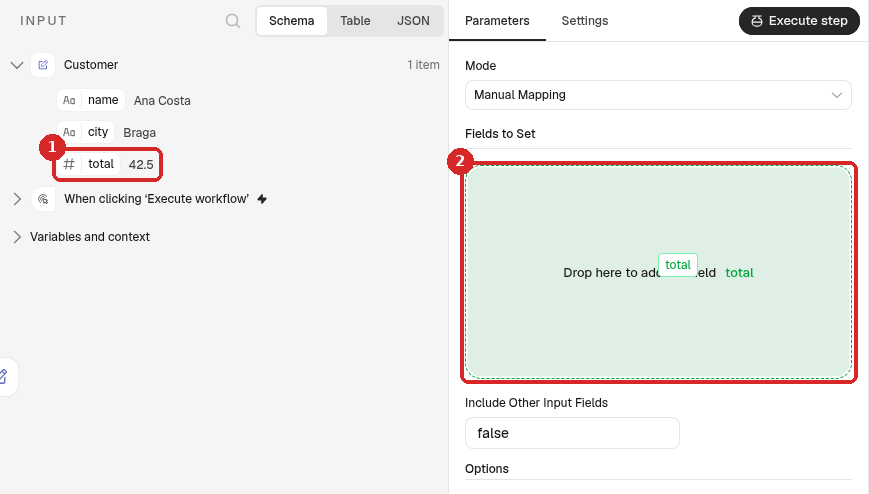
Drag total from INPUT (1) to the box Drag input fields here in the middle. The box turns green and says Drop here to add field (2).
-
Let go. n8n makes a new field for you:
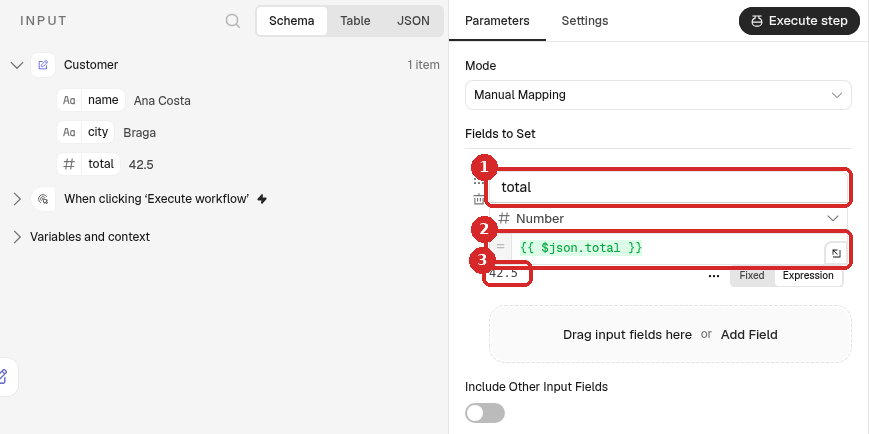
- The field name, the same as the input (total). Click it to change it; we typed
discount. - The value:
{{ $json.total }}, in green. Green text between{{ }}is an expression. - Under the box, n8n shows the result with the data of the last run: 42.5.
- The field name, the same as the input (total). Click it to change it; we typed
2. Read an expression
{{ $json.total }} means:
| Part | Meaning |
|---|---|
{{ ... }} |
Work this out, do not write it as it is. Text outside the brackets stays as it is. |
$json |
The data that comes into this step from the step just before it. |
.total |
The field called total in that data. |
Deeper data uses more dots, and lists use a number in square brackets, counting from 0. For example {{ $json.daily.time[1] }} is entry 1 of the list time inside daily (the weather recipe uses this).
3. Change it in the expression editor
The small box is tight for longer expressions. Click the small arrow icon at the bottom right of the value box to open the expression editor:
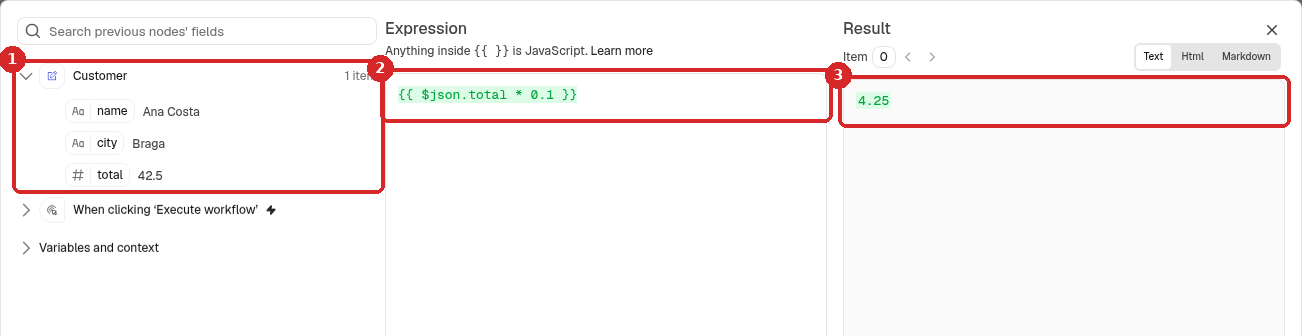
- On the left, the data from earlier steps. You can drag fields from here into the expression too.
- Expression: type here. Anything inside {{ }} is JavaScript, so you can calculate. We typed
{{ $json.total * 0.1 }}(total times 0.1, that is 10%). - Result: updates as you type. Here 4.25, which is 10% of 42.5.
Close the editor with the X at the top right and click Execute step: the OUTPUT of Discount shows discount 4.25.
Fixed or Expression
Above each field, Fixed / Expression chooses how the value is read. Fixed sends exactly what you type, so {{ $json.total }} would arrive as that text. When you paste an expression in a field that says Fixed, click Expression first. In our test, typing {{ into a Fixed field did not switch it by itself.
4. Use a value from a step further back
Now open Message. Its INPUT starts with Discount, and Discount has only discount: the name is not there any more. Steps further back are listed below it.
- Click Customer (1) in INPUT to open it.
- Drag name (2) to Drag input fields here.
- n8n writes
{{ $('Customer').item.json.name }}(3) and the preview says Ana Costa (4).
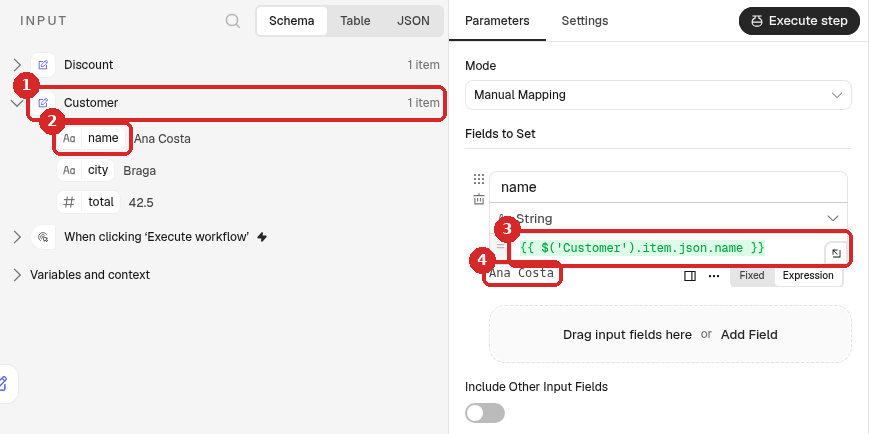
$('Customer') means the step called Customer. .item.json.name is the field name of the item that belongs to the one you are working on. Use this form whenever the value comes from a step that is not the one just before. The name in $('...') must match the step's name exactly, with the same capitals and spaces.
We renamed the field to text, opened the expression editor and wrote after it gets {{ $json.discount }} euros off, so it mixes both kinds:
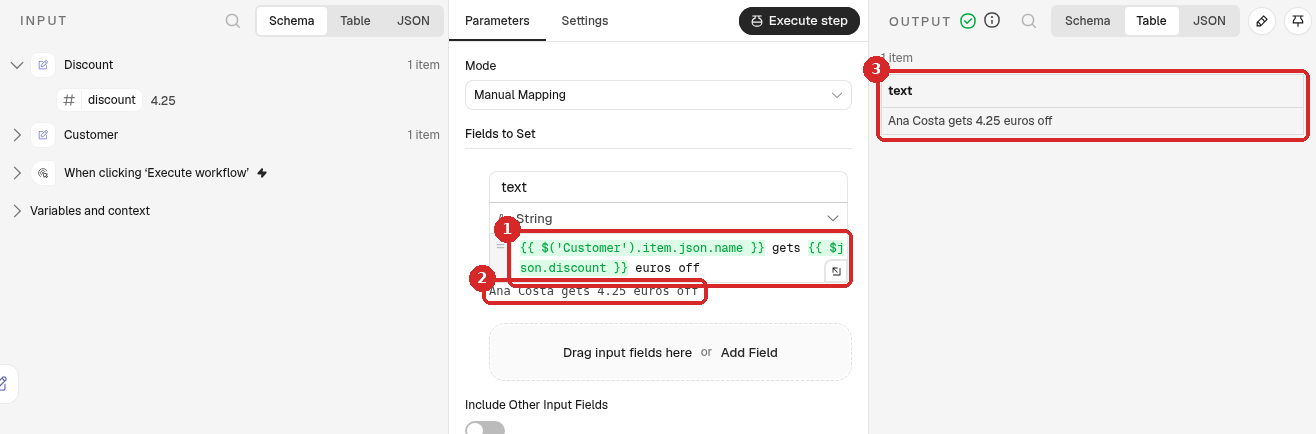
- The expression: a value from Customer (two steps back), normal text, and a value from Discount (the step just before).
- The preview under the box.
- After Execute step, the OUTPUT has text: Ana Costa gets 4.25 euros off.
Check that it worked
Click Execute workflow on the canvas. All four steps get a green tick, and the Logs at the bottom show Message with Ana Costa gets 4.25 euros off.
Useful expressions
| Expression | Gives |
|---|---|
{{ $json.name }} |
The field name from the step just before |
{{ $('Webhook').item.json.body.email }} |
The email sent to a webhook, from any later step |
{{ $json.total * 0.1 }} |
A calculation |
{{ $json.rain >= 50 ? 'Take an umbrella!' : '' }} |
A text only when a condition is true |
{{ $now.toFormat('HH:mm') }} |
The time now, for example 19:00 |
Our recipes use these: contact form, order form, weather, website down alert.
Common problems
The preview says [undefined] and the expression turns red
The field is not in the data that arrives. In our test we typed {{ $json.name }} in Message: its INPUT is Discount, which has no name, so the result was [undefined]:
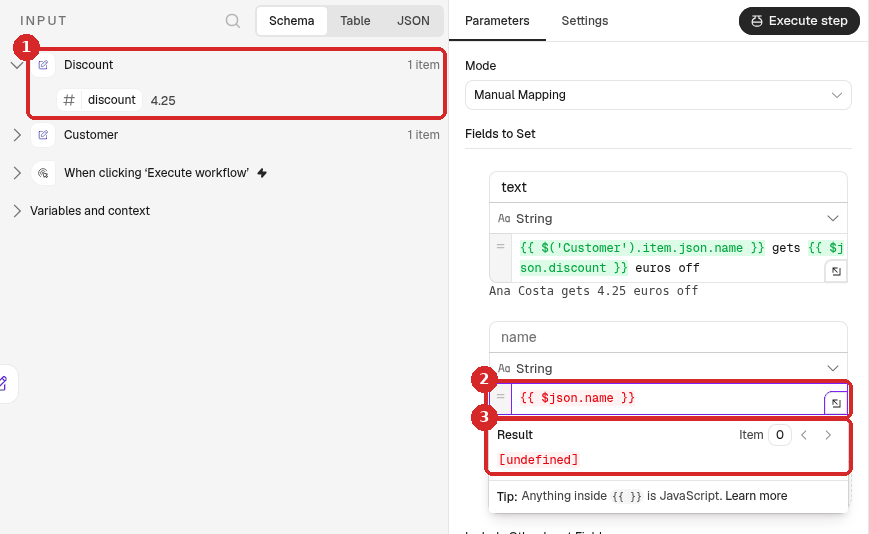
- INPUT of this step: only discount.
- The expression in red.
- Result: [undefined].
Fix: drag the field from the right step in INPUT, or use $('Step name').item.json.field.
INPUT is empty or says there is no data
n8n shows data only after a run. Click Execute workflow on the canvas (or Execute step in the step before), then open the step again.
The text arrives with {{ }} in it
The field is on Fixed. Click Expression above it.
The preview is right but the run gives another value
The preview uses the data of the last run. If the earlier steps now give other data, click Execute workflow again and look at the OUTPUT of each step.