Restart, Update or Reinstall: which one?
Your agent's page in the client area has three buttons that sound alike but do very different things. This page explains what each one does, what it keeps, and when to use it.
| Time needed | 3 minutes to read |
| You need | Your client area login |
| Result | You know which button to click, and which one never to click to fix a problem |
Reinstall deletes everything
Reinstall deletes conversations, memory, workflows and connected channels, and cannot be undone. Never use it to fix a problem. Restart and Update keep your data.
Where the buttons are
- Sign in to the client area, open Services → My Services and click your agent.
- Click the Manage agent tab and scroll to Actions.
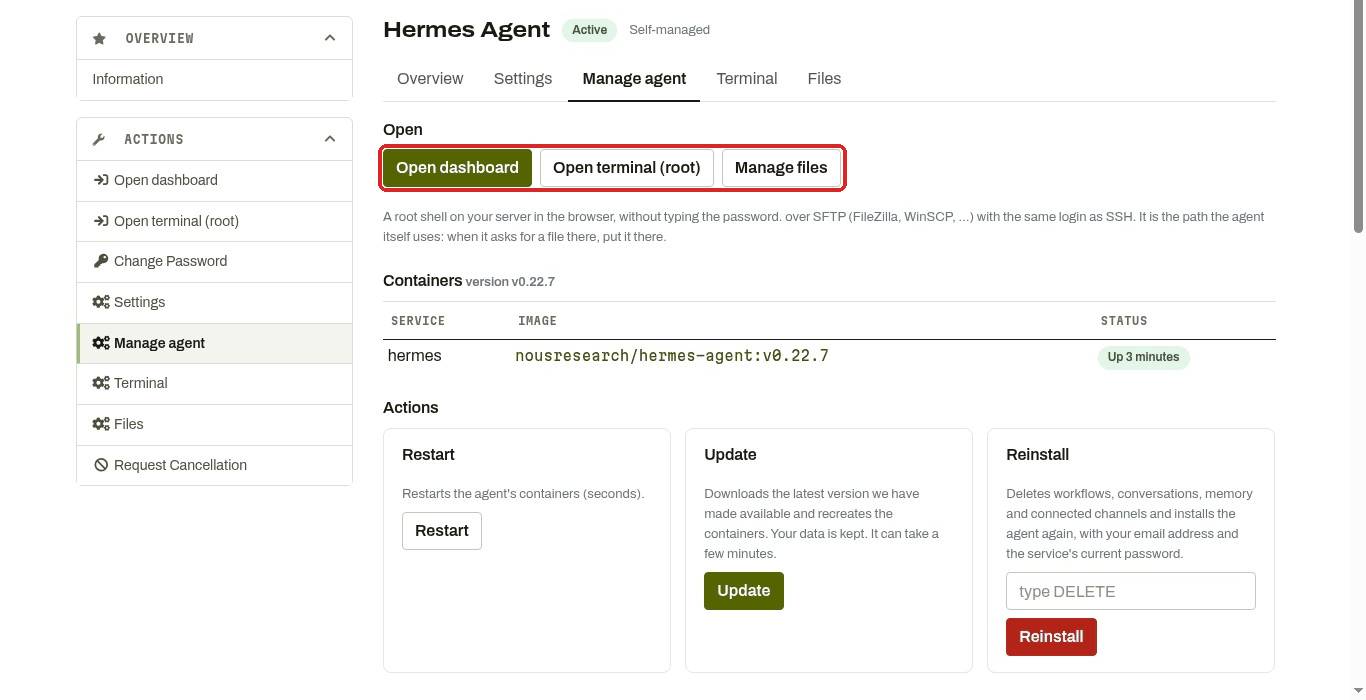
Each button has a short description in its card:
- Restart: Restarts the agent's containers (seconds).
- Update: Downloads the latest version we have made available and recreates the containers. Your data is kept. It can take a few minutes.
- Reinstall: Deletes workflows, conversations, memory and connected channels and installs the agent again, with your email address and the service's current password. To confirm, you type
DELETEin the box and click Reinstall.
Above Actions, Containers shows whether the agent is running (STATUS says Up …). At the bottom of the tab, Recent logs shows the agent's latest messages.
Side by side
| Restart | Update | Reinstall | |
|---|---|---|---|
| What it does | Restarts the agent | Installs the latest version we have made available | Deletes the agent and installs it from scratch |
| Your data | Kept | Kept in the agent's folder | Deleted, cannot be undone |
| How long | Seconds, says the client area. On our overloaded OpenClaw Lite test agent: about 9 minutes to a working dashboard | It can take a few minutes, says the client area | Not measured |
| Use it when | The agent stops answering, is slow, or the dashboard does not open | Restart did not help | You want to start again from zero |
Restart: try this first
Restart restarts the agent and keeps all your data. It is the first thing to try when the agent stops answering, becomes slow or runs out of memory. Wait a minute after the click, then try again. (My agent stopped answering)
- Hermes: the dashboard sign-in is cleared every time the agent restarts. Go back to the client area and click Open dashboard again. (The dashboard does not open)
- OpenClaw on a busy agent: on our Lite test agent with its memory full, the page showed an error after about 80 seconds, but the restart still happened. The status showed (health: starting) about 6 minutes after the click and (healthy) about a minute later. (When OpenClaw misbehaves)
Do not click Restart several times
If you see "The operation could not be completed", wait 5 minutes and reload the Manage agent tab before trying again. The first restart may still be on its way.
Update: when Restart did not help
Update installs the latest version we have made available and keeps your data. It can take a few minutes. (Your agent in the client area)
"Your data" means the agent's folder. Everything else inside the agent's container is reset when you update:
| Agent | Agent files |
|---|---|
| Hermes | /opt/data |
| n8n | /home/node/.n8n-files |
| OpenClaw | /home/node/.openclaw |
Make a backup before you click Update (Back up your Hermes agent, n8n: download a workflow).
OpenClaw shows Updates AVAILABLE
On LusoVPS, update OpenClaw with Update in the client area. We did not test updating from inside OpenClaw. (A tour of the OpenClaw dashboard)
Reinstall: only to start from zero
Reinstall deletes everything (conversations, memory, workflows, connected channels) and installs the agent from scratch. It cannot be undone. (Your agent in the client area)
Before you use it, save what you want to keep:
- Hermes: a full backup from SYSTEM → Operations (Back up your Hermes agent). To restore one, open a ticket and we will help you.
- n8n: Export JSON for each workflow (Download a workflow and import it back).
- Any agent: download your files with the Files tab (Terminal and files in the browser).
Other buttons that restart the agent
- Save and apply in the client area Settings tab restarts the agent with the new settings. For OpenClaw, wait one or two minutes before opening the dashboard. (Your agent in the client area, First steps with OpenClaw)
- RESTART GATEWAY in the Hermes dashboard restarts the part of Hermes that talks to WhatsApp, Telegram and Discord. Use it when a channel card says Restart to apply. (Connect Discord)
Which one? A short decision list
- The agent does not answer. Check your AI provider first: no credit, a spending limit or a deleted key are the most common causes. (My agent stopped answering)
- The dashboard does not open. Click Open dashboard in the client area again before anything else. (The dashboard does not open)
- Still stuck, slow, or out of memory. Restart, then wait a minute.
- Restart did not help. Update.
- Still not working. Open a ticket with the last lines of Recent logs. (My agent stopped answering)
- It freezes again after every restart. The agent needs more memory than the plan has: see Change your plan.
- You want a clean agent and accept losing everything. Make a backup, then Reinstall.
Check that it worked
- Under Containers, STATUS shows Up … or Up … (healthy). (health: starting) means it has just started: wait one or two minutes.
- The agent answers again.
Common problems
\"We could not get your agent's status right now…\"
The server is too busy to answer, usually because its memory is full. Click Restart once and wait. (The dashboard does not open)
A file I uploaded disappeared after an update
It was outside the agent's folder. Upload it again into Agent files. (Terminal and files in the browser)
The Hermes dashboard asks for a username and password after a restart
That is normal. Go back to the client area and click Open dashboard again.