Change the AI model OpenClaw uses
By default, an OpenClaw agent with a Claude key uses Claude Sonnet. This guide switches it to another model, for example the smaller and cheaper Claude Haiku, checks that it worked, and shows how to go back to the default.
| Time needed | 10 minutes (more on a busy Lite agent) |
| You need | An OpenClaw agent connected to an AI provider (First steps) |
| Result | OpenClaw answers with the model you chose |
Which model?
Bigger models (Opus, Sonnet) are better at long, difficult tasks. Smaller models (Haiku) are faster and much cheaper for simple jobs. In our test, a short question answered by Haiku cost $0.0035 for 27.6K tokens, while Sonnet had cost $0.38 for 223.3K tokens. See How much AI your OpenClaw uses.
1. Open the Settings tab
- Sign in to the client area, open Services → My Services and click your OpenClaw agent.
- Click the Settings tab.
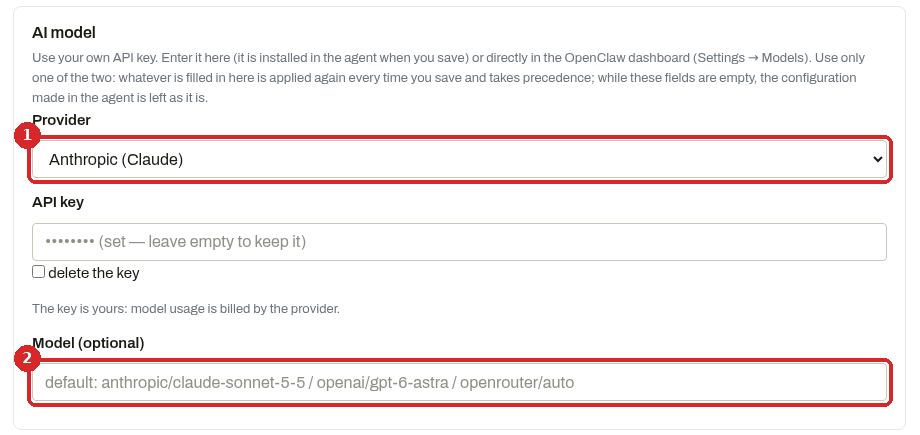
- Provider: the AI company of your key, here Anthropic (Claude). Leave it as it is.
- Model (optional): empty means the default model. The grey text shows the default of each provider:
anthropic/claude-sonnet-5-5,openai/gpt-6-astraoropenrouter/auto.
Leave API key empty: the key you saved before is kept (set — leave empty to keep it).
2. Type the new model
In Model (optional), type the model name in the form provider/model. We typed:
Some other Claude names that our agent listed: anthropic/claude-sonnet-5-5, anthropic/claude-opus-5-5, anthropic/claude-haiku-4-5. With an OpenAI or OpenRouter key, start the name with openai/ or openrouter/.
Type the name exactly
Use lowercase letters and hyphens, exactly as above. The model must also be available to your key at your provider.
3. Click Save and apply
Scroll down and click Save and apply.
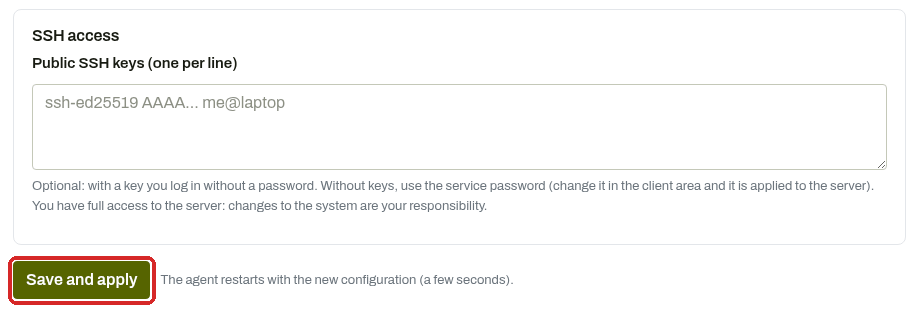
The page stays loading while the new settings are applied to the agent. Wait, and do not click again. When it is done:
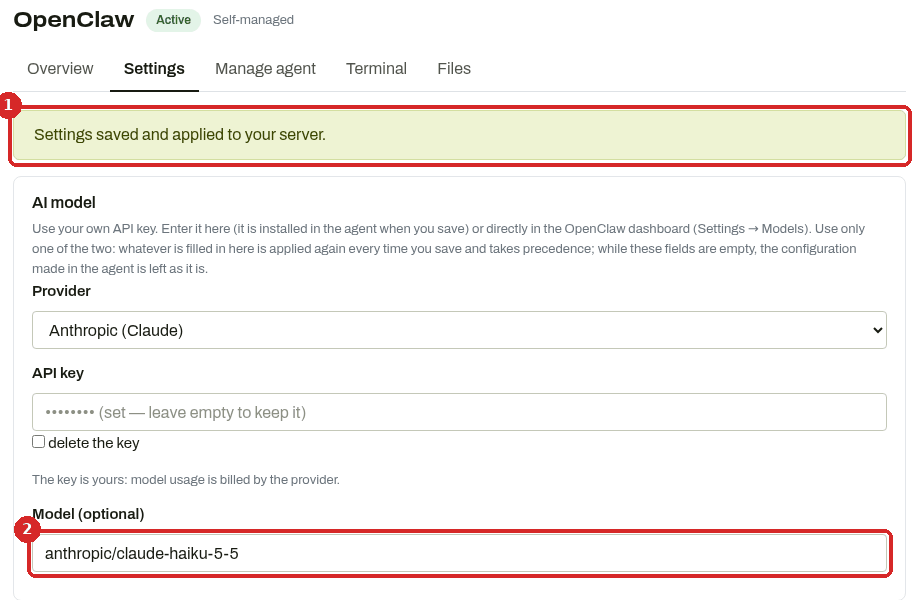
- "Settings saved and applied to your server."
- Model (optional) now shows the model you chose.
On our Lite test agent this took 27 seconds. After that, the dashboard needed a few more minutes before Open dashboard worked again (see Common problems).
Check that it worked
- Click Manage agent → Open dashboard.
- Open your avatar menu (bottom left) → Settings → Models.
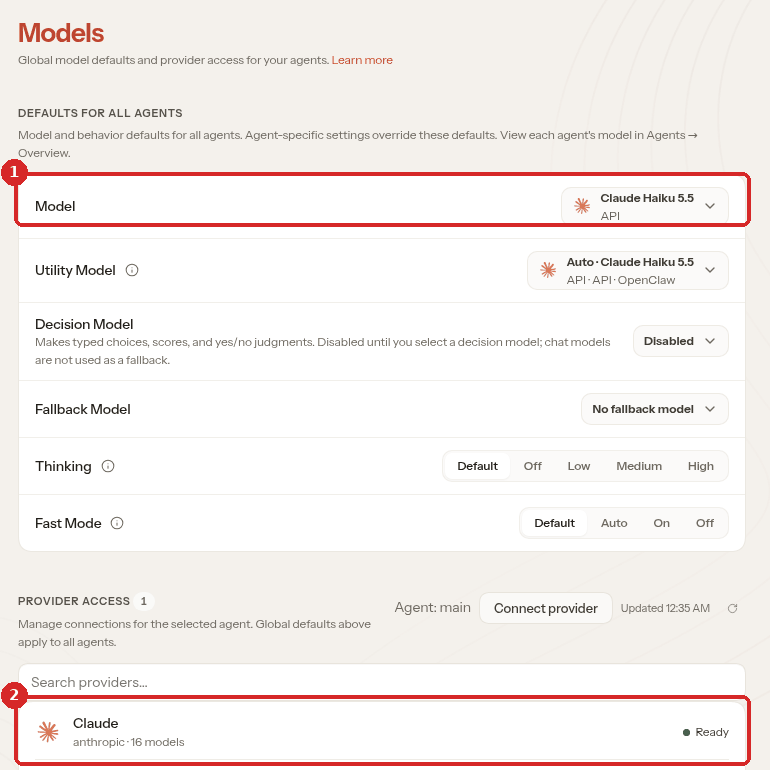
- Model shows the new model: Claude Haiku 5.5.
- Claude still shows Ready: the key was kept.
You can also ask the agent. We opened a new chat (red + at the top left) and asked "Which AI model are you running on right now? Answer in one short sentence.":
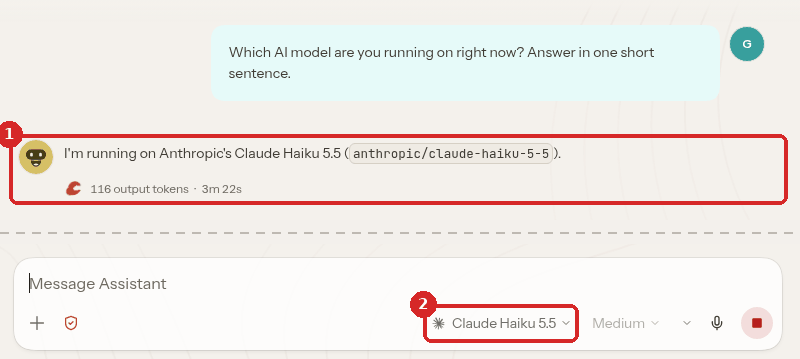
- The answer: "I'm running on Anthropic's Claude Haiku 5.5 (
anthropic/claude-haiku-5-5)." - Under the message box, the chat shows the model it uses: Claude Haiku 5.5.
Pages → Usage also shows the new model under TOP MODELS once it has answered.
Go back to the default model
- In the client area Settings tab, delete everything in Model (optional), so the field is empty again.
- Click Save and apply.
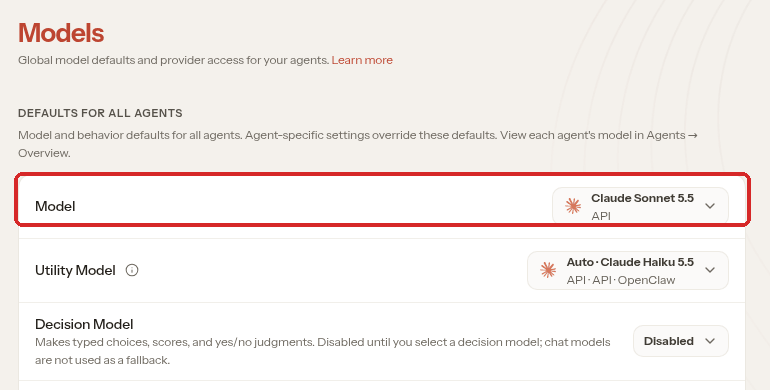
- When it is applied, Settings → Models in the dashboard shows Claude Sonnet 5.5 again.
The client area wins
The dashboard (Settings → Models) also has a Model menu. We did not use it for this guide. Remember that when the client area has a provider and you click Save and apply with an empty Model field, the agent goes back to the default model: in our test, that is what put Sonnet back. If you want another model, set it in the client area.
Common problems
\"The operation could not be completed. Please try again in a few minutes\"

The agent was too busy to answer in time. On our Lite test agent this happened when we went back to the default model while a chat was still running: the page showed this error after about 70 seconds. The change was still applied in the background, but the agent ran out of memory, restarted on its own, and only worked again about 11 minutes after the click. Before clicking Save and apply again, wait 5 minutes, open Manage agent and check that the status is healthy, then look at Settings → Models in the dashboard: the change may already be there.
The page loaded for minutes and the model did not change
The first time we clicked Save and apply on our Lite agent, it had just restarted after running out of memory. The page loaded for more than 5 minutes, and the model stayed the same. We waited until Manage agent showed healthy and clicked Save and apply again: it worked in 27 seconds. Make sure nothing else is running (a chat, a scheduled task) before you save.
\"Unable to auto-login\" after changing the model
The agent is still busy applying the change. On our test agent, Open dashboard failed twice (after about 1 minute each time) and worked about 7 minutes after Save and apply. Wait a few minutes and try again.
The chat says \"Unable to finish this reply: worker task timed out\"
The agent did not have enough memory or time to answer. On our Lite agent this happened in the long main conversation right after the change. We restarted the agent (Manage agent → Restart, 51 seconds), waited until it was healthy, opened a new chat and asked again: Haiku answered in about 2 minutes. A new chat is lighter than a long one.
Next steps
- See how much AI your OpenClaw uses
- Schedule a recurring task in OpenClaw (each automation can also use its own lighter model)
- When OpenClaw misbehaves: logs and restart