Connect with SSH from a terminal
SSH gives you a command line on your agent's server from your own computer, as the administrator (root).
| Time needed | 5 minutes |
| You need | Your agent's SSH user (in the client area) and the service password from the "Your agent is ready" email, or an SSH key |
| Result | A root command line on your agent's server, in your computer's terminal |
You may not need SSH at all
The client area has a Terminal tab that opens the same root command line in your browser, without a password. See Terminal and files in the browser.
You are the administrator (root)
Commands run as root: changes apply at once and there is no undo. Only run commands you understand.
1. Find your SSH command
Sign in to the client area, open Services → My Services, click your agent and look at the Overview tab in the Manage panel.
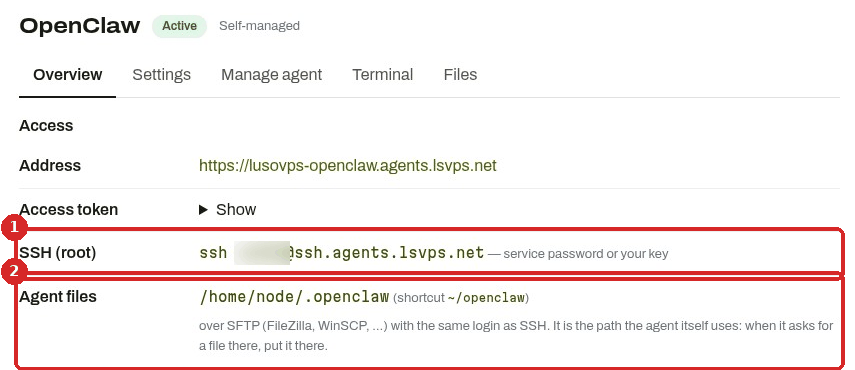
- SSH (root) shows the command to type, for example
ssh vm123@ssh.agents.lsvps.net. The part before@(here blurred) is your own user:vmfollowed by a number. The same command is in the "Your agent is ready" email. - Agent files is the agent's folder on the server. Keep your own files there.
The server always uses port 22, the normal SSH port, so you do not need to type a port.
2. Open a terminal on your computer
- macOS: open Terminal (Applications → Utilities).
- Linux: open your terminal app.
- Windows 10 and 11: open PowerShell. It has the same
sshcommand. Not shown in this guide: we tested on Linux only.
3. Type the command and confirm the server
Type your SSH command and press Enter. The first time, your computer does not know the server yet and asks you to confirm it.

- The server's fingerprint. The fingerprint of
ssh.agents.lsvps.netisSHA256:zb9JmRjjihHi3L9XAgElPmWKk8S/Q0LjGV0HBm3nAtA, the same for every LusoVPS agent. - Type
yesand press Enter. Your computer remembers the server and does not ask again.
Answer within about half a minute. If you wait too long, the server closes the connection (see Common problems).
4. Type the service password
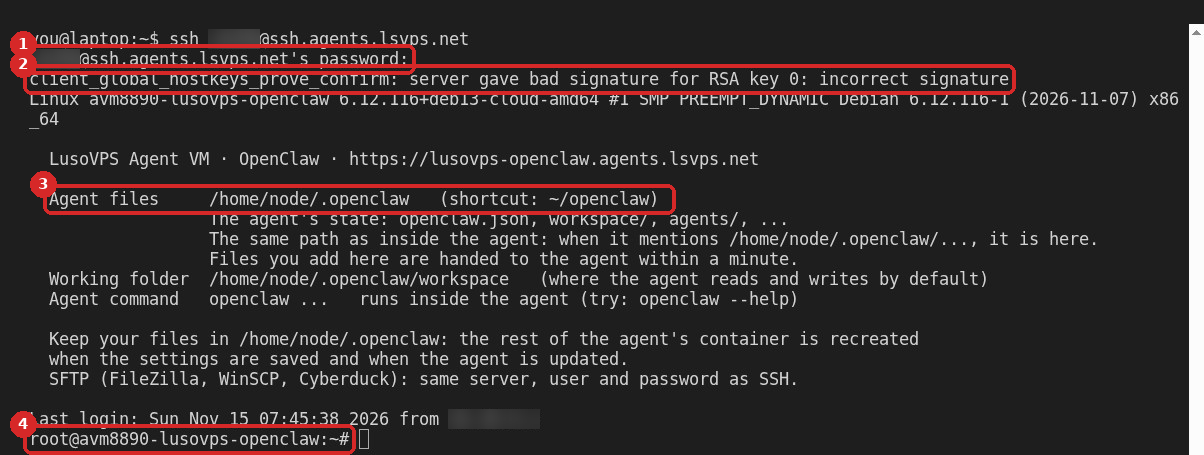
- Type the service password and press Enter. Nothing appears on the screen while you type: this is normal. If you added an SSH key, this question does not appear.
- You may see the line
client_global_hostkeys_prove_confirm: server gave bad signature…. It appeared on every login in our tests and the login continues normally. You can ignore it. - A short summary of your agent: the Agent files folder, the Working folder and the agent's own command (
hermes,n8noropenclaw). - The prompt
root@…:~#means you are in. You are in root's home folder, which has a shortcut to the agent's folder.
| Agent | Agent files | Shortcut |
|---|---|---|
| Hermes | /opt/data |
~/hermes |
| n8n | /home/node/.n8n-files |
~/n8n-files |
| OpenClaw | /home/node/.openclaw |
~/openclaw |
5. Run commands and leave

- Type commands as on any Linux server. Here
whoamishowsroot,hostnameshows the server name andls ~/openclawlists the OpenClaw agent's folder. - Type
exitto close the connection.Connection to ssh.agents.lsvps.net closed.means you are back on your own computer.
Check that it worked
After step 4 the prompt starts with root@ followed by your agent's server name, and the summary shows your agent's address.
Common problems
Permission denied, please try again
The password is wrong and the server asks again. Use the service password from the "Your agent is ready" email (not your client area password). If you changed it with Change Password in the client area, use the new one. Type it carefully: nothing appears while you type.
Broken pipe right after I typed yes
You waited too long before answering the first question. In our test the server closed the connection when we answered after 40 seconds (25 seconds was fine). Run the command again. The yes had already been saved, so the second time the question did not appear and the password question came straight away.
Connection closed straight away, before the password question
Too many failed logins. In our tests, after about five failed logins in a short time, the server closed every new connection from the same internet connection at once, for any agent, with a message like Connection closed by … port 22. About five minutes later it accepted connections again. Wait a few minutes, then log in with the right password or key.
Connection timed out when I connect from another agent
In our test, SSH from the terminal of one LusoVPS agent to ssh.agents.lsvps.net timed out. Connect from your own computer.
I want to log in without typing the password
Add an SSH key: Log in without a password: add an SSH key.