Read Hermes' logs
The logs are the agent's diary: every message it receives, every call to the AI provider, every warning. When something does not work, the logs usually say why.
| Time needed | 5 minutes |
| You need | A Hermes agent |
| Result | You can find the error behind a problem, or copy it for our support team |
1. Open the Logs page
In the dashboard menu, click LOGS. At the top you choose what to show:
- FILE: AGENT (everything the agent does), ERRORS (only warnings and errors) or GATEWAY (the connection to WhatsApp, Telegram, Discord…).
- LEVEL: show only WARNING or ERROR lines to hide the normal activity.
- COMPONENT: filter by part of the agent (for example CRON for scheduled tasks).
- LINES: how many of the latest lines to show (50 to 500).
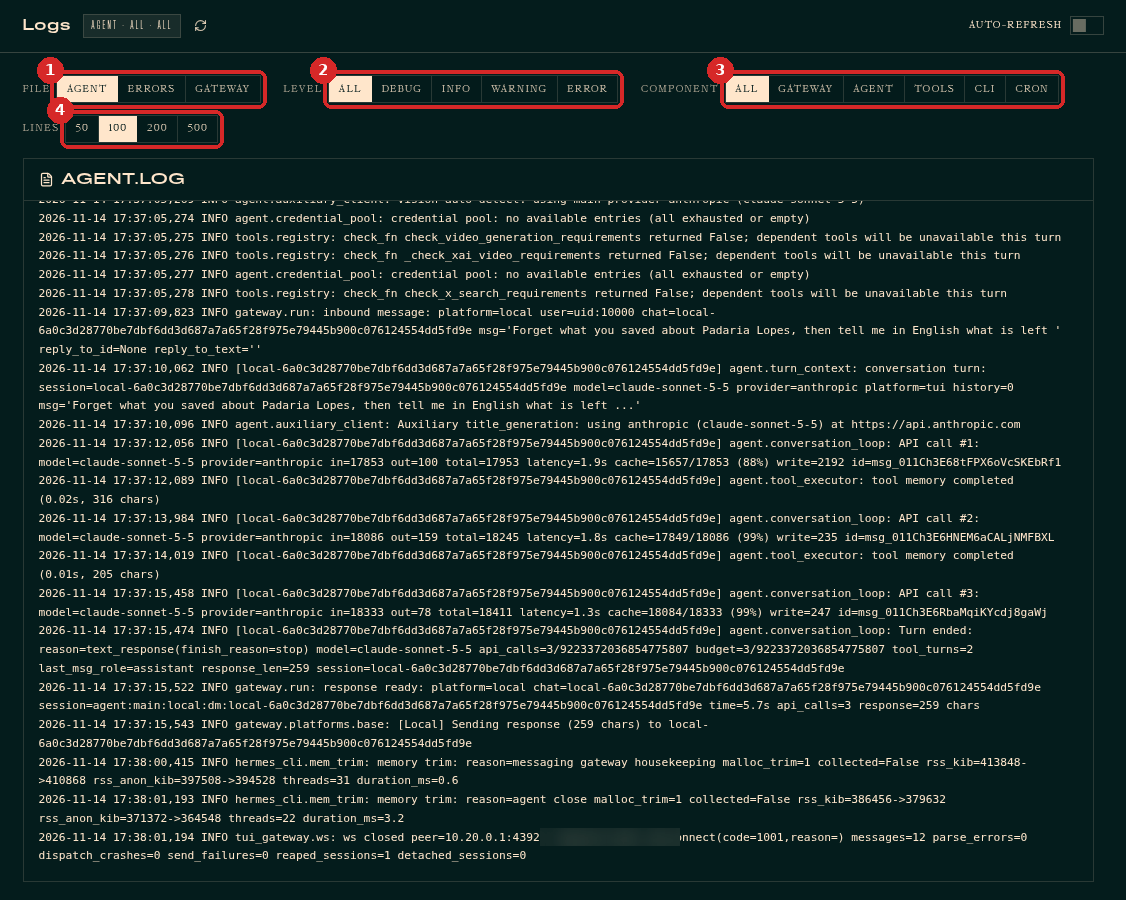
The newest lines are at the bottom. Click the round arrow next to the title to refresh, or turn on AUTO-REFRESH at the top right.
2. Look at the errors
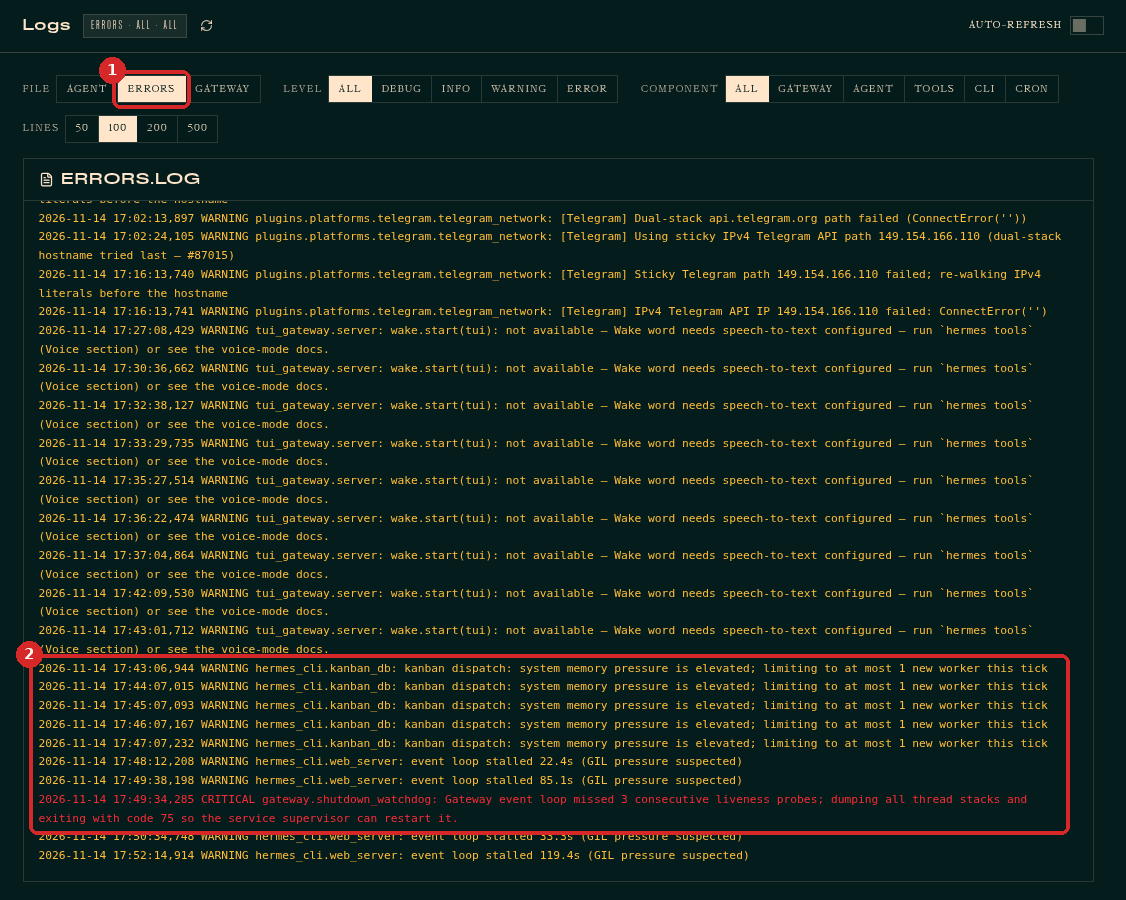
Click ERRORS (1). Each line starts with the date and time, then the level: WARNING (yellow) or ERROR / CRITICAL (red).
Look at the lines from the time the problem happened. In the example below (2), the agent warned several times that memory was running low, then the gateway restarted itself.
What common messages mean
Telegram polling conflict…make sure that only one bot instance is running: the same Telegram bot token is used by another program or agent. A Telegram bot can only be connected to one agent at a time.system memory pressure is elevated,event loop stalled: the server is running out of memory. Restart the agent (client area → Manage agent → Restart). If it happens often, a bigger plan helps.Discord messages are being denied because no allowlist is configured: add your Discord user ID, see Connect Discord.wake.start(tui): not available — Wake word needs speech-to-text: harmless; voice features are not set up. You can ignore it.- Lines with
authentication,invalid x-api-key,creditorquota: a problem with your AI key or your provider balance. See Connect Claude.
3. Send the logs to support
If you open a ticket, include the lines from the time of the problem:
- Choose ERRORS (or AGENT) and 200 lines.
- Select the lines with the mouse, copy them (Ctrl+C) and paste them in the ticket.
Check before you paste
Logs can contain parts of your messages and phone numbers or user IDs. Remove anything private before you share them.
Check that it worked
You can see recent lines with today's date in AGENT, and you know where the warnings are (ERRORS).
Common problems
The log is empty
Choose more LINES, set LEVEL to ALL and COMPONENT to ALL.
The page asks me to sign in
The dashboard sign-in is cleared when the agent restarts. Go back to the client area and click Open dashboard again.