Connect Hermes to Claude (Anthropic)
Hermes needs an AI model to think and answer. This guide connects your Hermes agent to Claude, the AI model from Anthropic, using the client area. It also works the same way for OpenAI and OpenRouter.
| Time needed | 3 minutes |
| You need | A Hermes agent (order one) and an Anthropic API key (it starts with sk-ant-) |
| Result | Hermes answers using Claude. Anthropic bills you directly for what you use. |
Treat the API key like a password
Anyone with your key can use your Anthropic credit. Do not paste it in chats, emails or screenshots. If it leaks, delete it in the Anthropic console and create a new one.
1. Open your agent's Settings
- Sign in to the client area and open Services → My Services.
- Click your Hermes agent.
- Scroll down to the Manage panel and click the Settings tab.
2. Choose the provider and paste the key
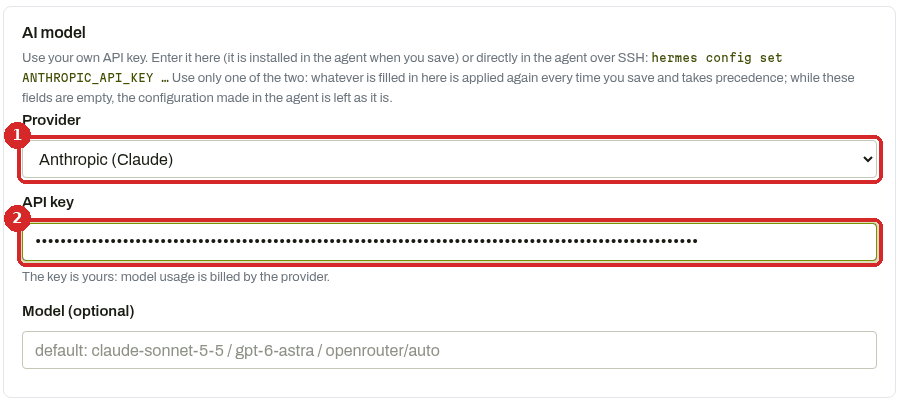
- In Provider, choose Anthropic (Claude).
- Paste your key in API key. The field hides it as dots.
Leave Model (optional) empty to use the default Claude model. Only fill it in if you know the exact model name you want.
3. Save
Scroll down and click Save and apply.
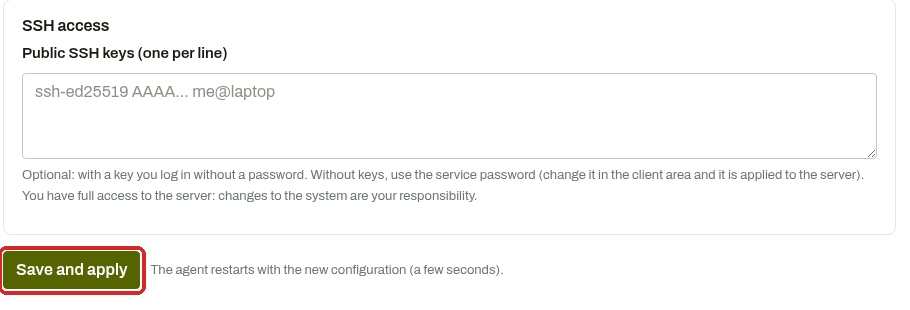
The page reloads with Settings saved and applied to your server. The agent restarts with the new settings. This takes a few seconds.
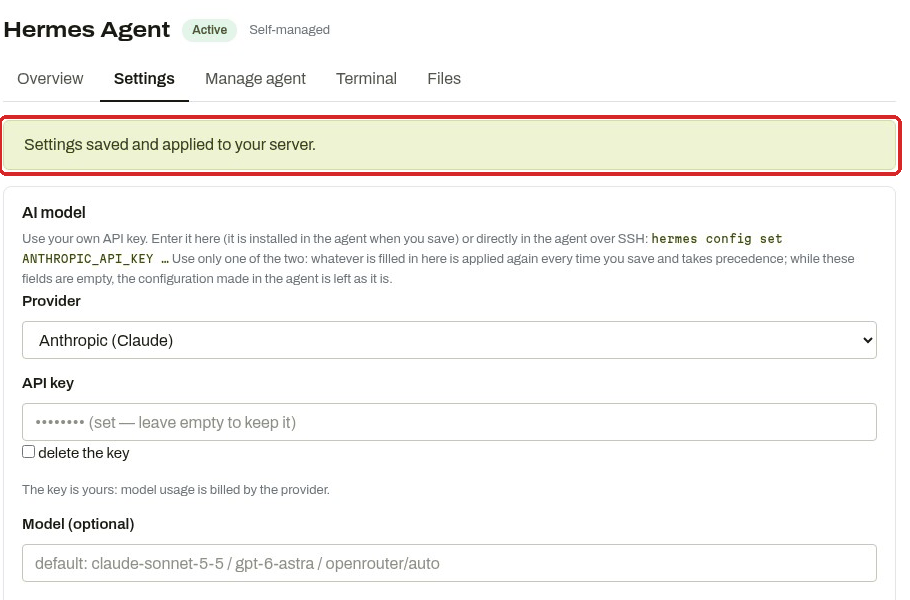
The key field is empty again after saving
That is normal. For safety the client area does not show the key back to you. It is installed in the agent.
Check that it worked
- Click Open dashboard (in the Manage agent tab or in the ACTIONS menu on the left).
- In the dashboard menu, click Models.
MAIN MODEL shows anthropic followed by the Claude model name.
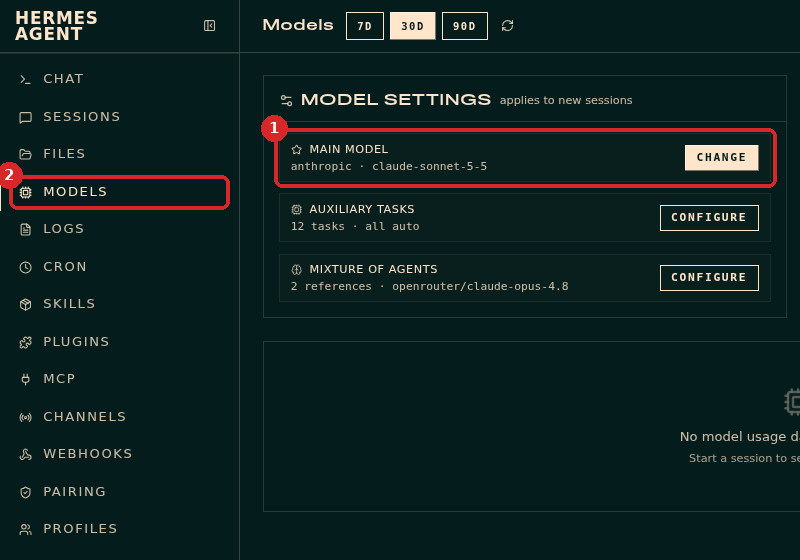
The best test is to talk to your agent: open the dashboard Chat page and ask it something.
Common problems
The dashboard asks for a username and password
The dashboard sign-in is cleared every time the agent restarts (for example after Save and apply). Go back to the client area and click Open dashboard again.
The agent replies with an authentication or \"invalid API key\" error
The key was not copied completely, or it was deleted in the Anthropic console. Copy it again (no spaces at the start or end), paste it in Settings and click Save and apply.
The agent replies with a credit or billing error
Your Anthropic account has no credit left, or reached its spending limit. Add credit or raise the limit in the Anthropic console.
I set the key inside the agent, and now it changed back
Whatever is filled in the client area Settings is applied again every time you click Save and apply, and it wins. Use only one place for the key: the client area or the agent.