Manage your credentials (keys and logins)
In n8n, a credential is a key or login you save once (your Claude key, a Telegram bot token...) so that every workflow can use it. This guide shows where your credentials are, how to see which workflows use them, and how to test, change, rename and delete them.
| Time needed | 10 minutes |
| You need | Your n8n agent with at least one credential, for example the Claude key from Sign in and build your first AI agent |
| Result | You can check that a key still works, replace an old key, and clean up credentials you no longer need |
Keys and tokens are passwords
Anyone with your Claude key can spend your Anthropic credit, and anyone with a bot token controls your bot. n8n never shows a saved key again (only dots), so keep the original in a safe place. If a key leaks, delete it at the provider (for Claude: Anthropic Console → API keys), create a new one and paste it in n8n (step 4).
1. Find your credentials and where they are used
- Click the house icon (Overview) in the menu on the left.
- Open the Credentials tab.
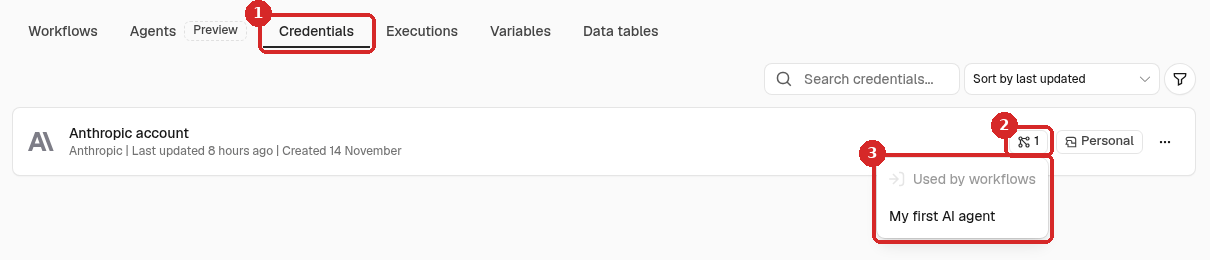
- Credentials: one line per saved key or login, with its type (here Anthropic) and when it was last changed.
- The small number shows how many workflows use the credential. Hover over it: n8n says Click to view resources referencing this credential.
- Click it to see the list under Used by workflows. Here the Claude key is used by My first AI agent.
Check this list before you delete or change a credential: those are the workflows that will be affected.
2. Open a credential
Click the name of the credential. A window opens:
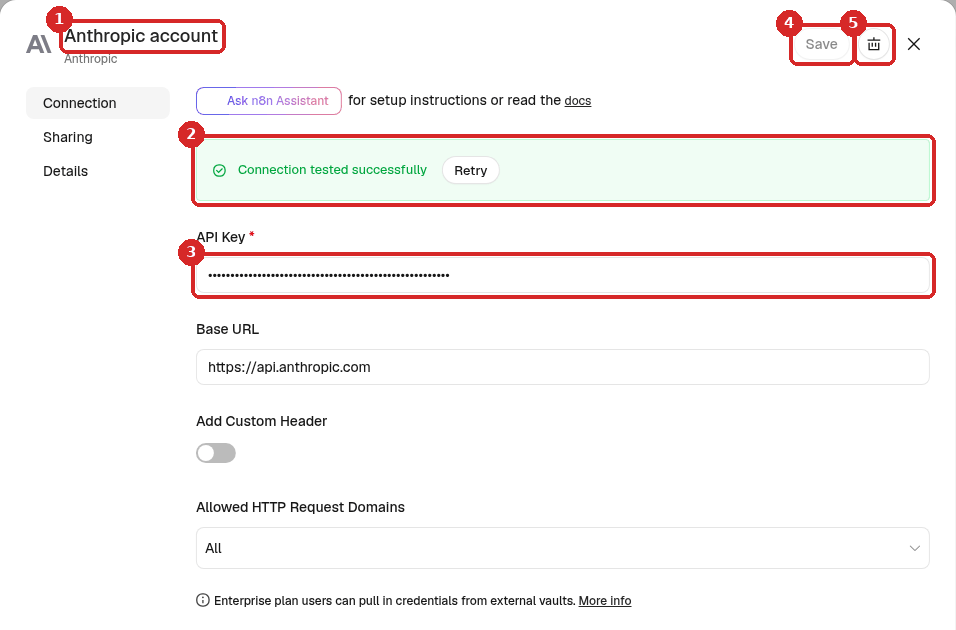
- The name of the credential. Click it to rename it (step 5).
- The result of the last test: Connection tested successfully. Click Retry to test the key again now.
- API Key: the saved key, always shown as dots. To change it, click in the box, delete the dots and paste the new key.
- Save: saves your changes and tests the key again.
- The bin icon deletes the credential (step 6).
On the left, Details shows when the credential was created and last changed. Sharing is not available on this n8n: it says You can share credentials with others when you upgrade your plan.
Leave the other fields as they are
For a Claude key, Base URL (https://api.anthropic.com), Add Custom Header and Allowed HTTP Request Domains are for special setups. You only need API Key.
3. What a wrong key looks like
When you click Save, n8n tests the key with the provider. To see what happens with a wrong key, we created a second Anthropic credential and pasted a made-up key. After Save, n8n showed this (we clicked More details to see the second line):
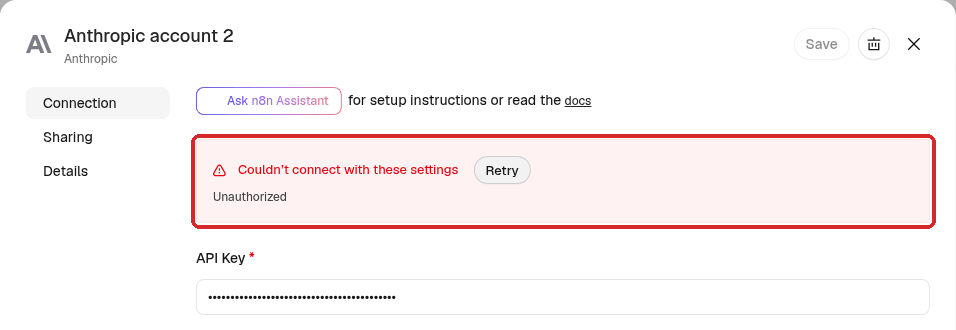
Couldn't connect with these settings and Unauthorized: Anthropic did not accept the key. n8n still saves the credential, so a workflow that uses it fails when it runs. In our test, a workflow with this credential stopped with Problem in node 'Basic LLM Chain' – Authorization failed - please check your credentials and, in Logs, invalid x-api-key.
The usual causes:
- The key was copied with a missing piece or a space. Copy it again in one piece.
- The key was deleted (revoked) in the Anthropic Console.
4. Replace a key
- Open the credential (step 2).
- Click in API Key, select everything in the box (Ctrl+A, or Cmd+A on Mac) and paste the new key.
- Click Save. n8n tests it again.
We pasted a valid key in our test credential. After Save the button says Saved and the test passes:
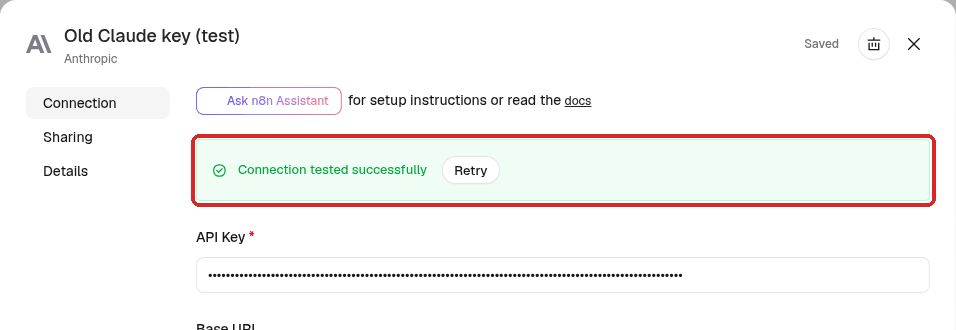
Every workflow that uses this credential uses the new key from now on. You do not need to change the workflows or publish them again.
5. Rename a credential
A clear name helps when you have several keys (for example Claude - shop and Claude - tests).
- Open the credential and click its name at the top (1).
- Type the new name and press Enter.
- Click Save (2).
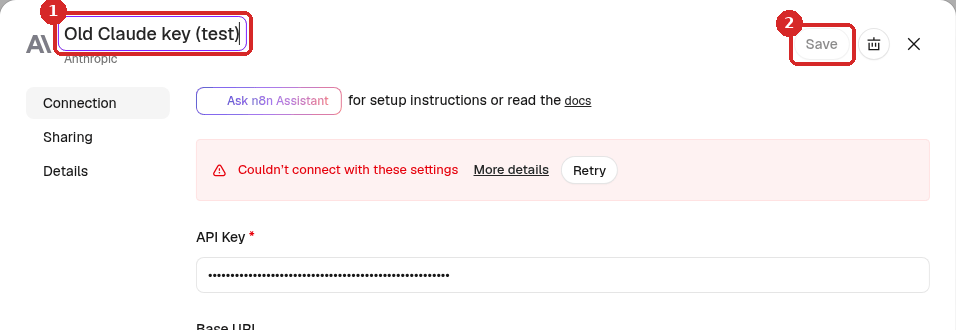
The workflows that use the credential keep working: they follow the credential, not its name.
6. Delete a credential
- Check which workflows use it (step 1, the small number).
-
In the Credentials list, click ... at the end of its line (1) and choose Delete (2). (Or open it and click the bin icon.)

-
n8n asks: Are you sure you want to delete "Old Claude key (test)"? This may break any workflows that use it. Click Yes, delete.
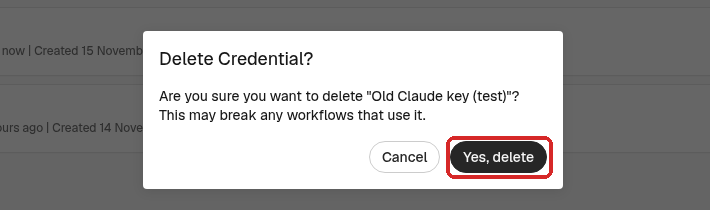
The credential disappears from the list straight away. Deleting it in n8n does not delete the key at Anthropic: if you no longer need the key, delete it in the Anthropic Console too.
What happens to a workflow that used it
We deleted a credential that one test workflow still used, then opened the workflow and its Anthropic Chat Model step:
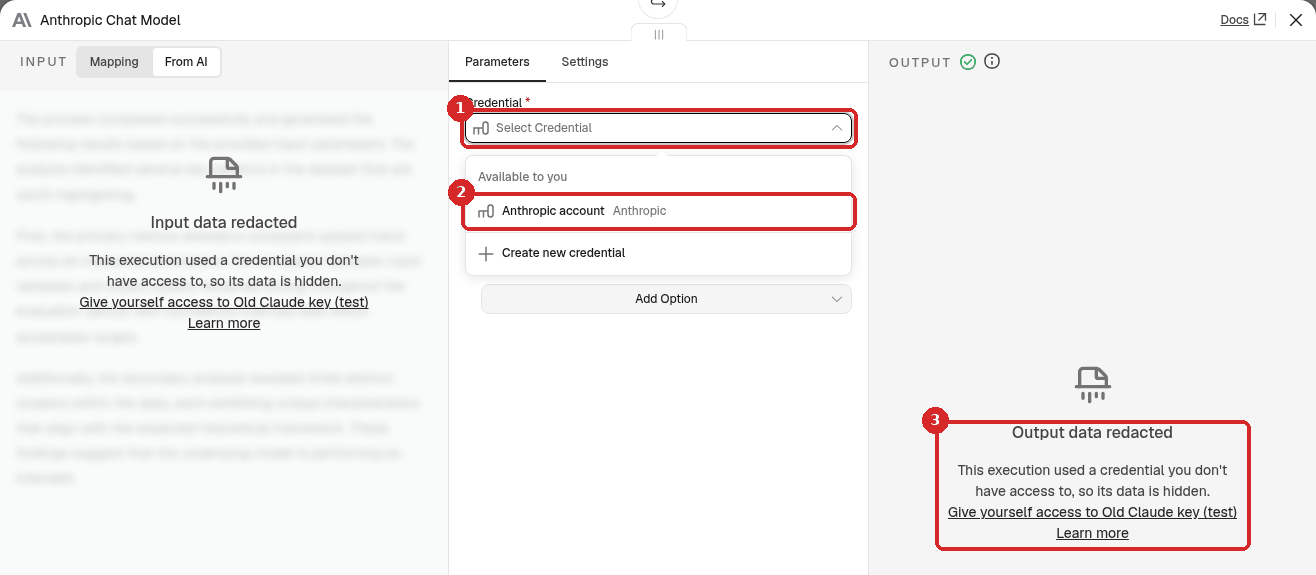
- Credential is empty: it says Select Credential.
- Click it and choose another credential (here Anthropic account), or Create new credential.
- The run we started before choosing a new credential failed, and n8n showed Output data redacted. This execution used a credential you don't have access to, so its data is hidden. Give yourself access to Old Claude key (test). That message names the deleted credential; you cannot give yourself access to it. Choose another credential (2) and run the workflow again.
After we chose Anthropic account, the same workflow ran with Success.
Check that it worked
- Open each credential you use and click Retry: it says Connection tested successfully.
- The small number next to each credential matches the workflows you expect.
- Credentials you deleted are gone from the list, and no workflow step shows Select Credential.
Common problems
The test says Couldn't connect with these settings / Unauthorized
The provider did not accept the key. Paste the key again in one piece (step 4). If it still fails, create a new key at the provider: the old one may have been deleted. See step 3.
The key is right but Claude answers with an error about credit
The key works, but your Anthropic account has no credit left. Check your balance in the Anthropic Console. See What the AI costs.
A step shows Select Credential, or the run says Output data redacted
The credential of that step was deleted. Open the step, click Credential and choose another one (see What happens to a workflow that used it).
I cannot see my key again
n8n never shows a saved key, only dots. If you lost it, create a new key at the provider and paste it in the credential (step 4).
I have two credentials with almost the same name
n8n adds a number to new credentials of the same type (we got Anthropic account 2). Rename them so you know which is which (step 5), and delete the one you do not use.