n8n: see what a workflow did and fix errors
Every time a workflow runs, n8n keeps a record called an execution. This guide shows you how to find a failed run, see which step failed and why, fix it and run it again.
| Time needed | 10 minutes |
| You need | An n8n agent from LusoVPS with at least one workflow (see Sign in and build your first AI agent) |
| Result | You can find out why a workflow failed and make it work again |
In this guide we use a small test workflow called Test - check a website. It has two steps: When clicking 'Execute workflow' (you start it by hand) and HTTP Request, which opens a web address. We typed a wrong address on purpose, so the run fails.
1. When a run fails while you are testing
When you click Execute at the bottom of the canvas and a step fails:
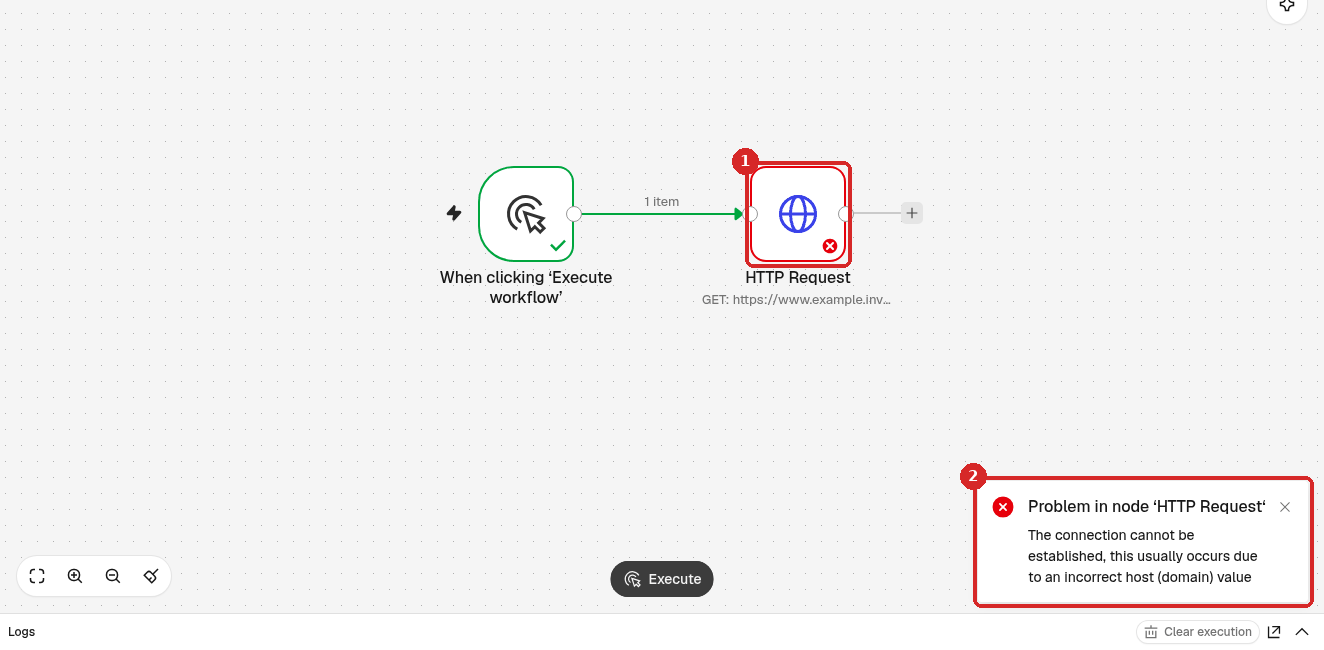
- The step that failed has a red border and a red cross. Steps that worked have a green tick.
- A message at the bottom right says Problem in node '...' and gives the reason. Here: The connection cannot be established, this usually occurs due to an incorrect host (domain) value, which means the web address is wrong.
Open Logs at the bottom of the screen to see more:
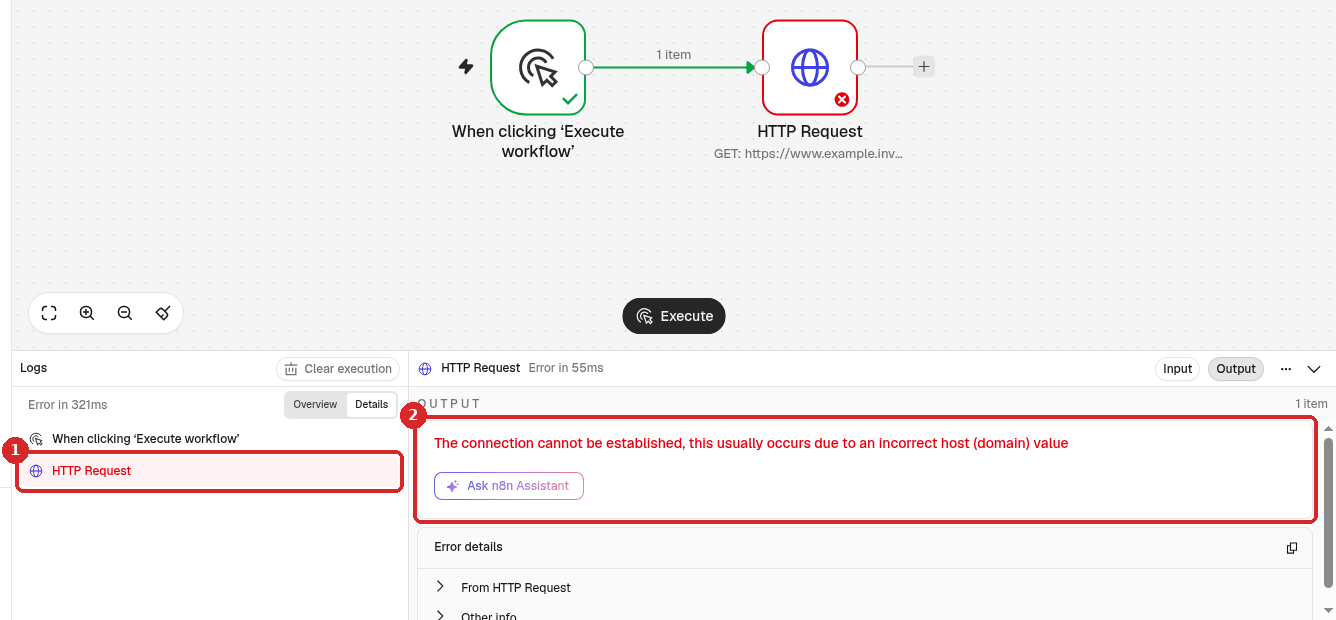
- The list of steps of this run. The failed step is in red. Click a step to see its details.
- The error message of that step. Error details below it has the technical details, useful if you ask for help.
2. Find failed runs later
Workflows that are published run on their own, when you are not looking. To check them:
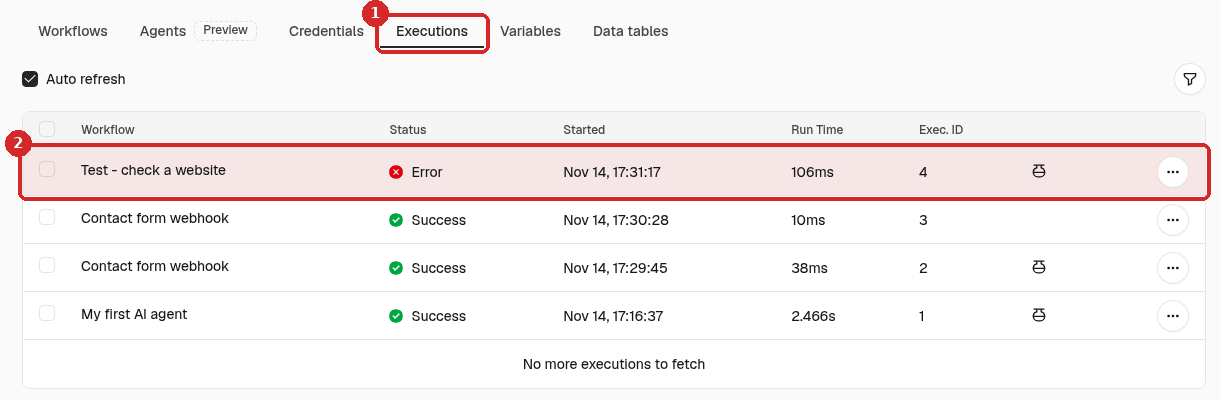
- Click the house icon (Overview) in the menu on the left.
- Open the Executions tab (1). Every run of every workflow is listed, the newest first. Failed runs show Error and a red row (2).
Tip
The Executions tab inside a workflow (at the top of the editor, next to Editor) shows only the runs of that workflow.
3. Open the failed run
Click the failed run. n8n opens it in a new browser tab, in the Executions tab of its workflow.
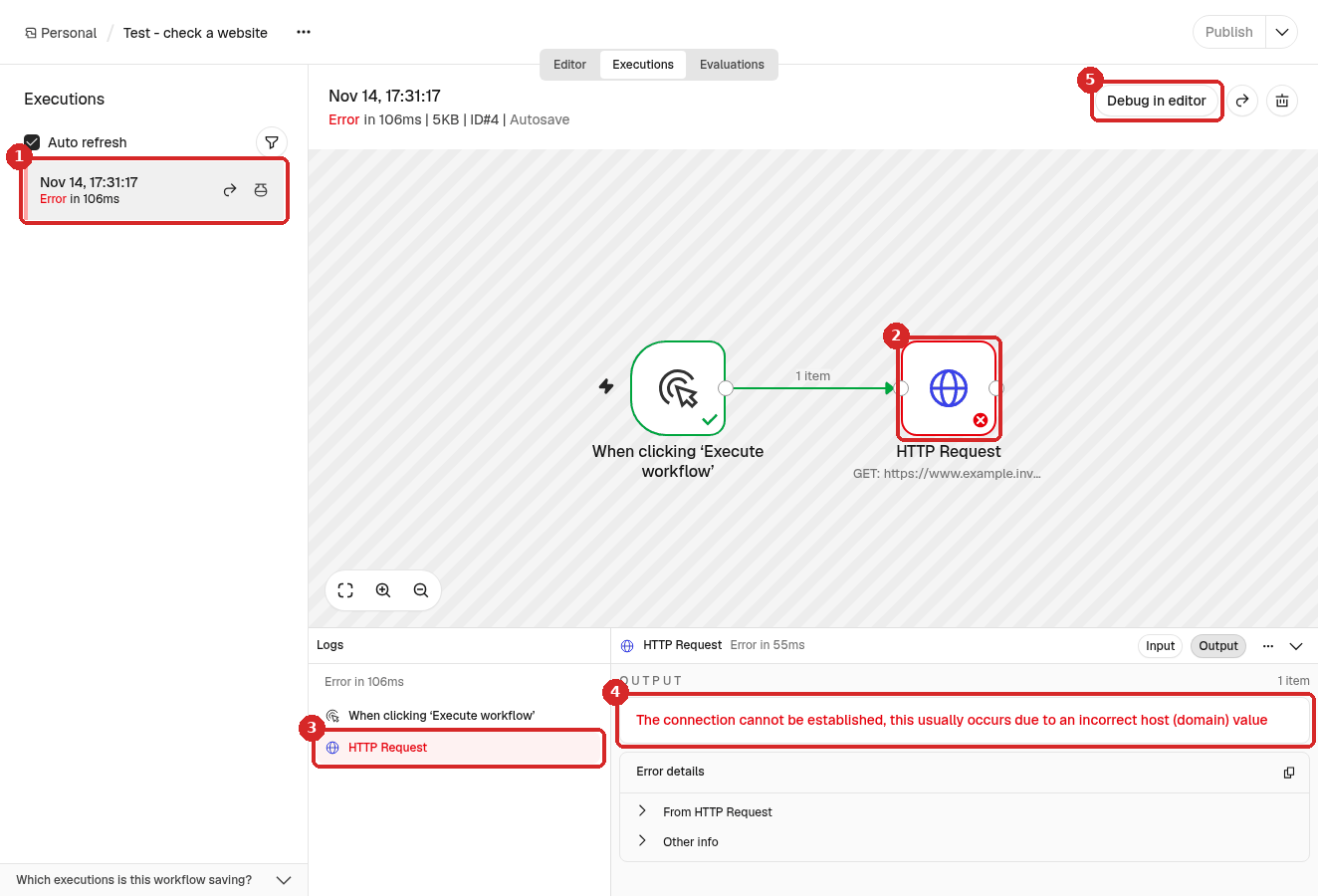
- The run you opened, with Error in red.
- The step that failed (red border).
- In Logs, the failed step is selected.
- The error message tells you what went wrong.
- Debug in editor opens the workflow in the editor with the data of this run, so you can test your fix with the same data.
4. Fix the step
- Click Editor at the top to go back to the workflow.
- Double-click the step that failed to open it.
-
Correct the setting the error message points to. Here we changed the URL to the right address (
https://example.com).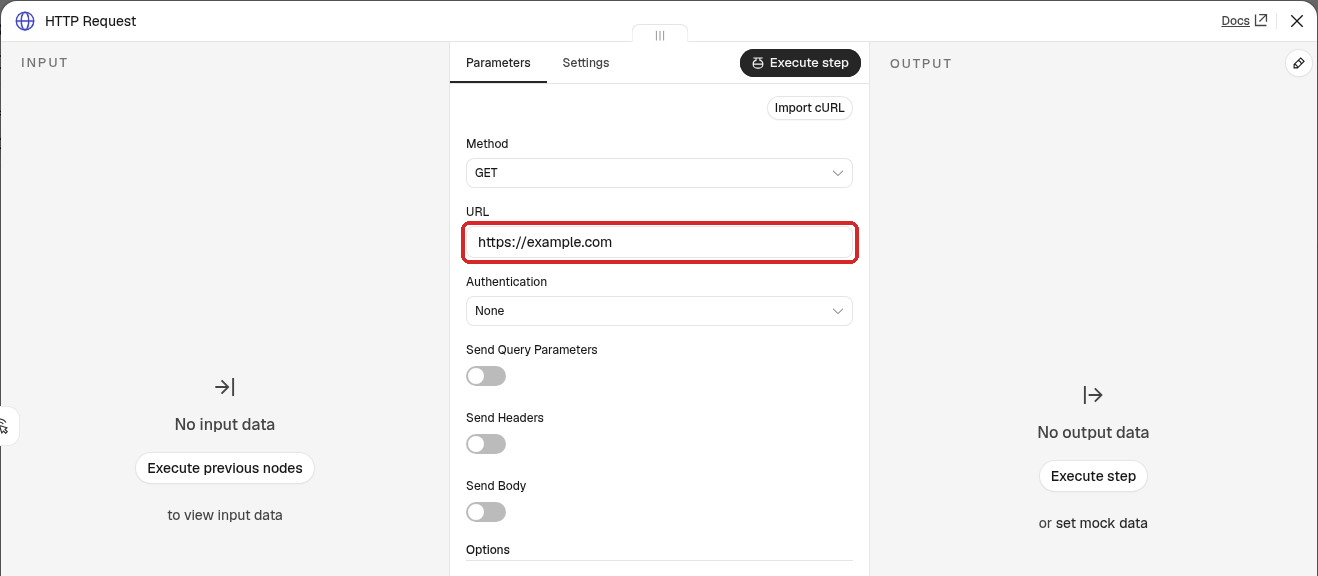
-
Close the step with the X at the top right. n8n saves the change by itself.
5. Run it again
Click Execute at the bottom of the canvas. This time all steps get a green tick.
In the Executions tab of the workflow you now see both runs:
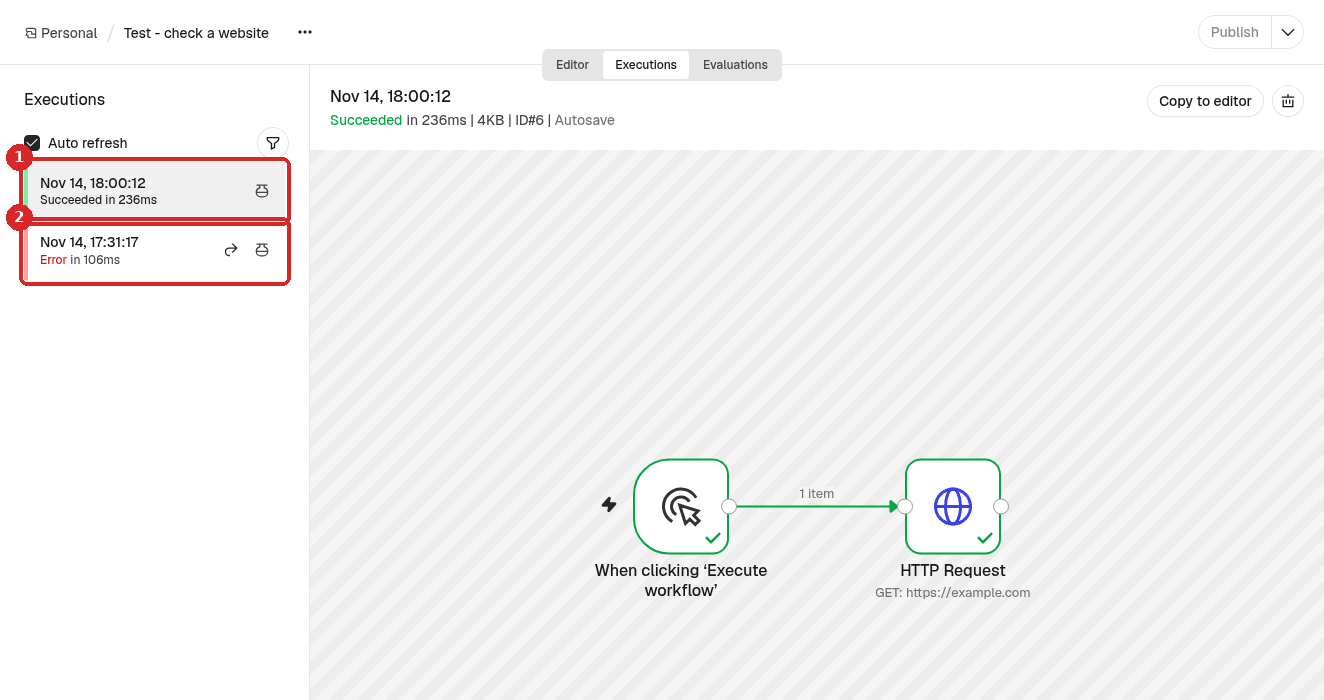
- The new run: Succeeded.
- The old run: still Error. n8n keeps it so you can look back.
Or: retry the failed run from the list
For a published workflow that failed on its own (for example a webhook call that came in while a step was broken), you can run the failed execution again after you fix the step, with the data it received:
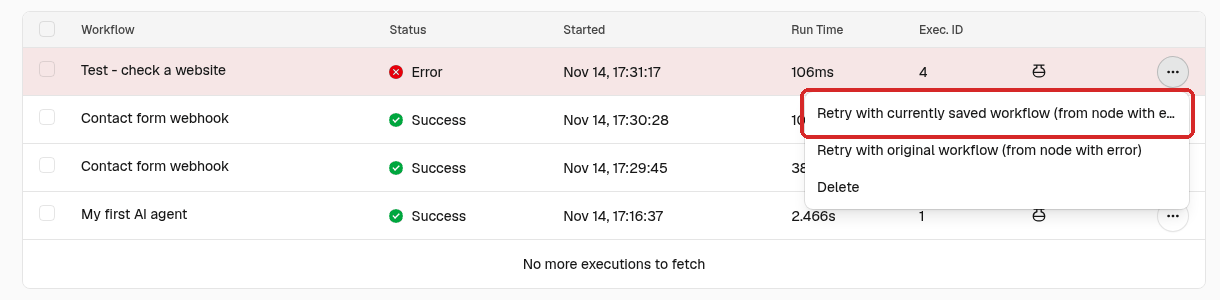
- In Overview → Executions, click the ... at the end of the failed row.
-
Choose Retry with currently saved workflow (from node with error). This uses your fixed version. (Retry with original workflow uses the version that was live when the run failed.)
-
n8n shows Retry successful.
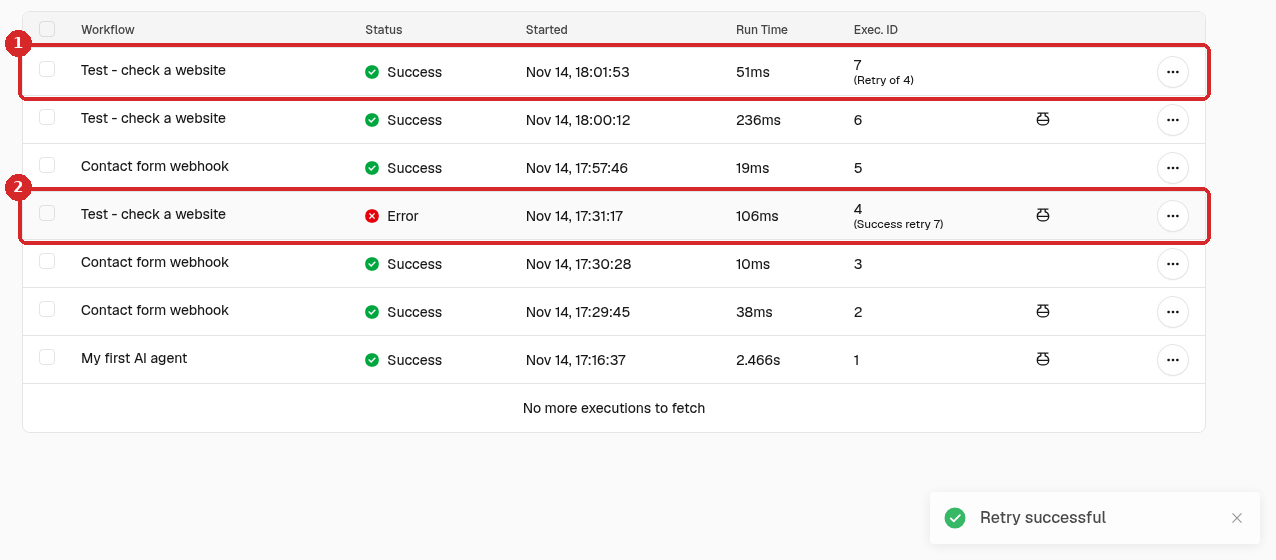
- The new run says (Retry of 4): it is the retry of run number 4.
- The old run now says (Success retry 7).
Check that it worked
- The newest run in Executions says Success (or Succeeded).
- On the canvas, every step has a green tick.
Common problems
I cannot find a run in Executions
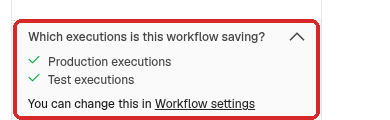
In the Executions tab of the workflow, open Which executions is this workflow saving? at the bottom left. It shows which runs n8n keeps. On our agent both Production executions and Test executions were kept. You can change this in Workflow settings.
The error message is too technical
Click the failed step in Logs and copy the text of Error details (the copy icon on its right). Paste it in a ticket to us, or in your AI chat, and ask what it means.
The step that failed uses Claude (Anthropic)
Errors about credit or the API key come from your Anthropic account. Check your balance and the key in the Anthropic Console, then update the Anthropic account credential in Overview → Credentials.
It works when I click Execute but not on its own
The workflow must be published to run on its own. See A quick tour of the screens. After each change, click Publish again.