n8n: update your n8n agent
LusoVPS makes new n8n versions available for your agent. This guide shows where to see the version you have, how to start an update from the client area, and how to check afterwards that everything still works.
| Time needed | 5 minutes, plus the update itself ("a few minutes", says the client area) |
| You need | Your n8n agent from LusoVPS and access to the client area |
| Result | Your agent runs the latest n8n version we have made available, with your workflows and credentials kept |
Update is not Reinstall
Update keeps your workflows, credentials and runs. Reinstall, in the card next to it, deletes all of them. Read the card title before you click.
Make a copy of important workflows first
The client area says Your data is kept, and it was in our test. A copy costs one minute: download your workflows before you update.
1. See which version you have
In the client area: open your n8n agent and the Manage agent tab.
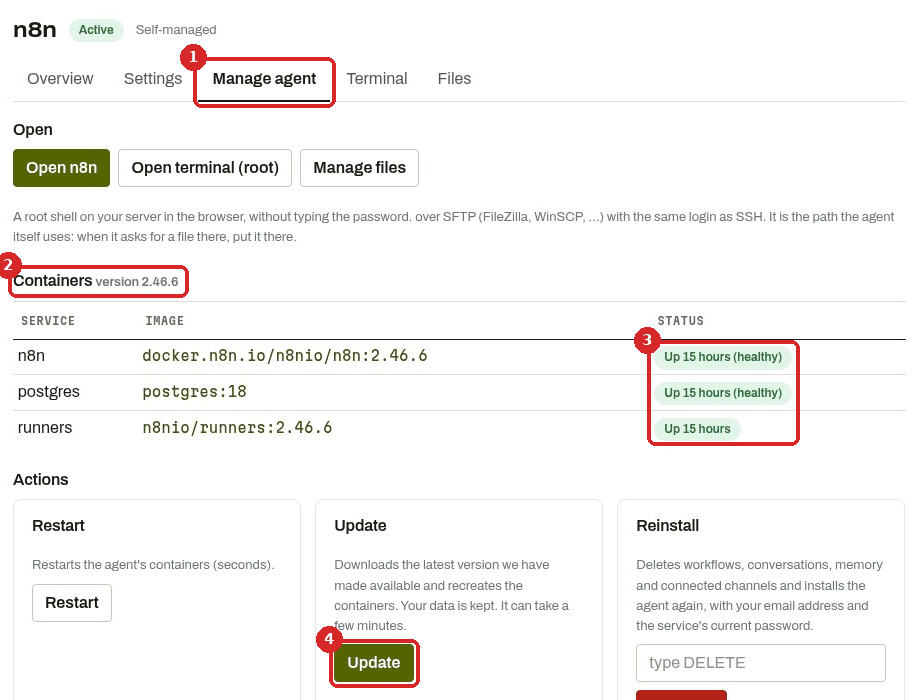
- The Manage agent tab.
- Containers shows the version of your agent. Ours was version 2.46.6.
- STATUS: each part of the agent with how long it has been running, for example Up 15 hours (healthy). n8n is n8n itself, postgres is its database (your workflows and credentials live here), runners runs the code steps.
- The Update button.
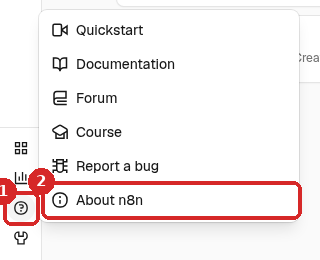
In n8n: click the ? (Help) at the bottom of the menu on the left (1) and choose About n8n (2).
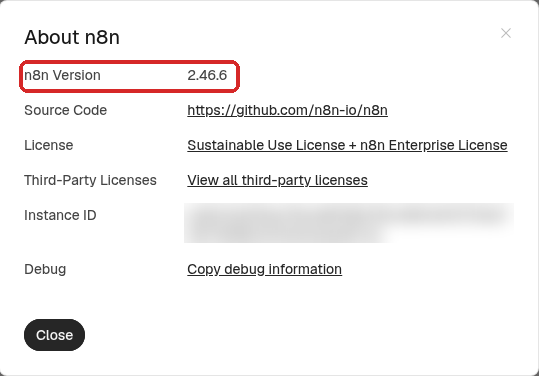
The window shows the n8n Version:
2. Start the update
- In the Manage agent tab, click Update in the Update card (Downloads the latest version we have made available and recreates the containers. Your data is kept. It can take a few minutes.).
- There is no confirmation window: the update starts at once. The page reloads and shows The update was started: the agent is updated within a few minutes. (1).
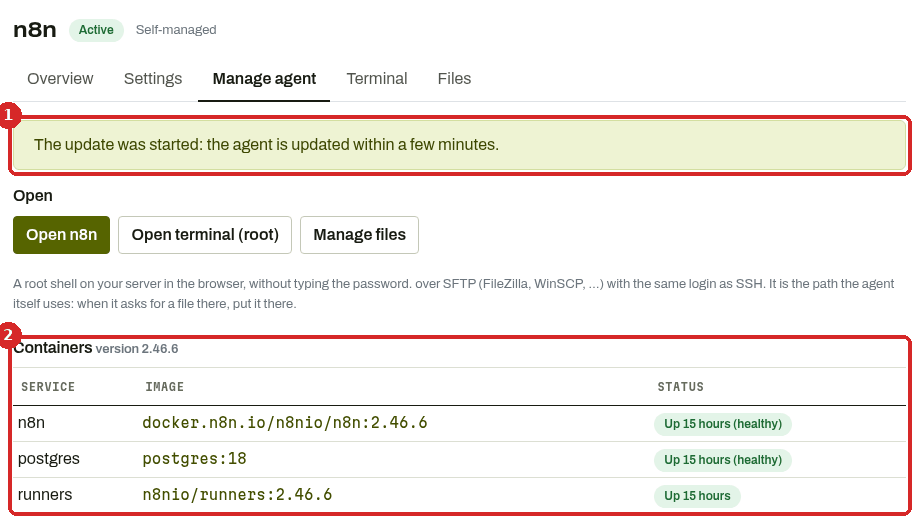
- Wait a few minutes, then reload the page and look at Containers (2): after an update that installs a new version, the version number there changes, and the STATUS times count again from the restart.
What we saw in our test
When we clicked Update, our agent already had the latest version we offer (2.46.6). The update finished without restarting anything: the version stayed 2.46.6, the STATUS kept counting (Up 15 hours), and n8n kept answering the whole time (we checked every 2 seconds for 2.5 minutes). So if the version and the times do not change, you already had the latest version. We have not yet run an update that installs a new version, so we cannot tell you how long n8n is unavailable in that case; plan it for a quiet moment, when no important workflow is due to run.
3. Sign in again if n8n asks
Open n8n (Open n8n in the Manage agent tab). If you see the n8n sign-in page, sign in as usual with your email and your service password (how).
Check that it worked
- Help → About n8n shows the version you expected.
- Overview → Workflows lists all your workflows, and Credentials all your keys. In our test both were all still there (My first AI agent, Anthropic account, our Telegram bot and our test workflows).
-
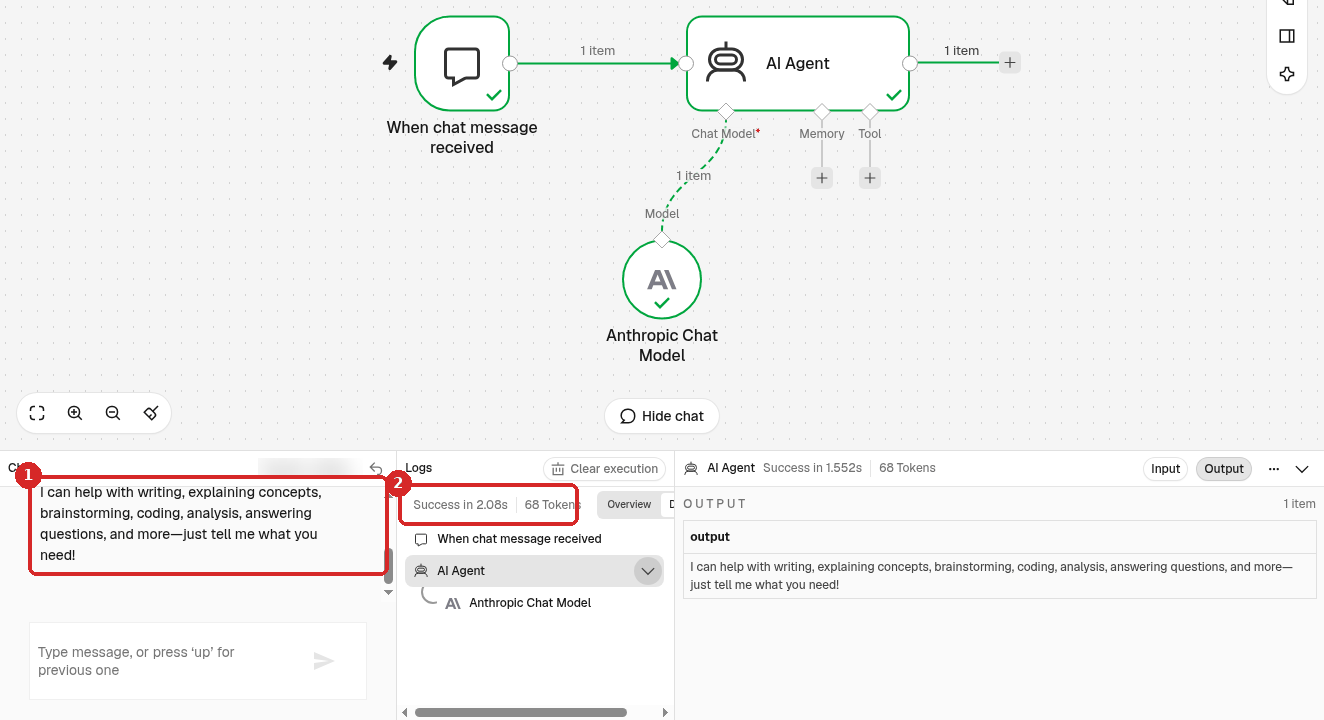
Try one workflow. We opened My first AI agent, clicked Open chat and asked Hello! In one sentence: what can you help me with?. Claude answered at once (1) and the run was a Success (2):
-
Check that your published workflows still say Published and have new runs in Executions at the expected times.
Common problems
The version did not change
If the STATUS times did not restart either, nothing was installed: you already have the latest version we have made available. That is what happened in our test. The version we offer can be lower than the newest one announced by n8n.
n8n does not open after the update
Wait a few more minutes and reload. If it still does not open, use Restart in the Manage agent tab, then see The dashboard does not open. If nothing helps, open a ticket.
A workflow behaves differently after a new version
Open the failed run in Executions to see which step failed and why (how). If you made a copy before the update, you can import it back to compare.