A tour of the OpenClaw dashboard
This page shows what each part of the OpenClaw dashboard is for, so you know where to click.
| Time needed | 10 minutes |
| You need | An OpenClaw agent with an AI key (First steps) |
| Result | You know how to open the dashboard and what each menu does |
Be patient on the Lite plan
On our Lite test agent (2 GB), most pages opened in 3 to 12 seconds, but some took 30 to 60 seconds (Portals, Dashboards, Automations, Systems), and the chat sometimes stayed on grey placeholders.
1. Open the dashboard
- Sign in to the client area, open Services → My Services and click your OpenClaw agent.
- Click the Manage agent tab, then Open dashboard.
Open dashboard is a one-time link: it registers your browser and opens the dashboard. On our test agent it took about 55 seconds. The dashboard opens on the chat (Main Session).
2. The left bar
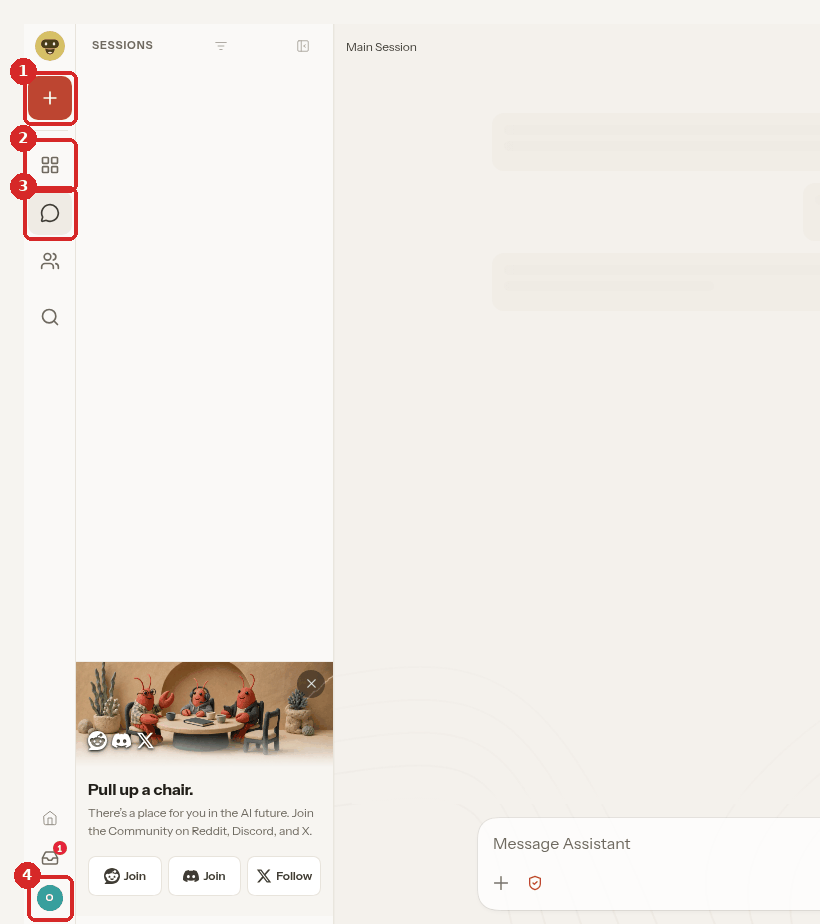
- New conversation (red +): start a new chat with your assistant.
- Pages: the list of all the dashboard pages (step 3).
- Sessions: back to the chat and the list of your conversations.
- Your avatar (Owner): the menu with Settings (step 5).
3. The Pages menu
Click the Pages icon. These are all the pages:
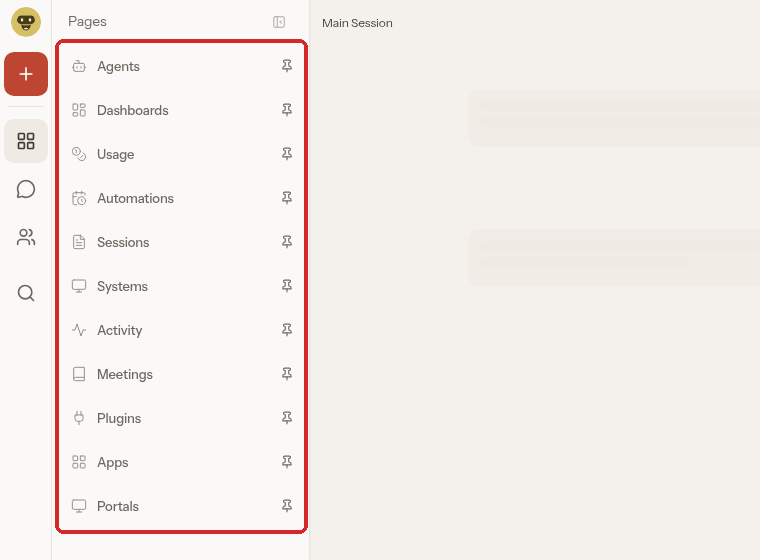
| Page | What it is for |
|---|---|
| Agents | Your assistants. Each card shows the model it uses. Open chat starts a conversation. |
| Dashboards | Dashboards that your tasks save. Empty at the start ("No dashboards yet"). |
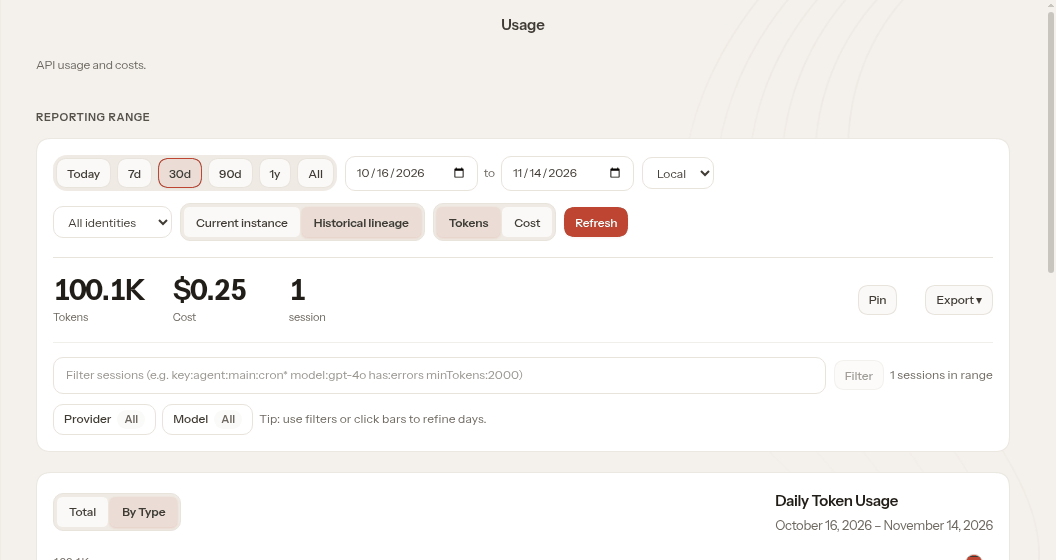
| Usage | How many tokens your agent used and what they cost. |
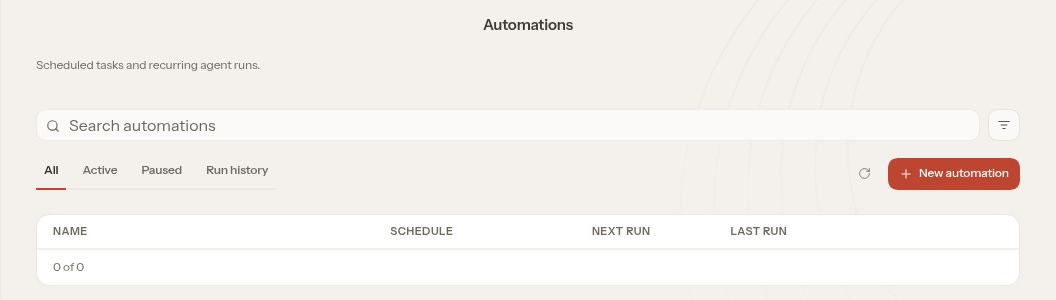
| Automations | Scheduled and recurring tasks. Empty until you create one. |
| Sessions | All conversations, with their size and status. You can search old conversations. |
| Systems | The machines connected to OpenClaw and their backups. On our agent it stayed on "Loading backups…". |
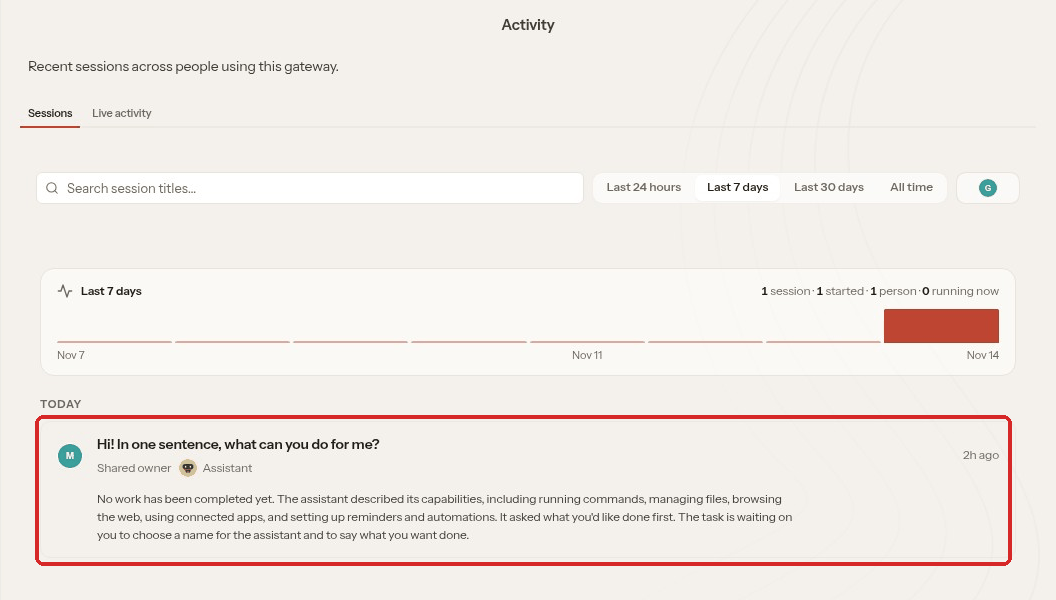
| Activity | A short summary of each recent conversation. |
| Meetings | Meeting notes and transcripts, if you set up meeting capture. Empty at the start. |
| Plugins | Extra tools for the agent. The Skills tab is explained in Skills in OpenClaw. |
| Apps | Plugin apps (none at the start), plus links to the OpenClaw phone apps. |
| Portals | Shows examples of what to ask the agent to open a portal. |
Agents
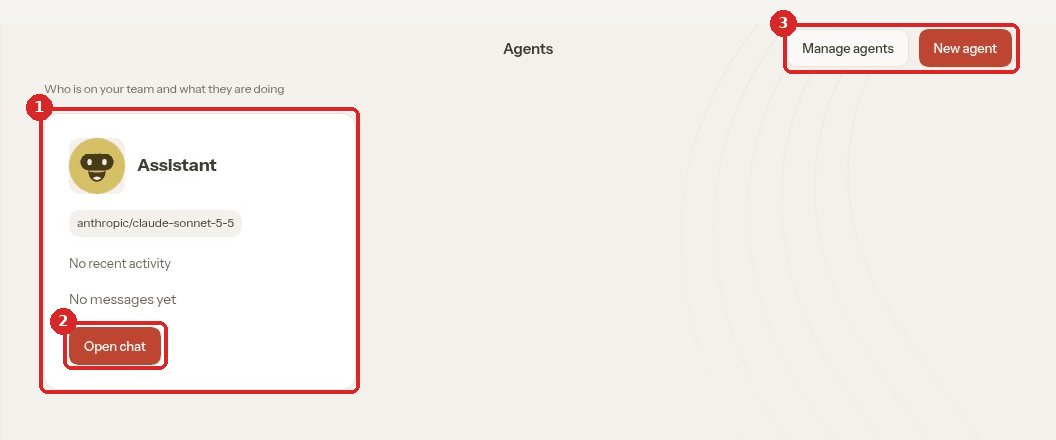
- Your assistant (Assistant) and its model, here
anthropic/claude-sonnet-5-5. - Open chat opens a conversation with it.
- Manage agents and New agent. One agent is enough to start.
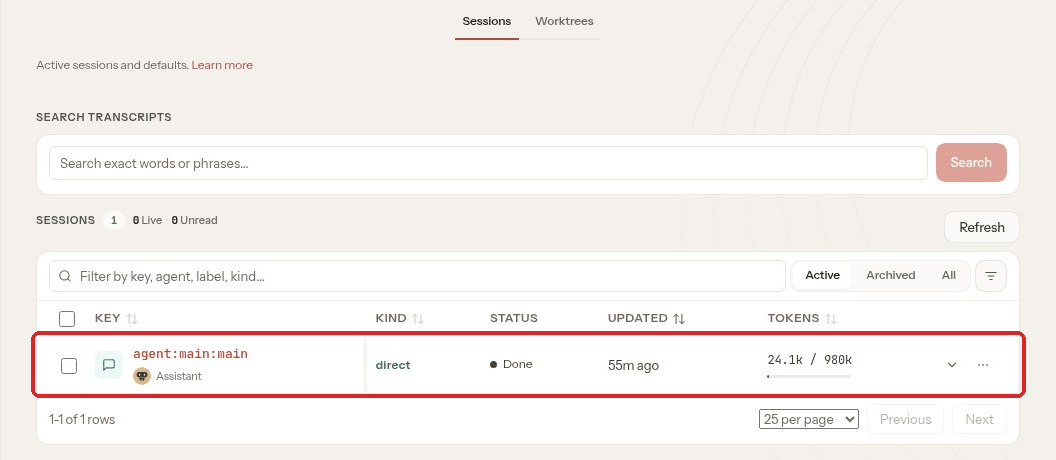
Sessions
Each line is a conversation. TOKENS shows how full the conversation is (here 24.1k / 980k). Use SEARCH TRANSCRIPTS to find something said in an old chat.
Automations
Scheduled tasks live here (All, Active, Paused, Run history). Click New automation to create one, or ask the assistant in the chat.
Usage
Tokens and cost for the period you choose (Today, 7d, 30d…). Further down you see the cost by model and by provider.
Your provider bills you, not LusoVPS
The cost here is calculated by OpenClaw. The real bill comes from your AI provider (for example Anthropic): check the exact amount in your provider's console.
Activity
A summary of each conversation in plain words: what was asked, what was done, and what the assistant is waiting for.
4. Your avatar menu
Click your avatar at the bottom left (the round icon with O for Owner).
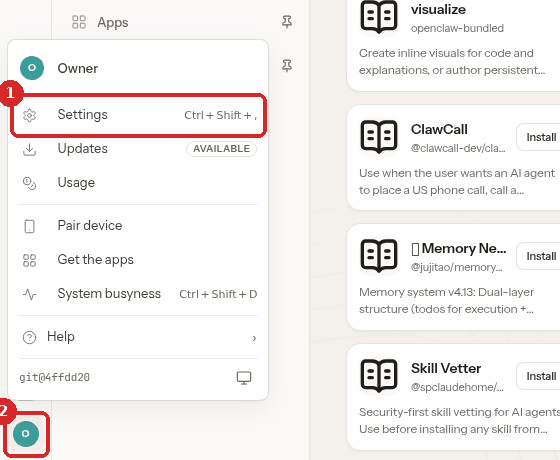
- Settings: all the agent's settings (step 5).
- The avatar button that opens this menu.
The menu also has Updates, Usage, Pair device, Get the apps, System busyness and Help.
Updates: use the client area
The menu may show Updates with the label AVAILABLE. We did not test updating from inside OpenClaw. On LusoVPS, update your agent with Update in the client area (Manage agent tab), which installs the version we have made available and keeps your data.
5. Settings
Settings opens a page with its own menu on the left. Click Back to app (or press Esc) to return.
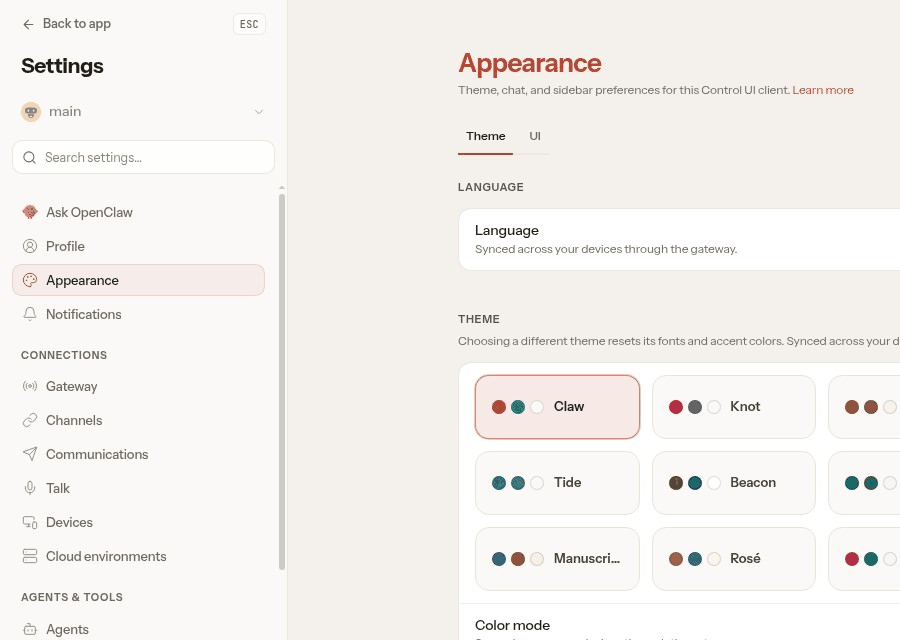
The sections you will use most:
- Models: the AI model and the key (see First steps).
- Channels: connect WhatsApp, Discord and other chat apps.
- Skills: turn skills on and off (see Skills in OpenClaw).
- Appearance: language, theme and text size of the dashboard.
Check that it worked
You can open Pages → Agents and see your assistant with its Claude model, and Pages → Usage shows the tokens of your first conversation.
Common problems
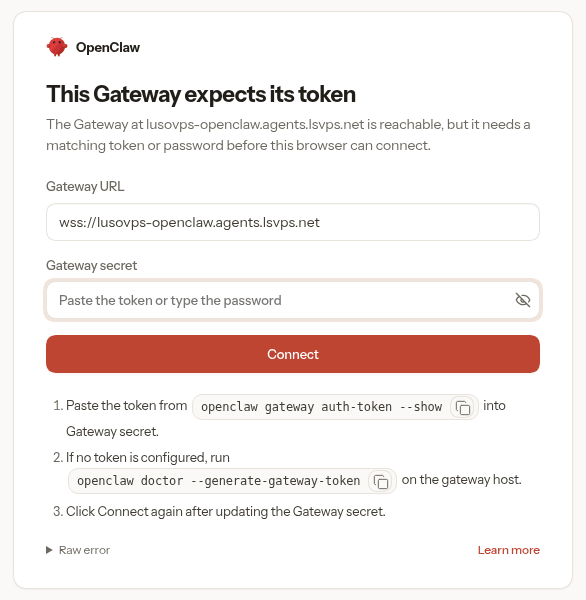
\"This Gateway expects its token\"
Your browser is no longer registered with the agent (new browser, cleared cookies, or a closed private window). Go back to the client area and click Open dashboard again.
\"Unable to auto-login. Please contact support.\"
The agent was too busy to answer. On our test agent this happened while the memory was full. Wait a few minutes and click Open dashboard again. If it keeps happening, see When OpenClaw misbehaves.
A page stays on grey placeholders or \"Loading…\"
Wait up to a minute and click the page again. If nothing loads, the agent is probably short of memory: restart it from Manage agent (see Logs and restart).