n8n: run a workflow on a schedule
A Schedule Trigger starts your workflow by itself at the times you choose: every day at 8 o'clock, every hour, every Monday, and so on. In this guide you create a scheduled workflow, check its time zone, publish it, and see it run on its own.
| Time needed | 10 minutes |
| You need | An n8n agent from LusoVPS (see Sign in and build your first AI agent) |
| Result | A workflow that runs on its own at the times you set |
A schedule only runs when the workflow is published
While you build, nothing runs by itself. The schedule starts only after you click Publish, and stops when you Unpublish.
1. Create a workflow with a Schedule Trigger
- Click the + at the top of the menu on the left and choose New workflow.
- Click the name My workflow at the top and give it a name, for example Daily check.
- Click Add first step. In What triggers this workflow?, choose On a schedule.
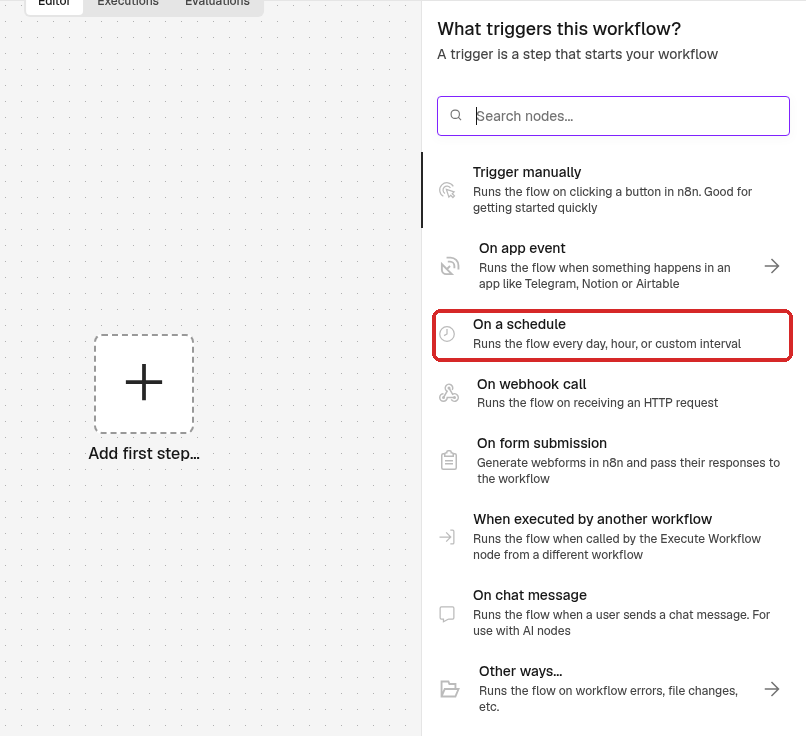
2. Choose when it runs
The Schedule Trigger step opens. By default it runs once a day at midnight:
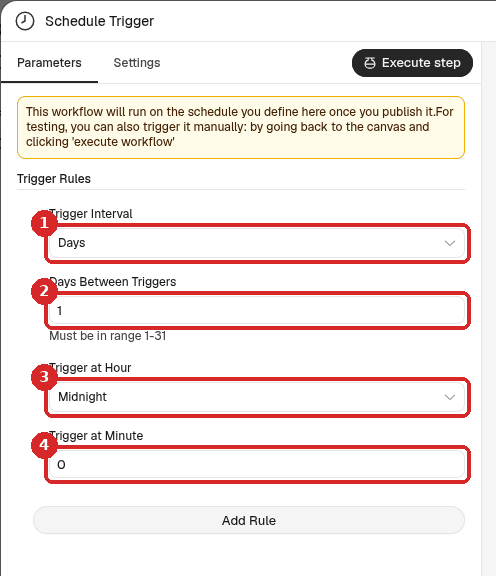
- Trigger Interval: the unit (here Days).
- Days Between Triggers:
1means every day. - Trigger at Hour: the hour. Click it and pick another one, for example 8am.
- Trigger at Minute: the minute of that hour.
Click Trigger Interval to see the other units: Seconds, Minutes, Hours, Days, Weeks, Months, and Custom (Cron) for advanced users. The fields below change to match the unit.
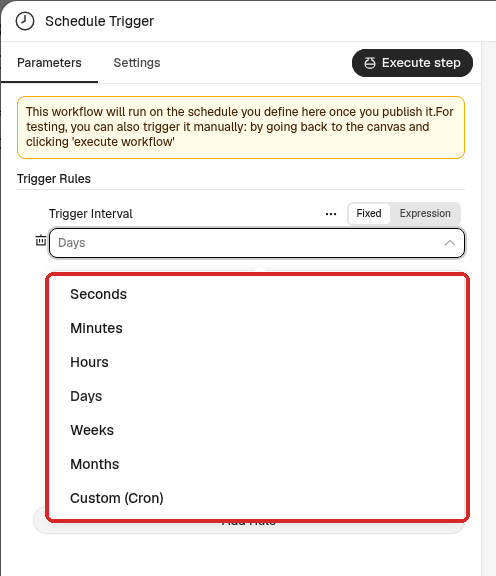
To run at several different times, click Add Rule and set another rule.
Test it quickly
To see a run in the next minute, choose Minutes (1) and type 1 in Minutes Between Triggers (2). That is what we did for this guide. Remember to set the real schedule afterwards, or to unpublish the test (step 6).
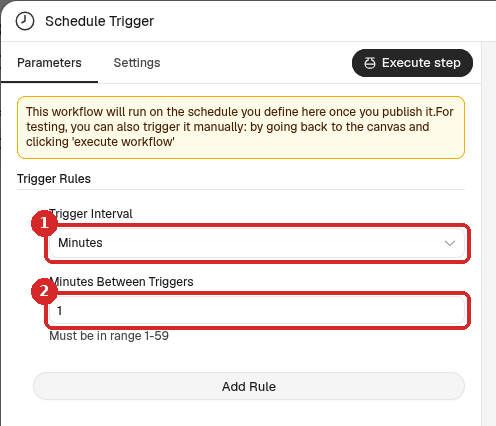
Click Test this trigger on the right to try the step now. The OUTPUT shows the date and time of the run, and the Timezone column says which time zone n8n used (on our agent: Europe/Lisbon (UTC+00:00)).
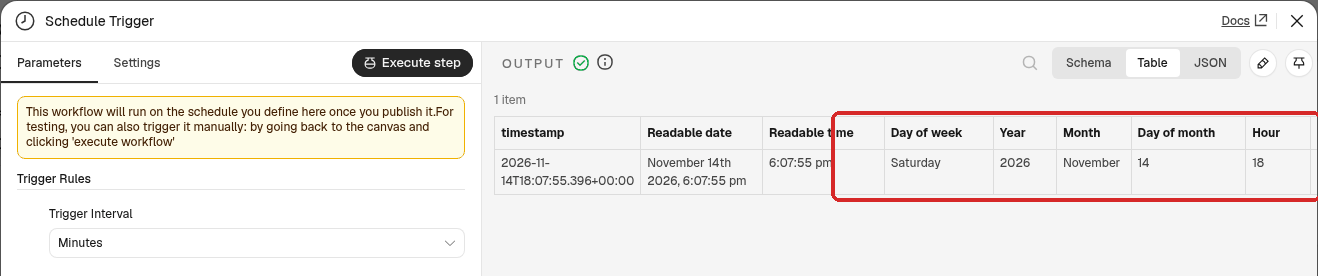
Close the step with the X. Then add the steps that should run on schedule (for example an AI step, or a step that sends you an email) with the small + at the right of the trigger.
3. Check the time zone
The times in the schedule follow the time zone of the workflow.
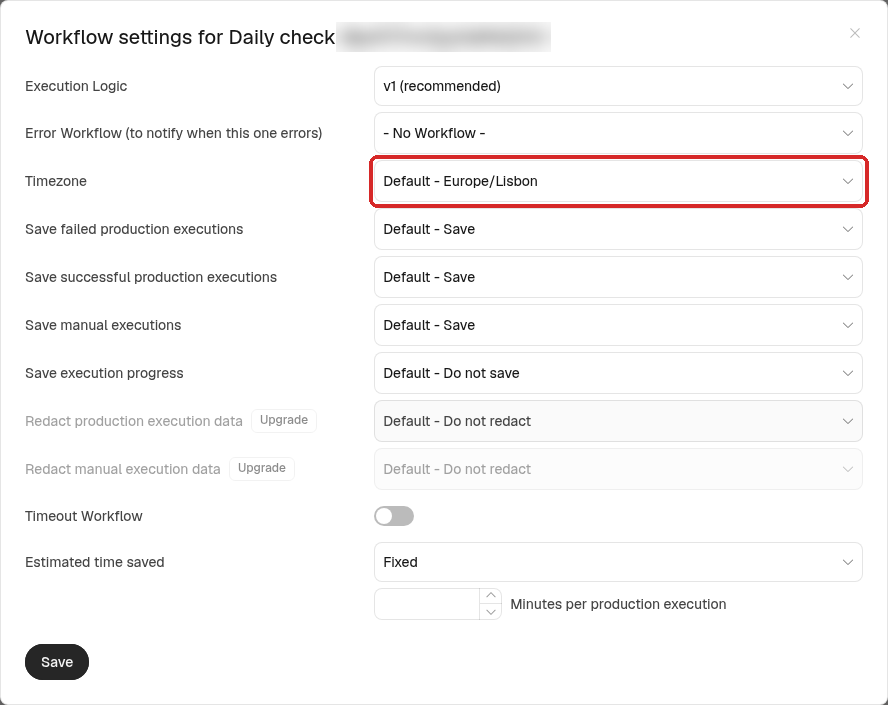
- Click the ... next to the workflow name and choose Settings.
- Look at Timezone. On our agent it was Default - Europe/Lisbon. If you live in another time zone, click it and choose yours.
- Click Save (or close the window with the X if you changed nothing).
4. Publish the workflow
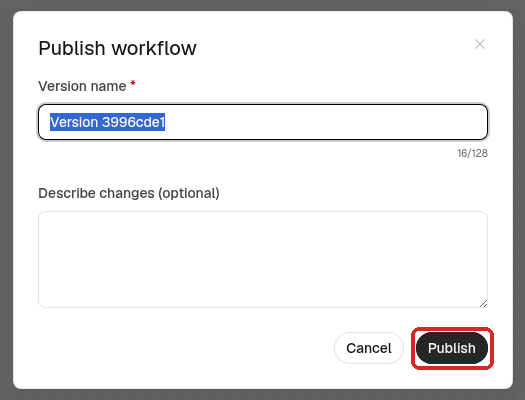
- Click Publish at the top right.
-
n8n suggests a Version name. You can keep it. Click Publish.
The button now says Published, with a green dot. The schedule is live.
5. See the automatic runs
Open the Executions tab at the top of the workflow. Each time the schedule fires, a new run appears (with Auto refresh on, the list updates by itself).
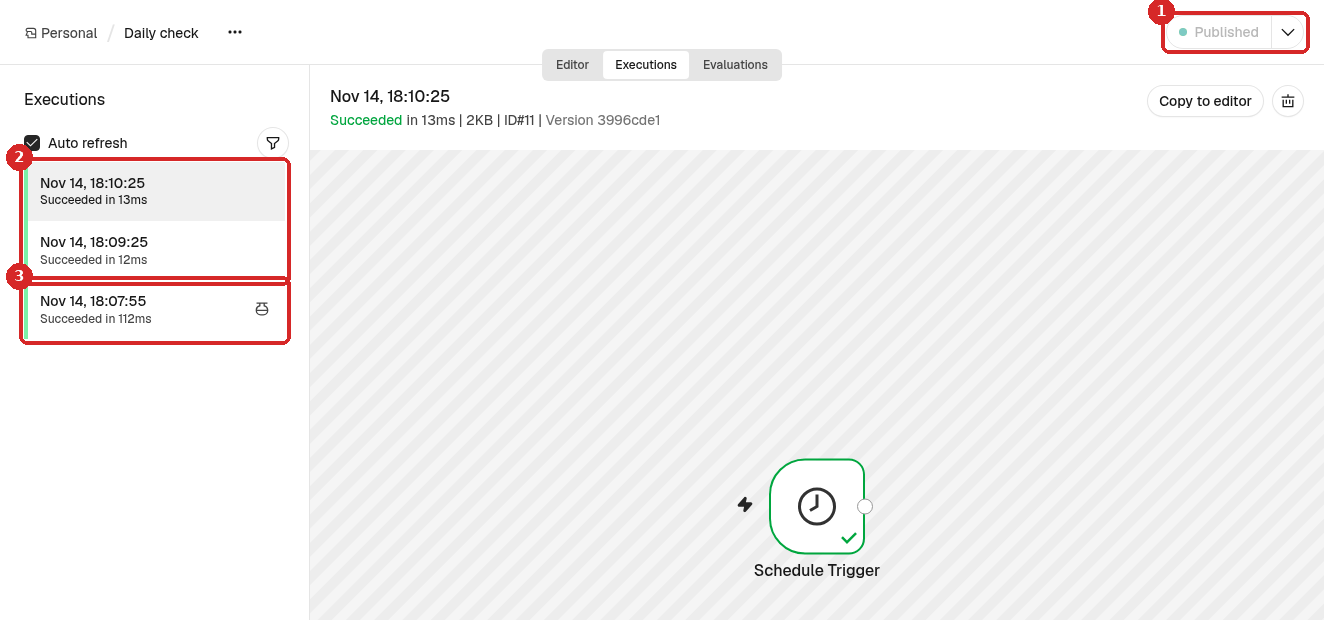
- Published: the schedule is live.
- Runs started by the schedule. In our test (every minute) the first one came about a minute after we published, then one every minute.
- The run with the small flask icon is the test you started by hand with Test this trigger.
6. Stop the schedule (unpublish)
To stop the workflow from running on its own:
-
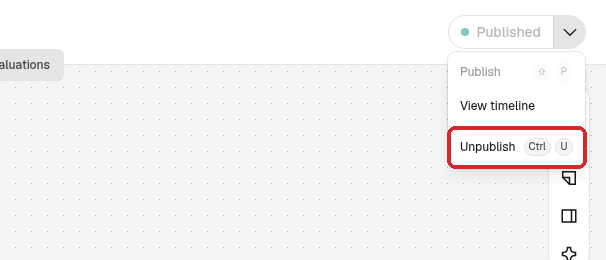
Click the arrow next to Published and choose Unpublish.
-
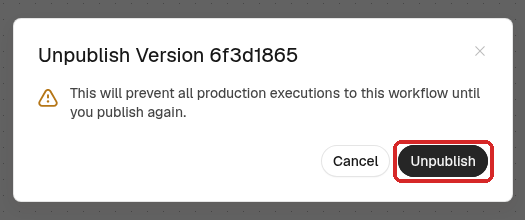
n8n warns This will prevent all production executions to this workflow until you publish again. Click Unpublish.
-
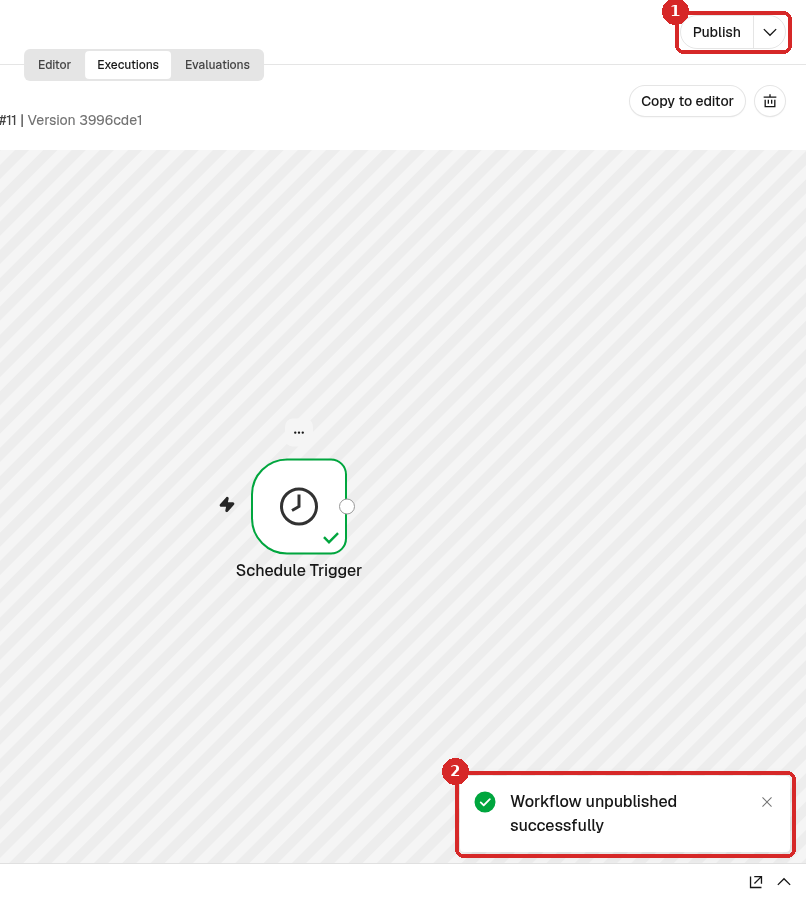
n8n shows Workflow unpublished successfully, and the button says Publish again.
The workflow and its runs are kept. Click Publish when you want the schedule back.
Check that it worked
- The workflow says Published at the top right.
- Executions shows new runs at the times you set, without the flask icon.
- After Unpublish, no new runs appear.
Common problems
The workflow runs at the wrong hour
Check Timezone in the workflow Settings (step 3). Then click Publish again so the live version uses the change.
Nothing runs at the time I set
Check that the workflow says Published. If you changed the schedule after publishing, click Publish again: the live version is the one you published last.
It runs too often
Check Trigger Interval and the number under it. For example Minutes with 1 runs every minute. Each run is kept in Executions; unpublish the workflow first if you need time to fix it.
Do I need to keep n8n open in my browser?
No. The schedule runs on your agent (the server), not in your browser. You can close the browser after you publish.