Update OpenClaw
This guide updates your OpenClaw agent to the latest version that LusoVPS has made available, from the client area. Your conversations, settings and skills are kept.
| Time needed | About 5 minutes |
| You need | Your client area login |
| Result | Your agent runs the latest version we offer, with the same data and settings |
Update, not Reinstall
Update keeps your data. Reinstall, in the same row, deletes conversations, memory and connected channels and cannot be undone. Do not type anything in the type DELETE box.
1. See which version you have
- Sign in to the client area, open Services → My Services and click your OpenClaw agent.
- Click the Manage agent tab.
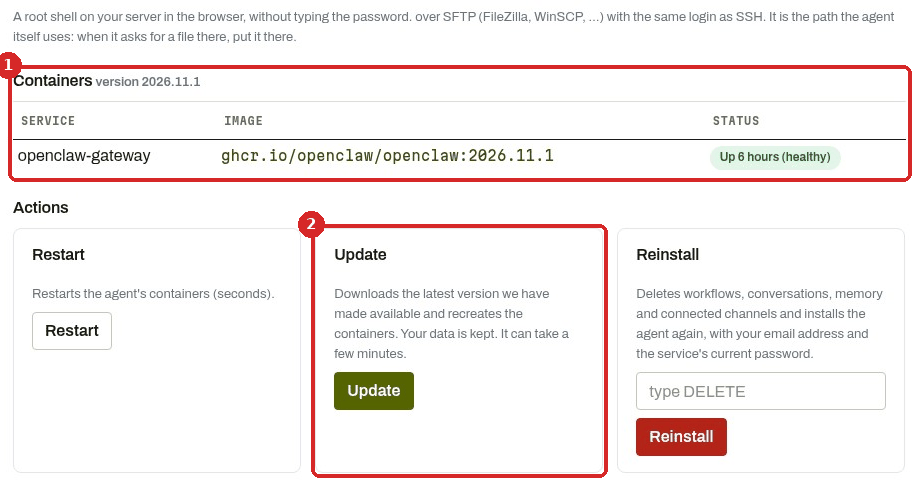
- Containers version is the OpenClaw version your agent runs (here 2026.11.1). STATUS should say Up … (healthy).
- The Update card: "Downloads the latest version we have made available and recreates the containers. Your data is kept. It can take a few minutes."
2. Click Update
Click Update once. There is no confirmation question: the update starts straight away.
The page then stays loading while the agent is updated. Do not close it and do not click again. On our Lite test agent the page came back after about 2 minutes with this message:
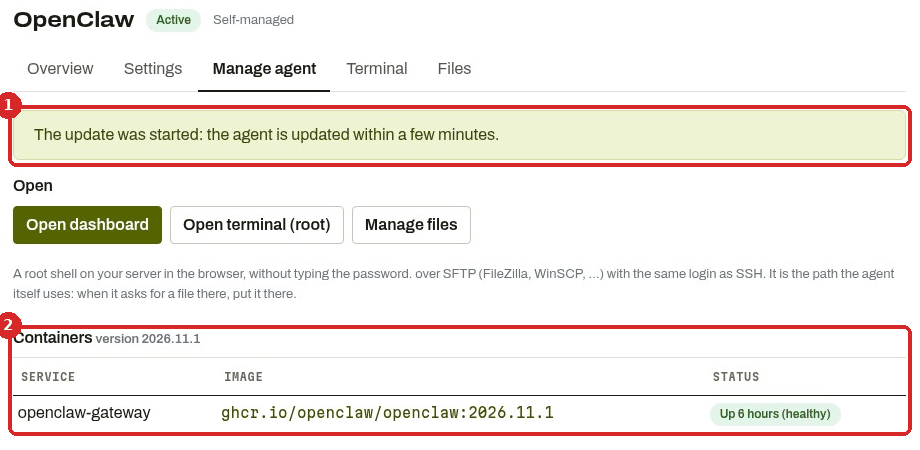
- "The update was started: the agent is updated within a few minutes."
- The version and the status of the agent.
In our test the agent was already answering again when this message appeared (the agent's log showed it ready about 2 minutes after the click). If the status does not say healthy yet, wait a minute and click the Manage agent tab again to refresh it.
Already on the latest version?
When we tested this guide, the latest version available on LusoVPS was the one our agent already had (2026.11.1). After Update, the version stayed the same and the status still showed Up 6 hours (healthy): there was nothing new to install, so the agent was not restarted. When a newer version is available, the version number in Containers version changes after the update.
3. Open the dashboard again
Click Open dashboard. In our test it opened the chat after about 16 seconds, as usual.
Check that it worked
- Manage agent shows Up … (healthy) and the new Containers version.
- In the dashboard, open your avatar menu (bottom left) → Settings → Updates. Gateway version shows the same version as the client area.
- Your settings are still there. In our test, after the update:
- Settings → Models still showed Claude Sonnet 5.5 and Claude Ready, with the key from the client area.
- Settings → Skills still showed the same skills (All 51, Ready 15, Needs Setup 5, Disabled 31).
- The old conversations and the usage figures were still there.
Common problems
OpenClaw says \"Update available\", but the client area installs an older version
OpenClaw checks for new versions on its own and shows Updates · AVAILABLE in the avatar menu. In our test, its Updates page said Update available v2026.11.3, while the client area offered 2026.11.1.
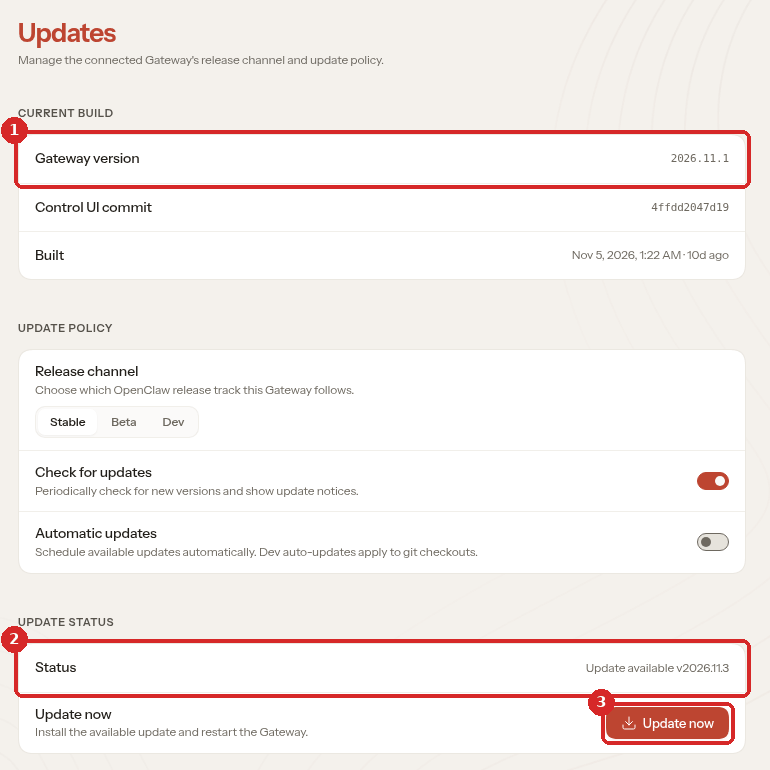
- Gateway version: the version you run now.
- Status: the newest version OpenClaw knows about.
- Update now: OpenClaw's own update button.
The client area installs the latest version that LusoVPS has made available, so it can be a little behind OpenClaw's own releases. We did not test OpenClaw's own Update now button: use Update in the client area.
The page loads for a long time after I click Update
That is normal: the page waits while the agent is updated. In our test it took about 2 minutes. On a busy Lite agent it can take longer. Wait, then open the Manage agent tab again. Do not click Update or Restart several times.
\"Unable to auto-login\" right after the update
The agent is still starting. Wait until Manage agent shows healthy, then click Open dashboard again. See When OpenClaw misbehaves.