Order an AI agent
This guide takes you from the LusoVPS website to a running agent. You do not need any technical knowledge.
| Time needed | About 5 minutes, plus a few minutes while the agent is installed |
| You need | An email address you can read, and a payment method (card, PayPal, bank transfer or Multibanco) |
| Result | An active agent in your client area and an email with your access details |
1. Choose the agent and the plan
Open the Agents page and scroll down to Plans.
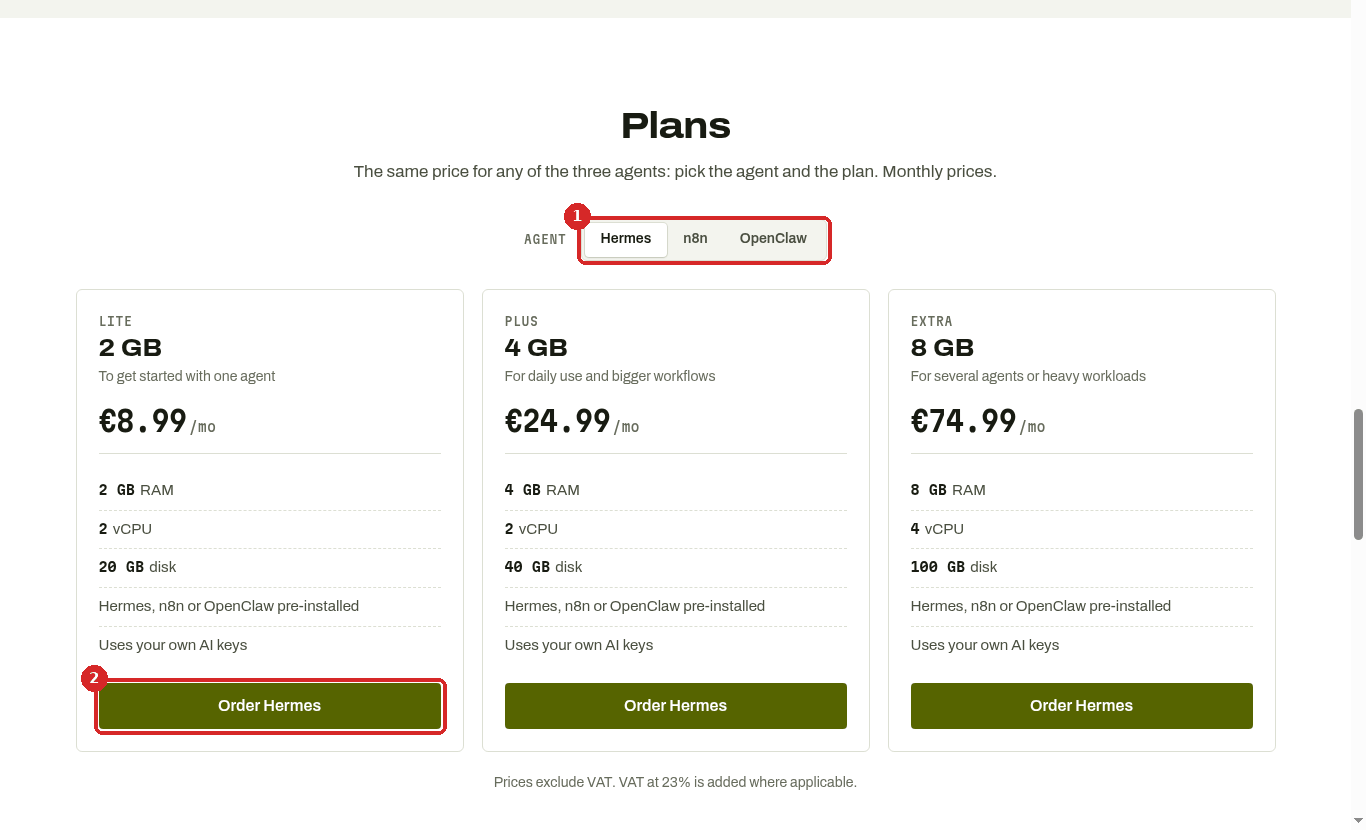
- Under AGENT, click the agent you want: Hermes, n8n or OpenClaw. The buttons below change to match.
- Click Order under the plan you want.
Which plan?
Lite is enough to start with one agent. Choose Plus or Extra for bigger workflows or several agents. To move to a bigger plan later, you ask us in a ticket (see Change your plan).
2. Review the cart
You land on Review & Checkout with your agent in the cart.
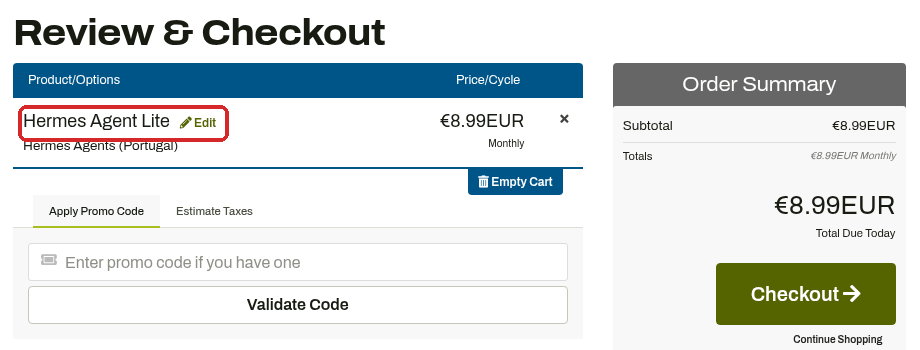
Check that the product name is the agent and plan you chose. If it is not, click the × on the right to remove it and go back to step 1.
3. Apply a promo code (optional)
If you have a promo code:
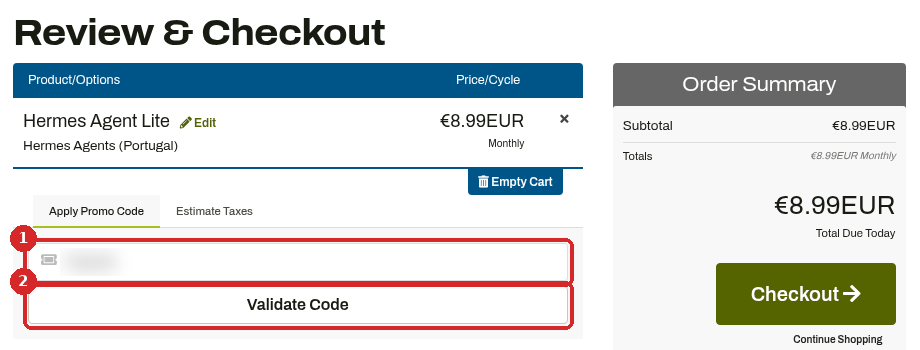
- Type it in Enter promo code if you have one.
- Click Validate Code.
The page reloads with Promotion Code Accepted! and the discount in the Order Summary.
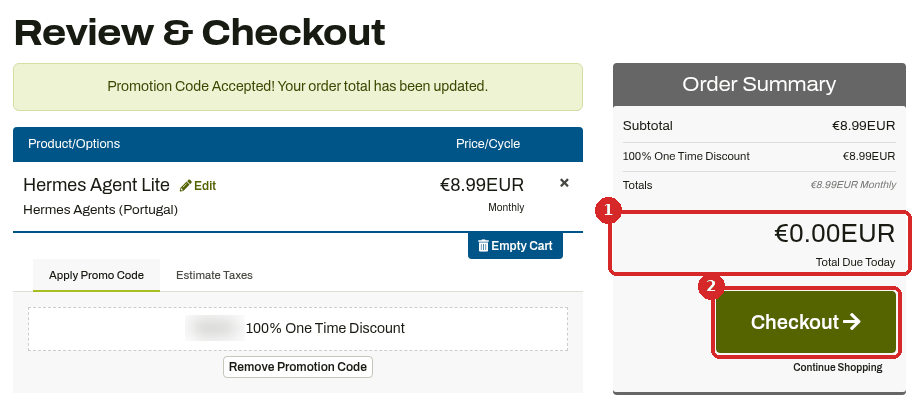
- Check the Total Due Today.
- Click Checkout.
4. Enter your details
Fill in Personal Information and Billing Address. Use an email address you can read: your access details are sent there.
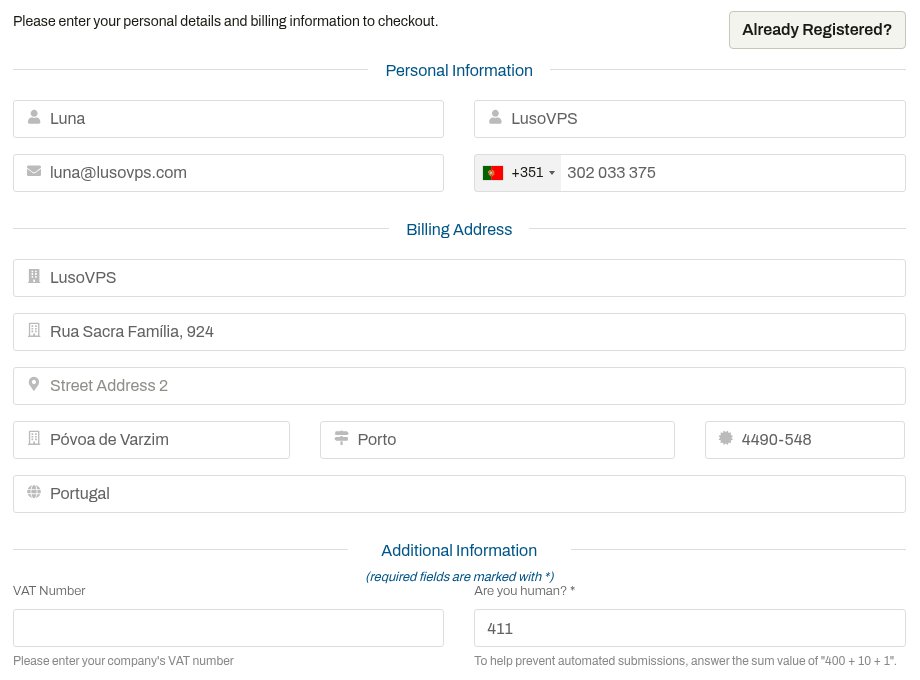
- VAT Number is optional. Fill it in only if you are buying for a company.
- Are you human? asks you to add up a few numbers. Type the result.
Already a LusoVPS customer?
Click Already Registered? at the top of the checkout page and sign in instead. Skip to step 6.
5. Create your password
You need a password for the LusoVPS client area.
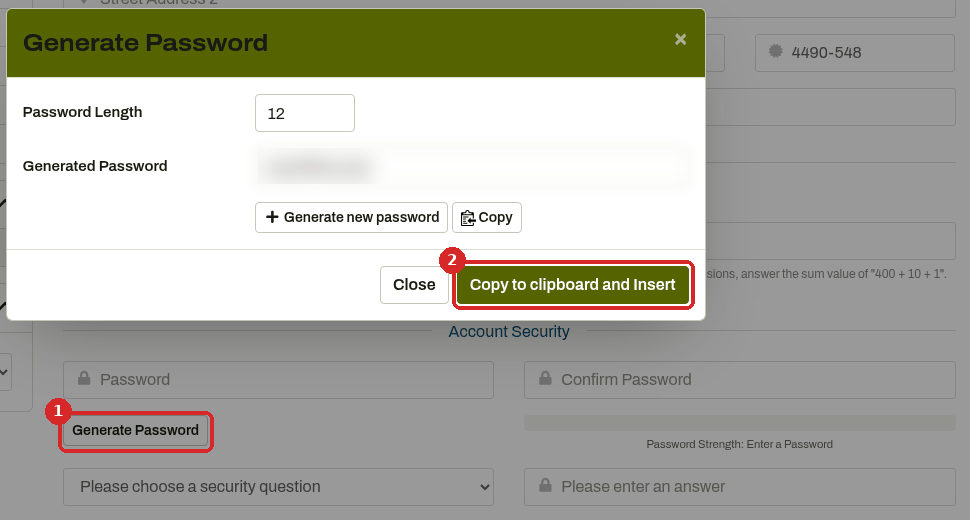
- Click Generate Password to get a strong one, or type your own in both fields.
- In the window that opens, click Copy to clipboard and Insert. Paste the password into your password manager now, before you continue.
Then pick a security question and type the answer. Keep the answer somewhere safe: it is used to confirm who you are if you contact support.
6. Choose how to pay and place the order
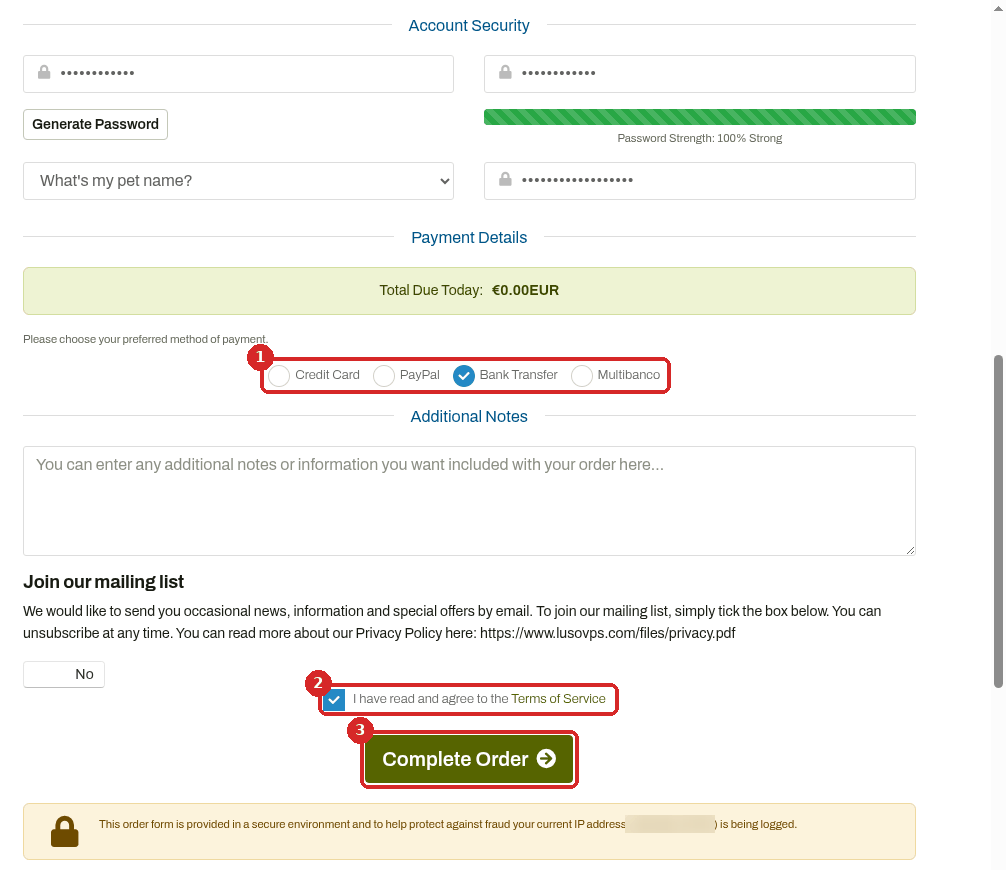
- Choose your payment method.
- Tick I have read and agree to the Terms of Service.
- Click Complete Order.
If there is an amount to pay, you are taken to the payment page or receive the payment details (bank transfer and Multibanco). Installation starts as soon as the payment is confirmed.
7. Wait for the "agent is ready" email
You receive a few emails:
| What it is | |
|---|---|
| Welcome | Your client area account was created |
| Order Confirmation | We received your order |
| Invoice Payment Confirmation | The first invoice is paid |
| Your … Agent is ready | The important one: the address of your agent and how to sign in |
When we tested this guide, the "agent is ready" email arrived less than two minutes after the order.
Check that it worked
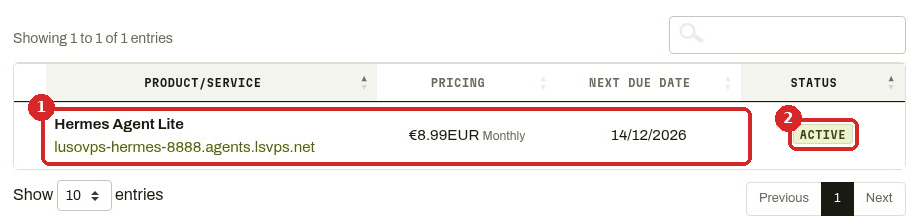
Sign in to the client area and open Services → My Services. Your agent is listed with the status ACTIVE.
Common problems
I did not receive any email
The emails come from LusoVPS Ltd <billing@lusovps.com>. Check your Spam and Promotions folders and search for "LusoVPS". You can also read every email we sent you in the client area: click your name at the top right (Hello, …!) and choose Email History. If nothing is there after 15 minutes, click Open Ticket in the client area menu.
The status is PENDING, not ACTIVE
The agent is installed after the payment is confirmed. With a bank transfer, that happens when the money arrives, which can take a working day or more. If you paid by card or PayPal and the status is still PENDING after 15 minutes, open a ticket.
The promo code was rejected
Codes can be limited to certain products, to new customers, or to one use. Check the code for typos and that you are ordering the product it was given for.
Next steps
- Read the "Your agent is ready" email: what each part means.
- Find your way around your agent in the client area.