Recipe: daily exchange rates on Telegram
Every working day at 18:00, n8n gets the euro exchange rates from a free service and sends them to you on Telegram, for example 1 EUR = 1.1052 USD. Useful when you sell abroad, pay suppliers in another currency or price products in dollars.
| Time needed | 15 minutes |
| You need | An n8n agent from LusoVPS (Sign in to n8n), your Telegram bot saved in n8n (step 1 of the contact form recipe) and your numeric Telegram ID (from @userinfobot) |
| Result | A Telegram message from Monday to Friday with the rates of the day for the currencies you choose |
The rates come from Frankfurter, a free service with no account and no key. It publishes the reference rates of the European Central Bank (ECB). This recipe does not use AI, so it needs no Claude key.
This is the finished workflow:

Schedule Trigger (Monday to Friday at 18:00) → Get rates (an HTTP Request step) → Format message (an Edit Fields step writes the text) → Send a text message to Telegram.
It works like Use a free web API (tomorrow's weather every evening). If you have never used an HTTP Request step or expressions, read that recipe first: here we only show what is different.
Reference rates, not your bank's rates
The ECB rates are for information. Your bank or card charges its own rate and fees. The ECB publishes rates on working days only: on our test, on a Sunday, the latest rates were from Friday 2026-11-13.
1. Run it on working days at 18:00
- Create a new workflow (+ at the top of the menu on the left → New workflow) and name it, for example Daily exchange rates.
-
Click Add first step → On a schedule and set it:
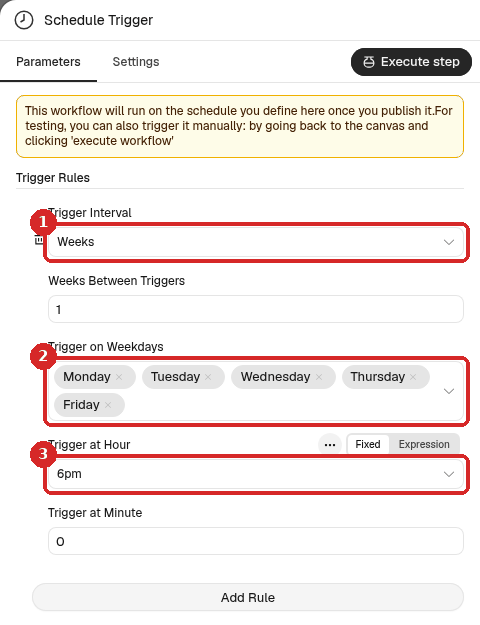
- Trigger Interval: Weeks (and Weeks Between Triggers:
1). - Trigger on Weekdays: Monday, Tuesday, Wednesday, Thursday and Friday.
- Trigger at Hour: 6pm. Trigger at Minute:
0.
- Trigger Interval: Weeks (and Weeks Between Triggers:
2. Get the rates (HTTP Request)
- Close the panel. Click the small + at the right of the Schedule Trigger, search for
HTTP Requestand click it. We renamed it Get rates. -
Set it and click Execute step:
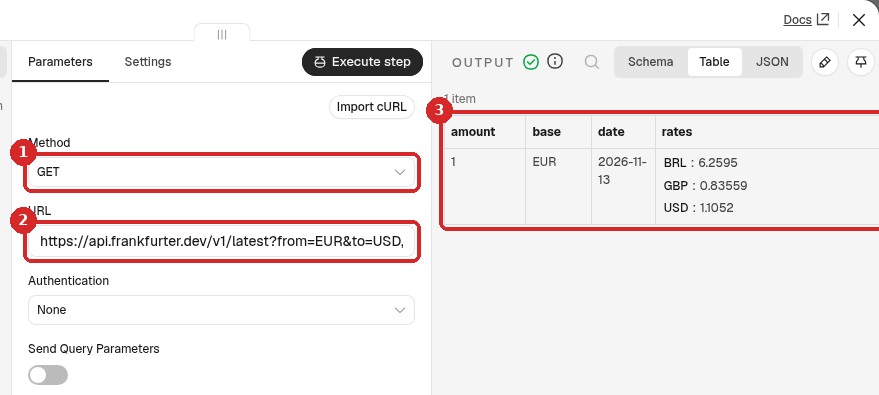
- Method: GET.
-
URL:
-
OUTPUT: base
EUR, the date of the rates and under rates one value per currency: how much 1 euro is worth. In our test: BRL6.2595, GBP0.83559, USD1.1052.
from=EUR is the base currency and to=USD,GBP,BRL the list you want, with the usual three-letter codes separated by commas. To see all available currencies, open https://api.frankfurter.dev/v1/currencies in your browser.
Old address
Some guides use https://api.frankfurter.app/latest. In our test that address only redirected (code 301) to the one above. Use the .dev/v1 address.
3. Write the message (Edit Fields)
- Close the panel. Click the + at the right of Get rates, search for
Edit Fieldsand click it. We renamed it Format message. -
Set it:
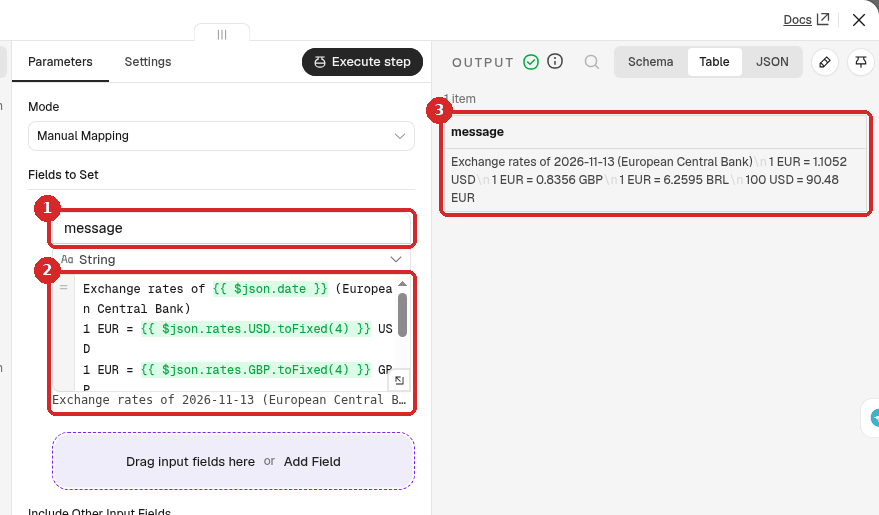
- Add Field: name
message, type String. - Value: paste the text below. Under the box, n8n shows the result.
- After Execute step, the OUTPUT has the finished text.
- Add Field: name
toFixed(4) rounds a number to 4 decimals (0.83559 becomes 0.8356). The last line works the other way round: 100 divided by the dollar rate gives how many euros 100 dollars are worth.
4. Send it to Telegram
- Close the panel. Click the + at the right of Format message, search for
Telegramand choose Send a text message. -
Set it:
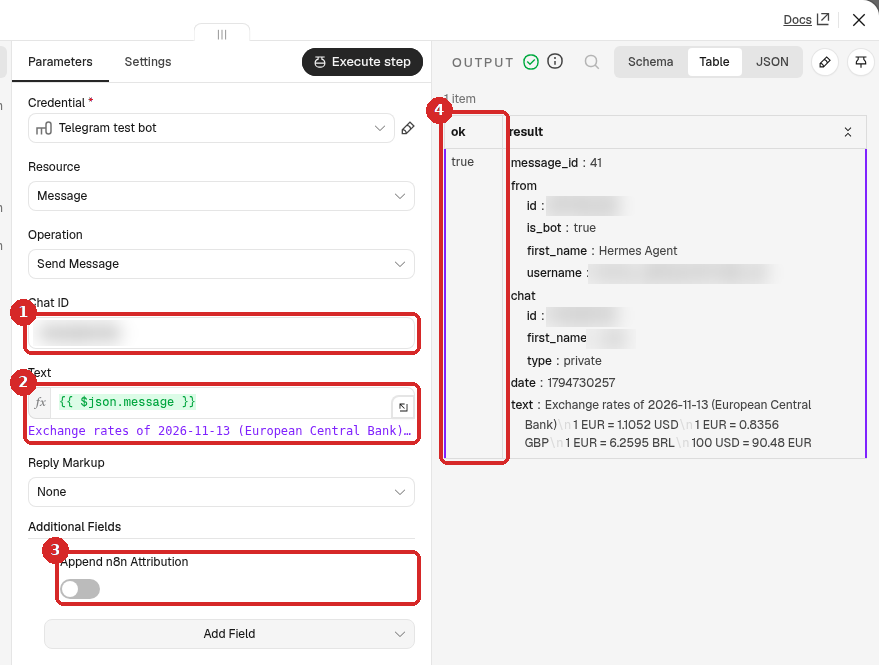
- Chat ID: your numeric Telegram ID. (Credential: your Telegram bot.)
- Text: click Expression and type
{{ $json.message }}. - Additional Fields → Add Field → Append n8n Attribution, switch off.
- After a test, the OUTPUT shows ok true and the text that was sent.
5. Test it
Close the panel and click Execute workflow at the bottom of the canvas. You do not have to wait until 18:00. All four steps get a green tick and the message arrives. Ours was:
Exchange rates of 2026-11-13 (European Central Bank)
1 EUR = 1.1052 USD
1 EUR = 0.8356 GBP
1 EUR = 6.2595 BRL
100 USD = 90.48 EUR
We checked it against the OUTPUT of Get rates: the rates are the same, rounded to 4 decimals, and 100 / 1.1052 = 90.481..., so 90.48 is right.
6. Publish it
Click Publish at the top right, then Publish in the window. From now on it runs from Monday to Friday at 18:00. To stop it, click the arrow next to Published → Unpublish (details). We tested this recipe with Execute workflow; the scheduled run uses the same steps.
Check that it worked
- Execute workflow gives four green ticks and a Telegram message with the date of the rates.
- On a working day after 18:00, the Executions tab of the workflow has a run that Succeeded.
Make it yours
- Other currencies: change
to=in the URL (for exampleto=CHF,JPY,CAD) and the lines of the message to match. The names afterrates.must be the same codes. - Another base currency:
from=USDgives the value of 1 dollar. ChangeEURin the message too. - Your prices: add a line such as
Our 25 EUR box = {{ (25 * $json.rates.USD).toFixed(2) }} USD. - Only when it moves a lot: add an If step before Telegram, for example Number
{{ $json.rates.USD }}is greater than a value you choose.
Common problems
The date in the message is not today
That is normal on weekends and holidays: the ECB publishes no new rates on those days, and the service returns the latest ones. In our Sunday test, the message showed Friday's date.
Format message shows an error or an empty value
The currency code in the expression does not match the URL. If the URL has to=USD,GBP,BRL, the expressions can only use rates.USD, rates.GBP and rates.BRL. Check the OUTPUT of Get rates for the exact names.
Telegram says: Bad Request: chat not found
The Chat ID is wrong, or you never pressed Start in your bot. See the contact form recipe.