Connect Hermes to WhatsApp
Talk to your Hermes agent on WhatsApp. You link a WhatsApp account to Hermes by scanning a QR code, the same way you use WhatsApp Web.
| Time needed | 5 minutes |
| You need | A Hermes agent connected to an AI model and a phone with WhatsApp or WhatsApp Business for the agent's number |
| Result | People you approve can message that number and Hermes answers |
Use a separate number for the agent
Hermes connects through WhatsApp's linked-devices feature, which is not an official WhatsApp integration for bots. WhatsApp can restrict or ban numbers that behave like bots. Do not use your personal number. Use a spare SIM or a new number with WhatsApp Business. We tested this guide with WhatsApp Business.
How it works
The phone with the agent's number stays as the main device. Hermes becomes a linked device of that account, like WhatsApp Web. You then talk to the agent from another WhatsApp account (your personal one), by sending messages to the agent's number.
1. Open Channels in the dashboard
- In the client area, open your Hermes agent and click Open dashboard.
- In the dashboard menu, click Channels.
- Scroll down to WhatsApp.

- In MODE, choose Bot. This means the number belongs to the agent. (Self-chat is for using Hermes inside your own personal WhatsApp, in the chat with yourself.)
- Click PAIR WITH QR.
Leave ALLOWED WHATSAPP NUMBERS empty for now. You will approve people in step 4, which is easier.
2. Scan the QR code with the agent's phone
A QR code appears with a 10-minute countdown and the status waiting.
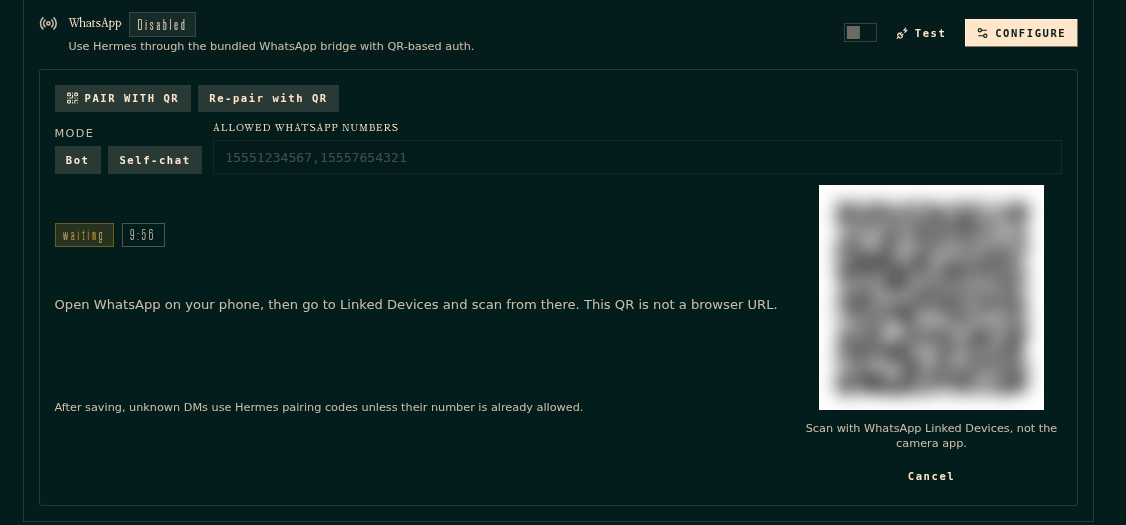
On the agent's phone:
- Open WhatsApp (or WhatsApp Business).
- Tap ⋮ (Android) or Settings (iPhone) and choose Linked devices.
- Tap Link a device and point the phone at the QR code on your screen.
Tip
Scan from inside WhatsApp, not with the camera app. The QR is not a web address.
3. Save and restart
After a few seconds the status changes to Connected and the page shows Linked as with the agent's number.
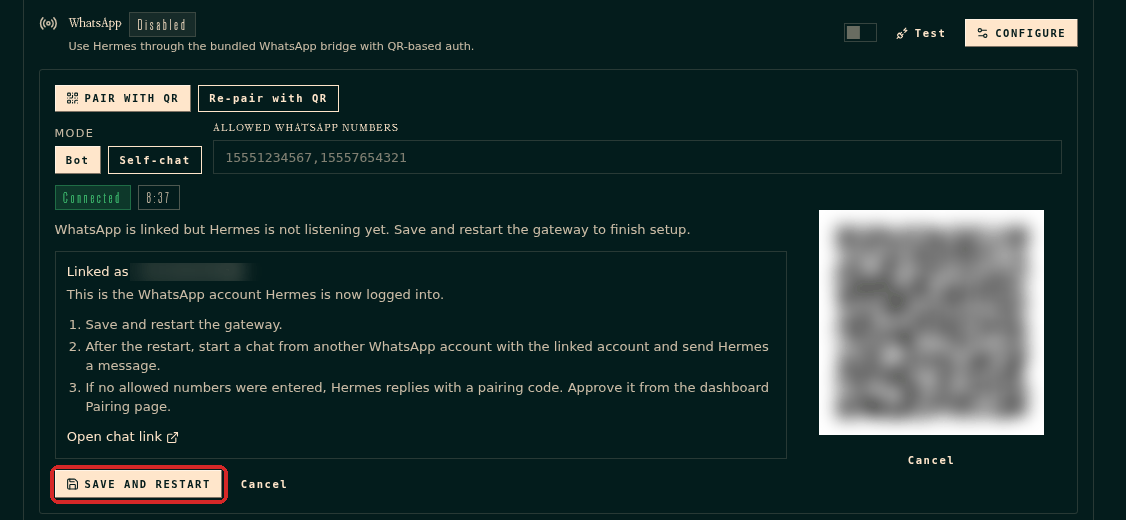
Click SAVE AND RESTART. The channel shows Connected when Hermes is listening.
4. Send the first message and approve yourself
- From your personal WhatsApp, send any message to the agent's number, for example "Hello".
- Hermes replies that it does not know you yet, with a pairing code.
- Approve yourself in the dashboard: see Choose who can talk to your agent. It takes one click.
- Send your message again. This time Hermes answers.
Check that it worked
You send a message to the agent's number and get an answer written by the AI. In Channels, the WhatsApp card shows Connected.
Common problems
The QR code expired
Click PAIR WITH QR again for a new one. You have 10 minutes to scan it.
WhatsApp says the QR code is not valid
Make sure you scan it from Linked devices inside WhatsApp, on the phone of the agent's number.
Hermes does not answer at all
Check that the channel shows Connected in Channels. If it shows Restart to apply, click RESTART GATEWAY at the top of the page. Check also that an AI model is connected.
Hermes answers with a pairing code every time
Your number has not been approved yet. Approve it in the Pairing page.
I changed phones or WhatsApp logged the agent out
Open Channels → WhatsApp and click Re-pair with QR, then repeat steps 2 and 3.