n8n: get a Telegram message when a workflow fails
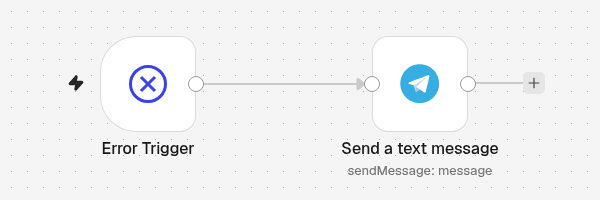
A published workflow runs on its own, so you do not see it when it fails. With an error workflow, n8n sends you a Telegram message with the name of the workflow, the step that failed and the reason, a second after the failure.
| Time needed | 15 minutes |
| You need | An n8n agent from LusoVPS with at least one published workflow (Sign in to n8n), your Telegram bot saved in n8n (step 1 of the contact form recipe) and your numeric Telegram ID (from @userinfobot) |
| Result | A message like Workflow failed: Test - check my shop, Step: HTTP Request, Error: The connection cannot be established... with a link to the failed run |
You make one small workflow that sends the alert (the error workflow), then tell your other workflows to use it.
Only for automatic runs
The error workflow runs only when a published workflow fails on its own (schedule, webhook, form...). When you click Execute workflow yourself and a step fails, you see the error on the screen and no alert is sent. We checked both cases.
1. Make the error workflow
- Click the + at the top of the menu on the left, choose New workflow and name it, for example Error alert to Telegram.
-
Click Add first step, type
Errorin the search box and choose Error Trigger (Triggers the workflow when another workflow has an error).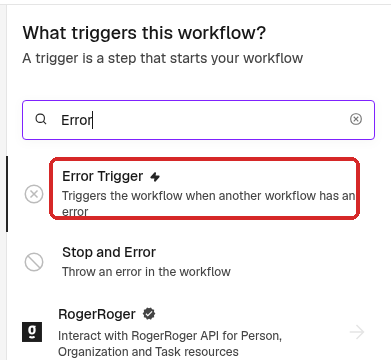
The step has no settings. Close the panel.
-
Click the small + at the right of Error Trigger, search for
Telegramand choose Send a text message (under MESSAGE ACTIONS). -
Set Chat ID to your numeric Telegram ID. In Text, click Expression and paste:
-
Additional Fields → Add Field → Append n8n Attribution, switch off.
2. Test the alert
Close the panel and click Execute workflow at the bottom of the canvas. When you start it by hand, the Error Trigger makes up an example error, so you can check the message:
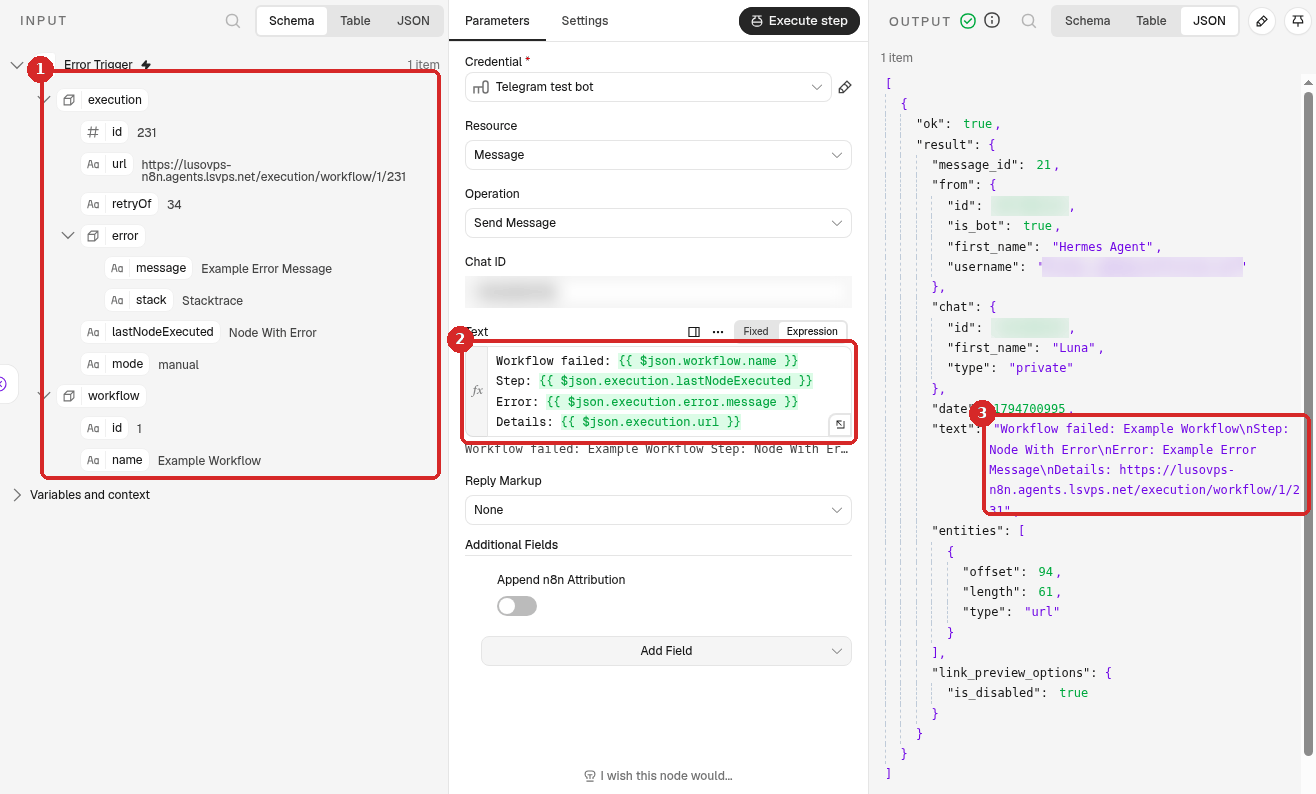
- The data that the Error Trigger passes on: execution (with the url of the failed run, the error message and lastNodeExecuted, the step that failed) and workflow (with its name). Here they are example values: Example Workflow, Node With Error, Example Error Message.
- Text: the expressions take those values.
- The message that arrived on Telegram.
Use Execute workflow, not Execute step
In our test, clicking Execute step inside the Telegram step failed with Cannot read properties of null (reading 'Error Trigger'). Execute workflow on the canvas works.
3. Publish the error workflow
Click Publish at the top right, then Publish in the window.
This step is needed. An unpublished error workflow is greyed out in the list of step 4, with the note Not published. Can be used for manual testing, but must be published before running in production.
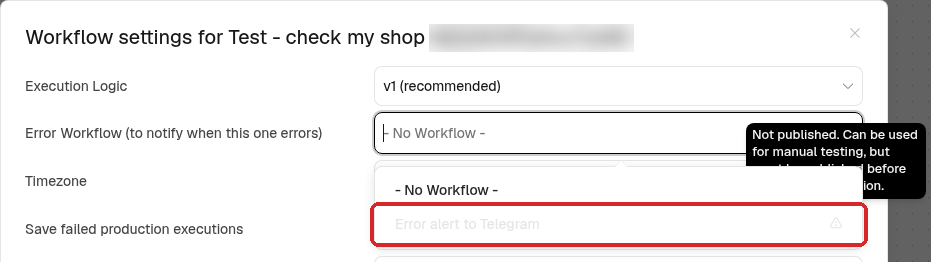
The error workflow does not run on a schedule, so publishing it does not start anything by itself.
4. Use it in your other workflows
Do this in every workflow you want to watch:
-
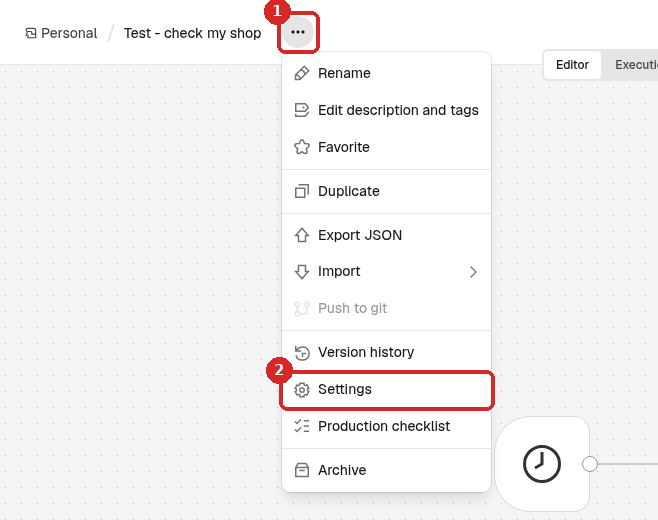
Open the workflow. Click the ... next to its name (1) and choose Settings (2).
-
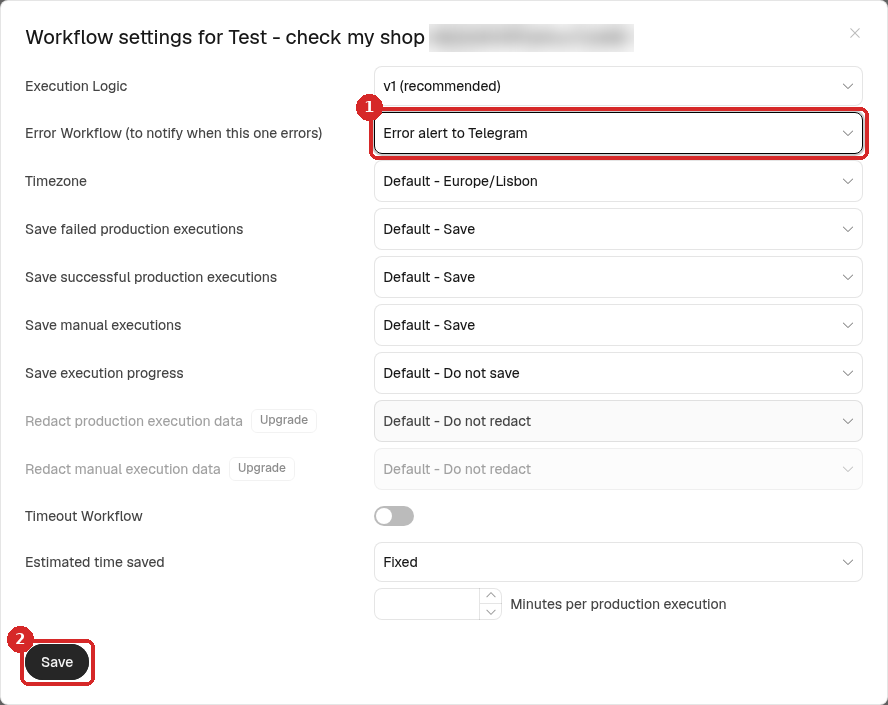
In Error Workflow (to notify when this one errors), choose your error workflow (1). Only workflows that start with an Error Trigger are listed.
-
Click Save (2). n8n says Workflow settings saved.
When we did this on a workflow that was already published, the button at the top still said Published after Save: you do not need to publish again after changing Settings.
Check that it worked
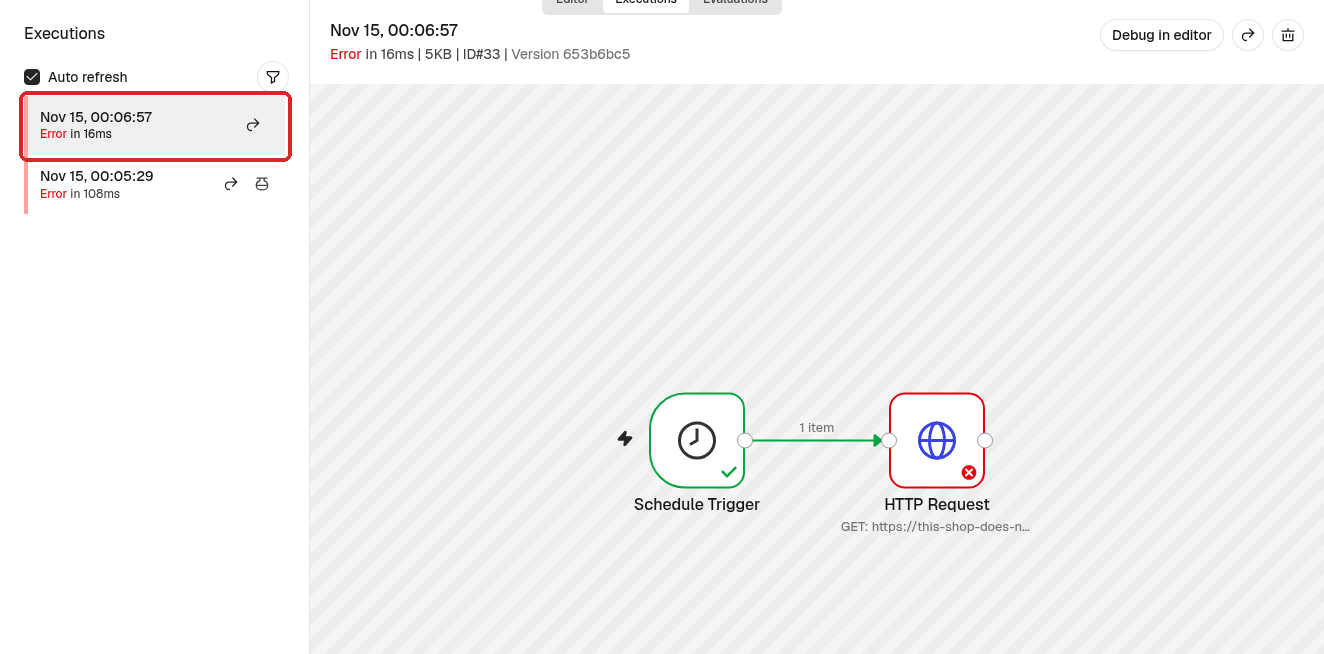
We tested it with a workflow called Test - check my shop: a Schedule Trigger every minute and an HTTP Request to an address that does not exist (https://this-shop-does-not-exist.example), so it always fails. We published it and waited one minute.
The run failed at 00:06:57 with Error:
In the same second, the error workflow ran. Open its Executions tab:
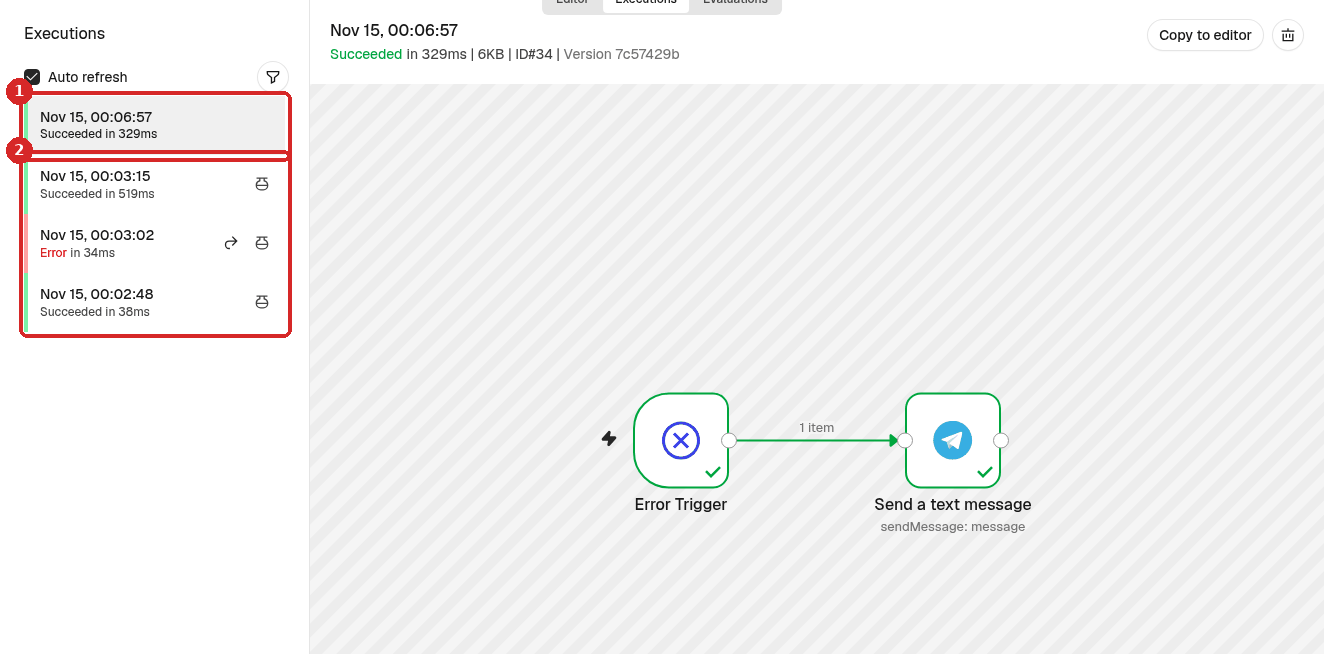
- The run started by the failure, without the small flask icon (it was not a test).
- The runs with the flask icon are our tests of step 2. The red one is our click on Execute step (see the warning in step 2).
Click the run and double-click Send a text message:
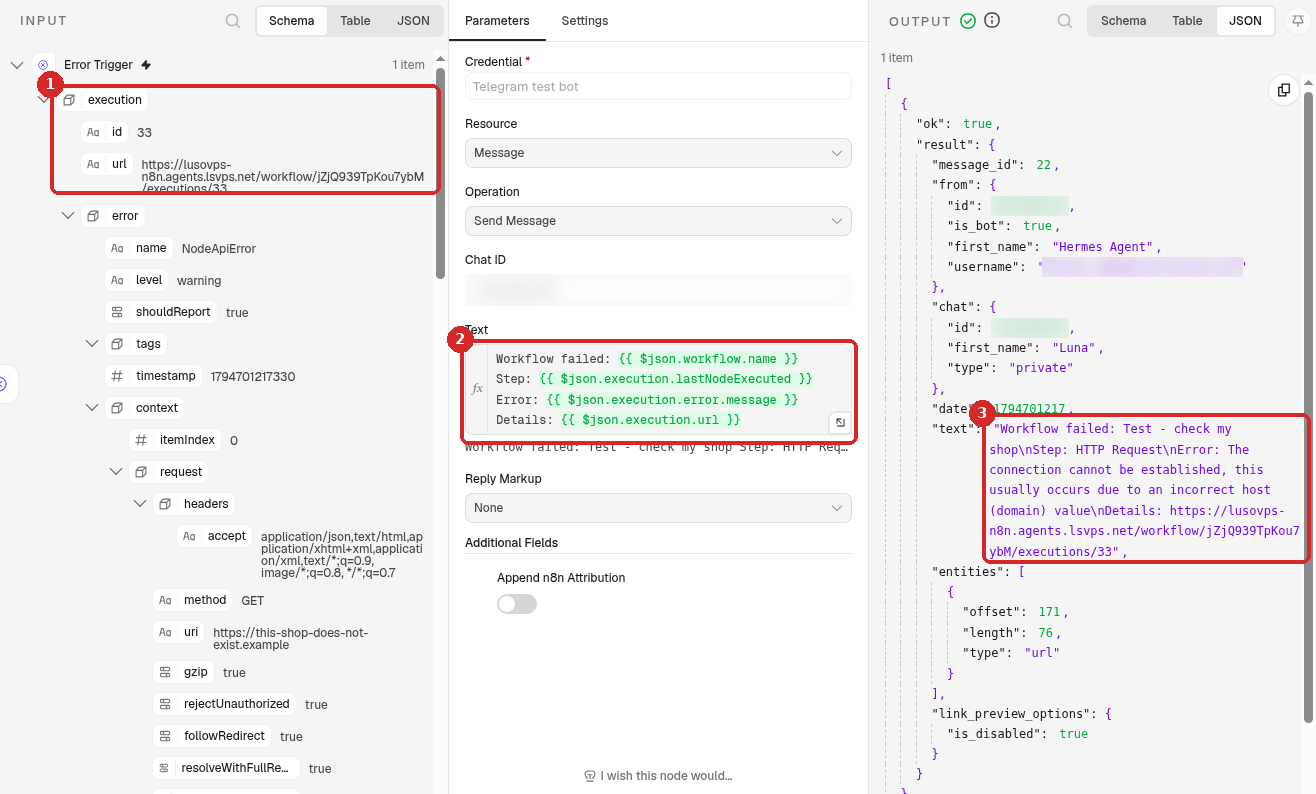
- Real data this time: the url of the failed run.
- The same Text as in step 1.
- The message sent to Telegram: Workflow failed: Test - check my shop, Step: HTTP Request, Error: The connection cannot be established, this usually occurs due to an incorrect host (domain) value, and the Details link. The link opens the failed run in n8n (you must be signed in), where you can see what went wrong (how to read a failed run).
When the test worked, we unpublished Test - check my shop, so the alerts stopped.
Common problems
My error workflow is greyed out in Settings
It is not published. Open it and click Publish (step 3).
My workflow failed but no alert came
- Was it a test? Runs you start with Execute workflow never send an alert.
- Open the failed workflow → ... → Settings and check that Error Workflow shows your error workflow.
- Open the error workflow's Executions tab. If the run is red, click it: often the Telegram Chat ID is wrong, or you never pressed Start in your bot.
I get the same alert every few minutes
The workflow fails at every run (for example a schedule every 5 minutes and a website that is down). Fix the cause, or Unpublish the failing workflow until it is fixed.
Can I use one error workflow for all my workflows?
Yes. The message contains the name of the workflow that failed, so one error workflow is enough. Set it in the Settings of each workflow (step 4).