Back up your Hermes agent
Hermes can make a full backup of itself in one click: settings, memory, skills, scheduled tasks, conversations and connected channels, in a single .zip file you can keep on your computer.
| Time needed | 3 minutes |
| You need | A Hermes agent |
| Result | A hermes-backup-….zip file on your computer |
The backup contains your keys
The backup includes the agent's settings file with your AI provider key and your bot tokens, and the WhatsApp session. Anyone with the file could use them. Keep it in a safe place, never send it by email or chat, and delete old copies you no longer need.
1. Create the backup
- In the client area, open your Hermes agent and click Open dashboard.
- In the dashboard menu, click SYSTEM and scroll down to Operations.
- In FULL BACKUP (3), click Create backup (1). After a few seconds, a message Backup ready to download appears and the file name shows next to the buttons.
- Click Download backup (2). Your browser saves the
.zipfile in your Downloads folder.
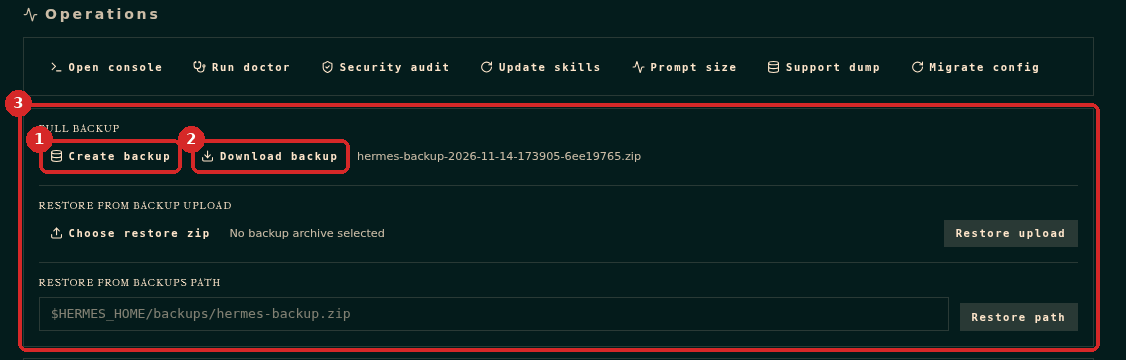
When we tested this guide, the backup took about 5 seconds and the file was 17 MB, with WhatsApp, Telegram and Discord connected.
What is inside
The .zip file has the content of the agent's folder (/opt/data), including:
config.yamland.env: the settings, the AI key and the channel tokens,memories/: what Hermes remembers,skills/: all skills, including the ones you taught it,cron/: the scheduled tasks,platforms/: the connected channels (for example the WhatsApp session),- the conversation history.
When to make one
- Before you click Update or Reinstall in the client area.
- Before big changes to skills or settings.
- Regularly, for example once a month, if you use the agent for your business.
Restoring
The same section has RESTORE FROM BACKUP UPLOAD to load a backup back into the agent. If you need to restore one, open a ticket and we will help you.
Common problems
Nothing happens when I click Download backup
Click Create backup first and wait for Backup ready to download. Then check your browser's downloads list.
The page asks me to sign in
The dashboard sign-in is cleared when the agent restarts. Go back to the client area and click Open dashboard again.