n8n: when you need a little code (the Code node)
Most of the time you do not need code in n8n: steps like Edit Fields, If and Aggregate, plus expressions, do the job. Sometimes a few lines of code are simply quicker, for example to add up the lines of an order. The Code step runs a small JavaScript program. This guide gives you one example to copy and paste, and shows how to let Claude write the code for you.
| Time needed | 15 minutes |
| You need | An n8n agent from LusoVPS (Sign in and build your first AI agent) |
| Result | A Code step that turns an order into its total (43.10) and a nicely written date (21/11/2026) |
We use a practice workflow that needs no keys and sends nothing:
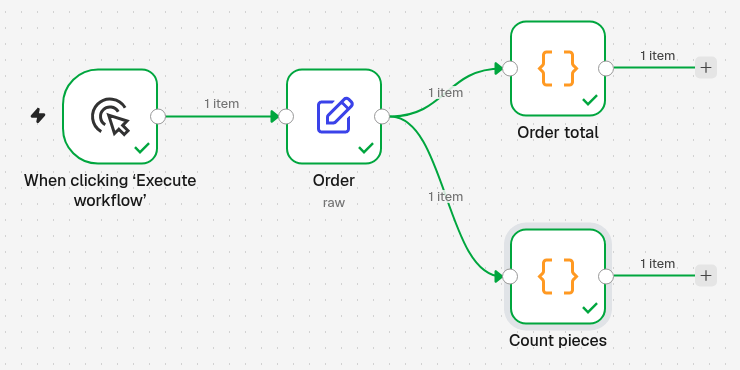
- When clicking 'Execute workflow': you start it by hand.
- Order: an Edit Fields step with an example order (in real life the order would come from a form or a webhook).
- Order total: the Code step of this guide.
- Count pieces: a second Code step, written by Claude (step 4).
1. Make the example order
- Create a new workflow, choose Trigger manually as first step, then add an Edit Fields step (the +, search
Edit Fields). Rename itOrder. -
Set Mode to JSON and paste:
-
Click Execute step. The OUTPUT shows the customer, the pick-up date and a list lines with three products.
2. Add a Code step
-
Close the panel. Click the + at the right of Order and type
code(1). Click Code (2):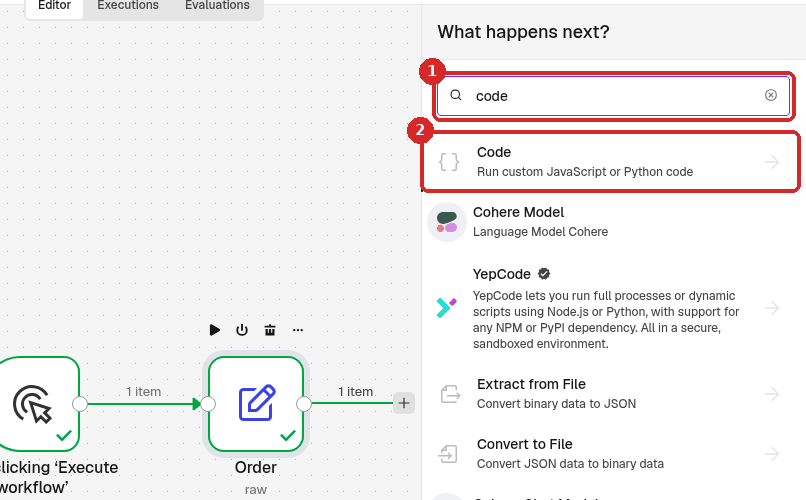
-
n8n offers Code in JavaScript and Code in Python. Choose Code in JavaScript. Rename the step
Order total. -
Click Mode (1) and choose Run Once for Each Item (2):
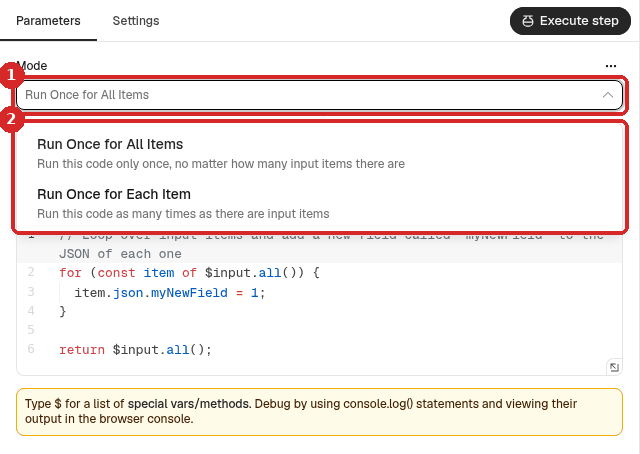
- Run Once for Each Item: the code runs once per item. Inside it,
$jsonis the item, just like in expressions. This is the easiest mode, and the one we use. - Run Once for All Items (the default): the code runs once and gets all items together.
- Run Once for Each Item: the code runs once per item. Inside it,
3. Paste the code and run it
- Click in the JavaScript box, select everything that is in it (Ctrl+A) and delete it.
-
Paste this:
-
Click Execute step:
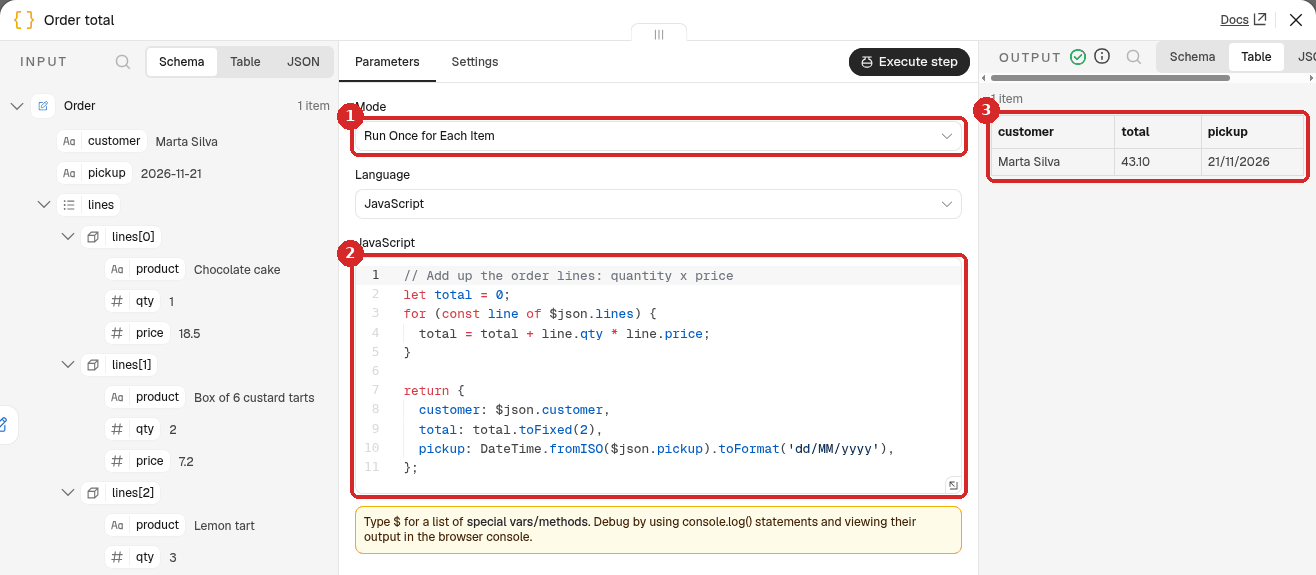
- Mode: Run Once for Each Item.
- The code.
- The OUTPUT: customer Marta Silva, total 43.10, pickup 21/11/2026.
The total is right: 1 × 18.50 + 2 × 7.20 + 3 × 3.40 = 43.10.
What the code does, line by line:
| Code | Meaning |
|---|---|
let total = 0; |
Start a total at zero. |
for (const line of $json.lines) { ... } |
For each order line... |
total = total + line.qty * line.price; |
...add quantity × price to the total. |
return { ... }; |
The fields this step gives to the next step. Only these fields come out. |
total.toFixed(2) |
The total with exactly 2 decimals. Without it, JavaScript gives 43.099999999999994 for this order: computers store prices like 7.20 very slightly inaccurately. |
DateTime.fromISO($json.pickup).toFormat('dd/MM/yyyy') |
Reads the date 2026-11-21 and writes it as 21/11/2026 (dd day, MM month, yyyy year). |
In the next steps you use the new fields like any others, for example {{ $json.total }} in a Telegram message.
4. Let Claude write the code for you
There is no AI button inside the Code step on our agent. You can still ask Claude, for example in the chat of the AI agent you built in Sign in and build your first AI agent (Open chat at the bottom of that workflow):
-
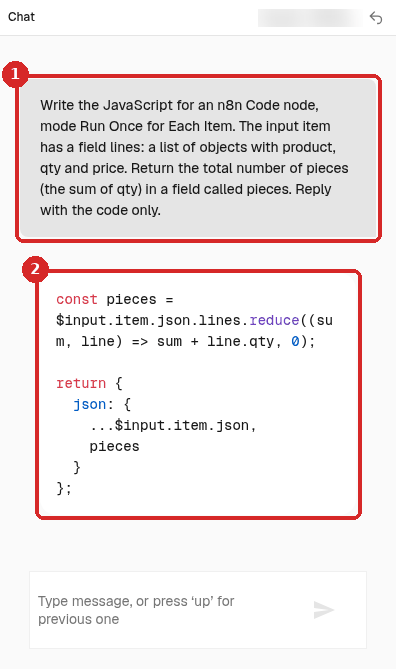
Describe the step exactly: the mode, the names of the fields that come in (copy them from INPUT) and what should come out. We asked (1):
-
Claude answered with a few lines of code (2):
-
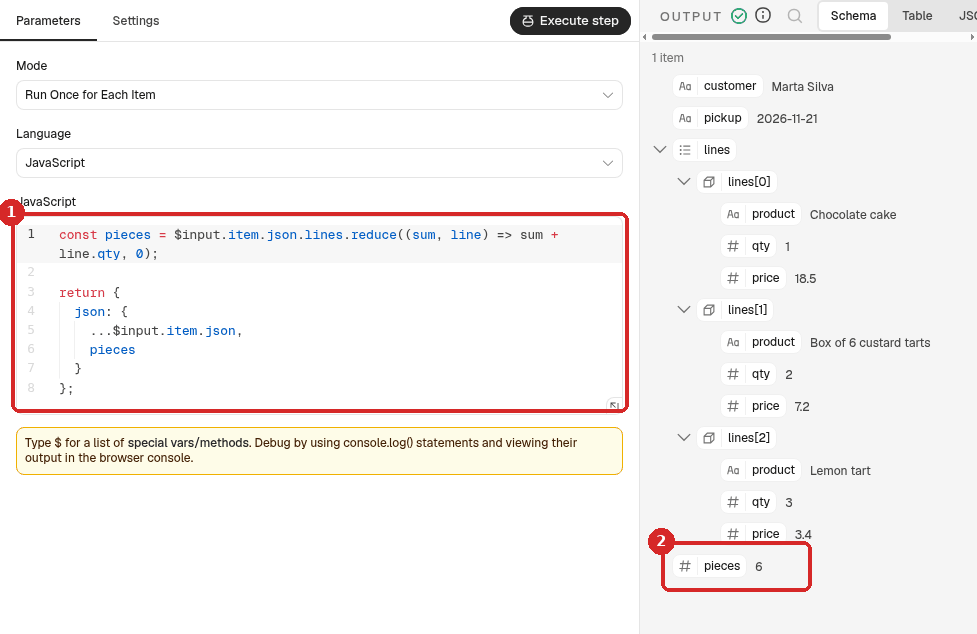
We pasted it in a new Code step (Count pieces, mode Run Once for Each Item) and clicked Execute step. The code (1) kept all the order fields and added pieces: 6 (2), which is right (1 + 2 + 3).
Always test code you did not write
Click Execute step and check the OUTPUT against a number you worked out yourself. When we asked the same question twice, Claude gave two slightly different codes: one returned only pieces, the other kept all fields and added pieces. Both gave 6.
Check that it worked
- Execute step on the Code step shows a green tick and the fields from your
return { ... }. - The numbers match what you work out by hand.
- Execute workflow on the canvas gives every step a green tick.
Common problems
Cannot read properties of undefined (reading 'reduce') [line 1]
The code uses a field that is not in the item. We got this error by typing $json.lnes instead of $json.lines:
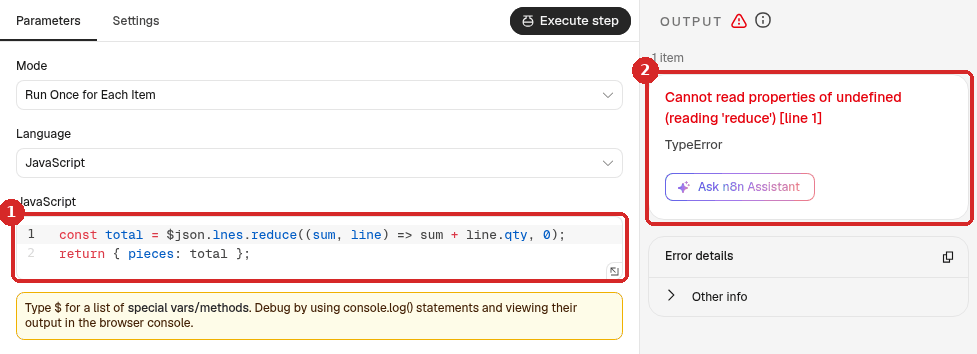
- The code, with the typo.
- The error, with the line number ([line 1]).
Compare the names in the code with the names in INPUT: same spelling, same capitals. The Ask n8n Assistant button under the error did nothing on our agent.
OUTPUT says: No output data returned
The code has no return. Add return { ... }; at the end with the fields you want to keep.
The date of today is one day off in a Code step
On our agent, $now inside a Code step used New York time: at 02:23 in Lisbon on 15 November, $now.toFormat('dd/MM/yyyy') gave 14/11/2026. In normal fields (expressions), $now uses the workflow's time zone. In a Code step, set the zone yourself: $now.setZone('Europe/Lisbon').toFormat('dd/MM/yyyy') gave the correct 15/11/2026.
Do I have to learn JavaScript?
No. Copy the example, change the field names to yours, and ask Claude when you need something else. Before you use code, check whether a normal step does the job: Aggregate, Edit Fields with an expression, If, Filter.