Hermes troubleshooting
Something is wrong with your Hermes agent? Find the symptom below. Each answer gives the usual cause and the fix, with a link to the guide that explains it step by step.
| Time needed | 5 to 15 minutes |
| You need | Your client area login |
| Result | You find the cause of a common problem and fix it, or you have what support needs to help you |
Do not use Reinstall to fix a problem
Reinstall deletes conversations, memory and connected channels, and cannot be undone. Restart and Update keep your data. (Restart, Update or Reinstall: which one?)
Start with four quick checks
Most problems are solved here. Do them in order:
- Your AI provider. Most "silent" agents have no credit left, hit a spending limit, or use a key that was deleted. Check your provider's console. (My agent stopped answering)
- The agent is running. In the client area, open your agent and the Manage agent tab. Under Containers, STATUS should say Up. (My agent stopped answering)
- Restart. Under Actions, click Restart. It keeps your data. Wait a minute and try again. (My agent stopped answering)
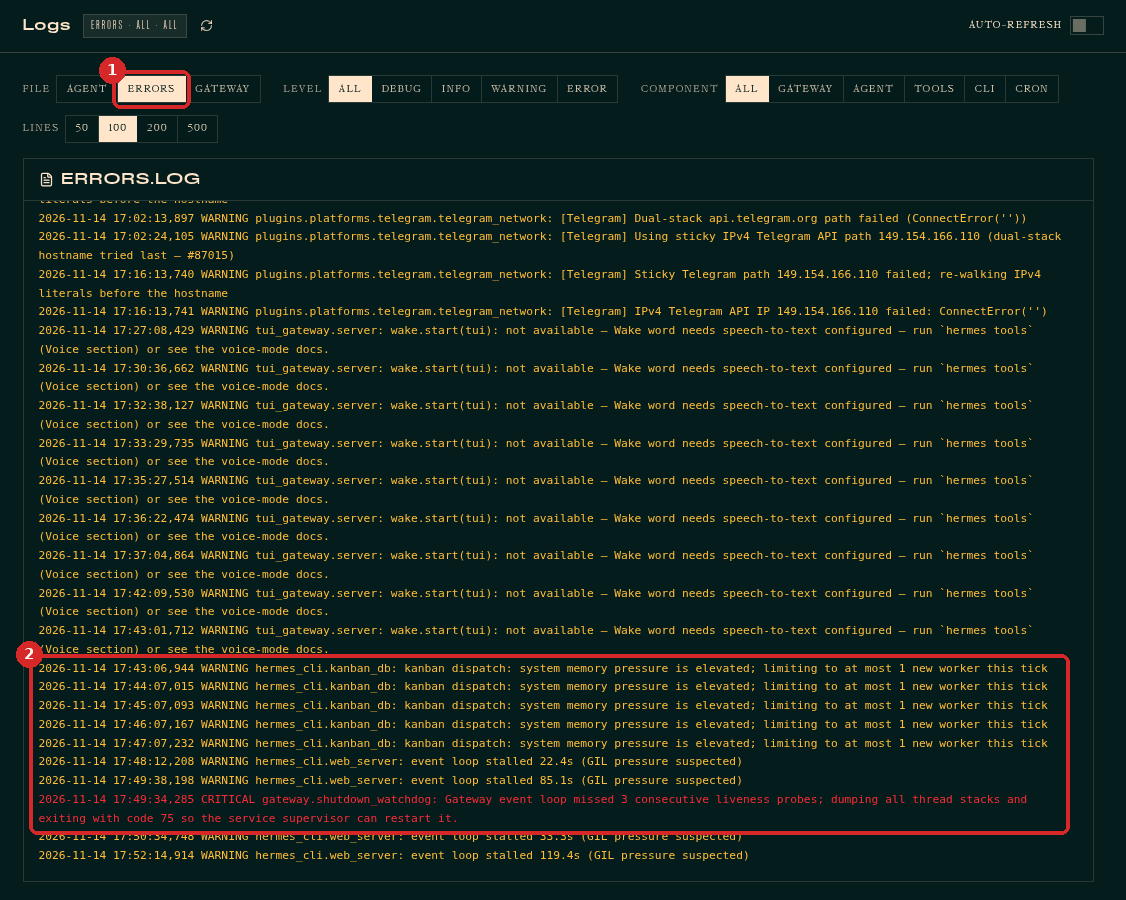
- The logs. In the dashboard, click LOGS and choose ERRORS. The newest lines are at the bottom. (Read Hermes' logs)
Hermes does not answer
Hermes answers with an authentication or \"invalid API key\" error
Cause: the key was not copied completely, or it was deleted in your provider's console. In LOGS you see lines with authentication or invalid x-api-key.
Fix: copy the key again (no spaces at the start or end), paste it in the client area Settings → API key and click Save and apply. (Connect Hermes to Claude)
Hermes answers with a credit or billing error
Cause: your provider account has no credit left, or reached its spending limit. In LOGS you see lines with credit or quota.
Fix: add credit or raise the limit in your provider's console. (How much will the AI cost me?)
Hermes does not answer anywhere, not even in the dashboard Chat
Cause: usually the AI provider (see the quick checks), sometimes a stuck agent.
Fix: follow My agent stopped answering in order: provider, status, Restart, Recent logs, then Update. If nothing helps, open a ticket with the last lines of Recent logs.
After switching models, Hermes answers with an error
Cause: your provider account may not have access to that model.
Fix: switch back to the model you used before (MODELS → CHANGE) and check your account with the provider. (Change the AI model Hermes uses)
My provider shows 0 models on the Models page
Cause: that provider has no key on your agent.
Fix: add the key in the client area Settings first. (Change the AI model Hermes uses)
I set the key inside the agent, and now it changed back
Cause: whatever is filled in the client area Settings is applied again every time you click Save and apply, and it wins.
Fix: use only one place for the key: the client area or the agent. (Connect Hermes to Claude)
Nothing happens when I type in the dashboard Chat
Fix: click once on the Ask me anything… line first. (Chat with Hermes in the dashboard)
WhatsApp
Hermes does not answer at all on WhatsApp
Cause: the channel is not connected yet, or it waits for a restart.
Fix: in the dashboard, open Channels. The WhatsApp card must show Connected. If it shows Restart to apply, click RESTART GATEWAY at the top of the page. Check also that an AI model is connected. (Connect WhatsApp)
Hermes answers with a pairing code every time
Cause: your number has not been approved yet.
Fix: approve the request on the Pairing page, then send your message again. (Choose who can talk to your agent)
The QR code expired, or WhatsApp says it is not valid
Fix: click PAIR WITH QR again for a new code (you have 10 minutes). Scan it from Linked devices inside WhatsApp, on the phone of the agent's number, not with the camera app. (Connect WhatsApp)
I changed phones, or WhatsApp logged the agent out
Fix: open Channels → WhatsApp and click Re-pair with QR, then scan again and click SAVE AND RESTART. (Connect WhatsApp)
Telegram
The bot does not reply at all
Cause: the token was not copied completely or not saved.
Fix: paste the token again in the client area Settings → Bot token and click Save and apply. In the dashboard, Channels → Telegram must show Connected. (Connect Telegram)
The logs say \"Telegram polling conflict\"
Cause: the same bot token is used by another program or agent. A Telegram bot can only be connected to one agent at a time.
Fix: create one bot per agent with @BotFather. (Read Hermes' logs)
The bot replies with a pairing code every time
Fix: approve the request on the Pairing page, or put your numeric Telegram ID in Authorised Telegram IDs in the client area Settings. (Connect Telegram)
I can't find my bot in Telegram search
Fix: search for the exact username (ending in bot), not the display name. (Connect Telegram)
Discord
The bot is online but never answers
Cause: your user ID is not in ALLOWED DISCORD USER IDS. With no allowed IDs, Hermes ignores all Discord messages. LOGS show Discord messages are being denied because no allowlist is configured.
Fix: add your ID in Channels → Discord → CONFIGURE, click SAVE & ENABLE and restart the gateway. (Connect Discord)
The bot answers but does not see what I wrote
Cause: Message Content Intent is off.
Fix: turn it on in the Developer Portal (Bot → Privileged Gateway Intents), click Save Changes and restart the gateway in Hermes. (Connect Discord)
The bot stays offline
Cause: the token is wrong or was reset.
Fix: reset it again in the Developer Portal, paste the new one in Hermes and restart the gateway. LOGS should then show ✓ discord connected. (Connect Discord)
I can't choose my server when inviting the bot
Cause: you need the Manage Server permission in that server.
Fix: use a server you created, or ask its owner to invite the bot with your link. (Connect Discord)
I mentioned the bot's role instead of the bot
Cause: when you type @, Discord can suggest both the bot and a role with the same name.
Fix: pick the entry with the APP tag or the bot's username, not the one that says "Notify users with this role". (Connect Discord)
Any channel: who can talk to Hermes
I approved someone, but Hermes still asks them for a code
Cause: the approval is per channel, and the code is valid for one hour. Messages sent before the approval are not answered.
Fix: if the person writes on WhatsApp and on Telegram, approve both requests. Then ask them to send their message again. (Choose who can talk to your agent)
Hermes says \"No home channel is set for Discord\"
Fix: send /sethome in the chat where you want scheduled results and other notices, or ignore the message. (Connect Discord)
Scheduled jobs and reminders
The job ran, but I received nothing
Cause: no home channel is set for that app. The job still runs, but the result is only saved in the agent.
Fix: send /sethome in the chat where you want the results, then click Trigger now (the lightning icon) on the CRON page to test. (Schedule a recurring task)
Nothing arrives at the scheduled time
Fix: on the CRON page, the job must say scheduled, not paused. Check also that the home channel is set and that Telegram shows Connected in Channels. (Morning briefing recipe, Reminders recipe)
It runs, or a reminder arrives, at the wrong time
Cause: Hermes used another time zone.
Fix: ask Hermes to check the job's time zone, or edit the job. When you create a job, always say the time zone ("Lisbon time"). (Schedule a recurring task)
How do I see if a job really delivered?
In LOGS, set COMPONENT to CRON. A delivered result shows delivered to telegram; a silent website check shows empty stdout — silent run. Every run of a job is also saved as a file in FILES → cron → output. (Website alert recipe, Morning briefing recipe)
The job says it cannot find my file
Cause: file names are exact: Sales.csv is not sales.csv.
Fix: check the name in FILES → workspace and write the path as it appears there, starting with workspace/. (Weekly sales report recipe)
I get a website alert, but the site works in my browser
Cause: the agent's server could not reach the site. Some sites or firewalls block requests from servers.
Fix: ask Hermes "run the Shop website check now and show me the error" to see the reason. (Website alert recipe)
Dashboard sign-in
The dashboard asks for a username and password
Cause: the dashboard sign-in is cleared every time the agent restarts, for example after Save and apply.
Fix: go back to the client area and click Open dashboard again. It signs you in directly. If you prefer to type them, the Username is your email address and the Password is the service password from the "Your Hermes Agent is ready" email. (The dashboard does not open)
The dashboard address does not open at all
Cause: a new agent may still be finishing its installation, or the agent is not running.
Fix: wait a few minutes, check STATUS in Manage agent, Restart if needed, then click Open dashboard again. (The dashboard does not open)
Memory and skills
Hermes does not remember something I told it
Cause: Hermes only keeps what it considers useful later.
Fix: say clearly "remember this: …". To check, ask "what do you have in your memory about me?". (What Hermes remembers about you)
Hermes remembers something wrong
Fix: ask it to forget the wrong fact, then tell it the right one. Do not use the Reset buttons in SYSTEM → Memory for one fact: they empty the memory files and cannot be undone. (What Hermes remembers about you)
Hermes did not use my skill
Fix: on the SKILLS page, check that its switch is on. Then make the request closer to the skill's description, or name it: "use the customer-reply-style skill". (Teach Hermes a skill)
My skill changed on its own
Cause: Hermes can update skills while it works, and a skill curator reviews them once a week.
Fix: if you do not want a change, edit the skill back with the pencil on the SKILLS page. (Teach Hermes a skill)
Slow, or "running low on memory"
The logs say system memory pressure is elevated or event loop stalled
Cause: the server is running out of memory.
Fix: restart the agent (client area → Manage agent → Restart). If it happens often, a bigger plan helps. (Read Hermes' logs, Change your plan)
\"We could not get your agent's status right now…\"
Cause: the server is too busy to answer, usually because its memory is full.
Fix: click Restart once and wait. (The dashboard does not open)
\"The operation could not be completed\" after Restart
Fix: do not click Restart several times. Wait 5 minutes and reload the Manage agent tab: the first restart may still be on its way. (Restart, Update or Reinstall)
It freezes again after every restart
Cause: the agent needs more memory than the plan has.
Fix: see Change your plan. (Restart, Update or Reinstall)
A hermes command seems stuck in the terminal
Fix: some commands take a while or wait for an answer from you. Press Ctrl+C to stop it and get the prompt back. (Use Hermes from the terminal)
The logs show wake.start(tui): not available
That is harmless: voice features are not set up. You can ignore it. (Read Hermes' logs)
Files and backups
A file I changed or uploaded disappeared
Cause: it was outside the agent's folder. Only /opt/data (shortcut ~/hermes) is kept when the agent is updated or its settings are saved.
Fix: keep your files there. (Terminal and files in the browser)
Nothing happens when I click Download backup
Fix: click Create backup first and wait for Backup ready to download. Then check your browser's downloads list. (Back up your Hermes agent)
Still stuck? Open a ticket
Click Open Ticket in the client area menu and include:
- which agent and its address,
- what you did and what you expected,
- the log lines from the time of the problem: in LOGS, choose ERRORS and 200 lines, then copy and paste them (Read Hermes' logs),
- the time it happened.
Check before you paste
Logs can contain parts of your messages and phone numbers or user IDs. Remove anything private before you share them.