n8n: download a workflow and import it back
You can download any workflow as a small file and load it again later: as a backup before big changes, to copy a workflow to another n8n, or to share it. This guide shows how, and what the file contains.
| Time needed | 5 minutes |
| You need | An n8n agent from LusoVPS with at least one workflow (see Sign in and build your first AI agent) |
| Result | A copy of your workflow on your computer, and the same workflow loaded back into n8n |
Your keys are not in the file
The file has the steps, their settings and how they are connected. It does not contain your keys or passwords (credentials). We checked the file downloaded in this guide: the Anthropic API key was not in it, only the name of the credential (Anthropic account). So the file is safe to keep, but to use it on another n8n you must add your key there again.
1. Download the workflow (Export JSON)
- Open the workflow, for example My first AI agent.
- Click the ... next to its name (1) and choose Export JSON (2).
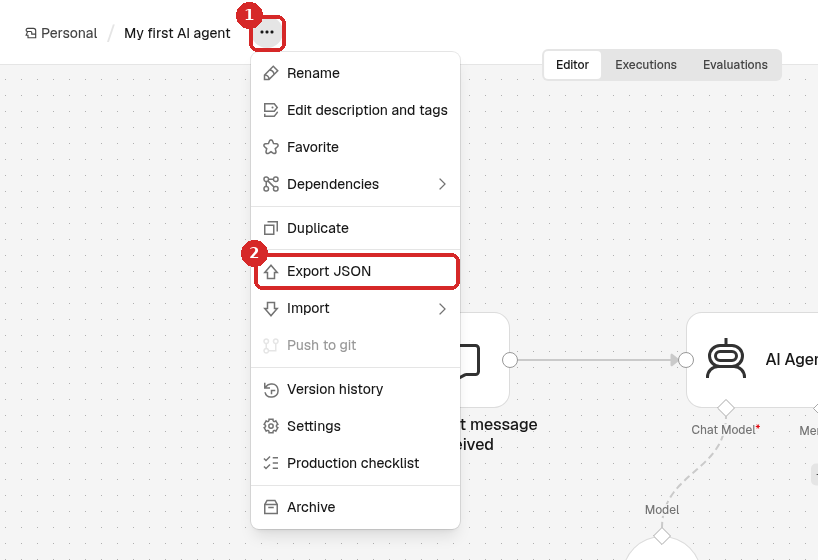
Your browser downloads a file named after the workflow, for example My first AI agent.json. It is small (ours was about 2 KB). Keep it in a safe place, for example in a cloud drive.
Keep a copy before big changes
Export the workflow before you change a working workflow. If something goes wrong, import the file and you have the old version back.
2. What is in the file
The file is plain text (JSON). The part about the Claude step looks like this:
Only the name and an internal number of the credential are saved. The key itself stays inside n8n.
Check before you share
The file does not contain credentials, but it does contain everything you typed into the steps: prompts, web addresses, webhook paths, email addresses. If you pasted a password or key directly into a step instead of using a credential, it is in the file. Open it in a text editor and check before you send it to anyone.
3. Import the file into a new workflow
- Click the + at the top of the menu on the left and choose New workflow.
-
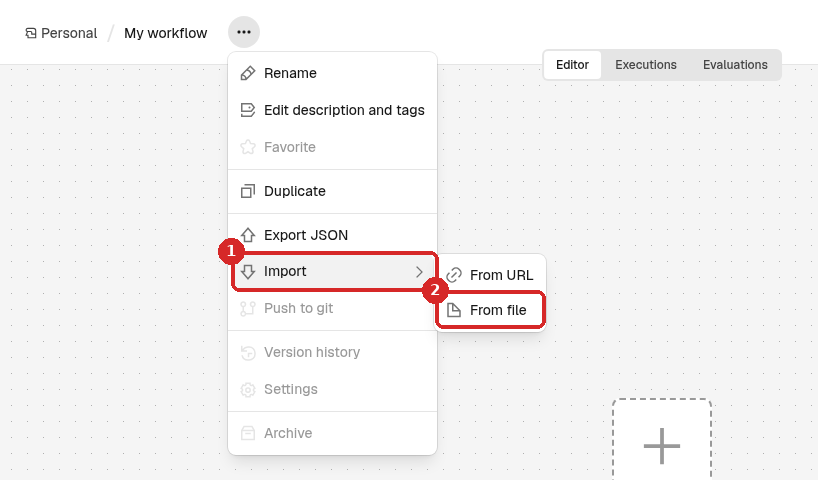
Click the ... next to the name, then Import (1) → From file (2).
-
Choose the
.jsonfile you downloaded. The steps appear on the canvas, and the workflow takes the name saved in the file.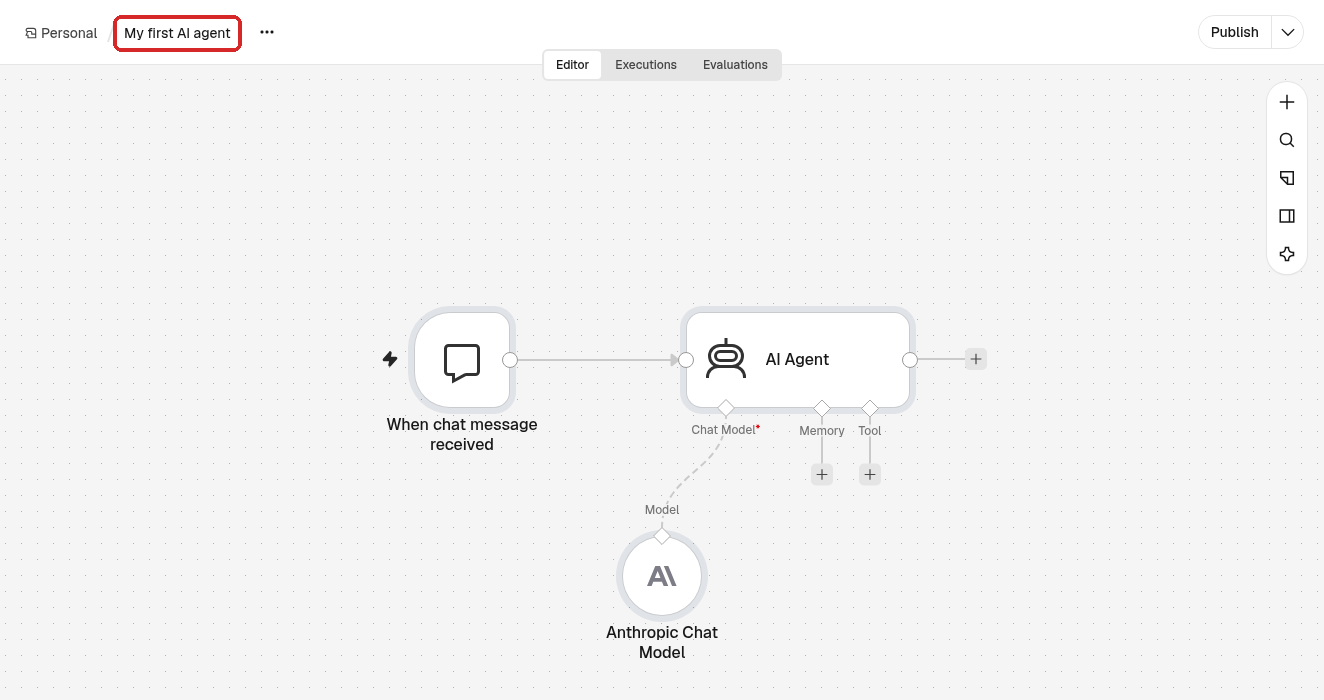
-
If you still have the original workflow, rename the copy so you can tell them apart: click the name at the top, type a new one (we used My first AI agent (restored)) and press Enter.
n8n saves the imported workflow by itself.
4. Test it
Run the workflow once. For our chat agent we clicked Open chat and sent a message:
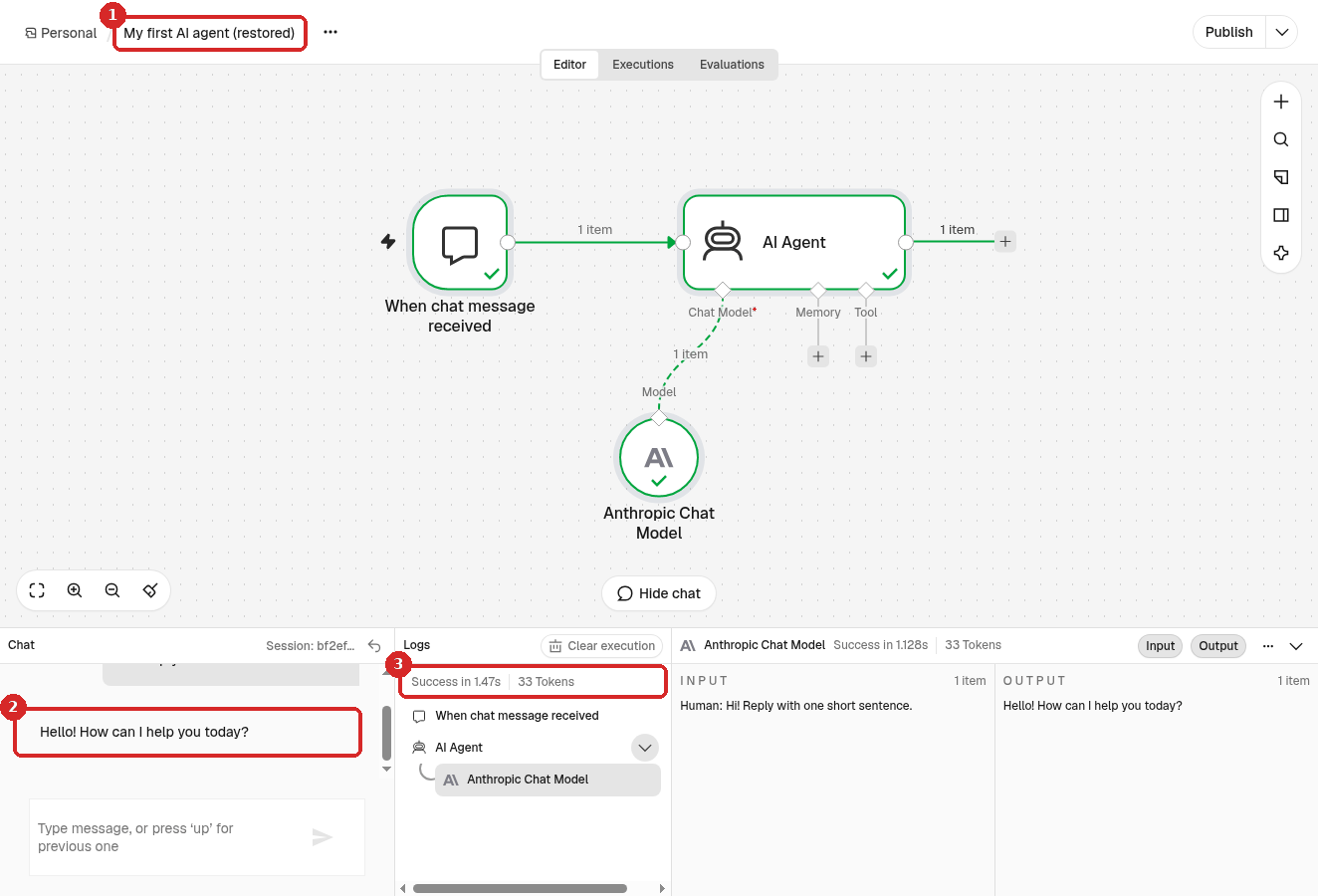
- The restored workflow.
- Claude answered in the chat.
- Logs says Success.
On the same n8n the Claude step found the Anthropic account credential by itself, so it worked at once.
Moving a workflow to another n8n
- On the new n8n, add the credentials first, with the same names if you can (for Claude, see step 2 of the first guide).
- Import the file as in step 3.
- Open each step that uses a credential and check that the right one is selected in Credential.
- Test the workflow, then Publish it if it should run on its own.
Check that it worked
- Overview → Workflows lists the imported workflow.
- It runs without errors (see See what a workflow did and fix errors).
Common problems
A step is red after the import
It usually needs a credential that does not exist on this n8n. Open the step, choose the credential in Credential (or create it), and close the step.
Where else can I keep the file?
Keep it on your computer or in a cloud drive. You can also upload it to your agent's own folder with the Files tab in the client area (Agent files, which is /home/node/.n8n-files, shortcut ~/n8n-files). That folder is kept when the agent is updated. See Terminal and files in the browser. A copy on your own computer is still the safest backup.