n8n troubleshooting
This page lists the error messages we saw while testing n8n on a LusoVPS agent, what each one means and how to fix it. Look for the words of your message on this page (Ctrl+F, or Cmd+F on Mac).
| Time needed | 5 minutes per problem |
| You need | Your n8n agent and the workflow that does not work |
| Result | You know what the message means and which setting to change |
1. Find the error message
When a step fails during a test, n8n shows the error in three places:
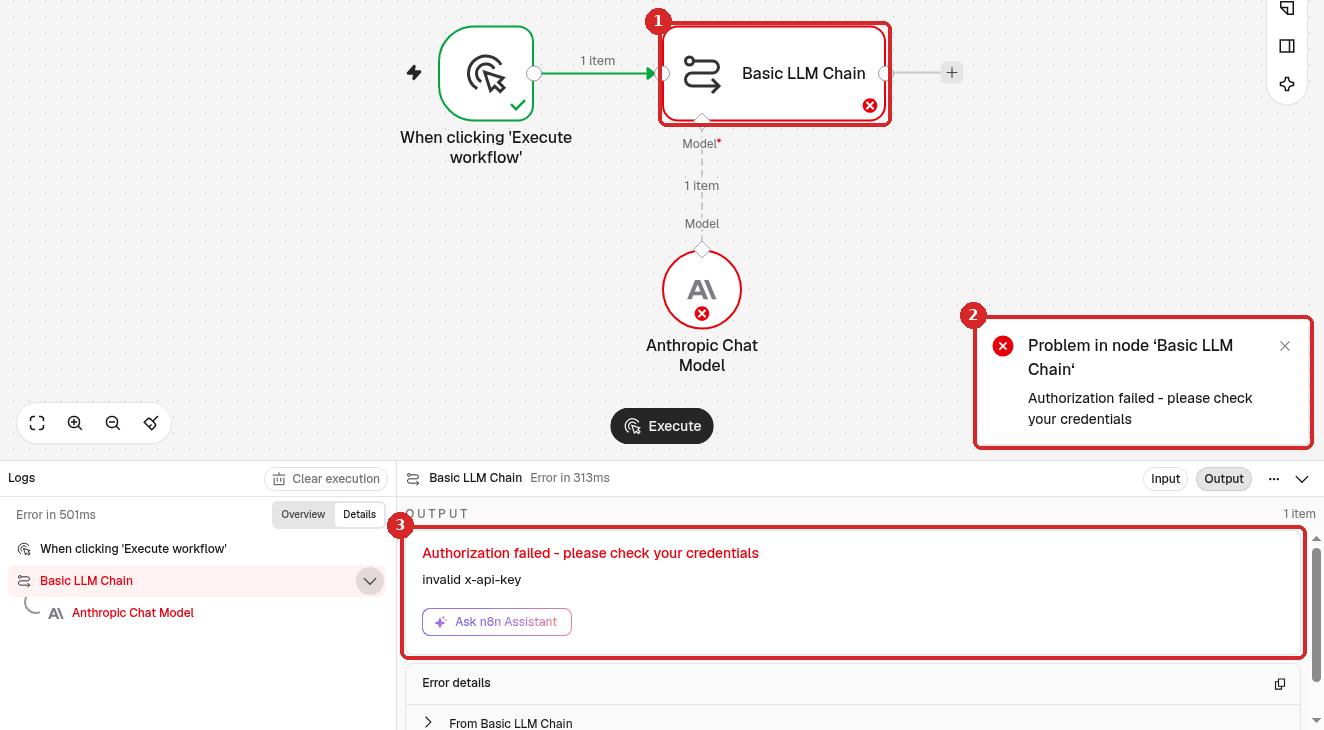
- The step that failed has a red border and a red cross. (Here the Claude step failed because of a wrong key.)
- A message at the bottom right: Problem in node '...' with a short reason.
- In Logs at the bottom, click the red step: the OUTPUT shows the full message, sometimes with a second, more precise line (here invalid x-api-key).
For runs that happened on their own (schedule, webhook, form), open the workflow's Executions tab and click the failed run. See See what a workflow did and fix errors.
2. Look up the message
Claude (Anthropic) and credentials
Couldn't connect with these settings / Unauthorized (when you save a credential)
Anthropic did not accept the key you pasted. Copy it again in one piece, or create a new key in the Anthropic Console. See Manage your credentials.
Problem in node '...' – Authorization failed - please check your credentials (invalid x-api-key)
The step uses a credential with a wrong or deleted key. Open Overview → Credentials, open the credential and paste a valid key (how). Every workflow that uses it is fixed at once.
A Model sub-node must be connected and enabled
An AI step (Basic LLM Chain, AI Agent, Information Extractor...) has no model. Click the + under Model on the step and add Anthropic Chat Model with your Anthropic account credential.
Output data redacted – This execution used a credential you don't have access to
We saw this after deleting a credential that a workflow still used: the step shows Select Credential in Credential. Open the step and choose another credential. See What happens to a workflow that used it.
Telegram
Bad request - please check your parameters (Bad Request: chat not found)
We got this with a Chat ID that does not exist. Check the number with @userinfobot, and open your bot in Telegram and tap Start once: a bot cannot write to someone who never opened it.
Webhooks and forms
The requested webhook \"POST ...\" is not registered
- With the Test URL (
/webhook-test/): click Execute workflow (or Listen for test event) first. The test address works for one call after each click. - With the Production URL (
/webhook/): the workflow must say Published. The hint in this message still talks about a "toggle": in this n8n version that is the Publish button.
This webhook is not registered for GET requests. Did you mean to make a POST request?
The sender uses another method than HTTP Method in the Webhook step. Opening the address in a browser always sends GET. Change HTTP Method to match the sender, then Publish again.
Problem loading form – This usually occurs if the n8n workflow serving this form is deactivated or no longer exist
The form's workflow is not published (or was deleted). Click Publish, and share the Production URL (/form/), not the test one (/form-test/). See the order form recipe.
Data between steps
The field '...' wasn't found in any input item / No output data returned
A step (we saw it in Split Out) looks for a field that is not in the data that arrived. n8n then stops: the next steps do not run, but the run still shows as successful. Open the step before it, look at its OUTPUT for the real field name, and fix the name. Example: the review sentiment recipe.
The expression preview says [undefined]
The field in {{ }} is not in the data of this step. Drag the field from INPUT, or use $('Step name').item.json.field for data from an earlier step. See Variables and expressions.
Websites and HTTP Request
The service refused the connection - perhaps it is offline
n8n could not connect to the address in the HTTP Request step. Check the address in your browser. If it works there, the website's server may block your agent: the request comes from your agent's server, not from your computer. Ask your web host to allow it.
The resource you are requesting could not be found
The website answered 404: the page does not exist. Check the exact URL, including the end of the address. To check a website without failing, see Get a Telegram alert when your website is down.
Publishing and running on its own
Workflow could not be published – ... which is not published. Please publish all referenced sub-workflows first.
The workflow calls another workflow (an Execute Workflow step) that is not published. Publish that one first. See Reuse a workflow inside another.
My error workflow is greyed out: Not published. Can be used for manual testing, but must be published before running in production.
Open the error workflow and click Publish. See Get a Telegram message when a workflow fails.
Cannot read properties of null (reading 'Error Trigger')
You clicked Execute step on a step after an Error Trigger. Use Execute workflow on the canvas instead. See error alerts.
It works when I click Execute, but not on its own
Runs on a schedule, webhook or form only happen when the workflow says Published. After every change, click Publish again: the live version is the one you published last. See Run a workflow on a schedule.
Signing in
I was signed out of n8n
n8n keeps you signed in for 7 days. Sign in again with the email of your LusoVPS account and the service password from the "Your n8n is ready" email. See Sign in and build your first AI agent.
Check that it worked
After the fix, run the workflow again (Execute workflow, or wait for the next scheduled run) and check that every step has a green tick, or that the new run in Executions says Succeeded.
If nothing here helps
- In Logs, click the failed step and copy the text of Error details (the copy icon on its right).
- If n8n itself does not open, see The dashboard does not open and My agent stopped answering.
- Open a ticket with us and paste the error, the name of the workflow and the time of the run.