Give your AI agent tools
An AI agent on its own can only write text from what it already knows. Tools let it fetch live data, read your tables and do exact maths. In this guide you give an n8n agent three tools (a calculator, a weather lookup and a data table) and watch, in Logs, how it picks the right tool for each question, or none.
| Time needed | 30 minutes |
| You need | An n8n agent with your Claude key and the chat agent from Sign in and build your first AI agent |
| Result | An agent that answers Will it rain in Lisbon tomorrow? from a live forecast and What is our stock worth? from your own table, with the maths done by a calculator |
This is the finished workflow:
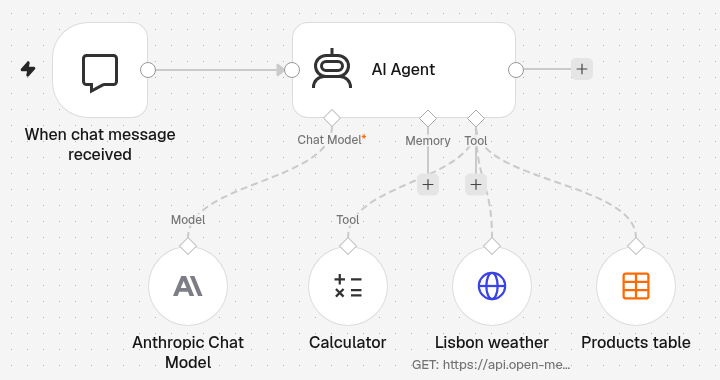
When chat message received → AI Agent, with Anthropic Chat Model under Chat Model and three tools under Tool: Calculator, Lisbon weather (HTTP Request Tool) and Products table (Data table Tool).
The agent decides
You do not tell the agent when to use a tool. Claude reads each tool's name and description and decides by itself. That is why clear names and descriptions matter.
1. Start from a chat agent
Open your chat agent from the first steps guide (When chat message received → AI Agent with Anthropic Chat Model), or build a new one the same way. Rename it, for example Shop assistant with tools.
Then give the agent its job. Double-click AI Agent, scroll to Options, click Add Option → System Message (screens in the text helper recipe) and write:
You are the assistant of Loja Lusa, a small gift shop in Lisbon. Use your tools when you need live data, shop data or exact calculations; never guess numbers. Answer in short plain text.
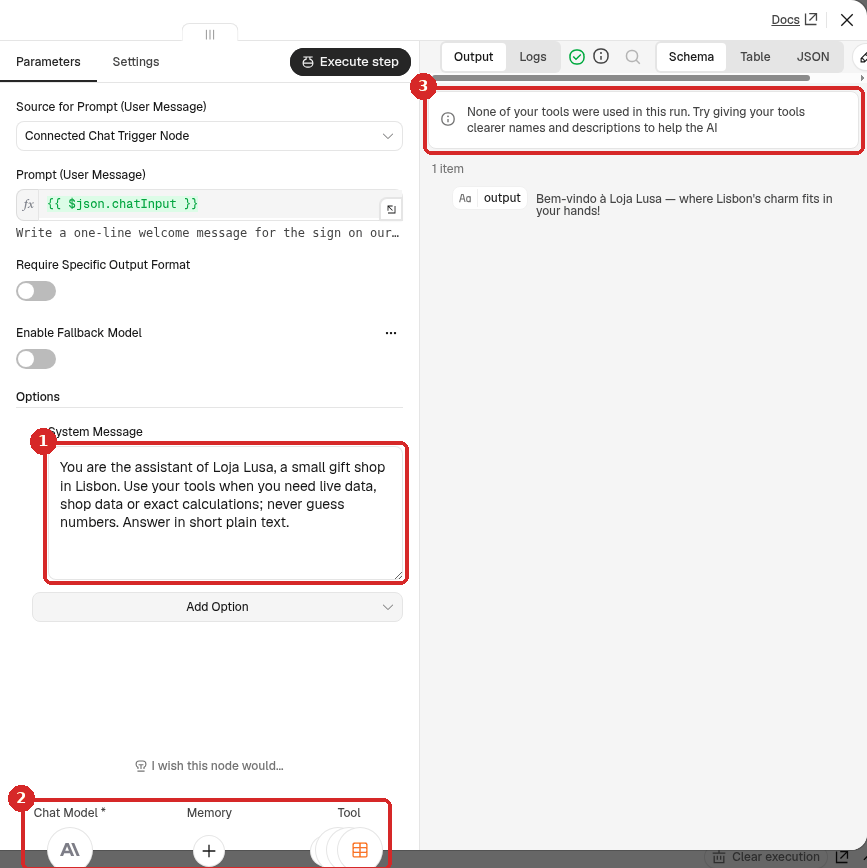
- The System Message. Never guess numbers pushes the agent to use its tools.
- The connectors at the bottom of the panel: Chat Model (Claude), Memory (empty in this guide) and Tool. You add the tools with the + under Tool.
- A note n8n shows after a run in which the agent used no tool (here, question 3 of step 5).
2. Add a calculator
Claude can get sums wrong when there are many numbers. The Calculator tool does the arithmetic exactly.
- Close the panel. On the canvas, click the + under Tool of the AI Agent.
-
Type
calculatorand click Calculator: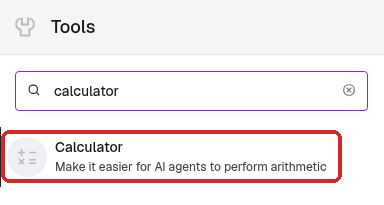
The Calculator has nothing to set. Close its panel.
3. Add a live weather lookup (HTTP Request Tool)
The HTTP Request Tool lets the agent call a web address and read the answer. We use Open-Meteo, a free weather service that needs no account or key.
-
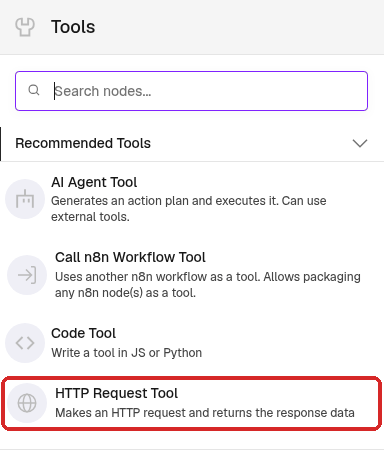
Click the + under Tool again. HTTP Request Tool is in the Recommended Tools list:
-
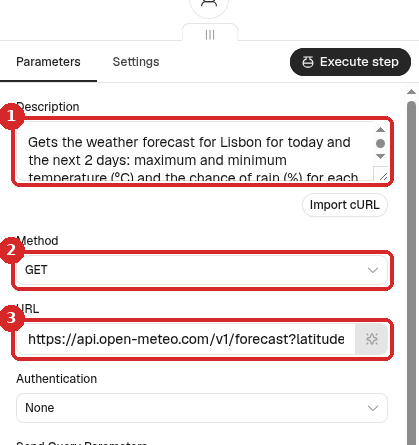
Click it and fill in the panel:
-
Description: replace Makes an HTTP request and returns the response data with what this tool gives, so Claude knows when to use it:
-
Method: GET.
-
URL: the forecast address for Lisbon (latitude 38.72, longitude -9.14):
https://api.open-meteo.com/v1/forecast?latitude=38.72&longitude=-9.14&daily=temperature_2m_max,temperature_2m_min,precipitation_probability_max&timezone=Europe%2FLisbon&forecast_days=3For another city, change
latitudeandlongitude(and the city in the Description).
-
-
Rename the step
Lisbon weather(click its name at the top of the panel) and close it.
4. Let the agent read a data table (Data table Tool)
We made a small data table named products with three columns, product (String), price_eur (Number) and stock (Number), and three rows (how to create a data table):
| product | price_eur | stock |
|---|---|---|
| Olive oil 500 ml | 8.90 | 24 |
| Azulejo mug | 12.50 | 15 |
| Cork wallet | 19.90 | 7 |
-
Click the + under Tool, type
data tableand click Data table Tool. It opens as Insert row; change it: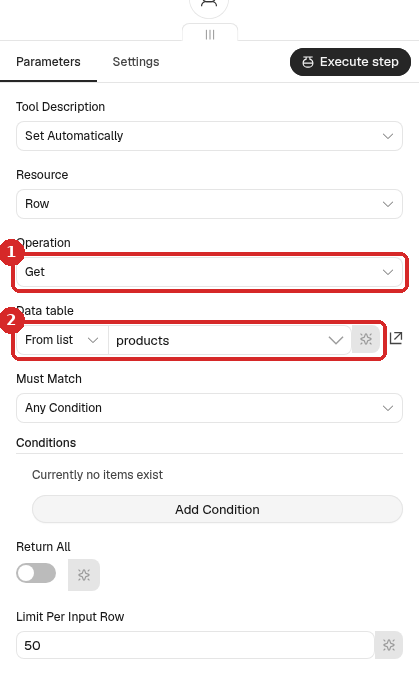
- Operation: Get, so the agent can only read the table.
- Data table: From list → products.
Leave Tool Description on Set Automatically and Conditions empty: the agent gets all the rows (up to the Limit Per Input Row of 50).
-
Rename the step
Products tableand close it.
Give the agent only what it needs
With Insert, Update or Delete, the agent could change or delete rows on its own, based on what someone types in the chat. For a question-answering assistant, use Get.
5. Ask questions and watch it choose
- Click Open chat at the bottom of the canvas. To see more, drag the top edge of the Chat/Logs panel upwards.
- Ask each question and look at Logs on the right. We asked three questions in the same chat.
Question 1 — needs the weather tool:
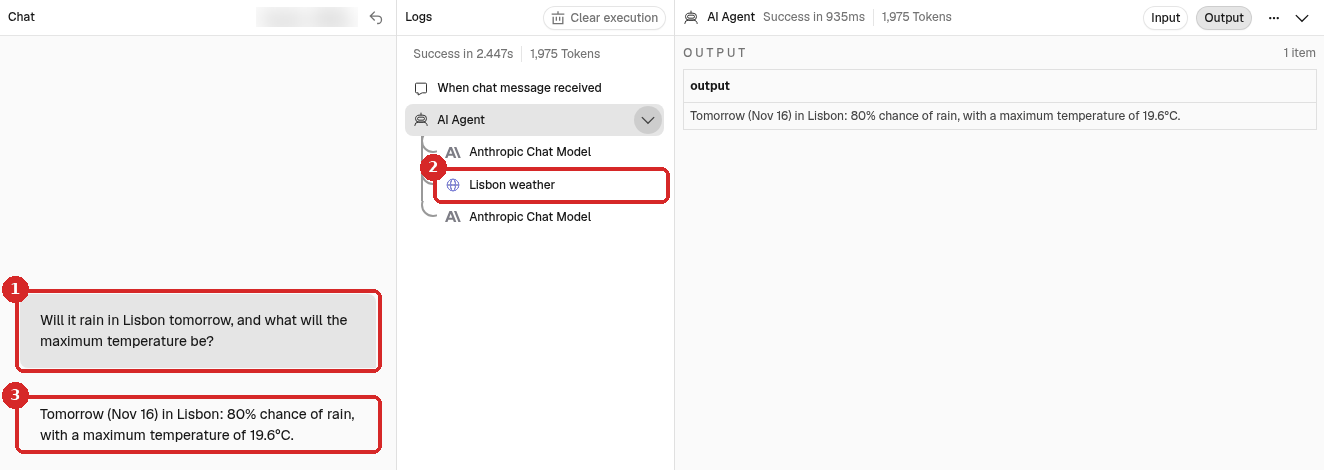
- Our question: Will it rain in Lisbon tomorrow, and what will the maximum temperature be?
- In Logs, under AI Agent: Anthropic Chat Model → Lisbon weather → Anthropic Chat Model. Claude decided to call the weather tool, then wrote the answer from its result.
- The answer: Tomorrow (Nov 16) in Lisbon: 80% chance of rain, with a maximum temperature of 19.6°C.
Click a tool in Logs to see exactly what it did:
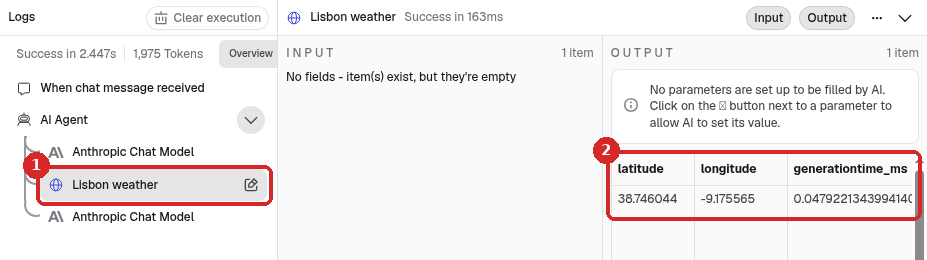
- Lisbon weather: Success in 163ms.
- OUTPUT: the forecast from Open-Meteo (scroll to the right for the daily values).
Question 2 — needs the table and the calculator:
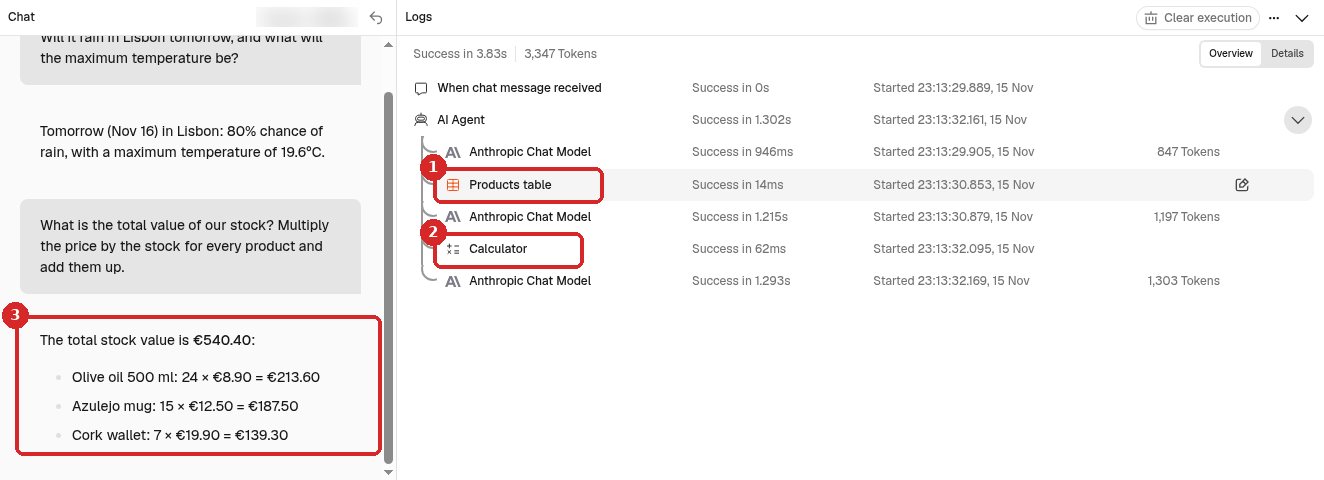
- Products table: the agent read the 3 products first.
- Calculator: then it sent the sum to the calculator.
- The answer: The total stock value is €540.40, with the value of each product.
Click Calculator in Logs to see the sum Claude asked for:
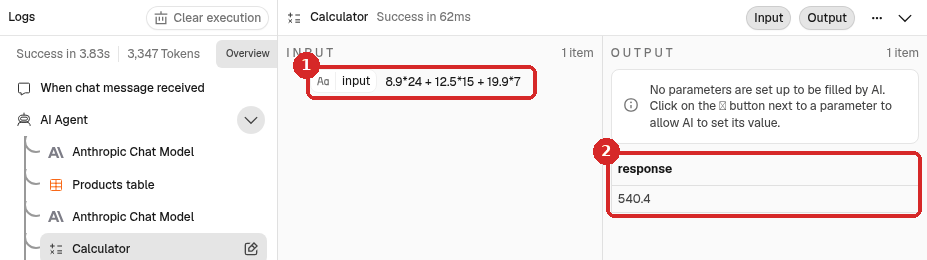
- INPUT:
8.9*24 + 12.5*15 + 19.9*7, built from the table rows. - OUTPUT: response
540.4.
Question 3 — needs no tool:
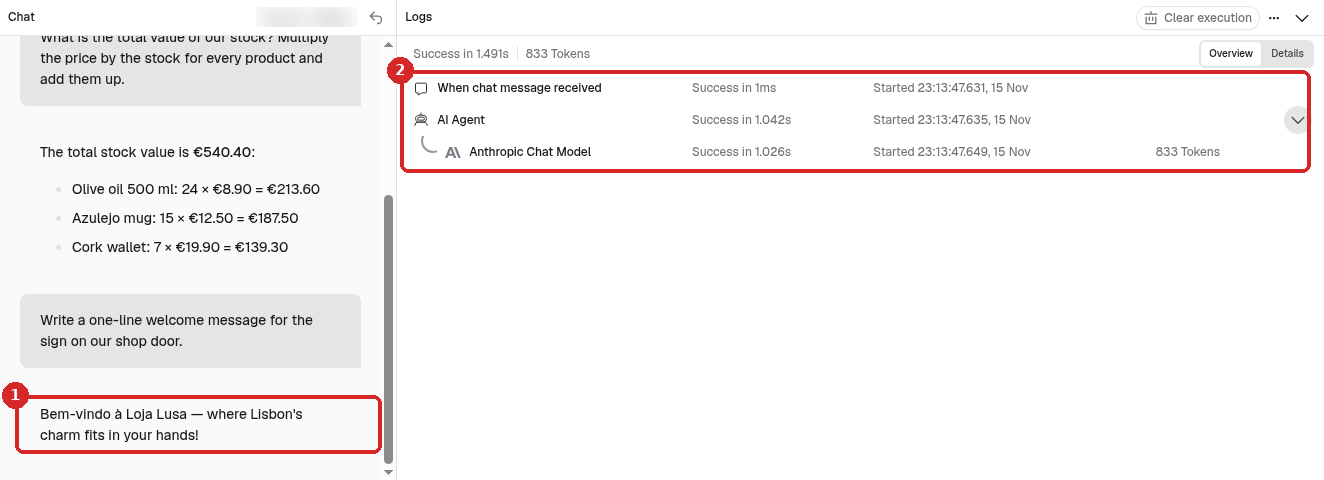
- Write a one-line welcome message for the sign on our shop door. The answer: Bem-vindo à Loja Lusa — where Lisbon's charm fits in your hands!
- Logs shows only Anthropic Chat Model: no tool was needed, so none was called.
After this question, the AI Agent panel also said None of your tools were used in this run. Try giving your tools clearer names and descriptions to help the AI (box 3 in the AI Agent picture in step 1). For a writing task that is expected; if you see it for a question that needs a tool, improve the tool's name and description.
The three answers came in 1.5 to 3.8 seconds (the time at the top of Logs).
Check that it worked
Check the agent's answers against the real data:
- Weather: open the URL from step 3 in your browser and look at the second day. Ours said
precipitation_probability_max80 andtemperature_2m_max19.6 for 16 November, the same as the agent. - Stock value: 24 × 8.90 = 213.60, 15 × 12.50 = 187.50, 7 × 19.90 = 139.30, total 540.40. The agent's answer matched.
- Logs: each question that needed data shows the tool under AI Agent; the writing question shows none.
Common problems
The agent answers without using the tool
Make the tool's purpose clear: a name like Lisbon weather and a Description that says what it returns. In the System Message, say when to use tools (never guess numbers). Then ask again and check Logs.
The weather is for the wrong place
The tool always asks for the latitude and longitude in its URL. Change them for your city, and the city in the Description, so the agent does not use it for other places.