Skills in OpenClaw
A skill is a set of instructions that teaches your assistant one job, for example looking up the weather or making diagrams. This guide shows where to see your skills and how to turn one on or off.
| Time needed | 5 minutes |
| You need | An OpenClaw agent with an AI key (First steps) |
| Result | You know which skills are ready, and you can turn a skill on or off |
OpenClaw comes with about fifty built-in skills. On our test agent, 15 were ready to use, 31 were turned off and 5 needed setup.
1. Open the skills list
- Open the dashboard (client area → Manage agent → Open dashboard).
- Click your avatar at the bottom left and choose Settings.
- In the Settings menu, click Skills.
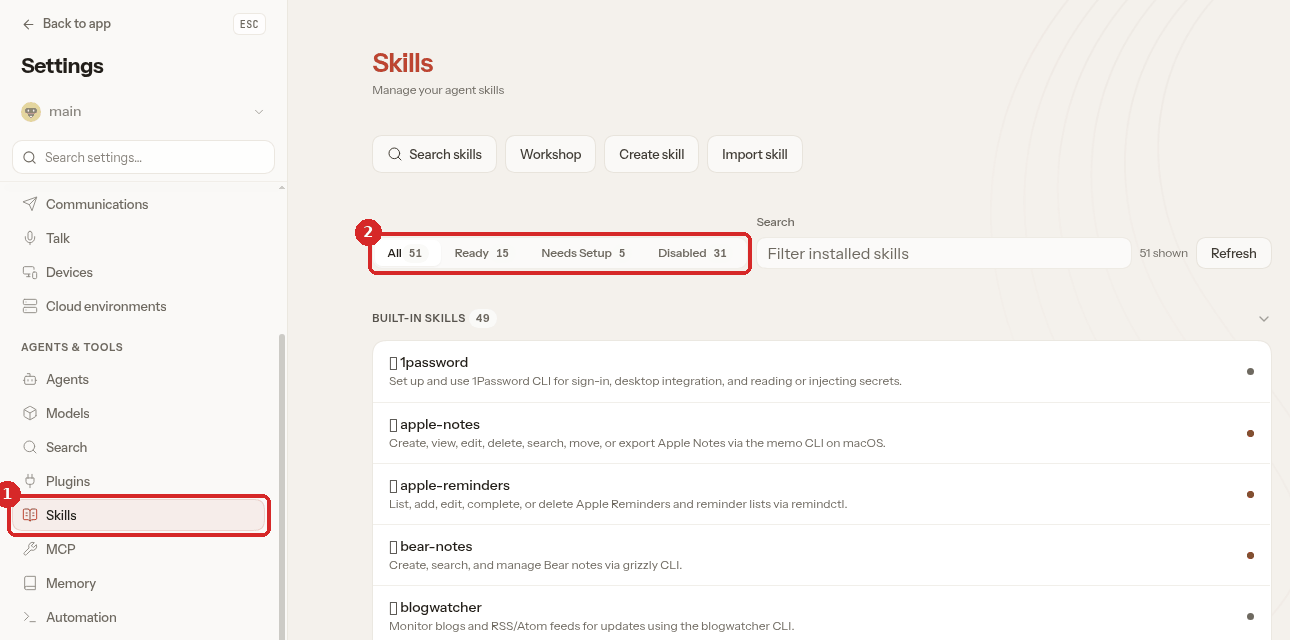
- Skills in the Settings menu.
- The filters: All, Ready, Needs Setup and Disabled, with how many skills are in each.
The coloured dot on the right of each skill shows its state:
- green: ready, the assistant can use it;
- grey: turned off (Disabled);
- orange: it needs something that is missing (Needs Setup).
Another way in
The same skills appear as cards in Pages → Plugins → Skills. Clicking a card opens the same window as in step 2.
2. Open a skill
Click a skill to open its window. This one, blogwatcher, is turned off:
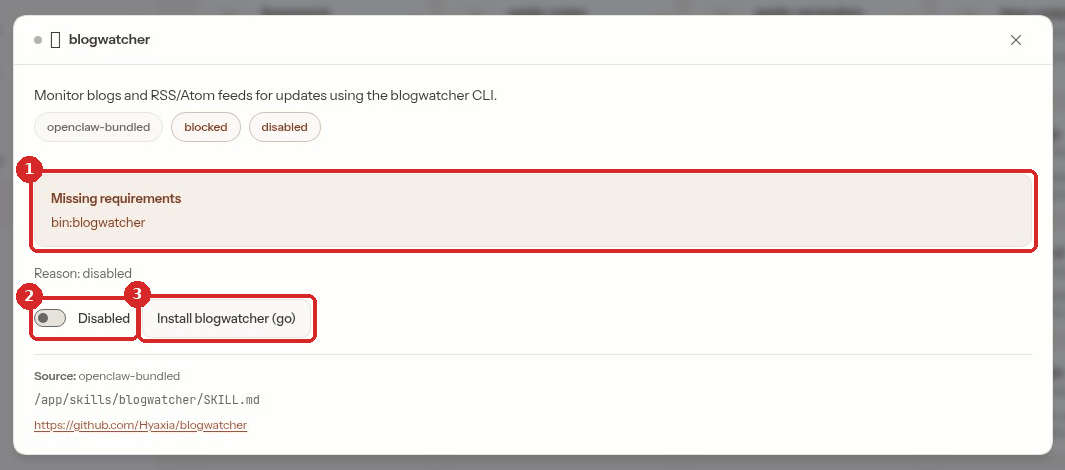
- Missing requirements: what the skill needs to work.
bin:blogwatchermeans a program calledblogwatchermust be installed on the server.env:...means it needs a key (for exampleenv:OPENAI_API_KEY). - The switch: Disabled or Enabled.
- An install button for the missing program. We did not test these install buttons.
Not every skill can work on your server
The 5 skills in Needs Setup on our agent (Apple Notes, Apple Reminders, Bear, Peekaboo, Things) only work on a Mac (os: darwin). Most of the Disabled skills need an extra program or an account with another service. Skills that are Ready work without extra steps.
3. Turn a skill on or off
We tested this with the weather skill (it is ready by default).
-
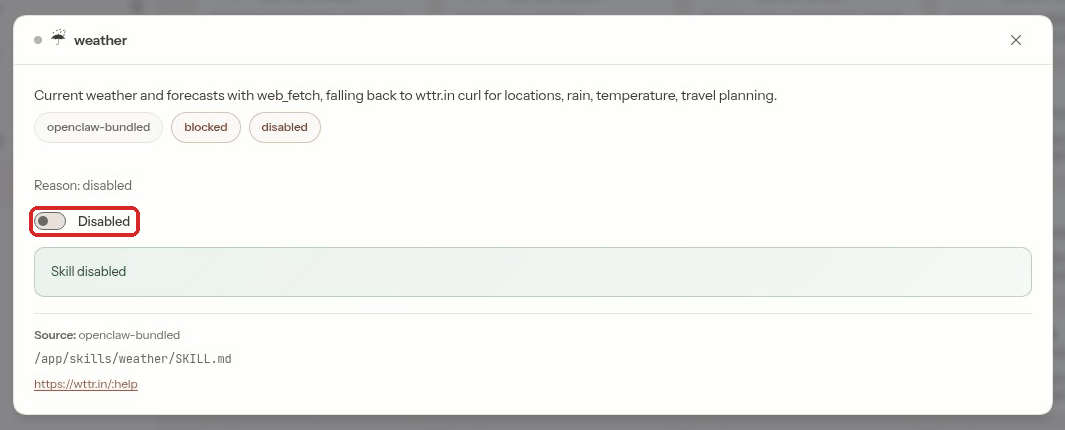
Open the skill and click the switch. A green message confirms it: Skill disabled.
-
Click the switch again to turn it back on. The message says Skill enabled.
-
Reload the page (F5) and open the skill again. It now shows Enabled and the label eligible.
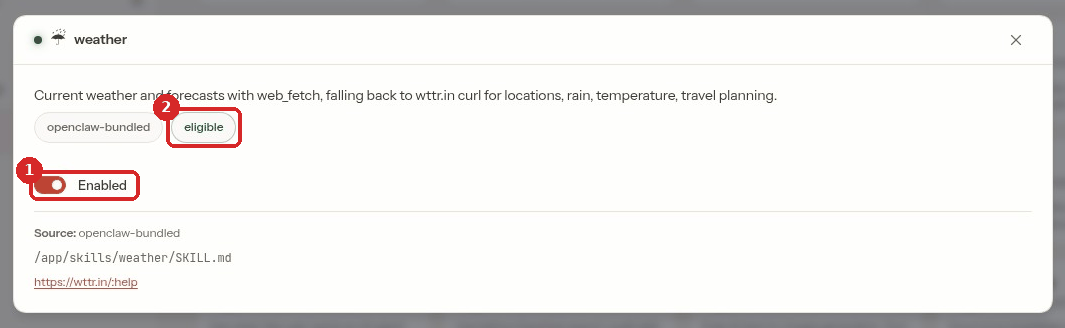
- The switch shows Enabled.
- eligible: it has everything it needs.
The switch did not move?
On our test agent the message Skill enabled appeared, but the switch only showed Enabled after reloading the page. The change was saved: trust the message, then reload.
You do not need to restart the agent: OpenClaw picks up the change by itself.
Check that it worked
Ask your assistant something that uses the skill. We asked from the terminal (client area → Terminal), with the command from First steps:
openclaw agent --agent main --message "Use your weather skill: what is the weather in Lisbon right now? Answer in one sentence."
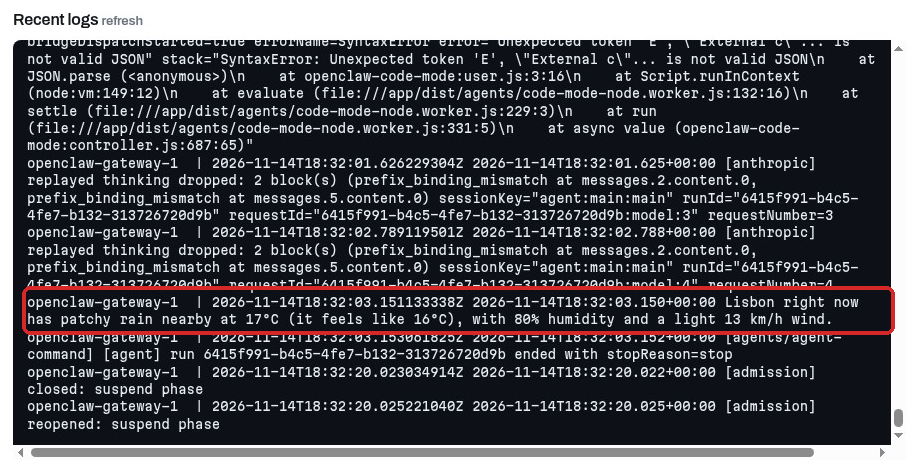
About two minutes later the answer was ready: "Lisbon right now has patchy rain nearby at 17°C (it feels like 16°C), with 80% humidity and a light 13 km/h wind." The terminal had stopped waiting after 111 seconds ("Lost the connection to OpenClaw"), but the agent finished the job: its answer appears in the client area under Manage agent → Recent logs:
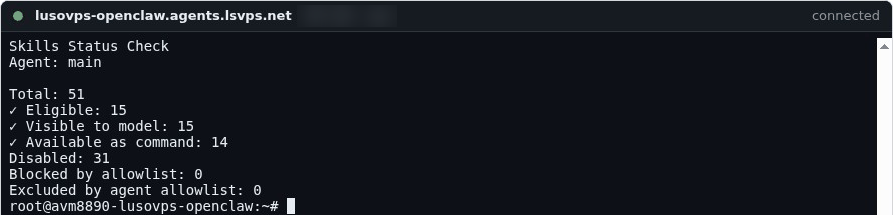
From the terminal (client area → Terminal) you can also list the skills:
It shows how many skills exist and how many are ready (Eligible). openclaw skills list prints the full list with the state of each skill. On our test agent each command took about 5 seconds.
Common problems
I turned a skill on, but it shows Needs Setup
The skill needs a program or a key that is not on the server. Open it and read Missing requirements. If it says os: darwin, it only works on a Mac.
Can I install skills made by other people?
Pages → Plugins → Skills also lists community skills from ClawHub with an Install button. We have not tested these. A skill can tell your assistant to run commands on your server, so only install skills from authors you trust.
The assistant does not use the skill
Check that the skill is Enabled and eligible (reload the page first). Then say it in your message, as in our test: "Use your weather skill: …".