The dashboard does not open
Use this page when your agent's dashboard address does not open, asks you to sign in, or shows "Unable to auto-login". Follow the steps in order.
| Time needed | 5 to 15 minutes |
| You need | Your client area login |
| Result | Your agent's dashboard opens, or you have what support needs to help you |
Do not use Reinstall to fix a problem
Reinstall deletes everything (conversations, memory, workflows, connected channels) and cannot be undone. Restart and Update keep your data.
1. Open the dashboard from the client area again
This solves most problems.
- Sign in to the client area, open Services → My Services and click your agent.
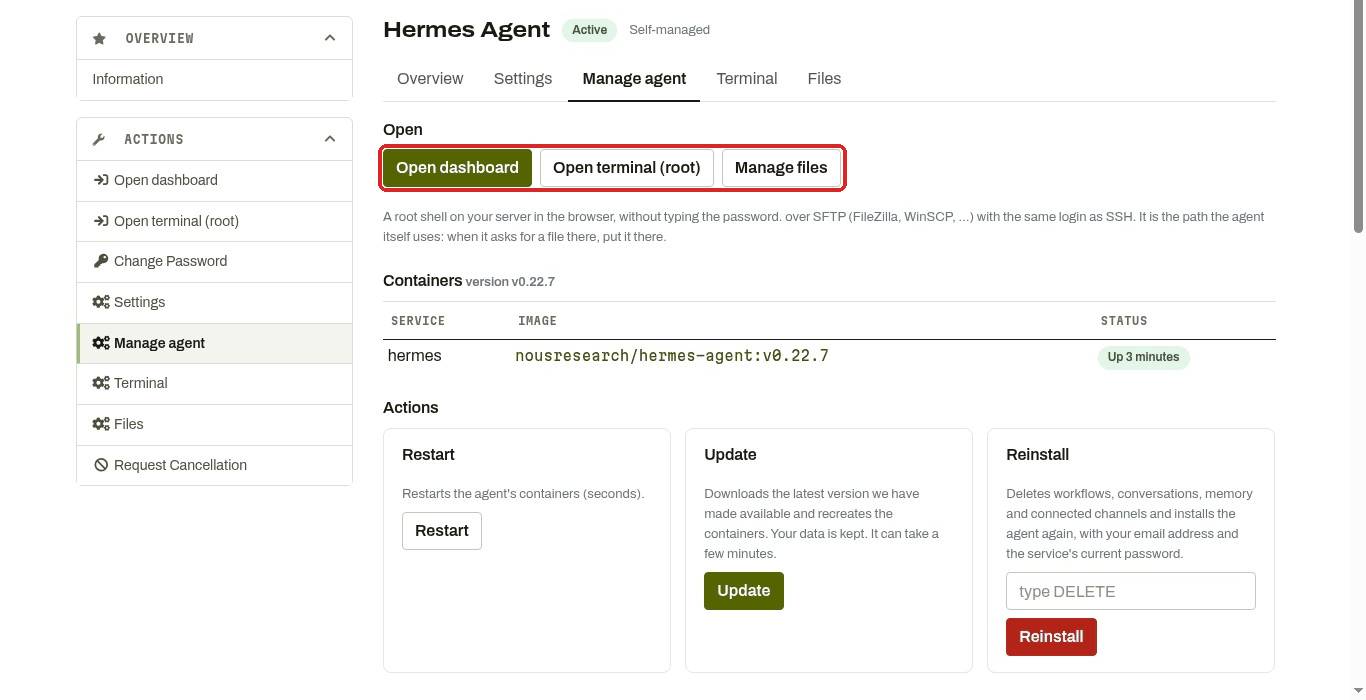
- Click Open dashboard (in the Manage agent tab, or in the ACTIONS menu on the left).
Why this helps:
- Hermes: the dashboard sign-in is cleared every time the agent restarts (for example after Save and apply). Open dashboard signs you in again.
- OpenClaw: Open dashboard is a one-time link, valid for 10 minutes, that registers your browser with the agent. A new browser, cleared cookies or a closed private window need a new link.
- n8n: Open dashboard takes you to n8n's own sign-in page (see step 5).
2. Wait if the agent is new or has just restarted
- New agent: the agent may still be finishing its installation when the "Your agent is ready" email arrives. Wait a few minutes.
- After Save and apply: the agent restarts with the new settings. For OpenClaw, wait one or two minutes before opening the dashboard.
- After a restart of a busy agent: on our overloaded OpenClaw Lite test agent, it took about 9 minutes from the click on Restart to a working dashboard.
Then click Open dashboard again.
3. Check that the agent is running
Click the Manage agent tab. Under Containers, the STATUS column shows whether the agent is running.
| Status | What to do |
|---|---|
| Up … or Up … (healthy) | The agent is running. Go to step 5. |
| Up … (health: starting) | It has just started. Wait one or two minutes. |
| "We could not get your agent's status right now…" | The server is too busy to answer, usually because its memory is full. Go to step 4. |
At the bottom, Recent logs shows the agent's latest messages. Click refresh to load new lines.
4. Restart
Under Actions, click Restart. It keeps your data. Wait a minute, then click Open dashboard again.
Do not click Restart several times
If you see "The operation could not be completed", wait 5 minutes and reload the Manage agent tab before trying again. The first restart may still be on its way.
If it still does not work, click Update. It installs the latest version we have made available and keeps your data. It can take a few minutes.
5. What you see depends on the agent
The dashboard asks for a username and password. Go back to the client area and click Open dashboard again: it signs you in directly.
If you prefer to type them: the Username is your email address and the Password is the service password from the "Your Hermes Agent is ready" email.
n8n asks you to sign in. That is normal: n8n uses its own sign-in page, even when you click Open dashboard.
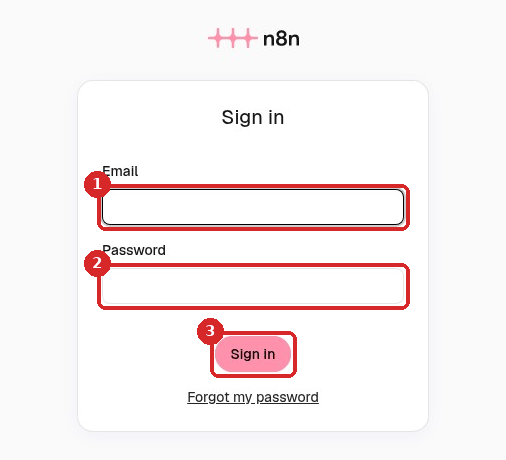
- Email: the email of your LusoVPS account.
- Password: the service password from the "Your n8n is ready" email. Copy it without spaces.
- Click Sign in.
n8n keeps you signed in for 7 days. More: n8n: sign in and build your first AI agent.
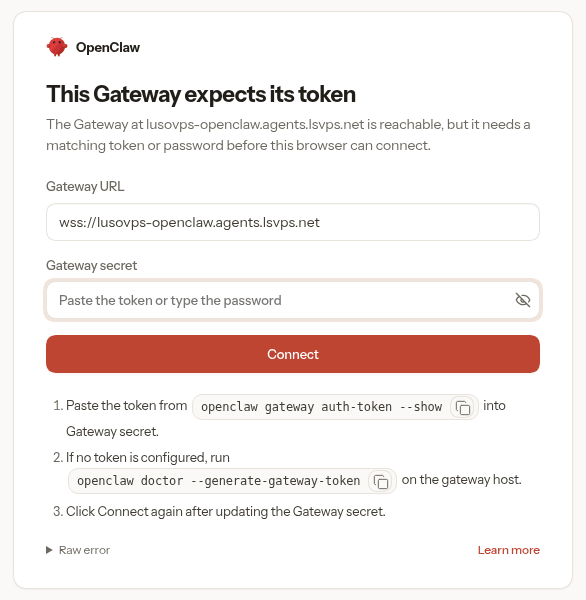
"This Gateway expects its token" or "Conversation unavailable": your browser is not registered with the agent. Go back to the client area and click Open dashboard again.
"Unable to auto-login. Please contact support.": the agent was too busy to answer, for example while restarting or while its memory was full. Wait a few minutes and click Open dashboard again. If it keeps happening, restart (step 4), wait until the status is healthy, then try again.
On our test agent, Open dashboard took about 55 seconds to open the dashboard. On the Lite plan OpenClaw can be slow: for daily use we recommend Plus or more. More: When OpenClaw misbehaves: logs and restart.
6. Open a ticket
If the dashboard still does not open, click Open Ticket in the client area menu and include:
- which agent (Hermes, n8n or OpenClaw) and its address,
- what you see (the exact message, or a screenshot without passwords or keys),
- what you already tried from this page,
- the last lines of Recent logs (copy and paste them),
- the time it happened.
Check that it worked
The dashboard opens: Hermes shows its menu, n8n shows Overview, and OpenClaw opens on the chat (Main Session).