Connect Hermes to Discord
Talk to your Hermes agent on Discord. You create a bot in Discord's Developer Portal, invite it to your server and paste its token into Hermes.
| Time needed | 10 minutes |
| You need | A Hermes agent connected to an AI model, a Discord account, and a computer (the Developer Portal is easier on a computer than on a phone) |
| Result | You mention the bot in your server and Hermes answers |
The bot token is a password
Anyone with the token controls your bot. Do not share it or post it in chats. If it leaks, go back to Bot → Reset Token in the Developer Portal and save the new token in Hermes.
1. Create a server (skip if you already have one)
You need a server where you have the Manage Server permission. Your own server is the simplest.
- In Discord, click the + (Add a Server) in the left column.
-
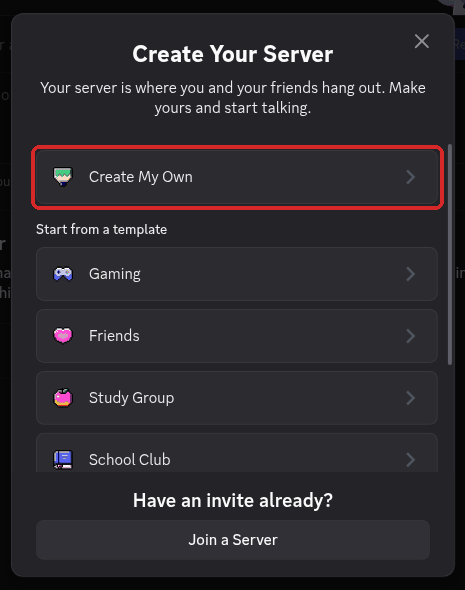
Click Create My Own, then For me and my friends.
-
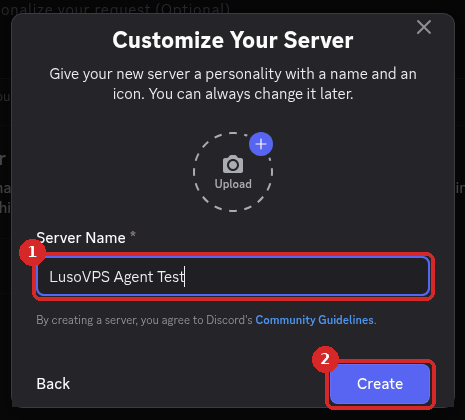
Type a Server Name and click Create.
2. Create the application
- Open the Discord Developer Portal and sign in with your Discord account.
- Click New Application (top right).
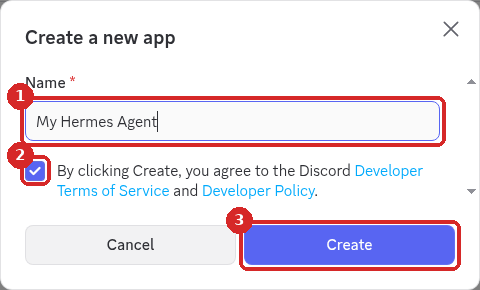
- Type a name (for example
My Hermes Agent), tick the box to accept the Developer Terms and click Create.
Discord may ask you to solve a captcha ("Are you human?"). That is normal.
3. Turn on the intents
In the menu on the left, click Bot. Scroll down to Privileged Gateway Intents and turn on:
- Server Members Intent
- Message Content Intent: required. Without it the bot sees your messages but not what they say.
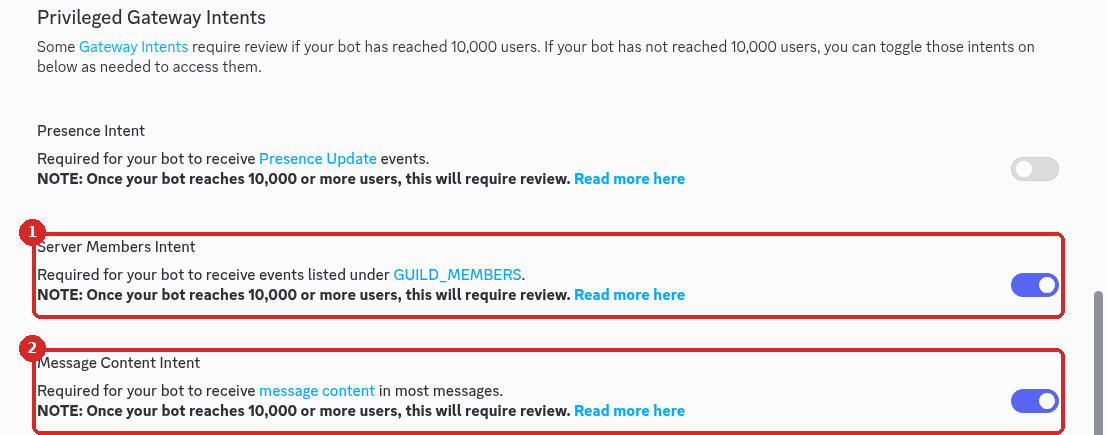
Click Save Changes in the bar that appears at the bottom.
4. Copy the bot token
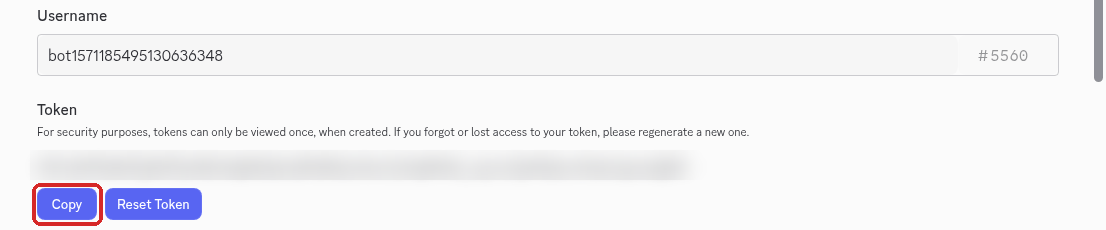
Still on the Bot page, under Token, click Reset Token and confirm with Yes, do it!. Discord asks for your account password (or your 2FA code).
The token appears only once. Click Copy and keep it for step 6.
5. Invite the bot to your server
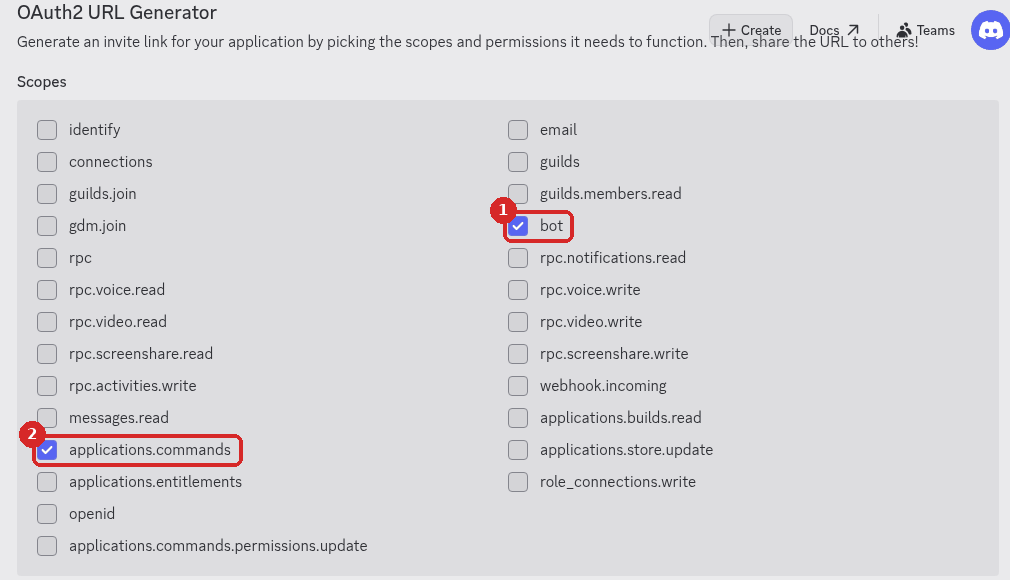
- In the menu on the left, click OAuth2 and scroll down to OAuth2 URL Generator.
-
Under Scopes, tick bot and applications.commands.
-
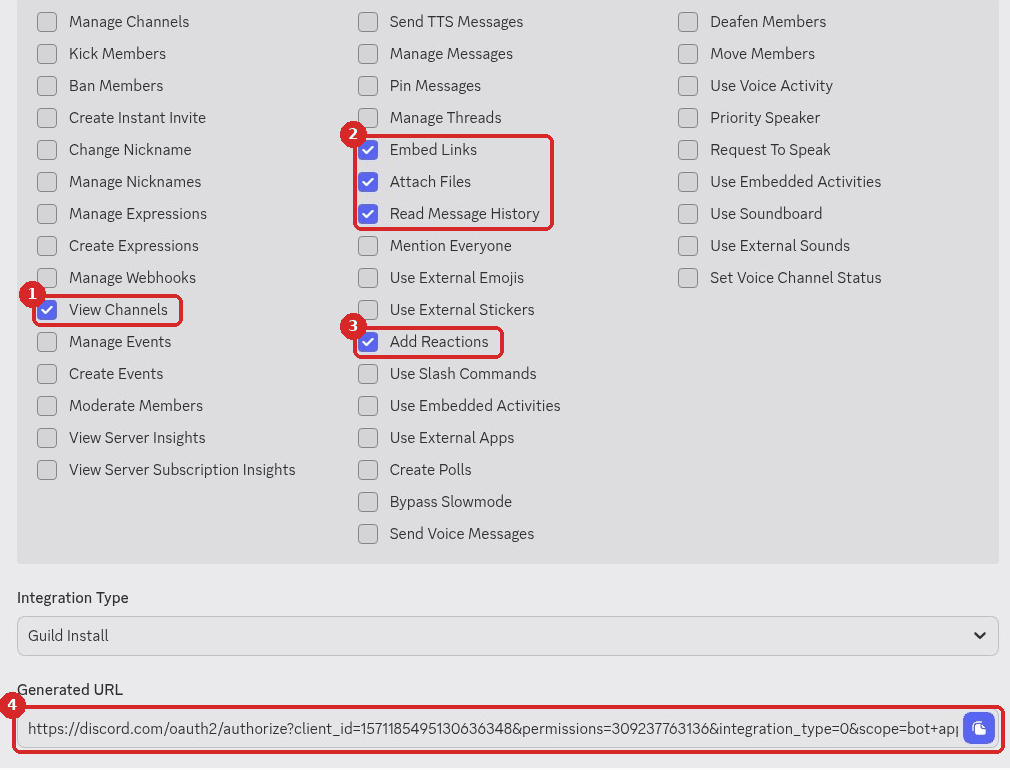
Under Bot Permissions (appears after you tick bot), tick:
- View Channels
- Send Messages, Send Messages in Threads, Create Public Threads
- Embed Links, Attach Files, Read Message History, Add Reactions
-
Leave Integration Type on Guild Install. Click Copy next to Generated URL.
-
Open that URL in your browser. In Add to server, choose your server and click Continue, then Authorize. Solve the captcha if Discord asks.
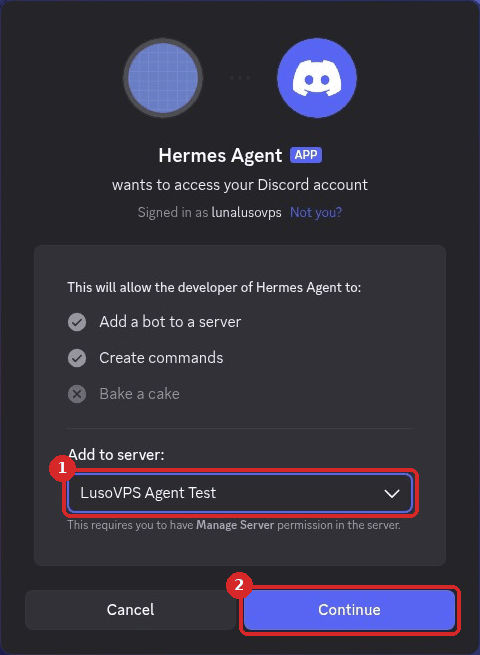
The bot now appears in your server's member list (offline until step 7 is done).
6. Find your Discord user ID
Hermes on Discord only answers the user IDs you allow. To find yours:
- In Discord, open User Settings (the ⚙️ next to your name, bottom left).
-
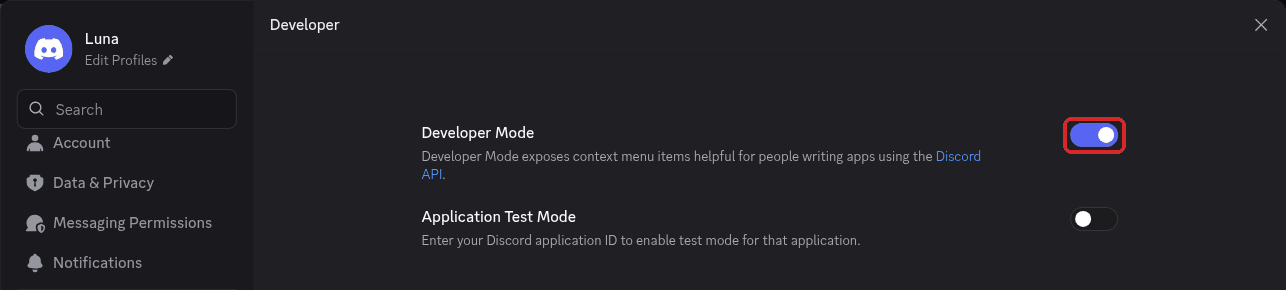
Scroll down to Developer and turn on Developer Mode.
-
Close the settings. Right-click your own name (in a message or the member list) and choose Copy User ID. It is a long number such as
1571110225711206446.
On the phone app the same switch is in the settings, under Advanced.
7. Paste the token and your ID in Hermes
- In the client area, open your Hermes agent and click Open dashboard.
- Click Channels, find Discord and click CONFIGURE.
-
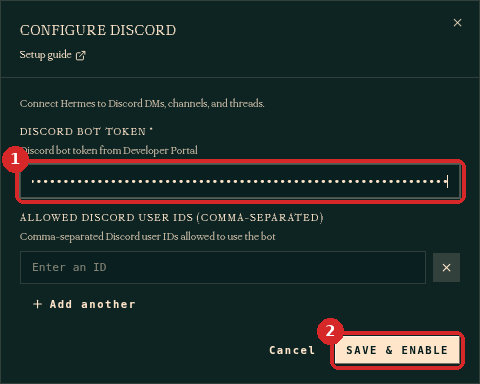
Paste the token in DISCORD BOT TOKEN. The field shows it as dots.
-
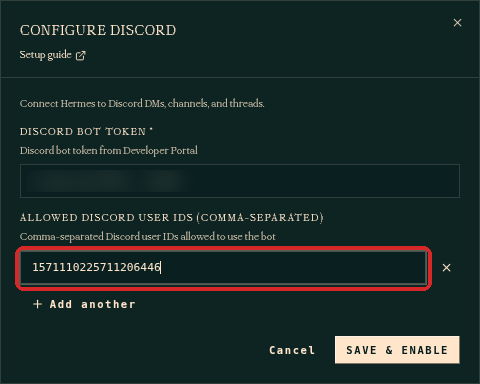
Paste your user ID in ALLOWED DISCORD USER IDS. Click + Add another to allow more people.
-
Click SAVE & ENABLE. The card now shows Restart to apply.
-
Click RESTART GATEWAY (top right) and confirm with Restart Gateway.
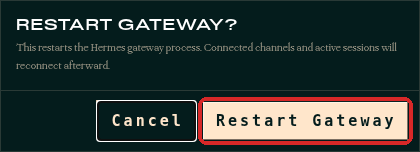
After a few seconds the Discord card shows Connected, and the bot is online in your server.
Check that it worked
In any channel of your server, type @ and pick your bot from the list, then write a message, for example @My Hermes Agent hi! What can you do?.
Hermes reacts with ✅, opens a thread for the conversation and answers there.
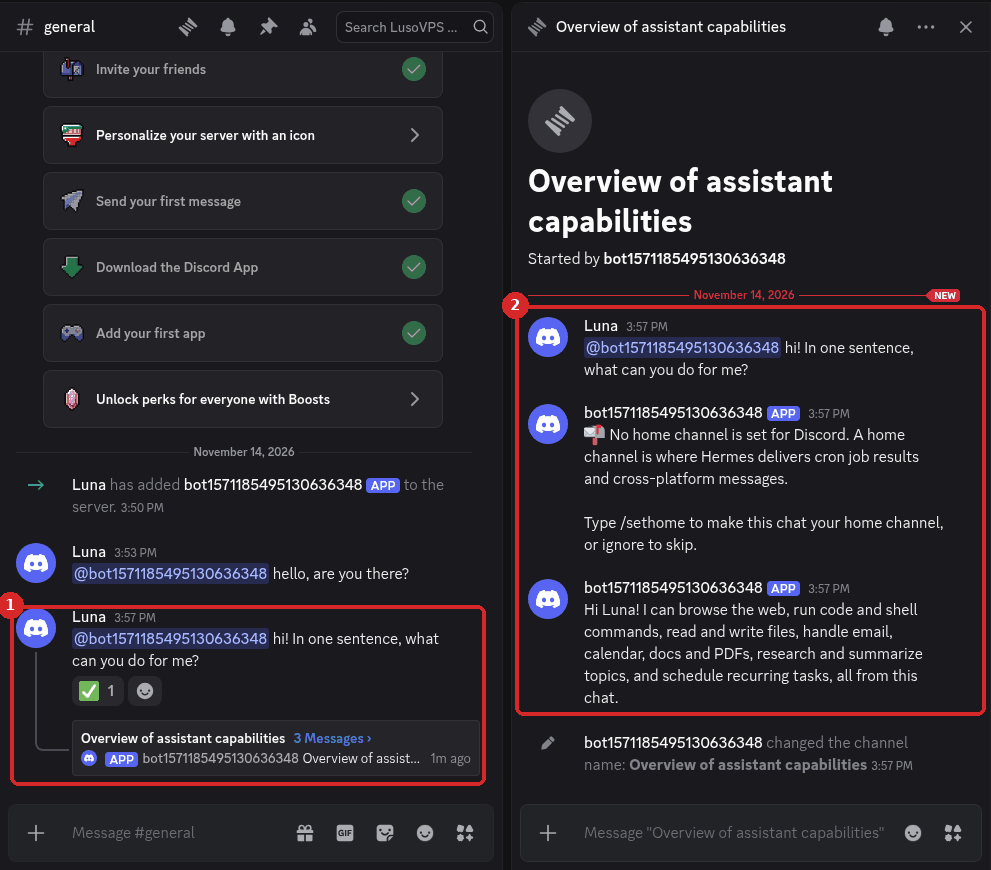
The first time, Hermes may also say No home channel is set for Discord. Type /sethome in the channel where you want Hermes to deliver scheduled reports and other notices, or ignore it.
Common problems
The bot is online but never answers
Your user ID is not in ALLOWED DISCORD USER IDS. With no allowed IDs, Hermes ignores all Discord messages (the dashboard Logs show "Discord messages are being denied because no allowlist is configured"). Add your ID in Channels → Discord → CONFIGURE, click SAVE & ENABLE and restart the gateway.
The bot answers but does not see what I wrote
Message Content Intent is off. Turn it on in the Developer Portal (Bot → Privileged Gateway Intents), click Save Changes and restart the gateway in Hermes.
The bot stays offline
The token is wrong or was reset. Reset it again in the Developer Portal, paste the new one in Hermes and restart the gateway. In the dashboard, Logs should show ✓ discord connected.
I can't choose my server when inviting the bot
You need the Manage Server permission in that server. Use a server you created, or ask its owner to invite the bot with your link.
I mentioned the bot's role instead of the bot
When you type @, Discord can suggest both the bot and a role with the same name. Pick the entry with the APP tag or the bot's username, not the one that says "Notify users with this role".
Next steps
- Choose who can talk to your agent (WhatsApp and Telegram)
- Connect WhatsApp
- Connect Telegram