First steps with OpenClaw
This guide opens your OpenClaw agent for the first time and connects it to Claude (Anthropic), so it can start working.
| Time needed | 10 minutes |
| You need | An OpenClaw agent (order one) and an Anthropic API key (it starts with sk-ant-). OpenAI and OpenRouter keys work the same way. |
| Result | OpenClaw uses Claude as its model. You can open its dashboard and its terminal. |
Treat the API key like a password
Anyone with your key can use your Anthropic credit. Do not paste it in chats, emails or screenshots.
1. Find your agent in the client area
- Sign in to the client area and open Services → My Services.
- Click your OpenClaw agent and scroll down to the Manage panel.
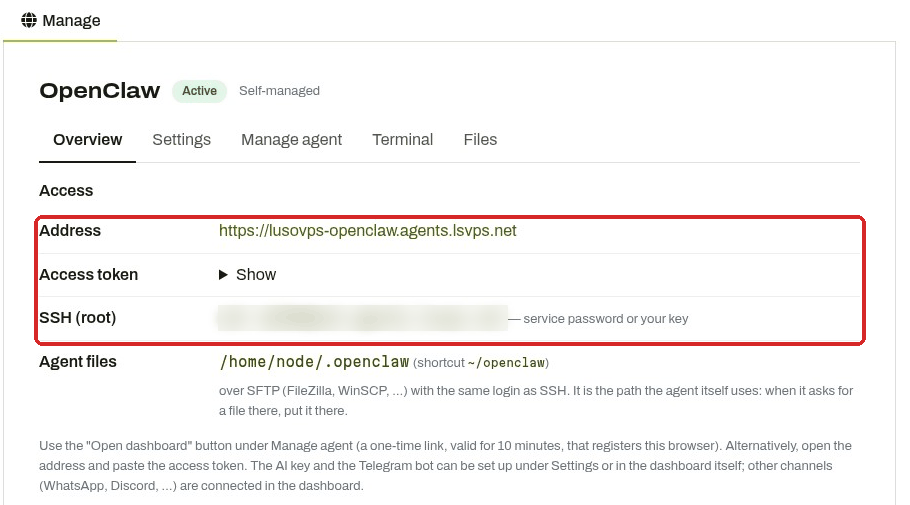
The Overview tab shows the agent's Address, an Access token (click Show), the SSH command and the folder with the agent's files (/home/node/.openclaw, shortcut ~/openclaw).
No password for the OpenClaw dashboard
Unlike Hermes and n8n, OpenClaw does not use a username and password. You open it with a one-time link from the client area (step 3), or with the Access token.
2. Connect Claude
- Click the Settings tab.
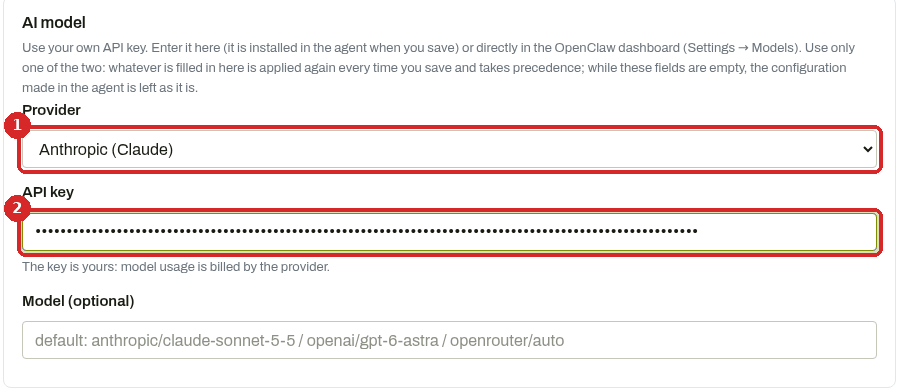
- In Provider, choose Anthropic (Claude).
- Paste your key in API key. Leave Model (optional) empty to use the default Claude model.
- Scroll down and click Save and apply.
The agent restarts with the new settings. Wait one or two minutes before opening the dashboard.
One place for the key
You can also set the key inside OpenClaw (Settings → Models). Use only one of the two. Whatever is filled in the client area is applied again every time you click Save and apply, and it wins.
3. Open the dashboard
Click the Manage agent tab, then Open dashboard.
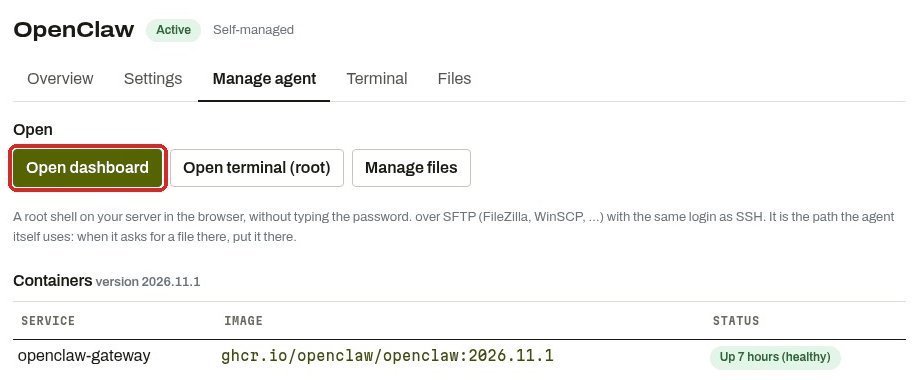
This is a one-time link, valid for 10 minutes, that registers your browser with the agent. Next time, in the same browser, you can open the agent's address directly. On a new computer or browser, click Open dashboard again.
The dashboard opens on a chat with your assistant (Main Session).
Check that it worked
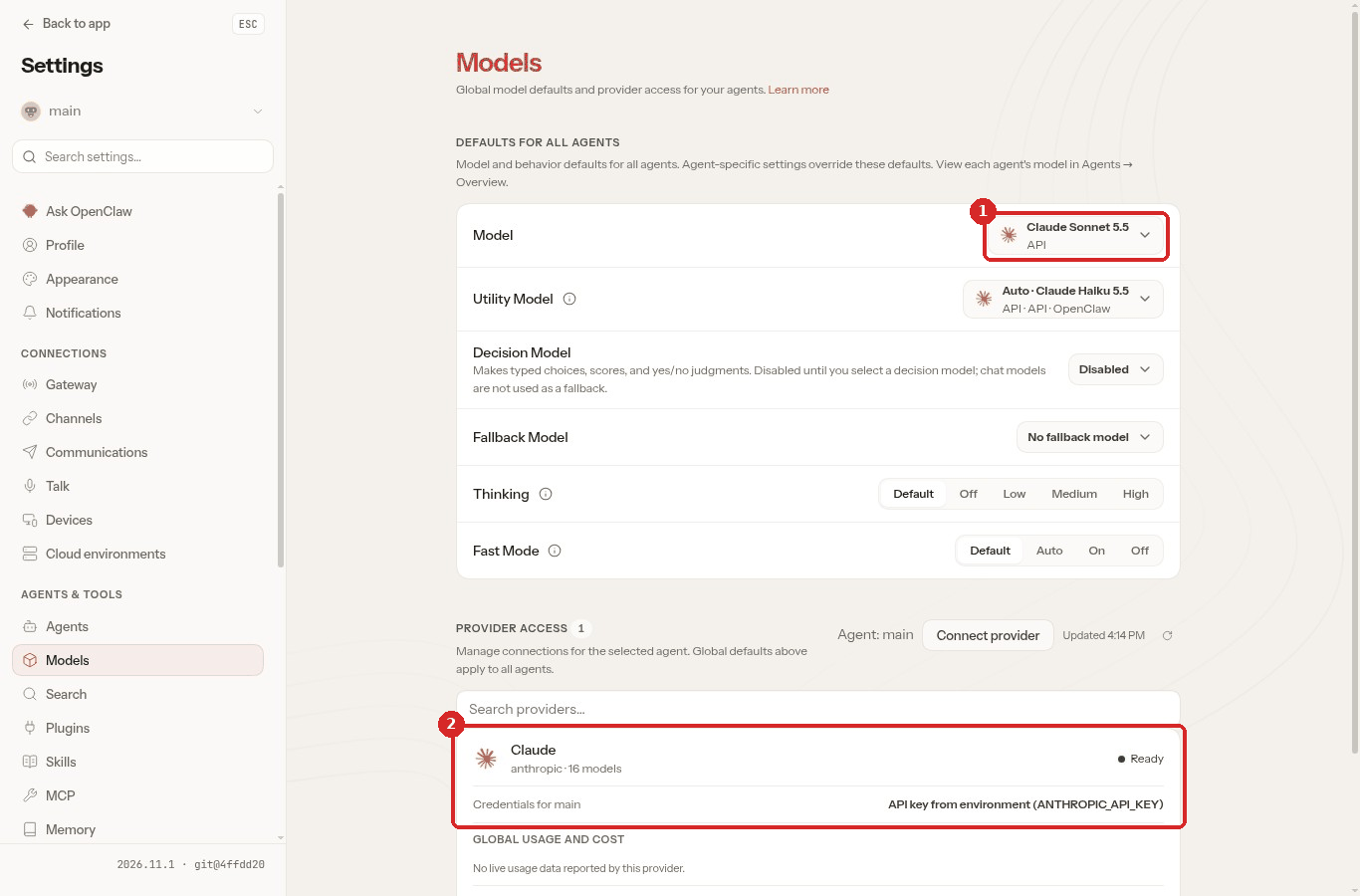
In the dashboard, open the menu at the bottom left (your avatar) and choose Settings, then Models:
- Model shows Claude Sonnet (or the model you chose).
- Under Provider access, Claude shows Ready, with API key from environment (ANTHROPIC_API_KEY): that is the key from the client area.
You can check the same from the terminal: in the client area click Terminal and run:
The line Default shows the Claude model.
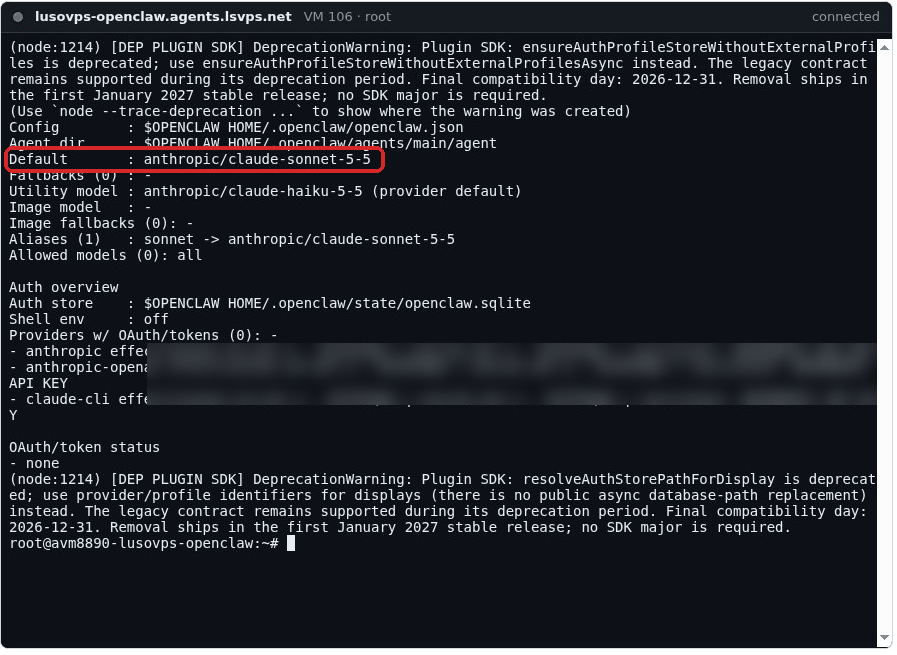
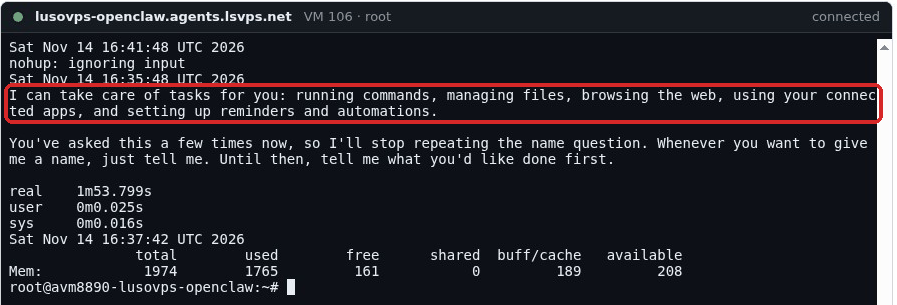
To send the agent a real question from the terminal:
After a while the answer written by Claude appears.
Be patient with the terminal commands
Each openclaw command starts a full copy of the agent's tools. On our Lite test agent, openclaw models status took about a minute and the question above about two minutes. Warnings that start with DeprecationWarning are normal and can be ignored.
Common problems
\"Unable to auto-login. Please contact support.\"
The agent was busy (for example, restarting after Save and apply). Wait a minute and click Open dashboard again.
The dashboard says \"Conversation unavailable\" and asks me to log in
Your browser is not registered (new browser, cleared cookies, or the one-time link expired). Go back to the client area and click Open dashboard again.
The chat shows \"No models available\"
The agent has no working AI key. Check Settings in the client area (provider and key), click Save and apply, wait a minute and reload the dashboard.
The dashboard is very slow, or stays on grey placeholders
OpenClaw needs a lot of memory. On our Lite test agent (2 GB) the memory was almost full while it answered a question, and the dashboard sometimes took minutes to load or did not show the answers. If you use OpenClaw every day, choose Plus (4 GB) or more.
Next steps
- Connect Telegram: the Settings tab has a Telegram bot section (bot token from @BotFather and your Telegram ID). See the Hermes Telegram guide for how to create the bot and find your ID.
- WhatsApp, Discord and other channels are connected in the dashboard (Settings → Channels). Guides coming soon.