Change or replace your AI key
Your Hermes agent uses your own API key to talk to the AI model (Claude, OpenAI or OpenRouter). This guide shows how to put a new key in its place, for example when the old one leaked, expired or ran out of credit, and how to check that Hermes uses it.
| Time needed | 5 minutes |
| You need | Your Hermes agent and a new API key from your AI provider (for Anthropic it starts with sk-ant-) |
| Result | Hermes answers using the new key; the old key can be deleted |
An API key is a password
Anyone who has your key can spend your AI credit. Never paste it in a chat (also not in a chat with Hermes), an email or a screenshot. If a key leaked, replace it and delete the old key at your provider (see Delete the old key).
1. Open your agent's Settings
- Sign in to the client area and open your Hermes agent.
- Click the Settings tab.
The AI model box shows your current setup:
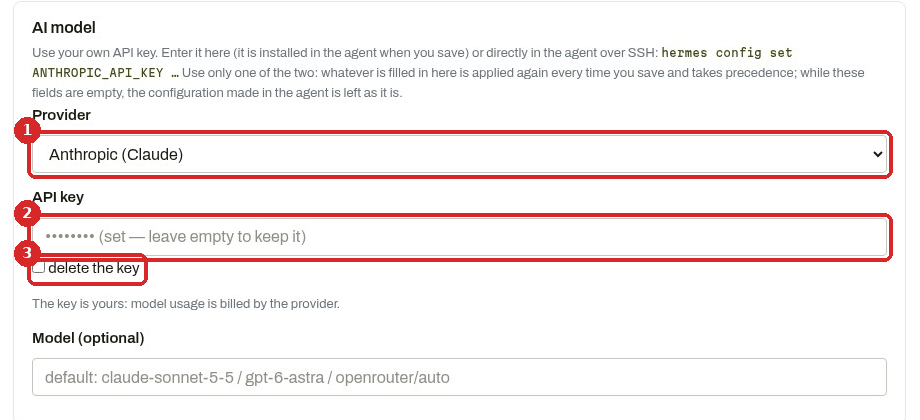
- Provider: the AI company the key belongs to. Ours was Anthropic (Claude). If your new key is from another company, choose it here.
- API key: the field never shows your key. When a key is installed it says •••••••• (set — leave empty to keep it).
- delete the key: leave this box empty when you replace a key. Pasting a new key is enough. (We did not test this box.)
Empty means: keep the current key
Every field of the form that you leave empty keeps its current value. So you can change one thing (for example the Telegram bot) without typing your API key again.
2. Paste the new key
Click in API key and paste your new key. The field shows only dots:
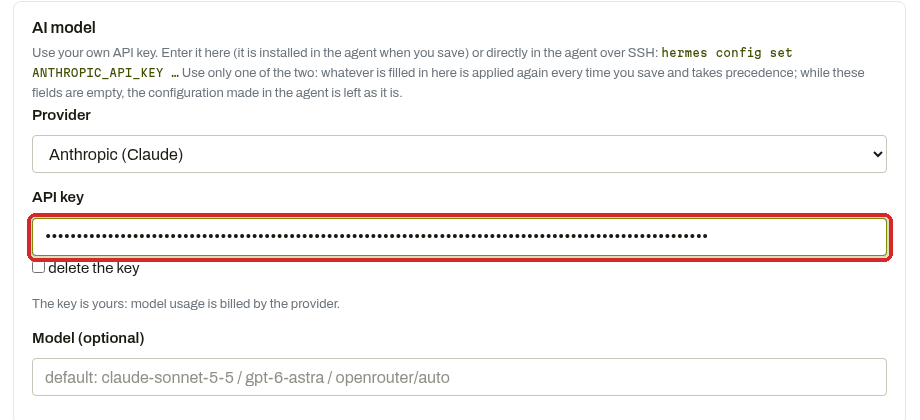
Leave Model (optional) empty to keep the default model, unless you know the exact model name you want (Change the AI model).
3. Save and apply
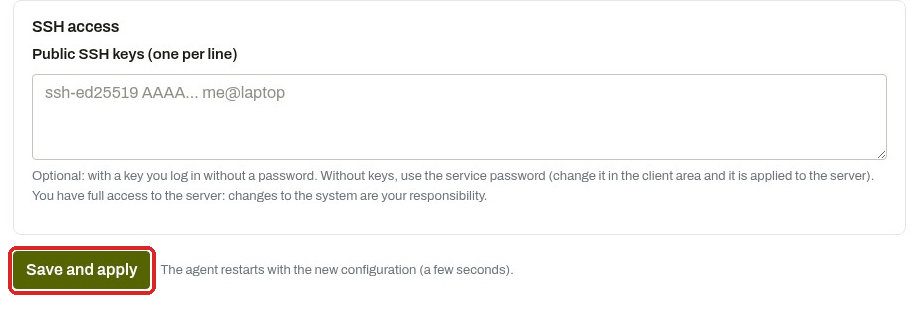
Scroll down and click Save and apply (The agent restarts with the new configuration (a few seconds).).
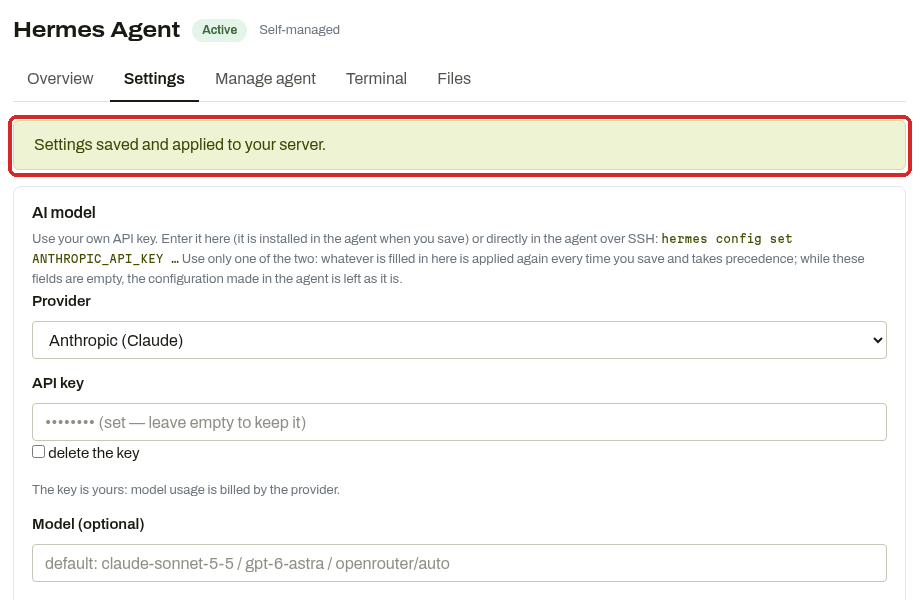
The page waits while the agent restarts (about 30 seconds in our test), then shows Settings saved and applied to your server. The key field is empty again: that is normal, the client area never shows the key back.
4. Delete the old key at your provider
Only after Hermes works with the new key (see Check that it worked):
- Sign in to the website of your AI provider, where you created the key (for Anthropic: the Anthropic Console).
- Open the page that lists your API keys.
- Delete (or revoke, disable) the old key. From that moment nobody can use it, also not someone who found it.
Each provider's site looks a bit different, and they change their pages often, so we do not show them here. Look for API keys in the menu. Many providers show the last characters of each key: use them to make sure you delete the old one, not the new one.
Also set a spending limit
Most providers let you set a monthly spending limit. It caps the damage if a key ever leaks. See How much will the AI cost me?
Check that it worked
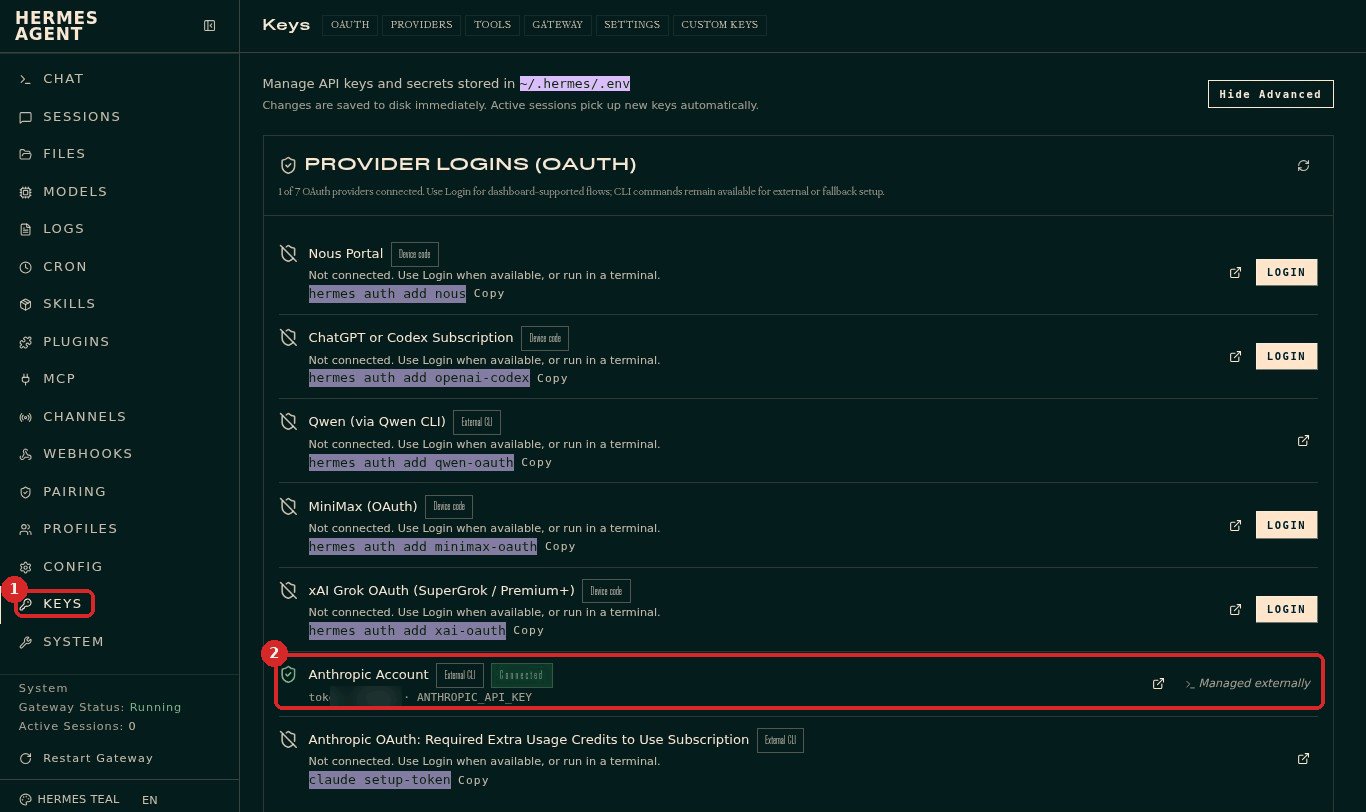
1. The dashboard shows the key, hidden. Click Open dashboard. If the dashboard asks for a password, go back to the client area and click Open dashboard again: Save and apply restarts the agent and signs you out of the dashboard.
In the dashboard menu, click KEYS (1). Under PROVIDER LOGINS, Anthropic Account says Connected and token …(last characters) · ANTHROPIC_API_KEY (2). The last characters must be the same as the end of your new key.
The SYSTEM page shows the same key in Credential pool, as sk-a... plus its last 4 characters:
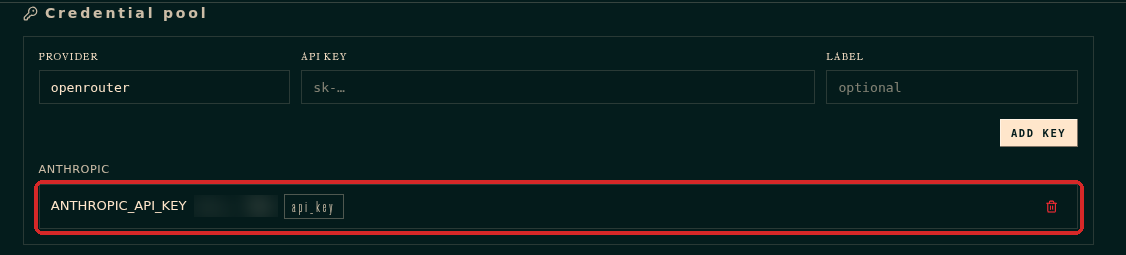
(We blurred the characters in our screenshots. In our test they matched the end of the key we had pasted.)
2. Hermes answers. Open CHAT and ask a short question. In our test Hermes answered at once with the new setup:
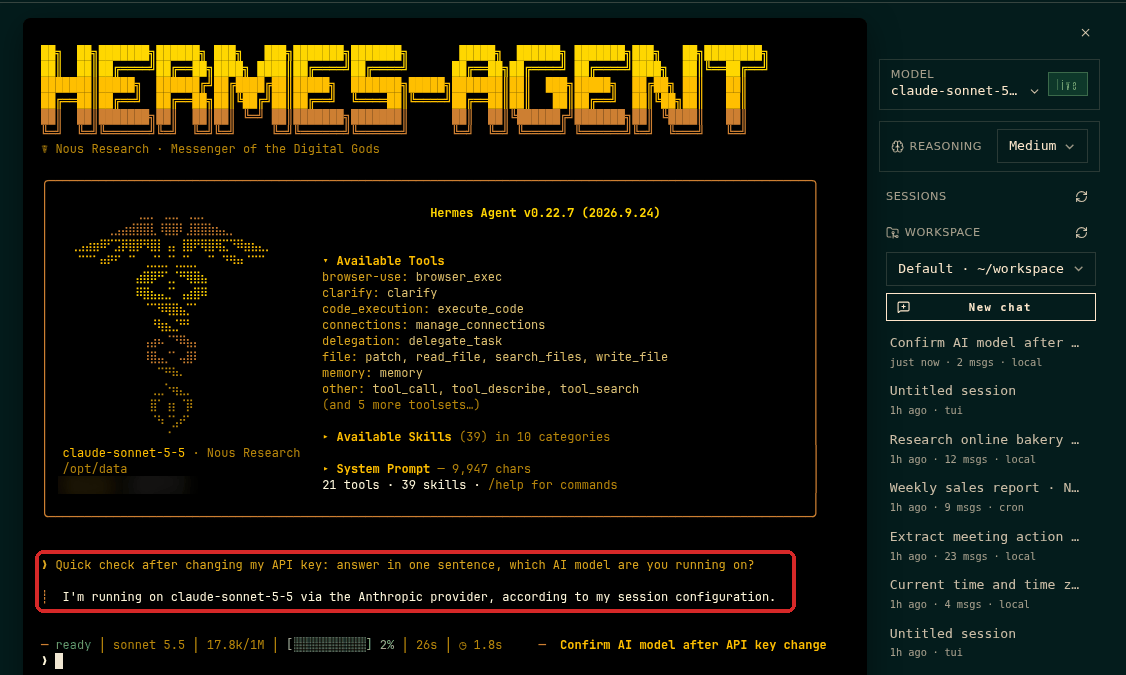
If the key is wrong, Hermes answers with an error instead (see below).
Common problems
Hermes answers with an authentication or \"invalid API key\" error
The key was not copied completely, or it was already deleted at the provider. Copy it again (no spaces at the start or the end), paste it in Settings and click Save and apply.
Hermes answers with a credit or billing error
The provider account of the new key has no credit, or reached its spending limit. Add credit or raise the limit on the provider's website.
I changed the key inside the agent, and it changed back
Whatever is filled in the client area Settings is applied again every time you click Save and apply, and it wins. Use only one place for the key: the client area or the agent.
I deleted the old key at the provider and now Hermes stopped answering
Hermes was still using the old key: the new one was not saved. Paste the new key in Settings again and click Save and apply, then check the last characters on the KEYS page.