Recipe: contact form → AI sorts the message → Telegram
When someone fills in the contact form on your website, Claude reads the message, decides if it is sales, support or spam, writes a one-line summary, and sends it to your phone on Telegram. Spam is dropped quietly.
| Time needed | 30 minutes |
| You need | An n8n agent with your Claude key (Sign in and build your first AI agent), a Telegram bot and its token (Create the bot with @BotFather), your numeric Telegram ID (from @userinfobot), and a website form that can send its data to a web address |
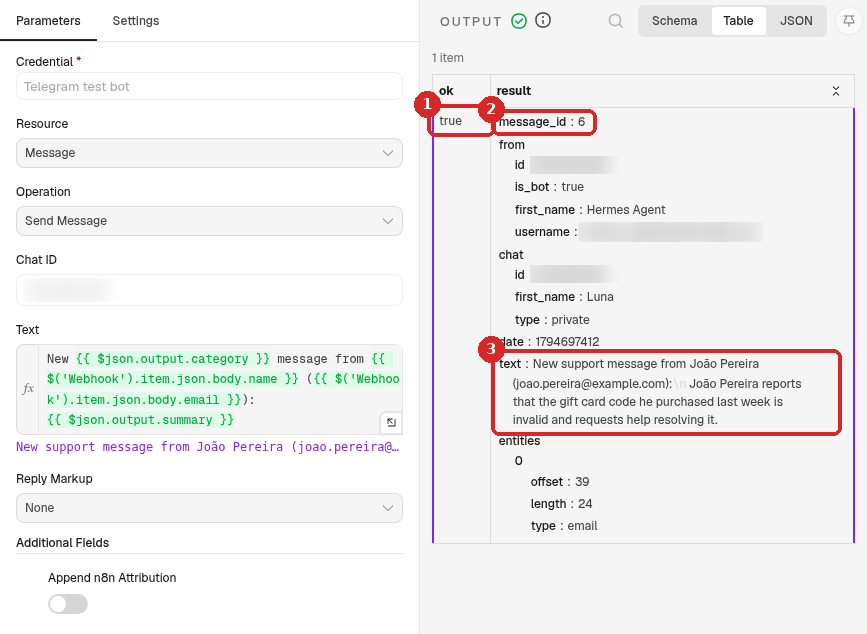
| Result | A Telegram message like New support message from João Pereira (joao.pereira@example.com): João reports that the gift card code he purchased last week is invalid and requests help resolving it. |
This is the finished workflow:
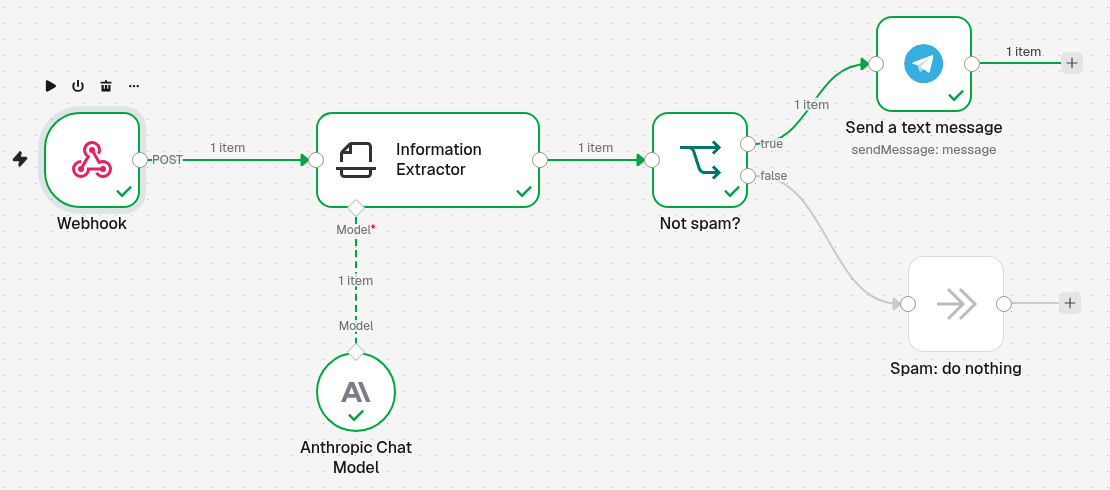
Webhook receives the form → Information Extractor (with Anthropic Chat Model) sorts and summarises it → Not spam? checks the category → Send a text message sends it to Telegram. Spam goes to Spam: do nothing.
The bot token is a password
Anyone with the token controls your bot. Do not share it. If it leaks, open @BotFather, send /mybots, choose the bot and tap Revoke current token, then paste the new token in the n8n credential (step 1).
Send /start to your bot first
A Telegram bot can only write to people who have opened it. Open your bot in Telegram and tap Start once before you test.
1. Save your Telegram bot in n8n (credential)
You do this once. All your workflows can then use the bot.
- Click the house icon (Overview) in the menu on the left, open the Credentials tab and click Create credential.
-
Type
Telegram, pick Telegram API (1) and click Continue (2).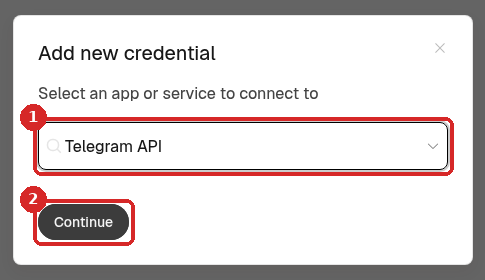
-
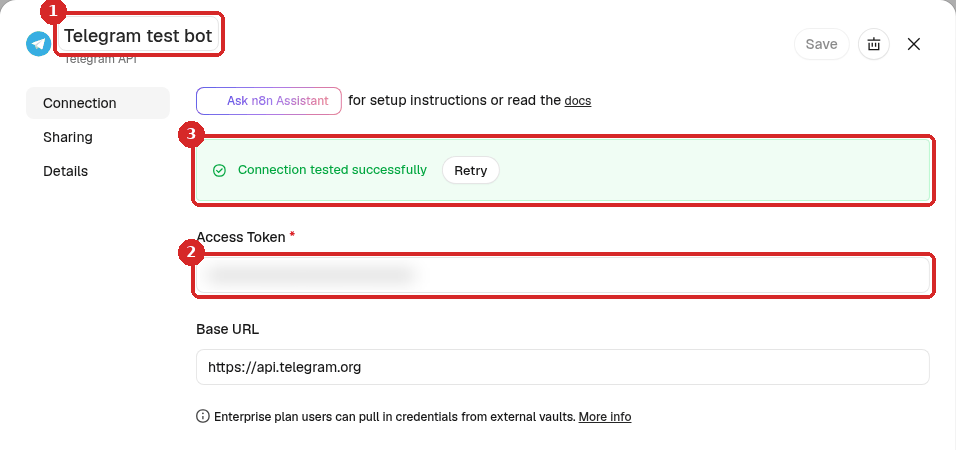
Click the name at the top (1) and give it a name you will recognise, for example My Telegram bot.
- Paste the bot token from @BotFather in Access Token (2). Leave Base URL as it is.
-
Click Save. n8n tests the token and shows Connection tested successfully (3). Close the window with the X.
2. Receive the form with a Webhook
- Click the + at the top of the menu on the left, choose New workflow and name it, for example Contact form to Telegram.
- Click Add first step and choose On webhook call.
-
Set the Webhook step:
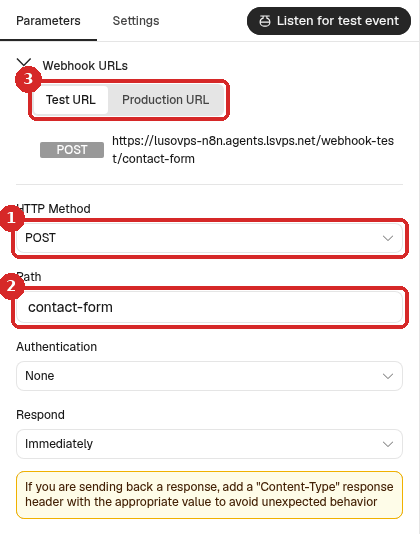
- HTTP Method: POST (what most forms use).
- Path:
contact-form. - Test URL / Production URL: the two addresses of this webhook. Your website will use the Production URL.
The form must send the fields name, email and message. If your form uses other names, change them in step 3. More about webhooks: Receive data with a webhook.
3. Let Claude sort and summarise the message
- Close the Webhook panel. Click the small + at the right of the Webhook step, search for
Information Extractorand click it. -
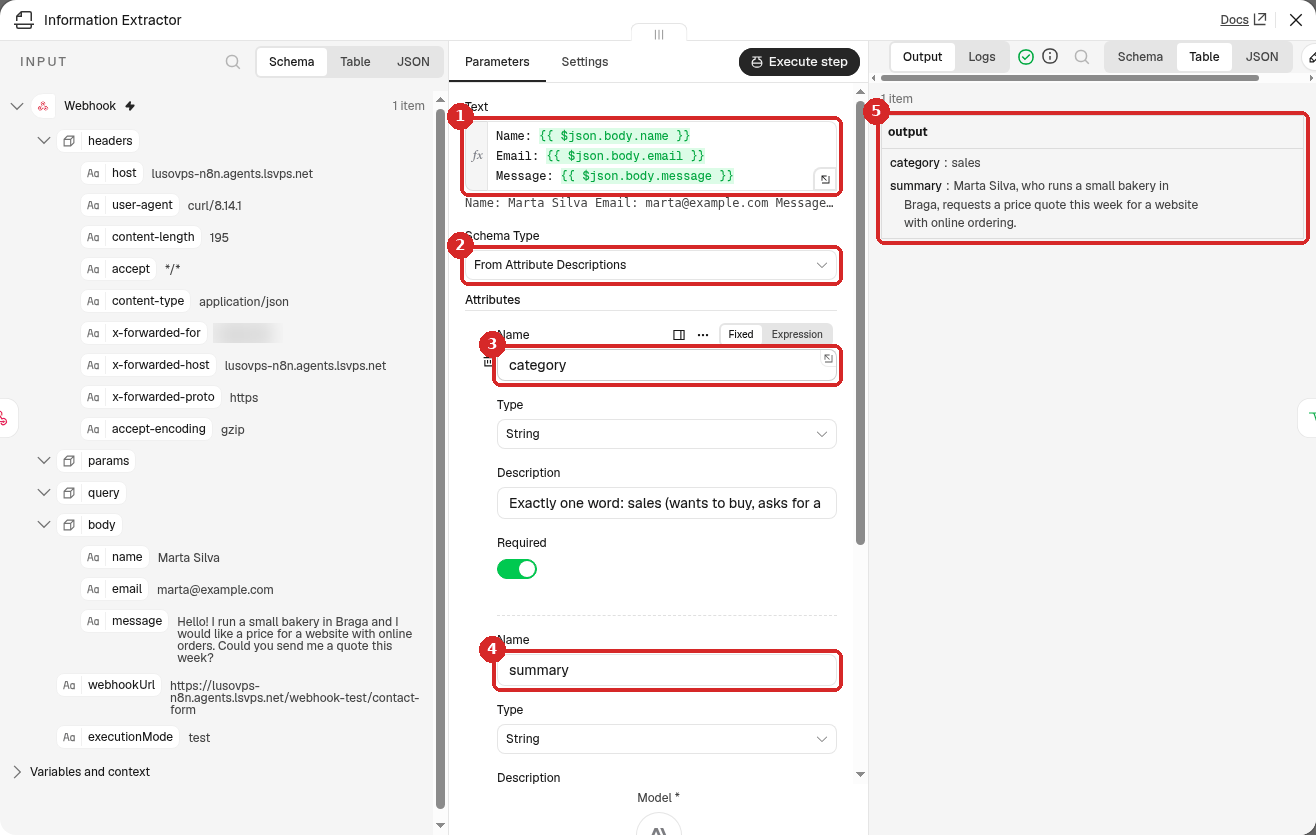
Fill it in:
-
Text: what Claude reads. Click Expression above the field and paste:
-
Schema Type: keep From Attribute Descriptions.
-
Click Add Attribute. Name:
category, Type: String, Required on, Description: -
Click Add Attribute again. Name:
summary, Type: String, Required on, Description:One short sentence in English: who wrote and what they want. - After a test (step 6), the OUTPUT shows the category and the summary.
-
-
At the bottom of the panel, click the + under Model, choose Anthropic Chat Model. n8n picks your Anthropic account credential. The suggested model is fine.
Summaries in Portuguese
Write One short sentence in European Portuguese: ... in the description of summary.
4. Drop the spam
- Close the panel. Click the + at the right of Information Extractor, search for
Ifand click it. We renamed this step Not spam?. -
Set one condition:
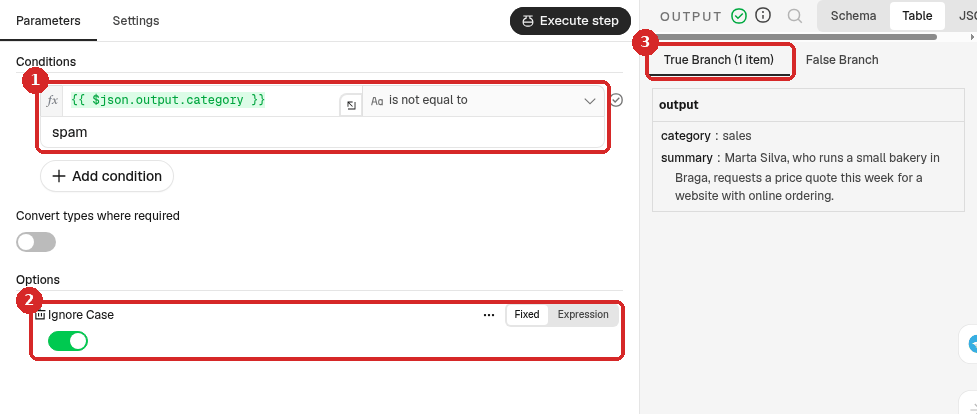
- Left box: click Expression and paste
{{ $json.output.category }}. Middle: choose String → is not equal to. Right box:spam. - Under Options, click Add option, choose Ignore Case and switch it on, so
Spamandspamcount as the same. - Messages that are not spam leave by the true exit, spam by the false exit.
- Left box: click Expression and paste
Nothing needs to happen with spam. We added a No Operation, do nothing step on the false exit (named Spam: do nothing) so the workflow is easy to read; you can leave the false exit empty.
5. Send the message to Telegram
-
Click the + on the true exit of the If step and search for
Telegram. Under MESSAGE ACTIONS, click Send a text message.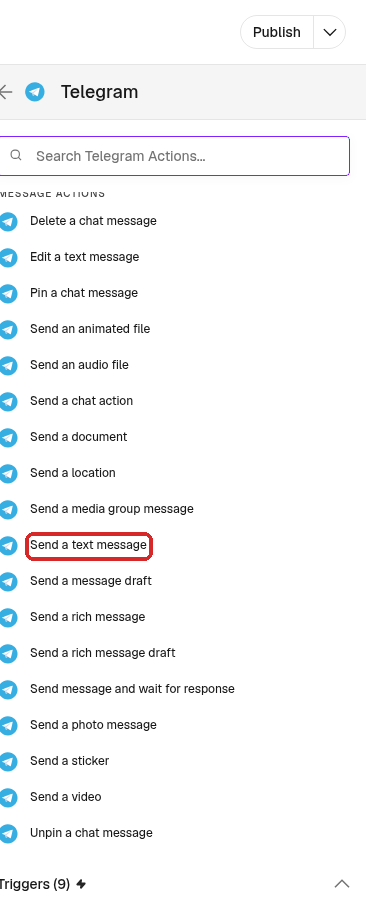
-
Fill in the step:
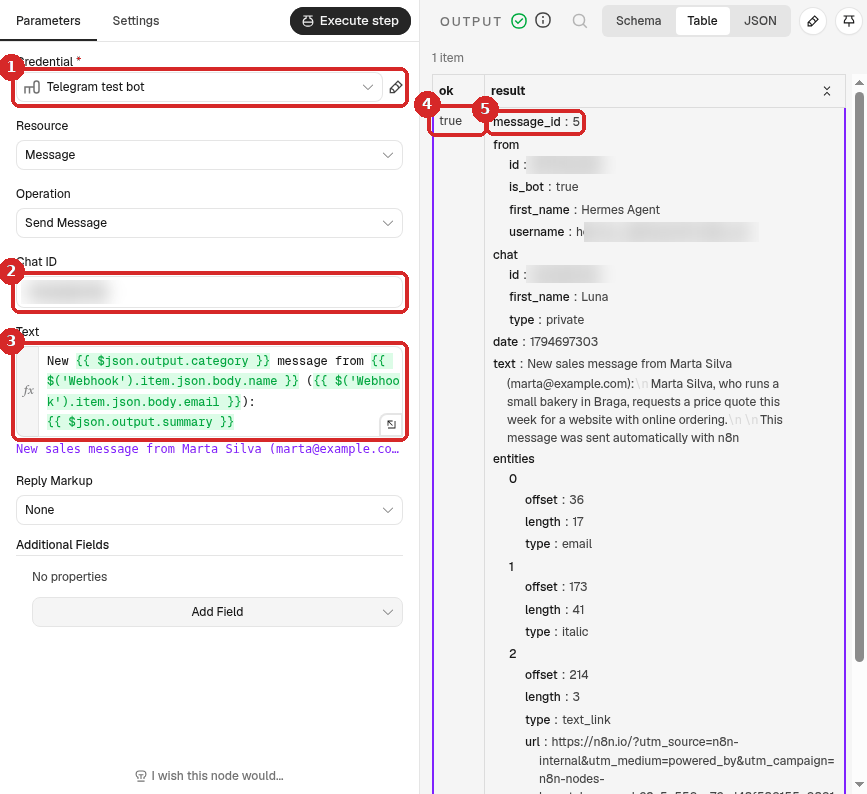
- Credential: your Telegram bot from step 1 (n8n picks it by itself if you have only one).
- Chat ID: your numeric Telegram ID.
-
Text: click Expression and paste:
Boxes 4 and 5 show the result of a test: see step 6.
-
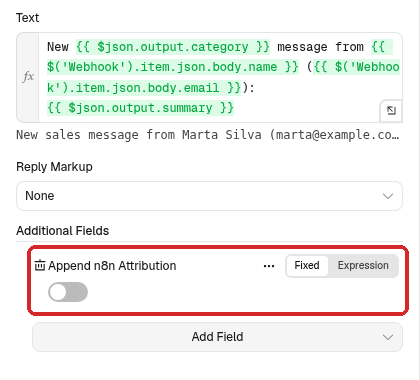
Telegram adds This message was sent automatically with n8n to every message. To remove it: under Additional Fields, click Add Field, choose Append n8n Attribution and leave the switch off.
6. Test it
- Close the panel and click Execute at the bottom of the canvas. n8n shows Waiting for trigger event.
-
Send a test message to the Test URL. Normally your website does this; to try it yourself, run in a terminal (with your own address):
curl -X POST https://yourname-n8n.agents.lsvps.net/webhook-test/contact-form \
  -H 'Content-Type: application/json' \
  -d '{"name":"Marta Silva","email":"marta@example.com","message":"Hello! I run a small bakery in Braga and I would like a price for a website with online orders. Could you send me a quote this week?"}'
n8n answers
{"message":"Workflow was started"}. -
All the steps get a green tick, and 1 item goes along the true path. Double-click Send a text message: the OUTPUT shows ok true (4) and a message_id (5). That means Telegram accepted the message. In our test, Claude sorted it as sales with the summary Marta Silva, who runs a small bakery in Braga, requests a price quote this week for a website with online ordering.
7. Publish it and connect your form
- Click Publish at the top right, then Publish in the window. The button now says Published.
- In your website's form settings, set the form to send its data (POST) to the Production URL:
https://yourname-n8n.agents.lsvps.net/webhook/contact-form(with/webhook/, not/webhook-test/).
Check that it worked
Send a message through your form (or with the curl command above, using /webhook/). Open the Executions tab of the workflow.
We sent two messages to the published workflow. The spam offer (we can put your website on the FIRST PAGE of Google in 7 days!!!) went down the false path to Spam: do nothing, and nothing was sent to Telegram:
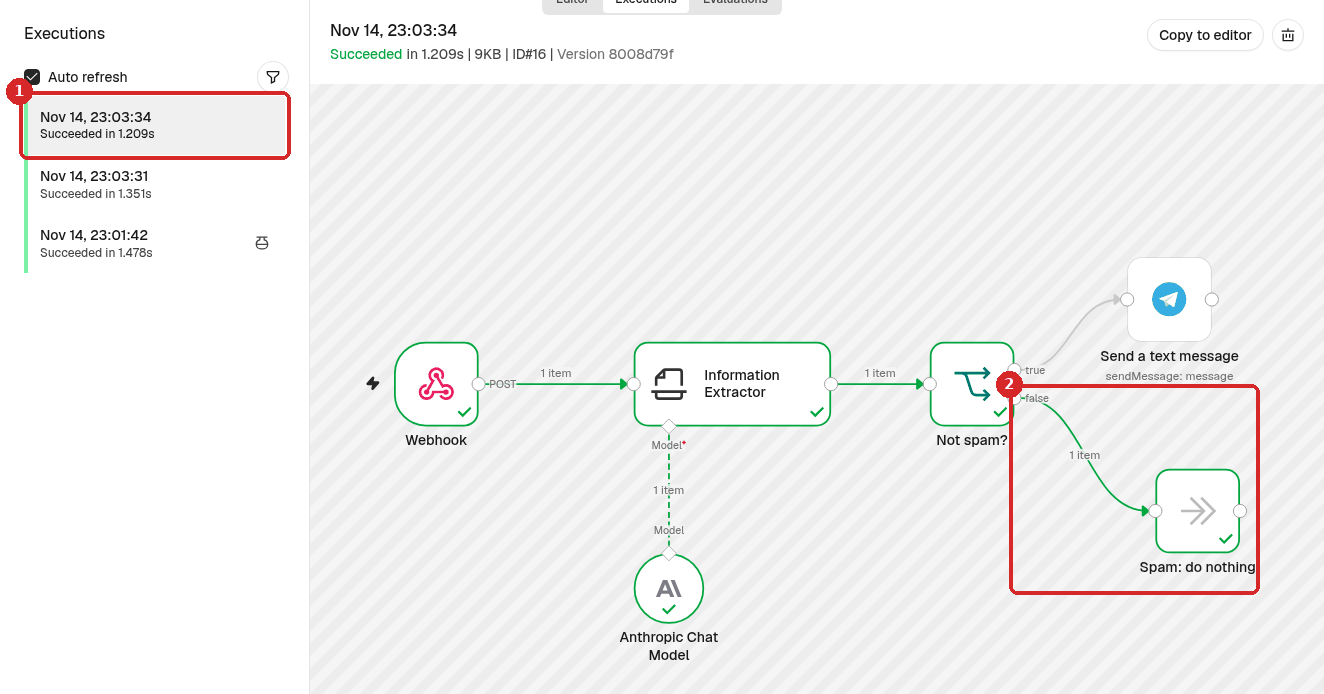
- One run per form message, each Succeeded.
- The spam took the false path.
The customer question about a gift card was sorted as support. In that run, the Send a text message step shows ok true (1), the message_id (2), and the exact text that arrived on Telegram (3):
In our tests each run took between 1.2 and 1.5 seconds.
Make it yours
- Different alerts per category: replace the If step with a Switch step with one exit per category (for example, sales to your phone, support to a colleague's Telegram ID).
- Reply to the customer: after the Telegram step, add a Send Email step (needs an email credential) to thank the customer.
- Keep a list: add a Google Sheets step to save every message with its category.
- Stop strangers using your webhook: in the Webhook step, set Authentication if your form tool supports it.
Common problems
Telegram says: Bad Request: chat not found
The Chat ID is wrong, or you never opened the bot. Open your bot in Telegram, tap Start, and check your numeric ID with @userinfobot.
The test call answers: The requested webhook ... is not registered
For the Test URL, click Execute first: it waits for one call. For the Production URL, the workflow must say Published. See Receive data with a webhook.
The name and email are empty in the Telegram message
Your form uses other field names. Open the Webhook step after a test and look under body for the real names, then change body.name, body.email and body.message in steps 3 and 5.
A real customer message was marked as spam
Make the category description in step 3 more precise for your business, for example add questions about orders, invoices or deliveries are support. Test again with the message that went wrong. Spam runs stay in Executions, so nothing is lost.
The Information Extractor step is red
It has no model. Click the + under Model and add Anthropic Chat Model with your Anthropic account credential.