Your agent in the client area
Everything about your agent is managed from one page in the LusoVPS client area: its status, the AI key, restarts, updates, a terminal and a file manager.
| Time needed | 5 minutes |
| You need | Your client area login (the email address and password you chose when ordering) |
Open your agent's page
- Sign in to the client area.
- Open Services → My Services.
- Click your agent (for example Hermes Agent Lite).
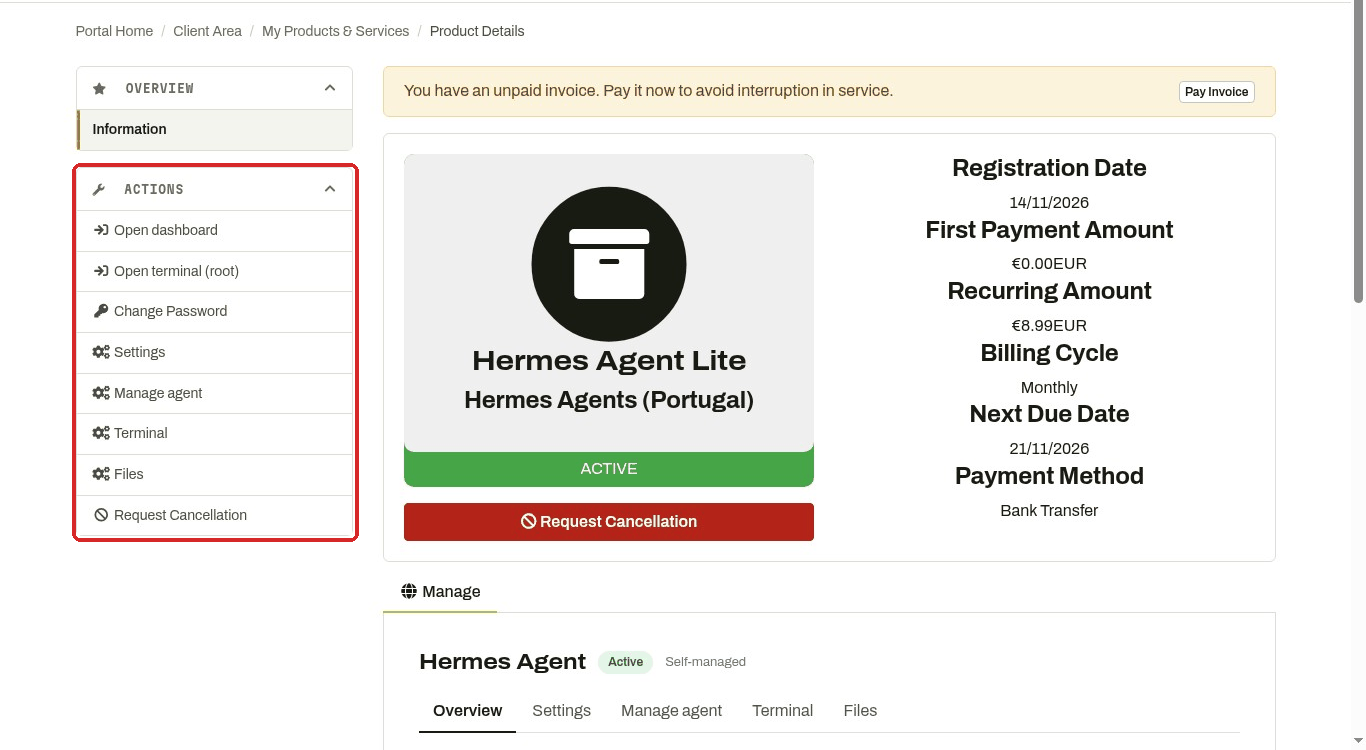
At the top you see the status (ACTIVE), the price, the next due date and the payment method. The ACTIONS menu on the left has shortcuts to everything below.
Scroll down to the Manage panel. It has five tabs.
Overview
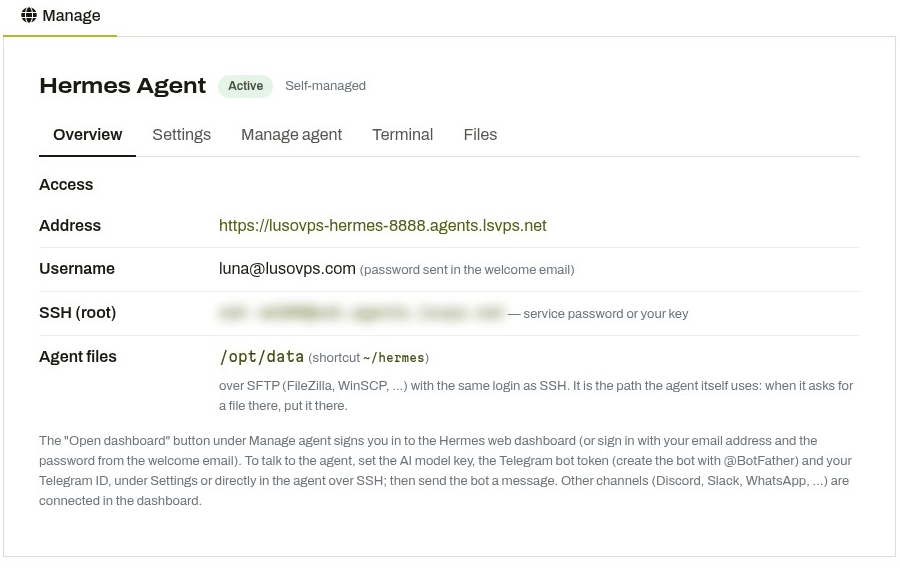
A summary of how to reach your agent:
- Address: the web address of the agent's dashboard.
- Username: your email address. The password is the one in the "agent is ready" email.
- SSH (root): the command to log in to the server.
- Agent files: the folder where the agent keeps its data (
/opt/data).
Settings
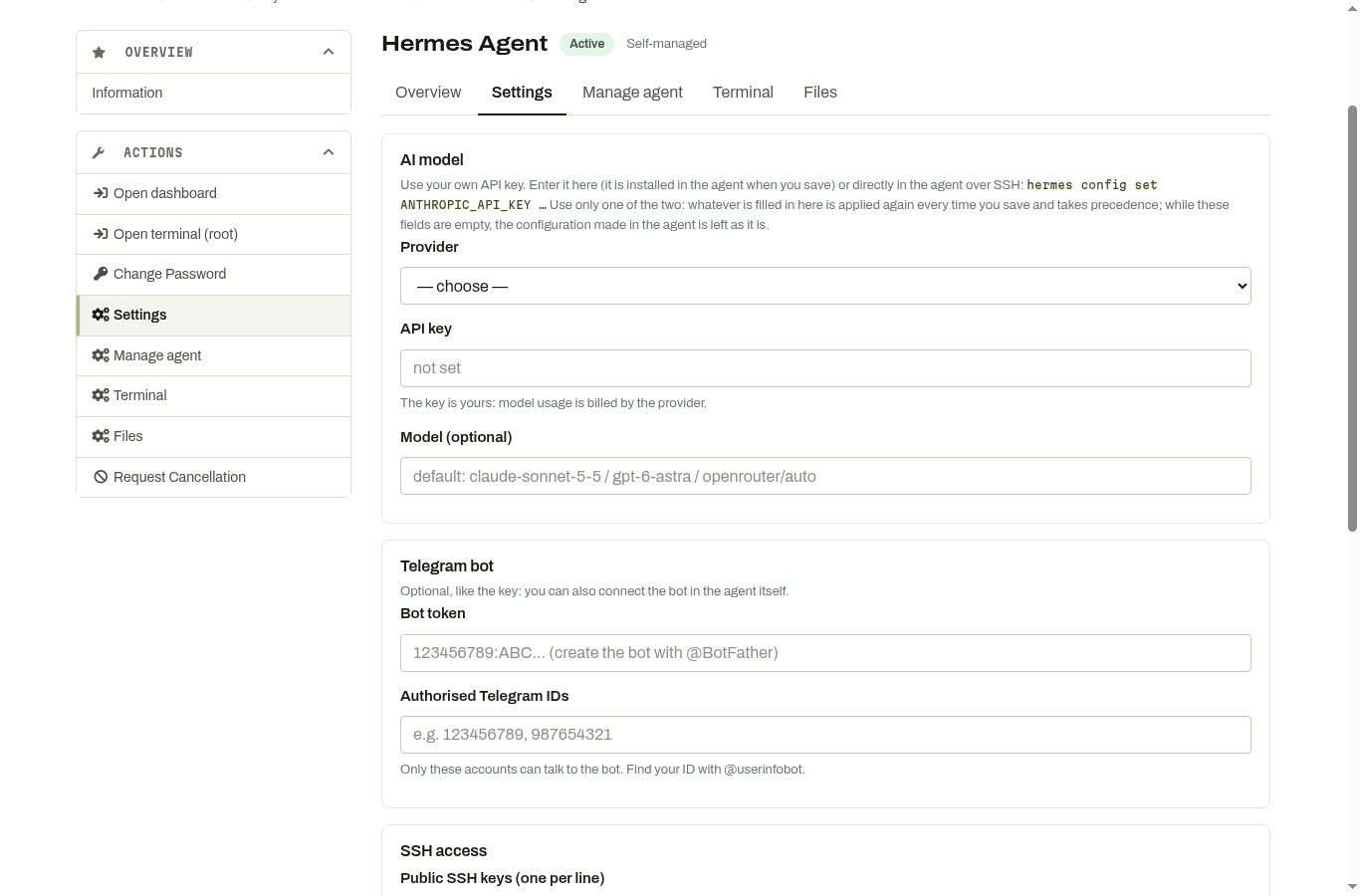
This is the easiest way to give your agent an AI model and a Telegram bot:
- AI model: choose the Provider (Anthropic (Claude), OpenAI or OpenRouter), paste your API key, and optionally a Model. Leave Model empty to use the default.
- Telegram bot: the Bot token from @BotFather and the Authorised Telegram IDs (only these accounts can talk to the bot).
- SSH access: public SSH keys, one per line, if you want to log in without a password.
Click Save and apply at the bottom. The agent restarts with the new settings in a few seconds.
Use one place for the settings
You can also set the key inside the agent (for example with hermes config set). Use either this form or the agent, not both. Whatever you fill in here is applied again every time you click Save and apply, and it wins. While these fields are empty, the agent's own configuration is left alone.
Manage agent
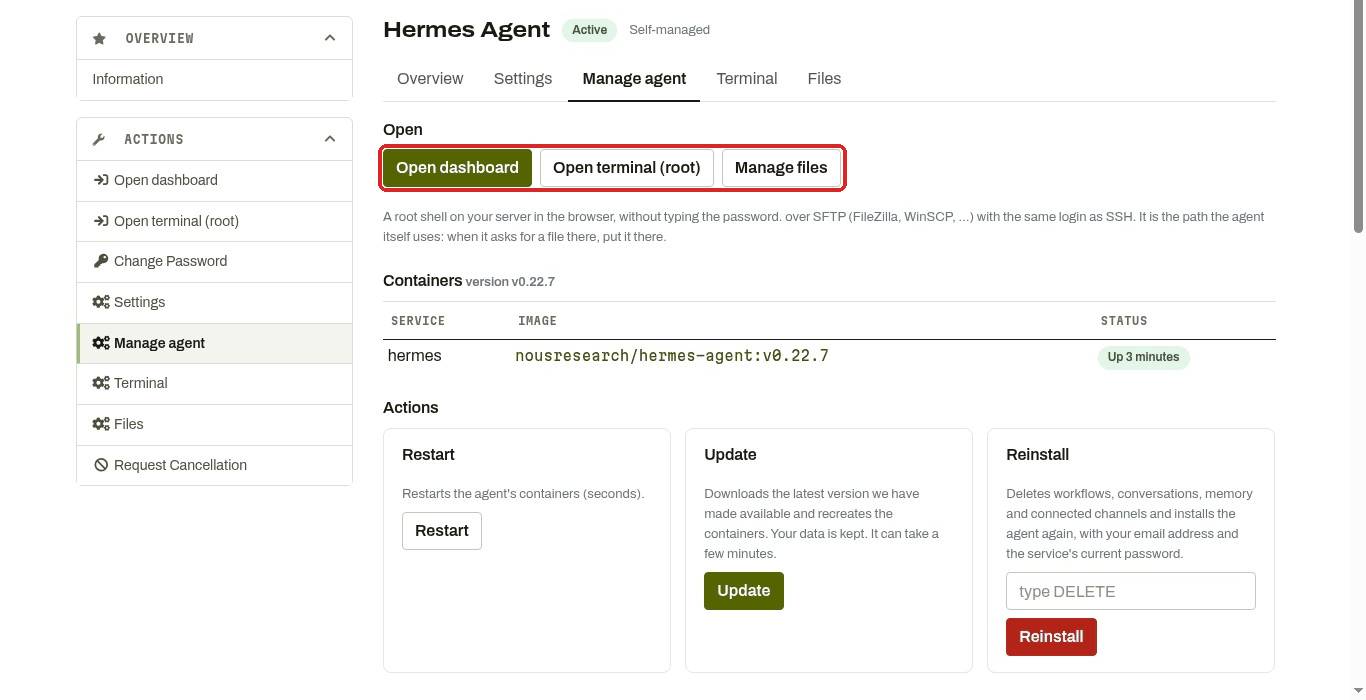
- Open dashboard: opens your agent's web dashboard, already signed in.
- Open terminal (root): a command line on your server, in the browser.
- Manage files: the file manager.
- Containers: what is running, its version and how long it has been up. Up means it is running.
- Restart: restarts the agent. Takes seconds. Try this first if the agent stops answering.
- Update: installs the latest version we have made available. Your data is kept. It can take a few minutes.
- Reinstall: deletes everything (conversations, memory, connected channels) and installs the agent from scratch. To confirm, type
DELETEin the box and click Reinstall.
Reinstall cannot be undone
Only use Reinstall if you want to start again from zero. To fix a stuck agent, use Restart first, then Update.
At the bottom, Recent logs shows the agent's latest messages. Click refresh to load new lines. If you contact support about a problem, copy these lines into your ticket.
Terminal
A root shell on your server, in the browser, without typing the password. It closes after 1 hour without typing (8 hours at most). Press Enter in it, or click Reconnect, to open a new one. Open in a new window gives you a bigger terminal.
Files
A file manager for your whole server, as root. Drag files or folders onto it to upload them (up to 512 MB per file). Click a text file to edit it. It closes after 30 minutes without use. Click Reconnect to open it again.
Next steps
- Hermes: connect Claude, then WhatsApp or Telegram.
- OpenClaw: first steps and connecting Claude.
- n8n: sign in and build your first AI agent with Claude.
- Billing: invoices and payments, change your plan, cancel.