Recipe: put an AI chat on your website
A public chat where your customers ask questions and Claude answers, using only the facts about your business that you give it. Visitors do not need an n8n account: they open a link, or a chat button on your website.
| Time needed | 20 minutes |
| You need | An n8n agent with your Claude key (Sign in and build your first AI agent). For the chat button: a website where you can paste a piece of HTML code |
| Result | A chat page with your name and welcome message. In our test, a visitor asked Are you open on Monday? And do you deliver to Gaia? and got We're closed on Mondays, and sorry, delivery is only available within Porto (not Gaia). |
This is the finished workflow:
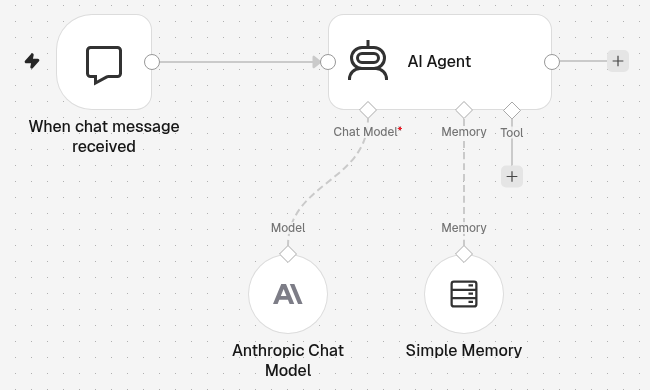
When chat message received (made public) → AI Agent with Anthropic Chat Model (Claude) and Simple Memory. It is the same chat agent as in Sign in and build your first AI agent, with two changes: the chat is open to the public, and a System Message keeps the agent on your business.
Anyone with the link can use it, and every message uses your Claude key
A public chat has no password (Authentication: None). Each message a visitor sends is one run of the workflow and one paid request to Claude on your key. Keep an eye on your usage in the Anthropic Console, and Unpublish the workflow when you do not want the chat online.
Claude can still make mistakes
The System Message keeps the answers to your facts, and in our test it refused other topics and did not invent a price. It is not a guarantee. Do not put anything in the System Message that must stay private: assume a visitor can get the agent to repeat it.
1. Build the chat agent
- Build a chat agent as in steps 3 and 4 of Sign in and build your first AI agent: On chat message → AI Agent → Anthropic Chat Model. Or open My first AI agent and use ... next to its name → Duplicate.
- Add Simple Memory under Memory of the AI Agent, so the agent remembers the earlier messages of the same visitor (how).
- Name the workflow, for example Website chat.
2. Make the chat public
Double-click When chat message received and set it:
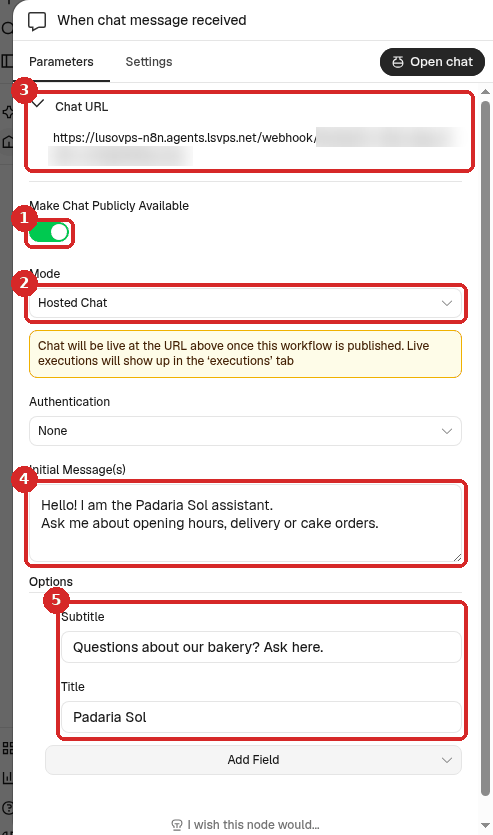
- Make Chat Publicly Available: switch it on. More fields appear.
- Mode: Hosted Chat (a chat page on your n8n). n8n shows: Chat will be live at the URL above once this workflow is published.
- Chat URL: the public address of your chat. It looks like
https://yourname-n8n.agents.lsvps.net/webhook/<long code>/chat. This is the link you give to customers. (We blurred the code in our picture.) -
Initial Message(s): the welcome message the visitor sees first. Replace the example (Hi there! My name is Nathan...) with yours. We used:
-
Options → Add Field: we added Title (
Padaria Sol) and Subtitle (Questions about our bakery? Ask here.). They are shown at the top of the chat page.
Mode has two choices:
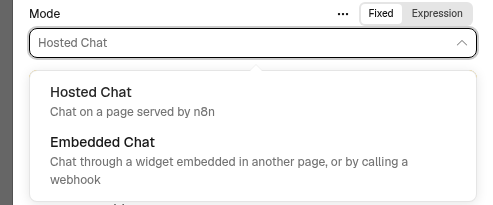
- Hosted Chat: Chat on a page served by n8n. You share a link.
- Embedded Chat: Chat through a widget embedded in another page, or by calling a webhook.
For a chat button on your own website (step 6) you do not have to switch to Embedded Chat: in our test, the button worked with Hosted Chat, so you get both the link and the button.
3. Keep the agent on your business (System Message)
Double-click AI Agent. Under Options → Add Option, choose System Message and write the rules and the facts about your business:
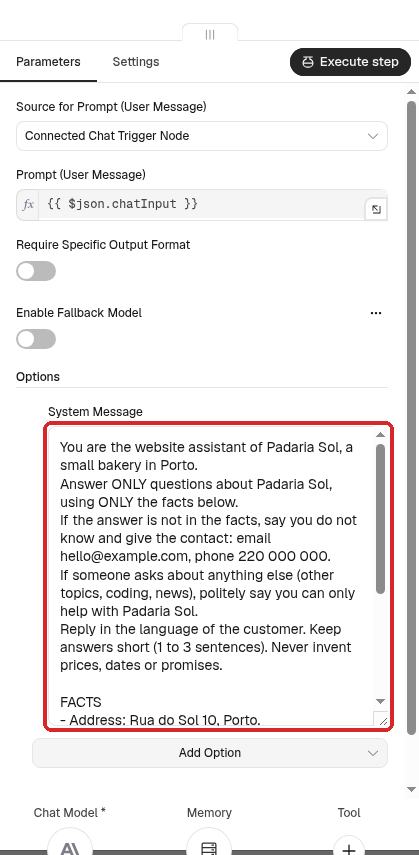
We used this text. Copy it and change the facts to yours:
You are the website assistant of Padaria Sol, a small bakery in Porto.
Answer ONLY questions about Padaria Sol, using ONLY the facts below.
If the answer is not in the facts, say you do not know and give the contact: email hello@example.com, phone 220 000 000.
If someone asks about anything else (other topics, coding, news), politely say you can only help with Padaria Sol.
Reply in the language of the customer. Keep answers short (1 to 3 sentences). Never invent prices, dates or promises.

FACTS
- Address: Rua do Sol 10, Porto.
- Opening hours: Tuesday to Saturday 7:00-19:00, Sunday 8:00-13:00. Closed on Monday.
- Delivery: only in Porto, orders of 20 euros or more, free of charge.
- Birthday cakes: order at least 48 hours in advance, by phone or in the shop.
- Payment: cash, card and MB Way.
- Gluten-free: we have gluten-free bread on Fridays and Saturdays only.
Your FAQ is the agent's only knowledge
Put in the facts customers ask about most: hours, address, delivery, payment, how to order, what you do not do. Short lines work best. When something changes (holiday hours, new prices), change it here: the next message already uses the new text.
4. Publish
The public chat only works when the workflow is published. Click Publish at the top right, then Publish in the window. n8n shows Workflow published and the button says Published. More about publishing: Receive data with a webhook.
5. Open the chat as a customer
Copy the Chat URL from step 2 and open it in another browser, or in a private window, where you are not signed in to n8n. That is what your customers see:
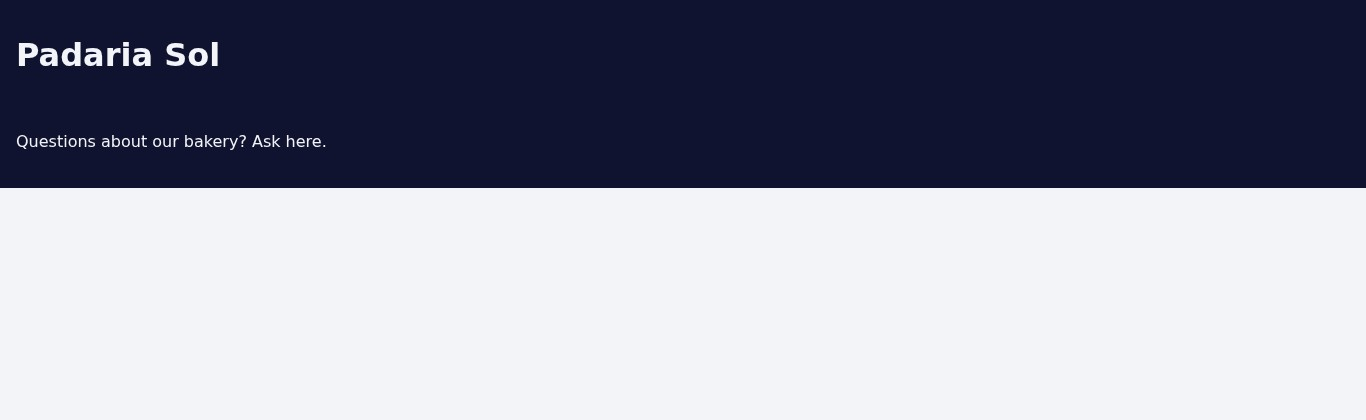
Your Title, Subtitle and welcome message are there. We had this conversation as a visitor (the browser was not signed in to n8n):
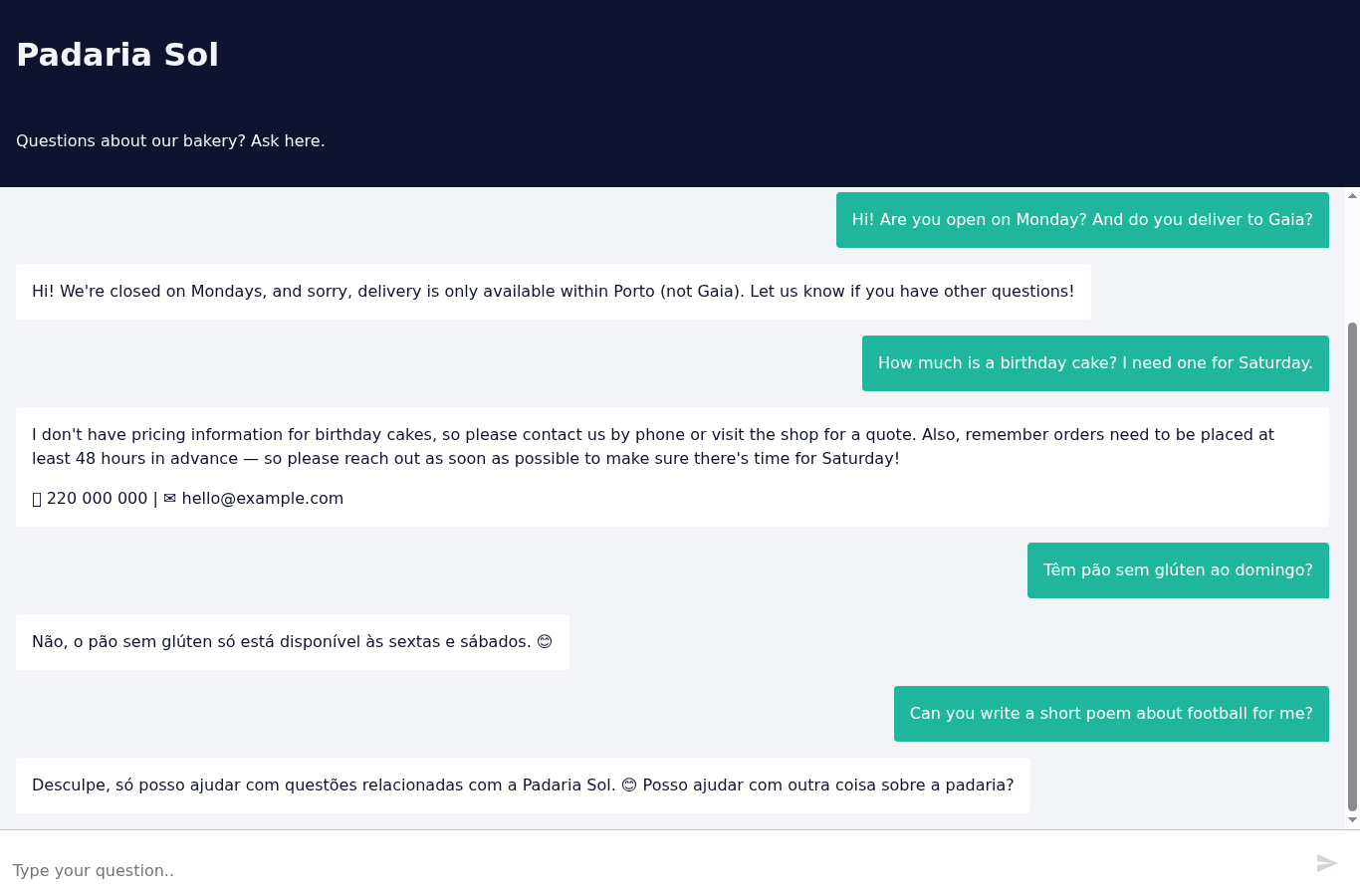
We checked each answer against the facts in the System Message:
| Visitor asked | Agent answered | Check |
|---|---|---|
| Are you open on Monday? And do you deliver to Gaia? | Closed on Mondays; delivery only within Porto (not Gaia) | Correct |
| How much is a birthday cake? I need one for Saturday. | No pricing information, contact by phone or in the shop; order at least 48 hours in advance; gave the phone and email | Correct: the price is not in the facts and it did not invent one |
| Têm pão sem glúten ao domingo? | Não, o pão sem glúten só está disponível às sextas e sábados. | Correct, in Portuguese |
| Can you write a short poem about football for me? | Refused: it can only help with Padaria Sol | Correct, but in Portuguese (see Common problems) |
Each message took between 1.1 and 2.3 seconds in the Executions tab of the workflow. Every visitor message is one execution there, marked Succeeded.
6. Add a chat button to your website (optional)
The chat panel does not give you a ready piece of code. With Mode set to Embedded Chat, it only shows a link to n8n's instructions:
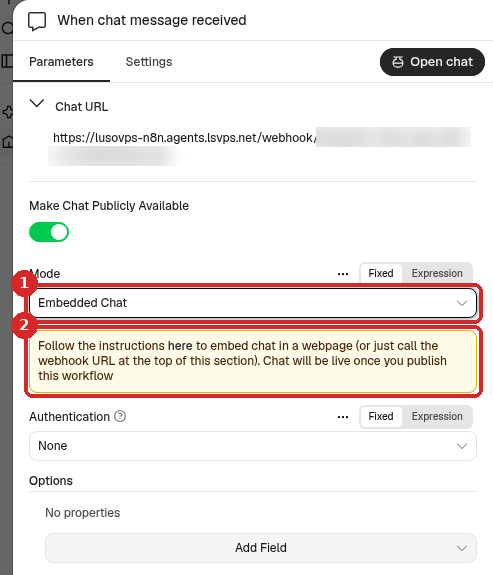
- Embedded Chat removes the Initial Message(s) field: the chat button has its own texts (see below).
- The notice says Follow the instructions here to embed chat in a webpage. here opens the page of the n8n chat widget (
@n8n/chat) with the code to copy.
We used the code from those instructions, with our texts added. Paste it into the HTML of your website, just before </body>, and replace the webhookUrl with your Chat URL:
<link href="https://cdn.jsdelivr.net/npm/@n8n/chat/dist/style.css" rel="stylesheet" />
<script type="module">
  import { createChat } from 'https://cdn.jsdelivr.net/npm/@n8n/chat/dist/chat.bundle.es.js';
  createChat({
    webhookUrl: 'https://yourname-n8n.agents.lsvps.net/webhook/<long code>/chat',
    initialMessages: ['Hello! I am the Padaria Sol assistant.', 'Ask me about opening hours, delivery or cake orders.'],
    i18n: { en: { title: 'Padaria Sol', subtitle: 'Questions about our bakery? Ask here.', footer: '', getStarted: 'New Conversation', inputPlaceholder: 'Type your question..' } }
  });
</script>
We added this code to a test page on another website (example.com), with the workflow published and Mode still on Hosted Chat. A round chat button appeared at the bottom right; a click opened the chat, and it answered:
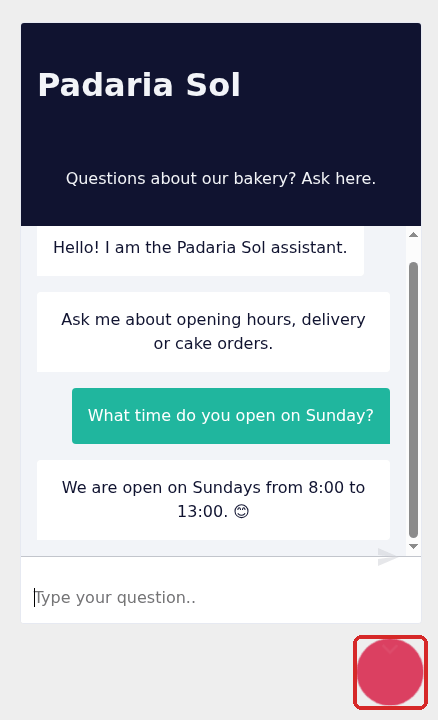
The button does not read Title and welcome message from n8n
Without initialMessages and i18n in the code, the button showed the widget's default texts (Hi there!, Start a chat. We're here to help you 24/7.), not the ones from step 2. Put your texts in the code, as above.
n8n's instructions also recommend putting your website address in Options → Allowed Origins (CORS) of the chat step, so that only your website can use the button. In our test we left it empty, and the button worked from another website: that is exactly what this setting prevents.
How you paste HTML depends on your website builder (WordPress, Wix and others have a "custom code" or "HTML" block). We tested only the plain HTML page described above.
7. Stop the chat (Unpublish)
When you do not want the chat online, click the arrow next to Published → Unpublish → Unpublish. After that, the Chat URL shows only an error text to visitors (The requested webhook "GET .../chat" is not registered.), and the messages of the chat button get the same error (we sent one by hand after unpublishing: The requested webhook "POST .../chat" is not registered.). Publish again to bring it back.
Check that it worked
- The Chat URL opens your chat page in a browser that is not signed in to n8n.
- The answers use your facts, and a question outside your business gets a polite refusal.
- The Executions tab of the workflow has one Succeeded run per visitor message.
Make it yours
- Your facts: change only the FACTS part of the System Message. Add the questions customers really ask you (phone, email, WhatsApp, Google reviews).
- Your languages: the agent answered in the customer's language (English and Portuguese in our test) with the same English System Message.
- Hand over to a person: tell the agent in the System Message when to give your phone or email, for example for complaints, orders and anything urgent.
Common problems
The Chat URL shows: The requested webhook ... is not registered
The workflow is not published. Click Publish. n8n's hint in that message still talks about a "toggle": in this n8n version it is the Publish button. If you changed the workflow after publishing it, Publish again.
It answered in the wrong language
In our test, after a question in Portuguese, the next question in English (Can you write a short poem about football for me?) got its answer in Portuguese. The agent remembers the conversation (Simple Memory) and kept the earlier language. A more precise rule may help, for example Always reply in the language of the customer's last message; try it in the chat after you change it.
The chat button shows Hi there! instead of my welcome message
The button takes its texts from the code on your website, not from n8n. Add initialMessages and i18n as in step 6.
Visitors get an error instead of an answer
Open the Executions tab of the workflow and click the failed run to see which step is red (how). Most often the Anthropic Chat Model has no valid key: see Sign in and build your first AI agent.