OpenClaw's files and memory
This guide shows what is in your OpenClaw agent's folder, how the assistant remembers things between conversations, and how to make it forget something.
| Time needed | 15 minutes |
| You need | An OpenClaw agent with an AI key (First steps) |
| Result | You know where OpenClaw keeps its settings and its memory, and you can check what it remembers |
Look, but do not edit
The Files tab works as root: every change is saved at once and there is no undo. In this guide we only open files to read them. Do not change openclaw.json by hand: the client area Settings writes to it, and a mistake can stop the agent.
Saving memories is heavy on the Lite plan
On our Lite test agent (2 GB), each time the assistant saved or changed a memory, the server ran out of memory and the agent restarted by itself. The memory was saved anyway, but the answer came minutes later and the dashboard did not open in between. If you use OpenClaw every day, choose Plus (4 GB) or more.
1. Open the agent's folder
- In the client area, open your OpenClaw agent and click the Files tab.
- Click Agent files.
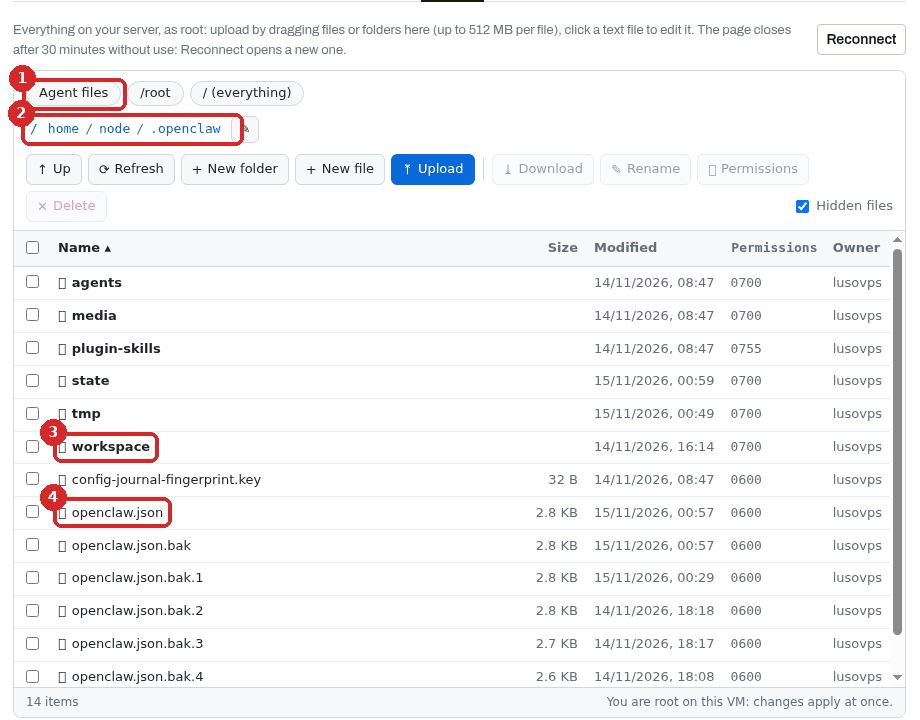
- Agent files jumps to the agent's folder.
- The folder is
/home/node/.openclaw(in the terminal,~/openclawis a shortcut to it). - workspace: the assistant's own notes and memory (step 2).
- openclaw.json: the agent's settings (step 5).
What the other items are:
| Item | What it holds |
|---|---|
| agents | Data of each assistant. agents/main is your assistant. |
| state | OpenClaw's database (conversations, automations and more). Not readable as text. |
| media | Files the assistant sends or receives. |
| plugin-skills, tmp | Extra skills and temporary files. |
openclaw.json.bak, .bak.1… .last-good |
Automatic backups of the settings, made each time they change. |
Every file in this folder is kept when you Restart or Update the agent, or click Save and apply. Reinstall deletes it (Restart, Update or Reinstall).
2. The workspace: who your assistant is
Click workspace. On a new agent it holds a few text files that the assistant reads at the start of every conversation:
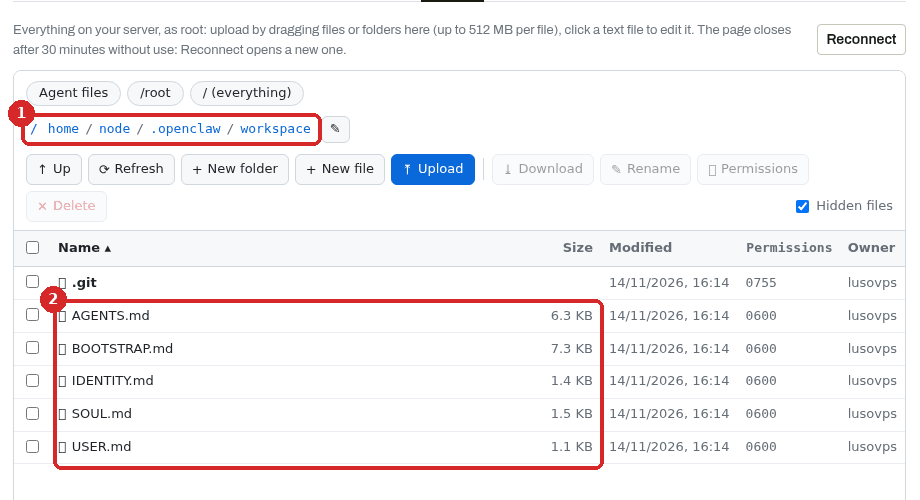
- You are in
.openclaw/workspace. - The assistant's files.
| File | What it is for |
|---|---|
AGENTS.md |
House rules: what the assistant may do freely, what it must ask first, and how it keeps its memory. |
SOUL.md |
Its personality and tone. |
IDENTITY.md |
Its name, emoji and avatar. Empty until you give it a name. |
USER.md |
What it knows about you: your preferences, written as rules. |
BOOTSTRAP.md |
First-run instructions. This is why a new assistant asks "What would you like to call me?". On our agent this file disappeared after the conversation in step 3. |
Click a file to read it, then click Close. Do not click Save.
3. Ask the assistant to remember something
Open the dashboard (Manage agent → Open dashboard), start a new conversation (red +, see Chat with OpenClaw) and say it plainly. We sent:
Please remember this for the future: my bakery is closed on Mondays, and our best seller is the custard tart.
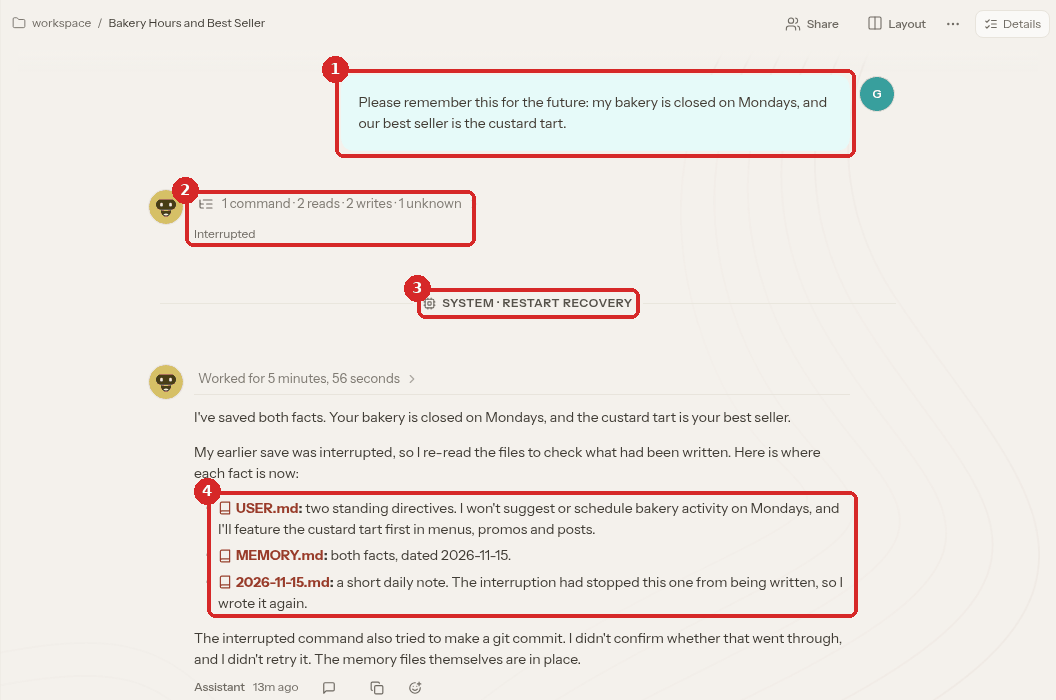
- Our message.
- The assistant read and wrote its memory files. Here the work was Interrupted: the agent ran out of memory and restarted.
- SYSTEM · RESTART RECOVERY: after the restart, OpenClaw went back to the unfinished job by itself.
- Where it saved each fact:
USER.md,MEMORY.mdand a daily note2026-11-15.md.
On our Lite agent the files were written about 2 minutes after we sent the message, and the final answer appeared about 9 minutes after (Worked for 5 minutes, 56 seconds after the restart). Meanwhile Open dashboard answered "Unable to auto-login". If that happens, wait a few minutes: the agent is restarting (Logs and restart).
4. See what it saved
Go back to the Files tab, Agent files → workspace, and click Refresh.
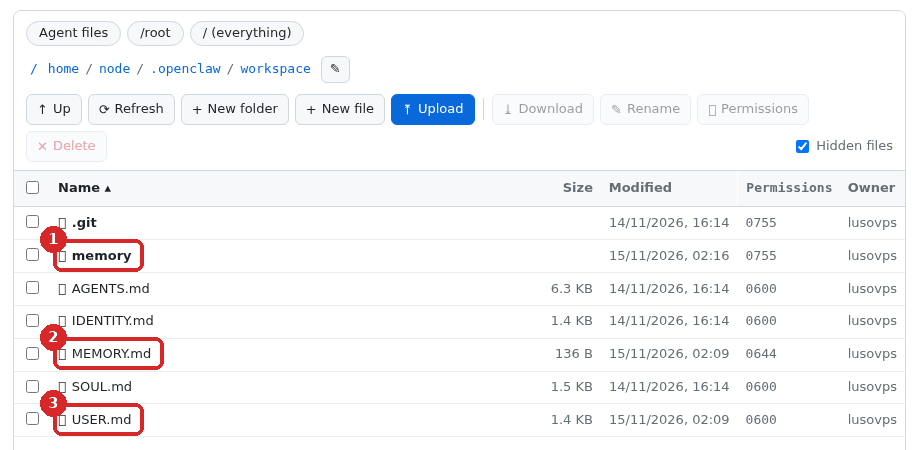
- memory: a new folder with one note per day (
2026-11-15.md), a short log of what happened. - MEMORY.md: a new file with lasting facts.
- USER.md: changed. The assistant added two rules, for example "never suggest or schedule bakery activity for Mondays".
Click MEMORY.md to read it:
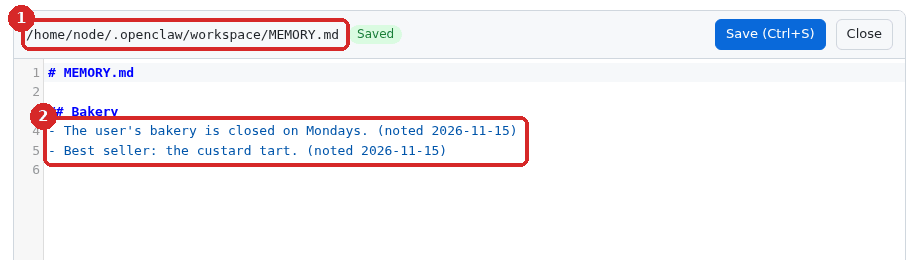
- The file's full path.
- The two facts, with the date they were noted.
5. The settings file: openclaw.json
Click Agent files, then openclaw.json.
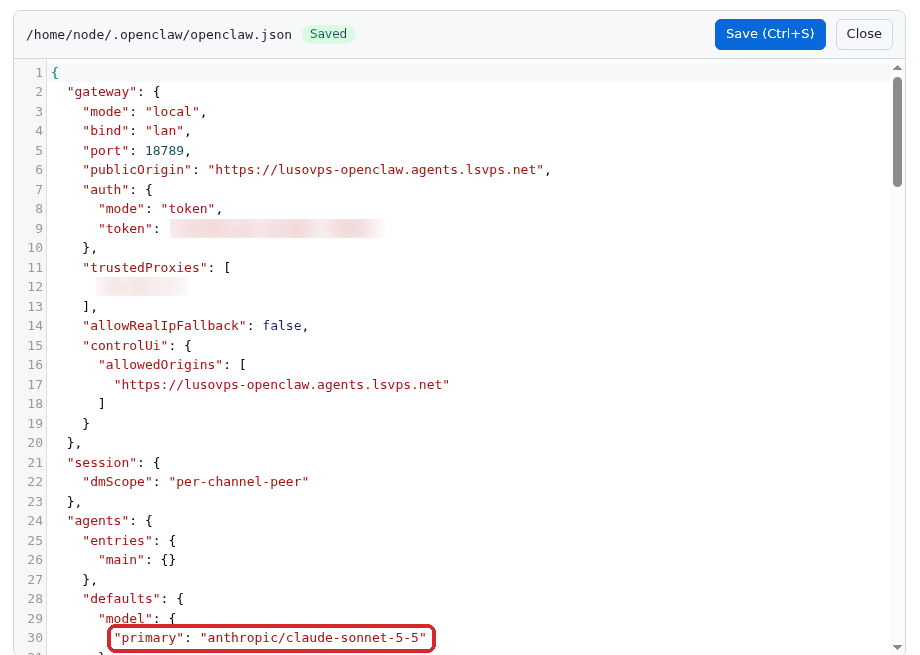
It holds the agent's address and login settings (gateway), the default AI model (the highlighted primary line, here anthropic/claude-sonnet-5-5), and which skills are turned on ("enabled": true or false). To change these, use the client area Settings tab, Change the AI model and Skills in OpenClaw, not this file.
Keep this file private
Do not share openclaw.json or screenshots of it: the gateway part is about who can open your dashboard.
Check that it worked
Start another new conversation and ask about what you saved. We asked:
Which day is my bakery closed, and what is our best seller?
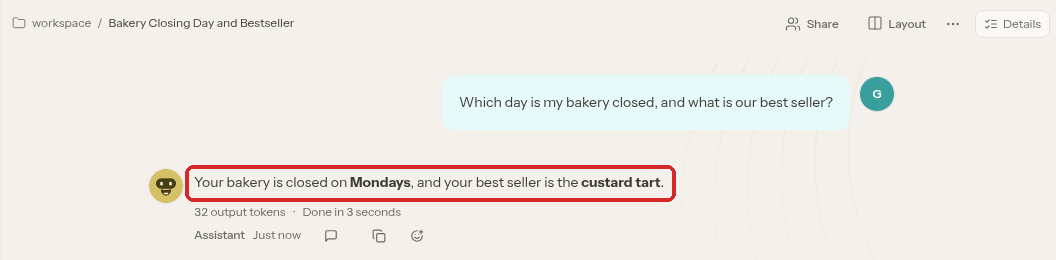
The answer came about a minute later, without any reminder from us: the assistant read its memory files at the start of the new conversation.
Make it forget something
Ask it in the chat. We sent:
Please forget that my bakery is closed on Mondays. Keep the best seller.
The assistant showed Read memory files and changed the files about 2 minutes later. Then the agent ran out of memory and restarted again, and this time it did not write a final answer:
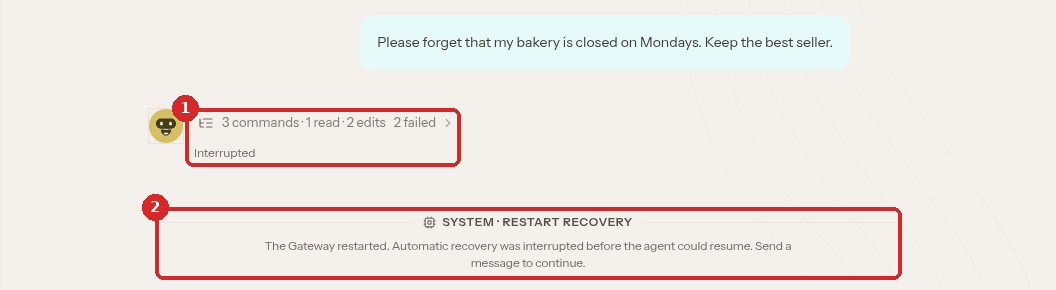
- 2 edits: the changes to the memory files, then Interrupted.
- "The Gateway restarted. Automatic recovery was interrupted before the agent could resume. Send a message to continue."
So do not trust the chat alone: check the result in the Files tab:
-
MEMORY.mdnow only has the best seller: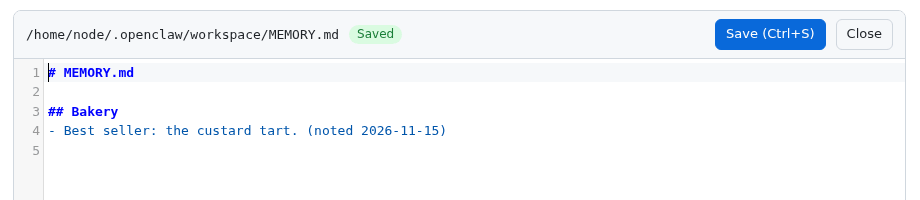
-
USER.mdno longer has the Monday rule. -
But the daily note was not changed.
memory/2026-11-15.mdstill says the bakery is closed on Mondays:
If something must really disappear (for example, personal data), ask the assistant to remove it from all its memory files, including the notes in the memory folder, then check them in the Files tab.
The nightly \"dreaming\" also writes about your conversations
OpenClaw has a nightly memory job (avatar menu → Settings → Memory, SLEEP SCHEDULE, at 03:00 server time on our agent). It sorts recent notes and can move important ones into MEMORY.md. On our agent it also created a new file, workspace/DREAMS.md, a "dream diary" written in a poetic style. Ours, written after our "forget" request, still mentioned the bakery being closed on Mondays. Check that file too when you clean up.
Common problems
\"Delivery unconfirmed\" with Retry and Discard
The message did not reach the agent, usually because it was restarting. Our first "forget" message showed this, and after the restart it was gone from the conversation. Wait until Manage agent shows healthy, open the conversation again and resend your message.
The answer says \"Interrupted\" and then \"SYSTEM · RESTART RECOVERY\"
The agent restarted in the middle of the job (on our Lite agent, because it ran out of memory). OpenClaw finishes the job after the restart. Check the files in the Files tab before asking again, so it does not save the same thing twice.
\"Unable to auto-login\" right after I asked it to remember something
The agent is restarting. On our Lite agent it worked again a few minutes later. See When OpenClaw misbehaves.
Can I edit the memory files myself?
They are plain text, and the Files tab can edit them, but you work as root with no undo. Asking the assistant is safer. If you edit one, download a copy first.
Where are my conversations?
In the dashboard (Pages → Sessions, see Chat with OpenClaw). In the folder they are inside OpenClaw's database, not as text files.