Recipe: write product descriptions in bulk from a spreadsheet
You upload a spreadsheet (CSV file) with your products to a small web form. Claude writes a 2-sentence description for each product, and the form gives you back the same file with a new description column, ready to open in Excel or Google Sheets.
| Time needed | 30 minutes |
| You need | An n8n agent with your Claude key (Sign in and build your first AI agent) and a CSV file with your products (see below) |
| Result | A form where you upload products.csv and, a few seconds later, download products-with-descriptions.csv |
This is the finished workflow:
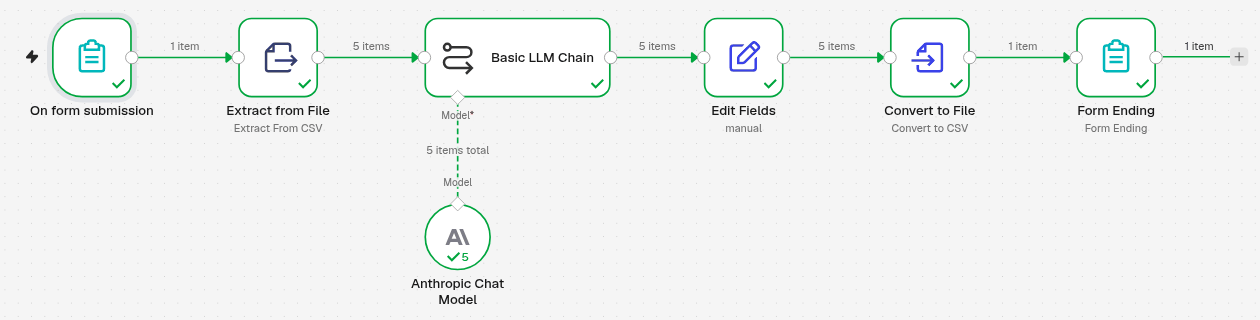
On form submission receives the file → Extract from File turns it into one item per product → Basic LLM Chain (with Anthropic Chat Model) writes one description per product → Edit Fields puts each product and its description together → Convert to File makes a new CSV file → Form Ending sends the file back to the browser.
The file you upload
A CSV file is a spreadsheet saved as plain text. In Excel or Google Sheets, use File → Save as / Download → CSV. The first row must be the column names. We used this test file with 5 products:
sku,name,category,features
TS-001,Organic cotton T-shirt,Clothing,100% organic cotton; unisex fit; made in Portugal
MG-002,Ceramic coffee mug,Kitchen,350 ml; hand-painted azulejo pattern; dishwasher safe
CD-003,Scented soy candle,Home,Fig and cedar scent; 40 hours burn time; recycled glass jar
BG-004,Cork wallet,Accessories,Portuguese cork; 6 card slots; water-resistant
OL-005,Extra virgin olive oil 500 ml,Food,Cold-pressed; olives from Alentejo; 2026 harvest
Your columns can have other names; you then change them in step 4.
Give Claude facts
The features column is what makes the descriptions good. Claude only uses the facts you give it, so write the material, size, origin and what makes the product special.
1. Make the upload form
- Click the + at the top of the menu on the left, choose New workflow and name it, for example Product descriptions from a spreadsheet.
- Click Add first step and choose On form submission. (The order form recipe shows this screen.)
-
Fill it in:
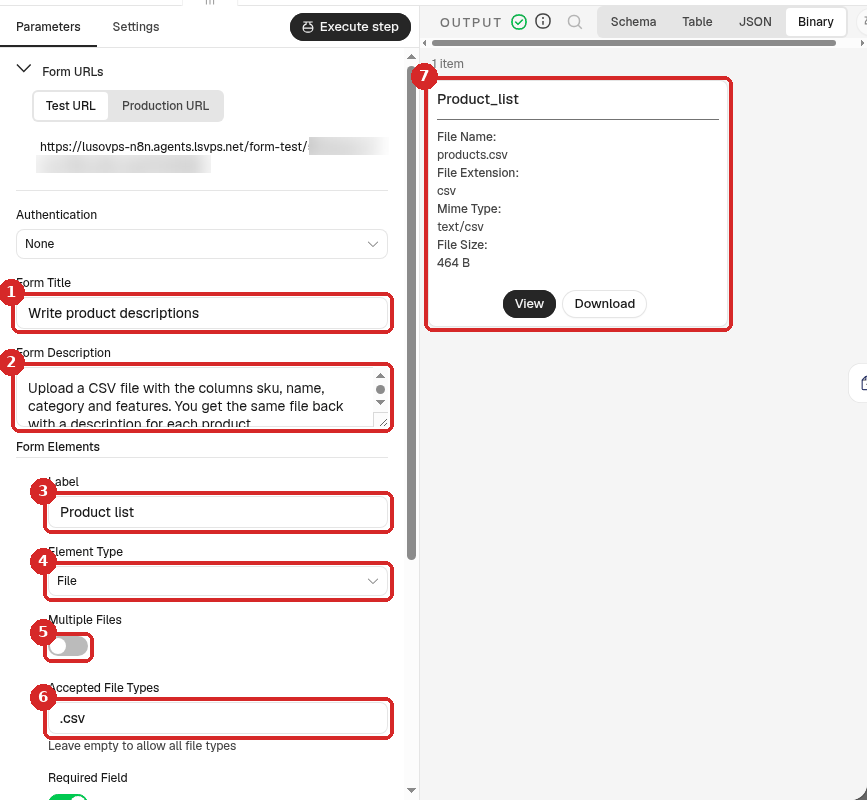
- Form Title:
Write product descriptions. - Form Description:
Upload a CSV file with the columns sku, name, category and features. You get the same file back with a description for each product. - Label:
Product list. - Element Type: File.
- Multiple Files: off (one file at a time).
- Accepted File Types:
.csv, so the form only accepts CSV files. Switch Required Field on (just below). - After a test (step 7), the OUTPUT shows the uploaded file under the name Product_list: your label, with
_instead of the space.
- Form Title:
2. Read the CSV file
-
Close the panel. Click the small + at the right of On form submission and search for
Extract from File. Click it and choose Extract from CSV.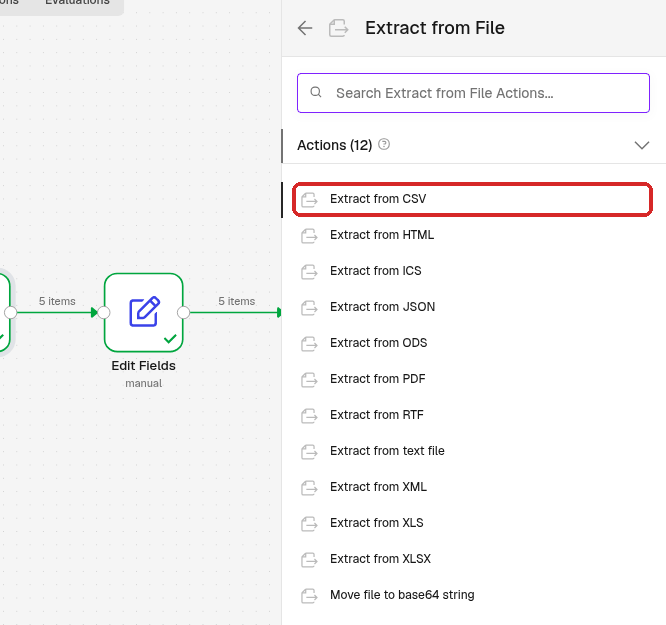
-
Set it:
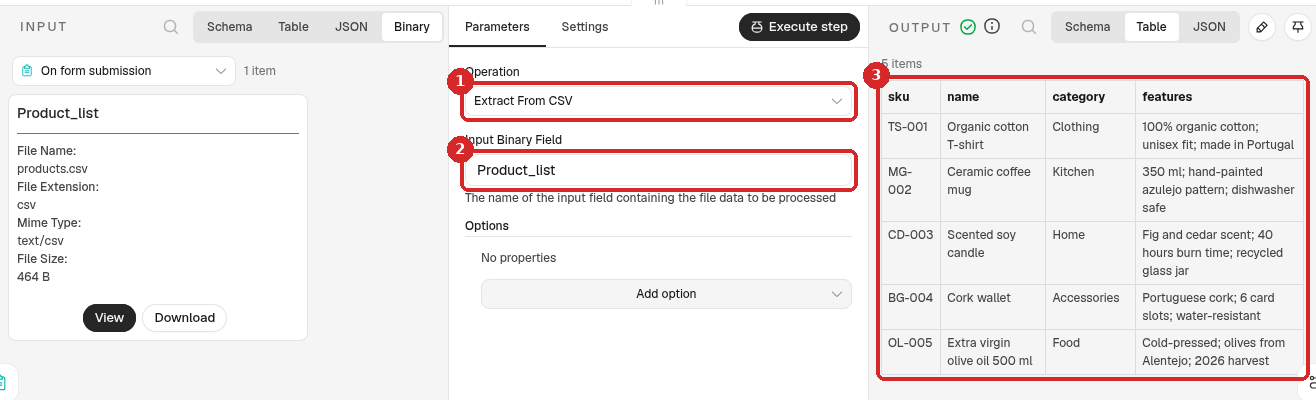
- Operation: Extract From CSV.
- Input Binary Field:
Product_list, the name of the file from step 1 (box 7 there). On the left, INPUT shows that name above the file. - After a test, the OUTPUT has 5 items: one per product, with the columns of your file.
3. Let Claude write the descriptions
- Close the panel. Click the + at the right of Extract from File, search for
Basic LLM Chainand click it. -
Fill it in:
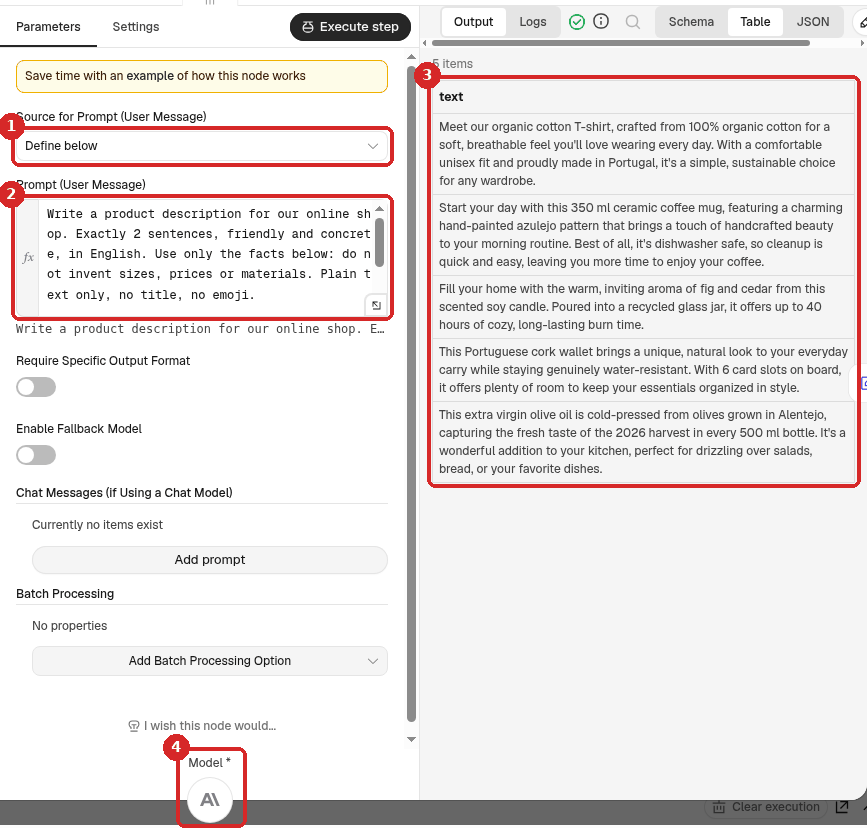
- Source for Prompt (User Message): Define below.
-
Prompt (User Message): click Expression and paste:
Write a product description for our online shop. Exactly 2 sentences, friendly and concrete, in English. Use only the facts below: do not invent sizes, prices or materials. Plain text only, no title, no emoji. Product: {{ $json.name }} Category: {{ $json.category }} Features: {{ $json.features }}$json.nametakes the name column of each product. If your columns have other names, use them here. -
After a test, the OUTPUT has 5 items, each with the text Claude wrote.
- Click the + under Model and choose Anthropic Chat Model. n8n picks your Anthropic account credential.
The step runs once per product: 5 products, 5 descriptions. Each one is a call to Claude, so a list of 500 products costs 100 times more than our test (see What the AI costs). Test with a few rows first.
4. Put each product and its description together
Basic LLM Chain only gives back the text. This step adds it to the columns of your file.
- Close the panel. Click the + at the right of Basic LLM Chain, search for
Edit Fieldsand click it. -
Set it:
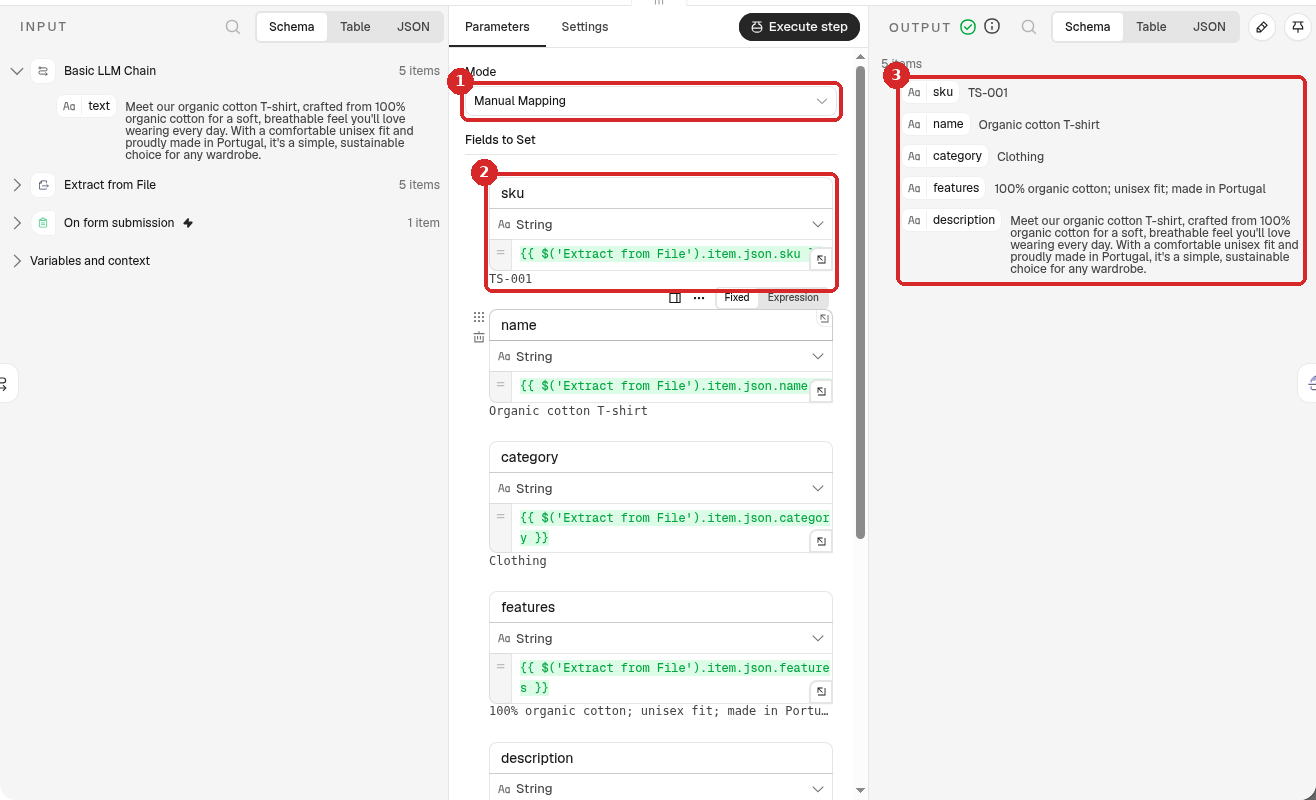
- Mode: Manual Mapping.
-
Click Add Field once per column. For each one, type the name (
sku) and, in the value box, the expression{{ $('Extract from File').item.json.sku }}. Do the same forname,categoryandfeatures. Add a last fielddescriptionwith the value{{ $json.text }}.You can also drag each column from Extract from File in the INPUT on the left onto Drag input fields here.
-
After a test, the OUTPUT shows each product with its new description.
5. Turn the list back into a CSV file
- Close the panel. Add a Convert to File step after Edit Fields (search
Convert to File, action Convert to CSV). -
Set it:
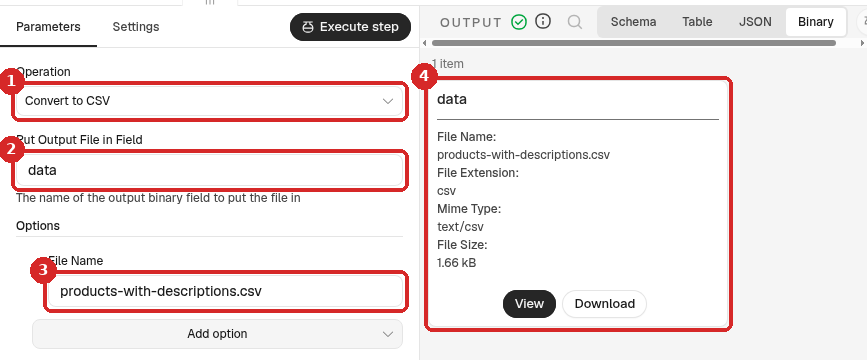
- Operation: Convert to CSV.
- Put Output File in Field: keep
data. - Under Options, click Add option → File Name and type
products-with-descriptions.csv. - After a test, the OUTPUT shows 1 item: the new file (data,
products-with-descriptions.csv, text/csv).
6. Send the file back to the form (Form Ending)
- Close the panel. Click the + at the right of Convert to File, search for
Form, click n8n Form and choose Form Ending. -
Set it:
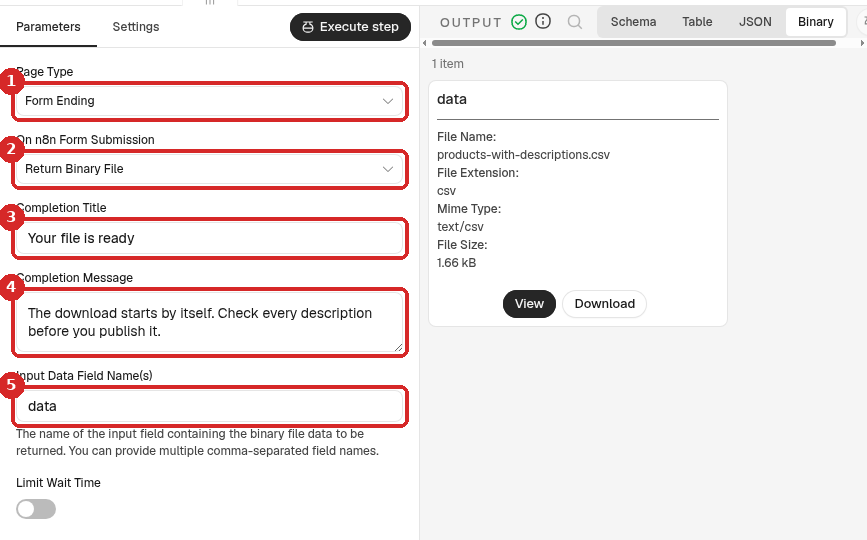
- Page Type: Form Ending.
- On n8n Form Submission: Return Binary File.
- Completion Title:
Your file is ready. - Completion Message:
The download starts by itself. Check every description before you publish it. - Input Data Field Name(s):
data, the file from step 5.
7. Test it
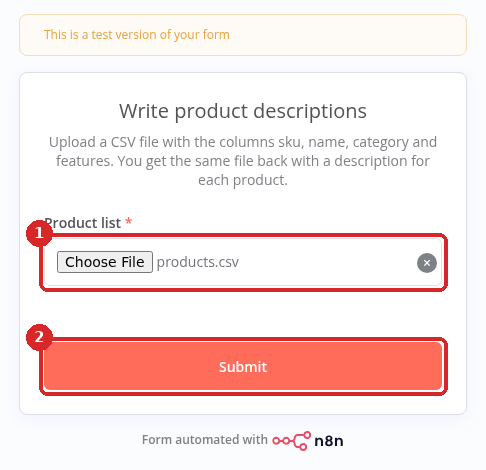
- Close the panel and click Execute workflow at the bottom of the canvas. n8n opens the test form in a new browser tab, with the banner This is a test version of your form.
-
Click Choose File, pick your CSV file (1) and click Submit (2).
-
A few seconds later the form shows your completion message and the browser downloads
products-with-descriptions.csv: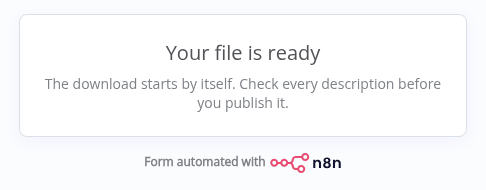
All the steps on the canvas get a green tick: 5 items from Extract from File to Edit Fields, then 1 item (the file).
8. Publish it
- Click Publish at the top right, then Publish in the window.
- Open On form submission, click Production URL and click the address to copy it. Save it as a bookmark: that is your tool from now on.
The Production URL works only while the workflow is Published. More about form addresses: the order form recipe.
Check that it worked
Open the downloaded file. Ours had the 5 products in the same order, with the 4 original columns unchanged and a new description column. These are the first two rows (from the test run):
sku,name,category,features,description
TS-001,Organic cotton T-shirt,Clothing,100% organic cotton; unisex fit; made in Portugal,"Meet our organic cotton T-shirt, crafted from 100% organic cotton for a soft, breathable feel you'll love wearing every day. With a comfortable unisex fit and proudly made in Portugal, it's a simple, sustainable choice for any wardrobe."
MG-002,Ceramic coffee mug,Kitchen,350 ml; hand-painted azulejo pattern; dishwasher safe,"Start your day with this 350 ml ceramic coffee mug, featuring a charming hand-painted azulejo pattern that brings a touch of handcrafted beauty to your morning routine. Best of all, it's dishwasher safe, so cleanup is quick and easy, leaving you more time to enjoy your coffee."
We checked the file in both tests (the test URL and the published Production URL): 5 rows came back, every description had exactly 2 sentences, and the features in each one matched the file. The runs took 2.4 and 3.5 seconds in Executions.
Read before you publish
Claude writes drafts. Check each description against the real product before you put it in your shop, especially sizes, materials and claims such as water-resistant.
Make it yours
- In Portuguese: change in English to in European Portuguese (Portugal, not Brazil) in the prompt (step 3).
- Longer texts or SEO: ask for about 80 words or include the words ... once. Keep Use only the facts below.
- Your own columns: use the names of your columns in the prompt (
{{ $json.Material }}) and in Edit Fields. - Excel files: the same steps have Extract from XLSX (step 2) and Convert to XLSX (step 5) actions. We tested only CSV.
Common problems
Extract from File fails or the OUTPUT is empty
Input Binary Field must be exactly the name of the file in the INPUT of the step (ours was Product_list, from the label Product list). If you changed the label in the form, change this name too.
The descriptions are empty or talk about \"undefined\"
The names in {{ $json.name }} do not match your columns. Open Extract from File after a test and use the column names you see in the OUTPUT, with the same capitals.
All the columns are in one, or the text is cut in strange places
Your file probably uses ; instead of , between columns (Excel does this in some languages). Open the file in a text editor to check. Extract from File has an option for this: Add option → Delimiter, where you type the character your file uses. Or save the file again as CSV with commas.
The form shows the message but no file is downloaded
Check On n8n Form Submission = Return Binary File and Input Data Field Name(s) = data in Form Ending, and that Convert to File shows a file in its OUTPUT. Also look in your browser's downloads list: the file may already be there.
The form says: Problem loading form
You opened the Production URL of a workflow that is not published. Click Publish. See the order form recipe.