Recipe: your own AI endpoint (send text, get an answer)
Make a web address of your own that translates text with Claude. Any program that can send a web request (your website, a spreadsheet script, an app, curl) sends the text and gets the translation back straight away, as JSON.
| Time needed | 25 minutes |
| You need | An n8n agent with your Claude key (Sign in and build your first AI agent), and a terminal with curl to test (we used one on Linux) |
| Result | curl sends {"text": "Hello! Your order of 2 birthday cakes is ready...", "language": "European Portuguese"} and gets back {"language":"European Portuguese","translation":"Olá! A sua encomenda de 2 bolos de aniversário está pronta..."} in about 1 second |
This is the finished workflow:
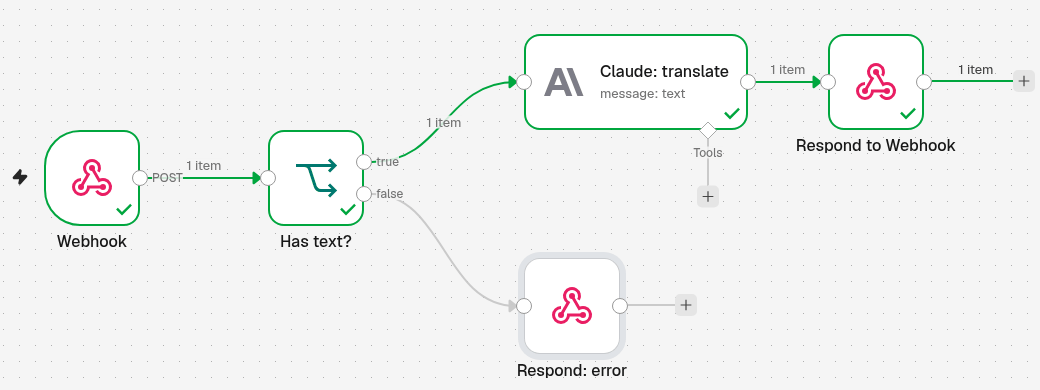
Webhook receives the text → Has text? (an If step) checks that there is something to translate → Claude: translate (the Anthropic step) translates it → Respond to Webhook sends the translation back. When the text is missing, Respond: error answers with an error instead.
The difference from a normal webhook (Receive data with a webhook) is the answer: a normal webhook replies at once with Workflow was started. Here the caller waits, and gets the result of the workflow.
Anyone who knows the address can use it, on your Claude key
Each call is a paid request to Claude. Do not publish the address on a public page. The Webhook step has Authentication options to require a password or key; we did not use them in this recipe. Unpublish the workflow when you do not need it.
1. Receive the text (Webhook)
- Click the + at the top of the menu on the left, choose New workflow and name it, for example AI translate endpoint.
- Click Add first step and choose On webhook call.
-
Set the Webhook step:
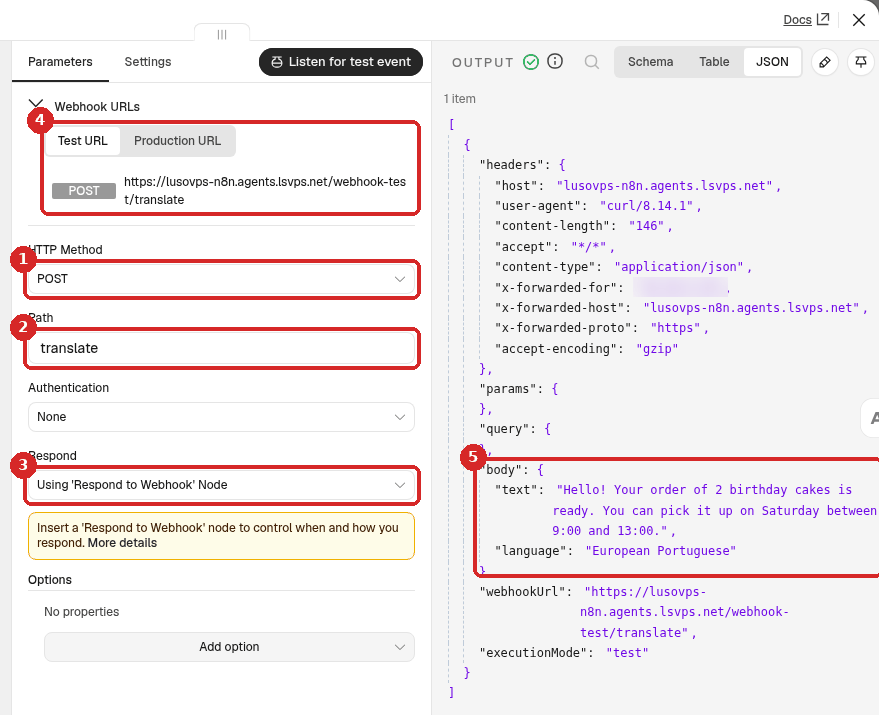
- HTTP Method: POST.
- Path:
translate. - Respond: Using 'Respond to Webhook' Node. This is the important setting: n8n waits for the Respond to Webhook step and sends its answer back to the caller.
- Test URL / Production URL: the two addresses of the webhook. Ours were
https://lusovps-n8n.agents.lsvps.net/webhook-test/translateand.../webhook/translate; yours start with your own n8n address. - After a test call (next point), OUTPUT shows what was sent under body:
textandlanguage.
-
Send one test call now, so the next steps have data to work with. Click Listen for test event, then run in a terminal (with your own address):
curl -X POST https://yourname-n8n.agents.lsvps.net/webhook-test/translate \
  -H 'Content-Type: application/json' \
  -d '{"text":"Hello! Your order of 2 birthday cakes is ready. You can pick it up on Saturday between 9:00 and 13:00.","language":"European Portuguese"}'
At this point there is no Respond to Webhook step yet, so the call does not get a translation back. That is fine: we only need the data in OUTPUT.
2. Check that there is text (If)
Without this step, a call with no text still goes to Claude. In our test, a call with only {"language":"French"} got back an invented sentence: "The water level has receded, revealing hidden rocks." An instruction in the System Message (If there is no text, reply exactly: NO TEXT RECEIVED) did not fix it reliably: in two tries, Claude answered two different sentences. An If step does.
- Close the panel. Click the small + at the right of the Webhook step, search for
Ifand click it. Rename it Has text? (click the name at the top of the panel). -
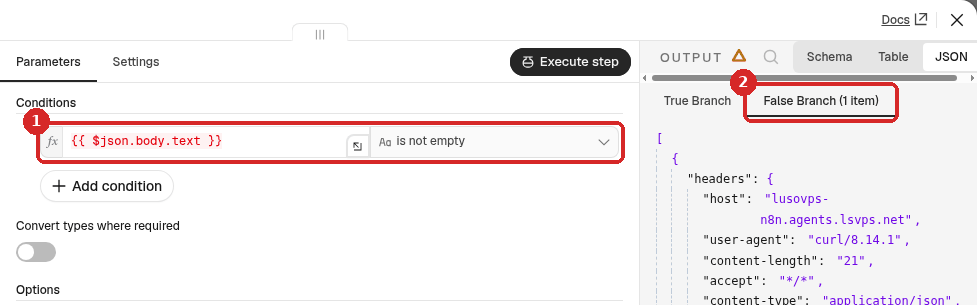
Set the condition:
- In the left box, paste
{{ $json.body.text }}; in the operator list choose String → is not empty. - After a call without text, the item goes to the False Branch, as here. With text, it goes to the True Branch.
- In the left box, paste
3. Translate it (Anthropic)
- Close the panel. Click the + at the true exit of Has text?, search for
Anthropic, click Anthropic and choose Message a model (under TEXT ACTIONS). We renamed the step Claude: translate. -
Set it:
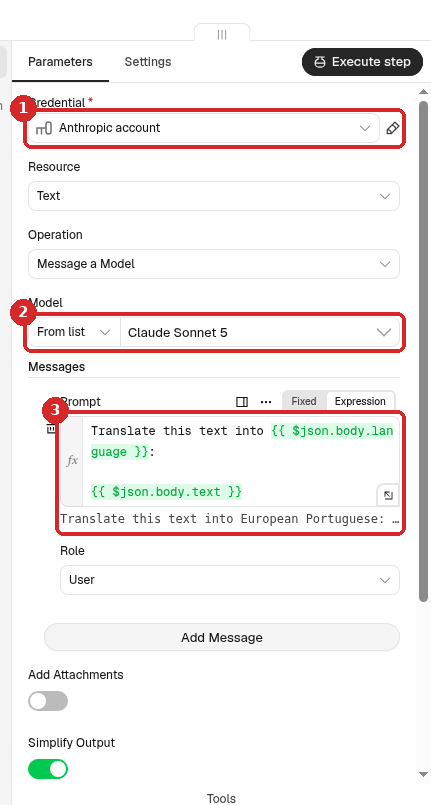
- Credential: your Anthropic account (n8n picks it by itself if you have only one).
- Model: From list → a Claude model. We used Claude Sonnet 5.
-
Prompt: click Expression and paste the text below. Under the box, n8n shows the result with the test data: Translate this text into European Portuguese: ...
-
Scroll down. Under Options, click Add Option → System Message and paste the fixed instructions:
-
Click Execute step:
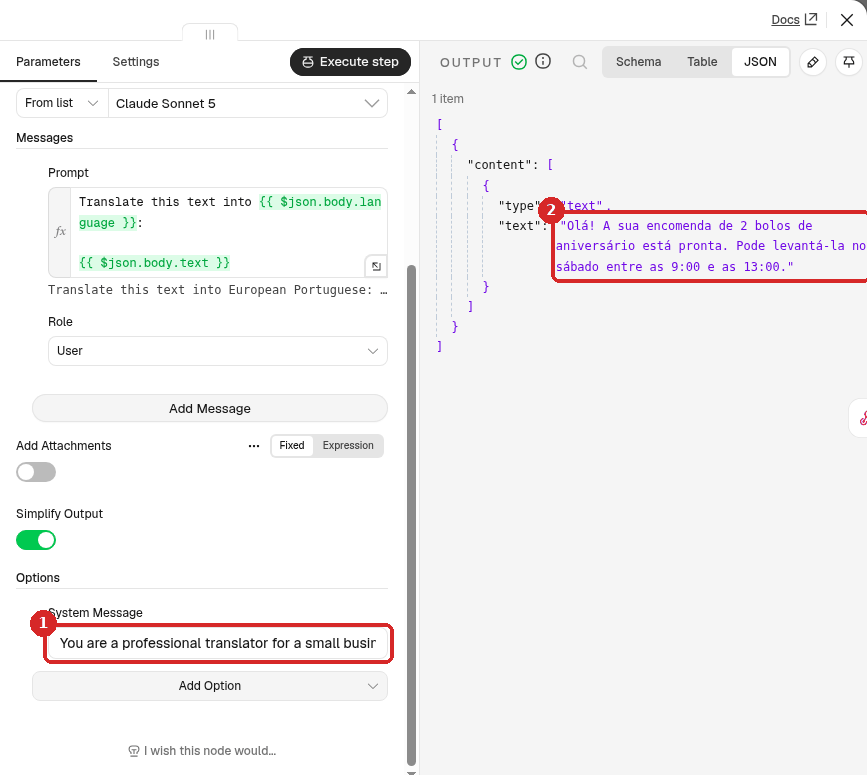
- The System Message.
- OUTPUT: the translation is under
content→text. Keep Simplify Output on, so the answer has this short form.
4. Send the answer back (Respond to Webhook)
- Close the panel. Click the + at the right of Claude: translate, search for
Respond to Webhookand click it. -
Set it:
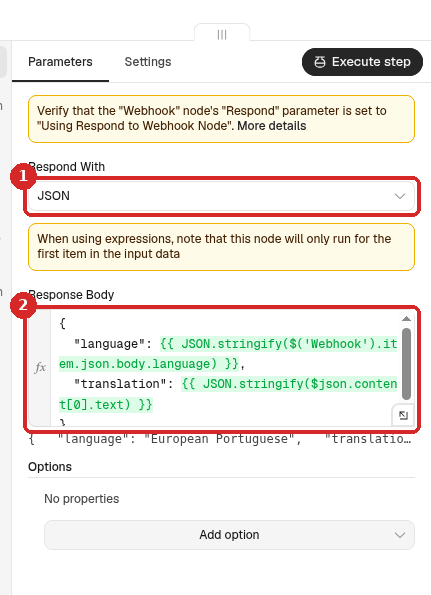
- Respond With: JSON.
-
Response Body: click Expression and paste:
-
Click the small arrows at the bottom right of the Response Body box to see the expression and its result side by side:
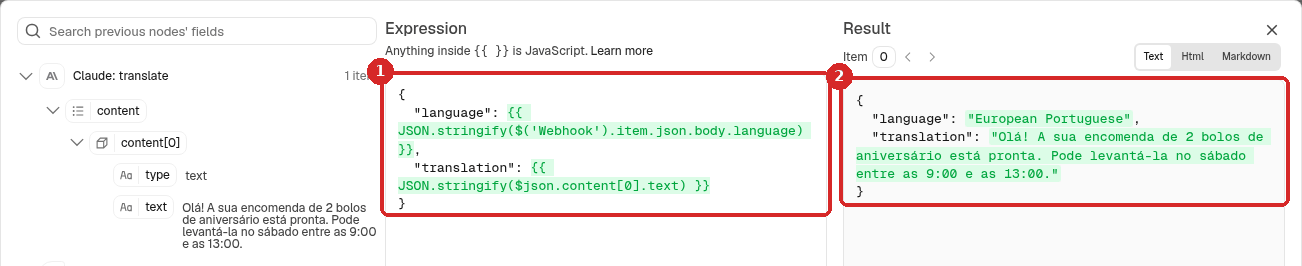
- The expression.
$('Webhook').item.json.body.languagetakes the language from the Webhook step;$json.content[0].textis the translation from the step just before. - The Result: the JSON the caller will receive.
- The expression.
Why JSON.stringify?
A translation can contain quotes (") or line breaks, which would break the JSON. JSON.stringify(...) writes the text in a safe way, with the quotes around it. In our test, a text on three lines came back with its line breaks (\n) intact.
5. Answer with an error when the text is missing
- Click the + at the false exit of Has text? and add another Respond to Webhook. Rename it Respond: error.
-
Set it:
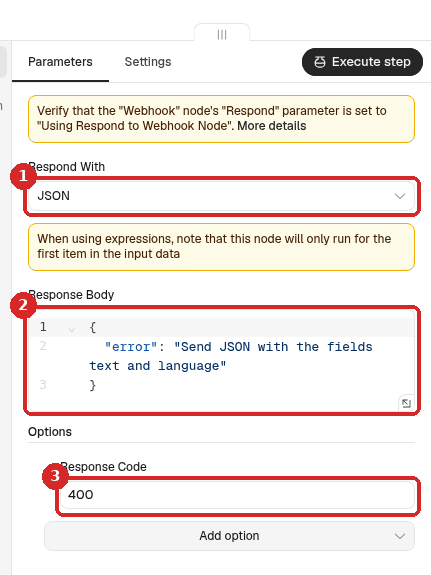
- Respond With: JSON.
-
Response Body (Fixed is enough here, there is nothing to work out):
-
Options → Add option → Response Code:
400. That is the standard web code for "your request is wrong", so the calling program knows it failed.
6. Test the whole workflow
- Close the panel and click Execute workflow at the bottom of the canvas. n8n waits for one call to the Test URL.
-
Run the same
curlas in step 1. This time the terminal prints the answer:{"language":"European Portuguese","translation":"Olá! A sua encomenda de 2 bolos de aniversário está pronta. Pode levantá-la no sábado entre as 9:00 e as 13:00."}We checked the translation: correct, with the 2 cakes, Saturday and the times kept. In the canvas, the steps of the true path have green ticks.
7. Publish and use the production address
- Click Publish at the top right, then Publish in the window.
-
From now on, use the Production URL (
/webhook/instead of/webhook-test/). It works every time, without Execute workflow. Our production tests:curl -X POST https://yourname-n8n.agents.lsvps.net/webhook/translate \ -H 'Content-Type: application/json' \ -d '{"text":"Guten Tag, ich möchte am Freitag einen glutenfreien Kuchen für 8 Personen bestellen. Ist das möglich?","language":"English"}'We sent We got back The German text above, "language":"English"{"language":"English","translation":"Hello, I would like to order a gluten-free cake for 8 people on Friday. Is that possible?"}in 1.1 seconds{"language":"French"}(no text){"error":"Send JSON with the fields text and language"}with code 400hello(not JSON at all)the same error, code 400 -
When you no longer need it, click the arrow next to Published → Unpublish. The address then answers The requested webhook "POST translate" is not registered. (code 404).
Check that it worked
curlto the Production URL prints a JSON answer withtranslation, not Workflow was started.- A call without
textgets the error and code 400, and no Claude request is made. - The Executions tab of the workflow has one run per call (how to read it).
Make it yours
The same five steps make other AI tools. Change the Prompt, the System Message and the field name in Respond to Webhook, for example:
- Summarise: Summarise this text in 3 bullet points, in the language of the text:
{{ $json.body.text }}, and answer"summary". - Reply suggestion: Write a short, polite reply to this customer message:
{{ $json.body.text }}. - Sort messages: Answer only one word, sales, support or spam:
{{ $json.body.text }}.
Test each new prompt with a few real texts before you rely on it.
Common problems
The call answers {\"message\":\"Workflow was started\"} instead of the translation
The Webhook step has Respond set to Immediately. Set it to Using 'Respond to Webhook' Node, then Publish again.
It answers with an invented text
The call had no text field (check its spelling: text, lower case) and the workflow has no Has text? step. See step 2.
This webhook is not registered for GET requests
The caller used GET (for example, the address typed in a browser). In our test the full answer was This webhook is not registered for GET requests. Did you mean to make a POST request? Send a POST with a JSON body, as in the curl examples.
The requested webhook \"POST translate\" is not registered
For /webhook/: the workflow is not published. For /webhook-test/: click Execute workflow (or Listen for test event) first; the test address works for one call only. See Receive data with a webhook.