The "Your agent is ready" email
A few minutes after you order, you receive an email called Your Hermes Agent is ready (or n8n / OpenClaw). It has everything you need to reach your agent. This guide explains each part.
| Time needed | 2 minutes to read |
| You need | The email (check Spam and Promotions if you cannot find it) |
Keep this email safe
It contains your password. Do not forward it or share a screenshot of it. If someone else may have seen it, change the password in the client area (Change Password).
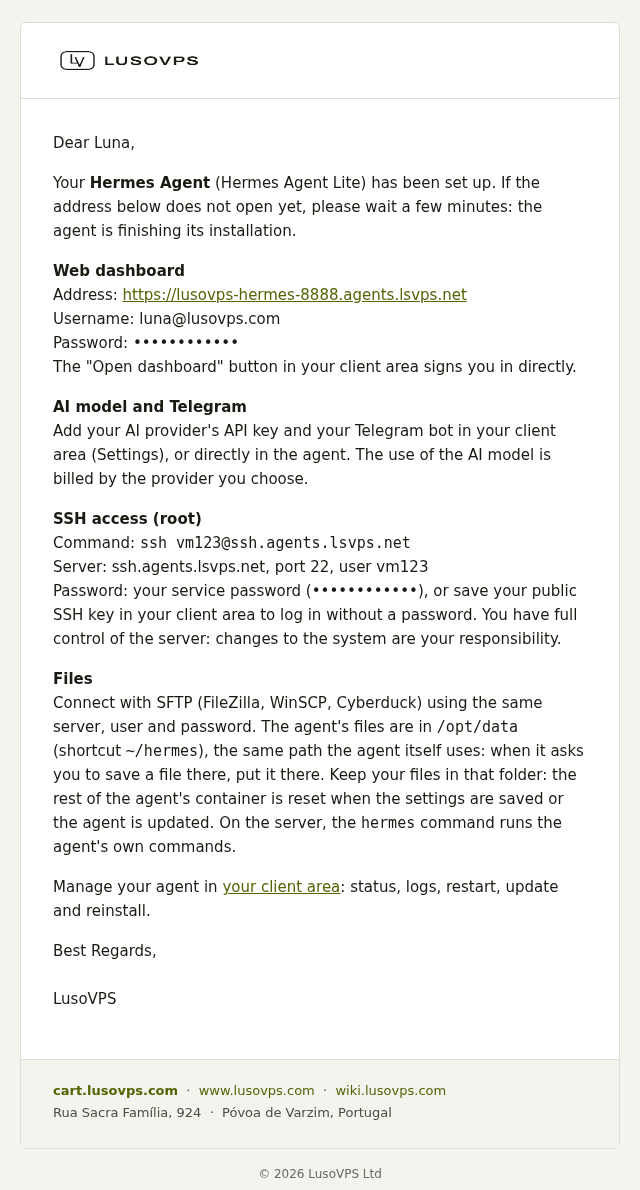
This is what the email looks like (the passwords are hidden in this picture):
Web dashboard
| Field | What it means |
|---|---|
| Address | The web address of your agent, for example https://lusovps-hermes-1234.agents.lsvps.net. Open it in any browser. |
| Username | Your email address. |
| Password | The service password. It is also the password for SSH and SFTP below. |
You do not need to type the password every time: the Open dashboard button in the client area signs you in directly. See Your agent in the client area.
The address does not open yet?
Wait a few minutes. The agent may still be finishing its installation when the email arrives.
AI model and Telegram
Your agent needs an API key from an AI provider (Anthropic for Claude, OpenAI or OpenRouter) before it can answer. You paste the key in the client area under Settings, or directly in the agent. The provider bills you for what you use.
SSH access (root)
For advanced users. It gives you a command line on your server, as the administrator (root).
| Field | What it means |
|---|---|
| Command | Paste it in a terminal: ssh vm123@ssh.agents.lsvps.net (your user is different). |
| Server / port / user | The same details, for apps like PuTTY. |
| Password | Your service password, or add your public SSH key in the client area to sign in without a password. |
No terminal? No problem
You do not need SSH. The client area has a Terminal tab that opens a root shell in your browser, without a password.
You have full control of the server. Changes you make to the system are your responsibility.
Files
You can upload and download files with an SFTP app (FileZilla, WinSCP, Cyberduck) using the same server, user and password as SSH. The client area also has a Files tab that works in the browser.
The agent's own files are in /opt/data (shortcut: ~/hermes for Hermes).
Keep your files in the agent's folder
Save your files in that folder only. Everything else inside the agent's container is reset when you save the settings or update the agent. When the agent asks you to put a file "in its folder", this is the folder it means.
On the server, the hermes command runs Hermes' own commands (for example hermes config set …).
Next steps
- Your agent in the client area: status, settings, restart, update, terminal and files.