n8n: start from a template
n8n has thousands of ready-made workflows, called templates, made by n8n and its community. Instead of starting from an empty canvas, you can copy one into your n8n and change it. This guide shows how.
| Time needed | 10 minutes |
| You need | An n8n agent from LusoVPS, signed in (see Sign in and build your first AI agent). No n8n.io account is needed |
| Result | A template copied into your n8n as a new workflow, ready to change |
Templates come from other people
Templates are shared by the n8n community. Read what a template does before you connect your accounts to it, and test it by hand before you publish it.
1. Open the template library
Click Templates in the menu on the left (open the menu with the panel icon at the top if you only see icons).
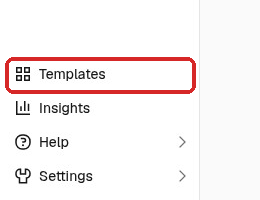
The library opens in a new browser tab, on the n8n website (n8n.io). If it asks about cookies, choose what you prefer (we clicked Decline all).
2. Find a template
Search for what you want to do (for example telegram, gmail, AI agent) or click a category under the search box.
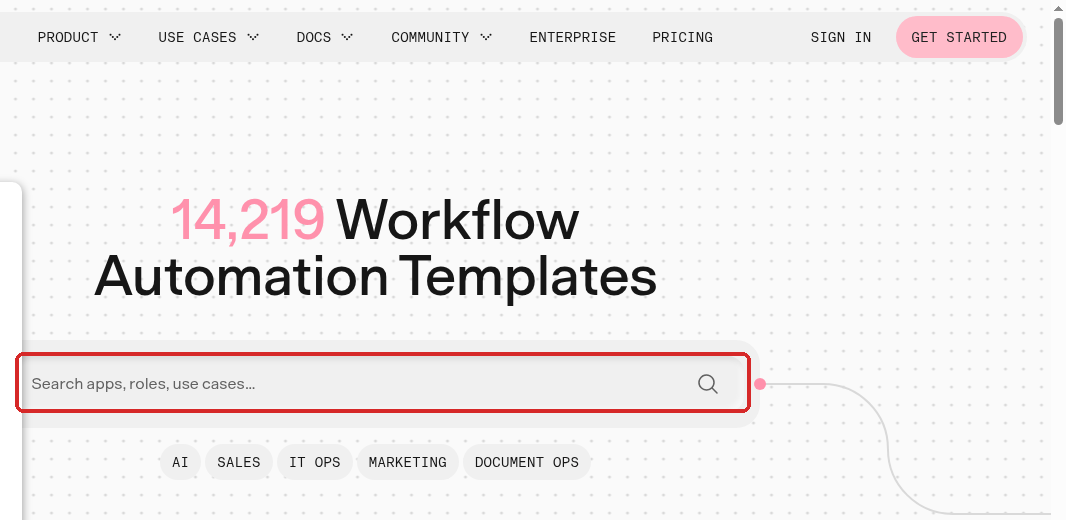
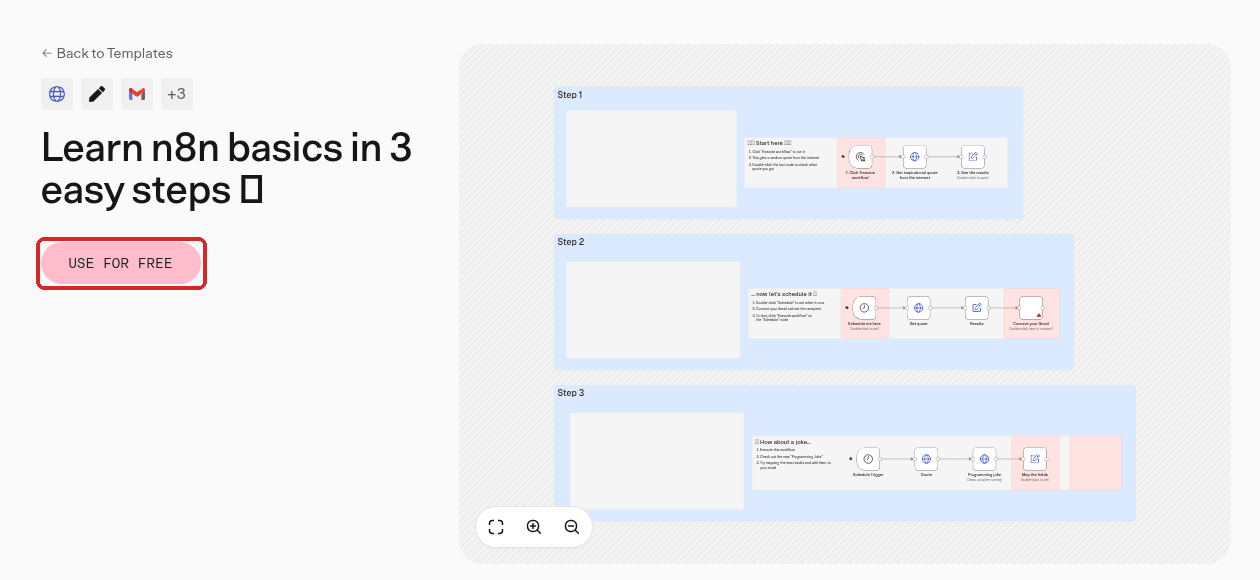
Click a template to open its page. It shows the steps, who made it and a description of what it does. For this guide we chose Learn n8n basics in 3 easy steps, a short tutorial for beginners.
3. Copy it into your n8n
-
Click USE FOR FREE.
-
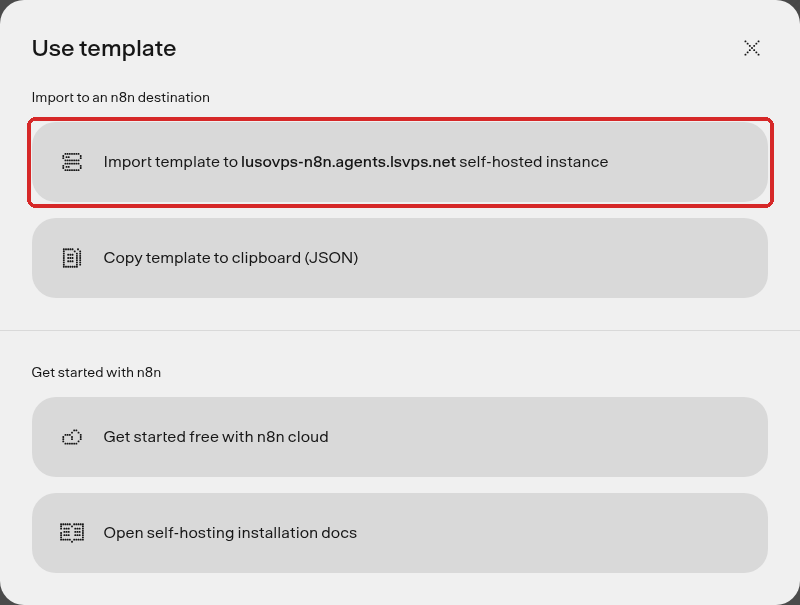
In Use template, click Import template to your n8n address self-hosted instance. The website knows your address because you opened the library from your n8n.
-
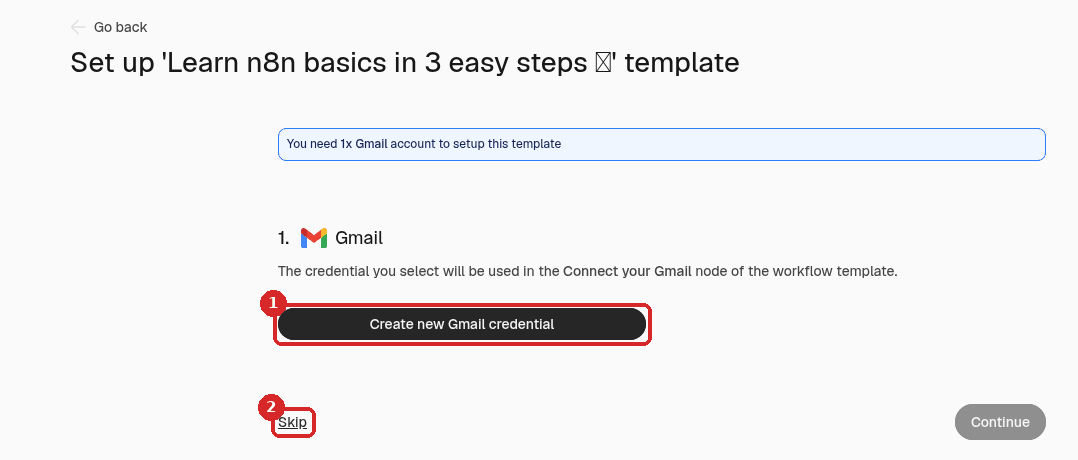
Your n8n opens in another tab, on a page called Set up '...' template. It lists the accounts the template needs (here: 1x Gmail account).
- Create new ... credential connects that account now.
- Skip copies the template without connecting anything. You can connect the accounts later. We clicked Skip.
The template opens in the editor as a new workflow with the template's name.
4. Try it
Many templates have notes (coloured boxes) on the canvas that explain each part. Read them first.
This template has three parts, each with its own trigger. When a workflow has more than one trigger, click the arrow next to Execute and choose which one to start from:
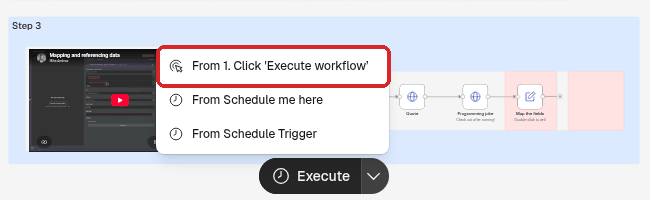
We chose From 1. Click 'Execute workflow'. Part 1 fetched a random quote from the internet:
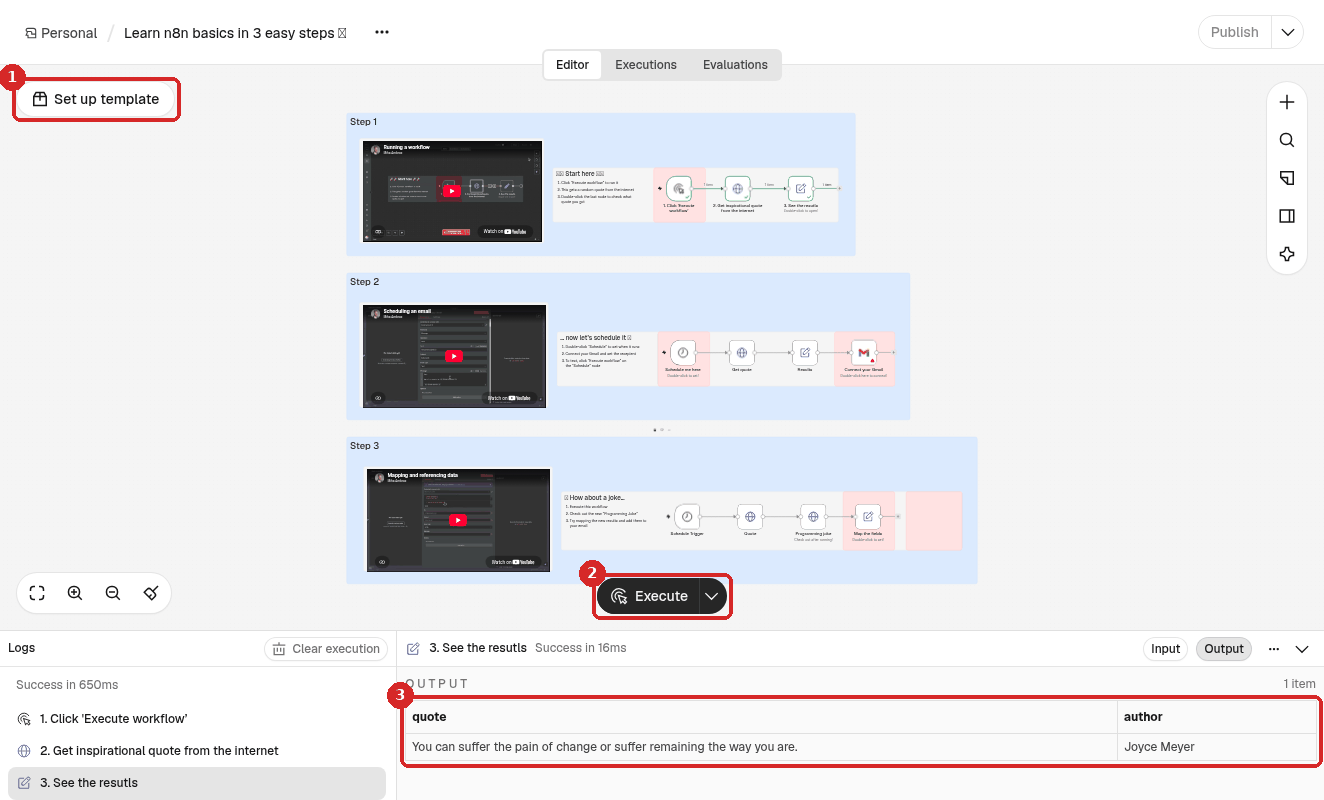
- Set up template reopens the setup page, to connect the accounts you skipped.
- Execute and its arrow, to choose the trigger.
- The result of the last step: here a quote and its author.
Steps that need an account you did not connect show a small red warning sign. Open them and choose or create the credential before you run those parts.
Check that it worked
- The template is in Overview → Workflows with its name.
- At least one part runs with Success in Logs.
Common problems
A step shows a red warning sign
It needs an account (credential) that is not connected yet. Click Set up template, or open the step and create the credential in Credential.
Do I need to pay or create an n8n.io account?
No. In our test the template library, USE FOR FREE and the import worked without signing in to n8n.io. Some templates connect to paid services (for example an AI provider): those services bill you directly.
The template uses OpenAI and I have Claude
Delete the OpenAI model step and connect an Anthropic Chat Model step with your Anthropic account credential instead, as in the first guide.