Recipe: a week of social media posts in one message
Ask Hermes for a week of Instagram or Facebook posts for your business: text, hashtags and an idea for each photo, saved in a file you can copy from.
| Time needed | 5 minutes |
| You need | A Hermes agent connected to an AI model |
| Result | 5 ready-to-edit posts in a file in your agent's workspace folder |
1. Describe your business and what you want
In the dashboard CHAT (or any chat with Hermes), give Hermes the context: what you sell, where, the language, how many posts, and where to save them. For example:
I run a small bakery in Porto. Write 5 short Instagram posts for next week (Monday to Friday), one per day, in European Portuguese, each with 2 or 3 hashtags and an idea for the photo. Save them in workspace/instagram-week.md and show them to me.
2. Review the posts
Hermes saved the file (1) and showed the 5 posts, one per day, each with the text, hashtags and a photo idea. It took about a minute and a half in our test.
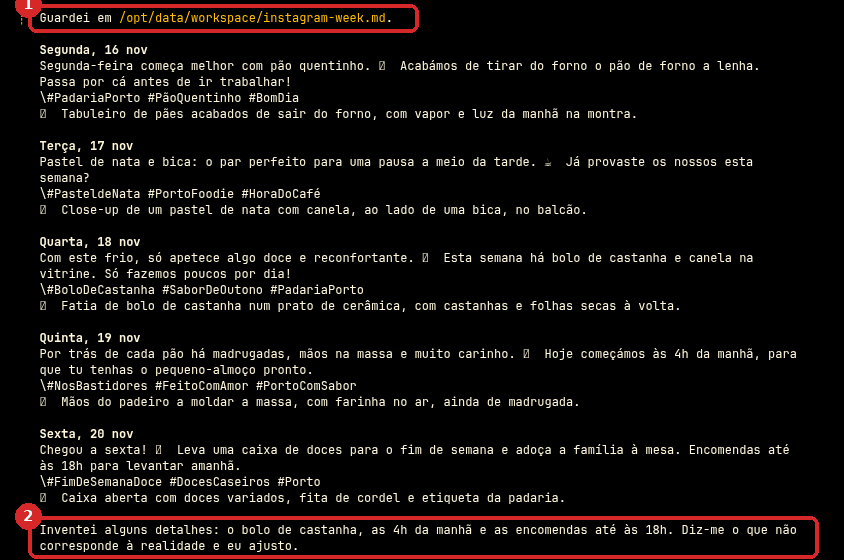
At the end (2), Hermes warned: "I invented some details: the chestnut cake, 4 a.m., and orders until 6 p.m. Tell me what doesn't match reality and I'll adjust."
Check the facts before you post
Hermes does not know your shop. It fills the gaps with believable details (products, opening hours, prices). Read every post and correct anything that is not true, or give Hermes the facts first: "This week we have bolo-rei and broa; we open at 7:00; orders by phone until 17:00."
3. Use the posts
- Copy them from the chat, or download
instagram-week.mdfrom FILES → workspace (the download arrow on its line). - Ask for changes in the same chat: "Make Wednesday's post funnier", "Shorter, max 2 lines", "Add a post for Saturday".
Check that it worked
The file instagram-week.md is in FILES → workspace, and it has one post per day with hashtags and a photo idea.
Make it yours
- Make it a habit: a scheduled job every Friday that writes next week's posts and sends them to you on Telegram.
- Teach Hermes your style once, as a skill: tone, words you never use, your usual hashtags.
- Other formats: Facebook, LinkedIn, a short newsletter, Google Business updates.
Common problems
Some symbols look like empty squares in the dashboard chat
The chat page cannot show some emojis. They are saved correctly in the file and show normally when you paste them into Instagram or Facebook.
The hashtags have a backslash (\#)
That is how the chat page shows them. Copy from the file instead: it has plain hashtags and the emojis. (The labels such as Post: and Hashtags: are in bold in the file; leave them out when you paste.)