Chat with OpenClaw in the dashboard
This guide shows how to start a new conversation with your OpenClaw assistant, ask it something, read the answer, and find or delete old conversations.
| Time needed | 5 minutes |
| You need | An OpenClaw agent with an AI key (First steps) |
| Result | You can chat with your assistant and manage your conversations |
Start a new conversation for each new topic
Every message sends the whole conversation to the AI model again. Long conversations are slower, cost more, and on our Lite test agent a long one stopped with "worker task timed out". A new, short conversation answered without problems.
1. Open the dashboard
In the client area, open your agent, click the Manage agent tab, then Open dashboard (see First steps). This time it opened in about 11 seconds on our test agent.
The dashboard opens on your last conversation. If it shows an old, long conversation, do not continue it: start a new one (step 2).
2. Start a new conversation
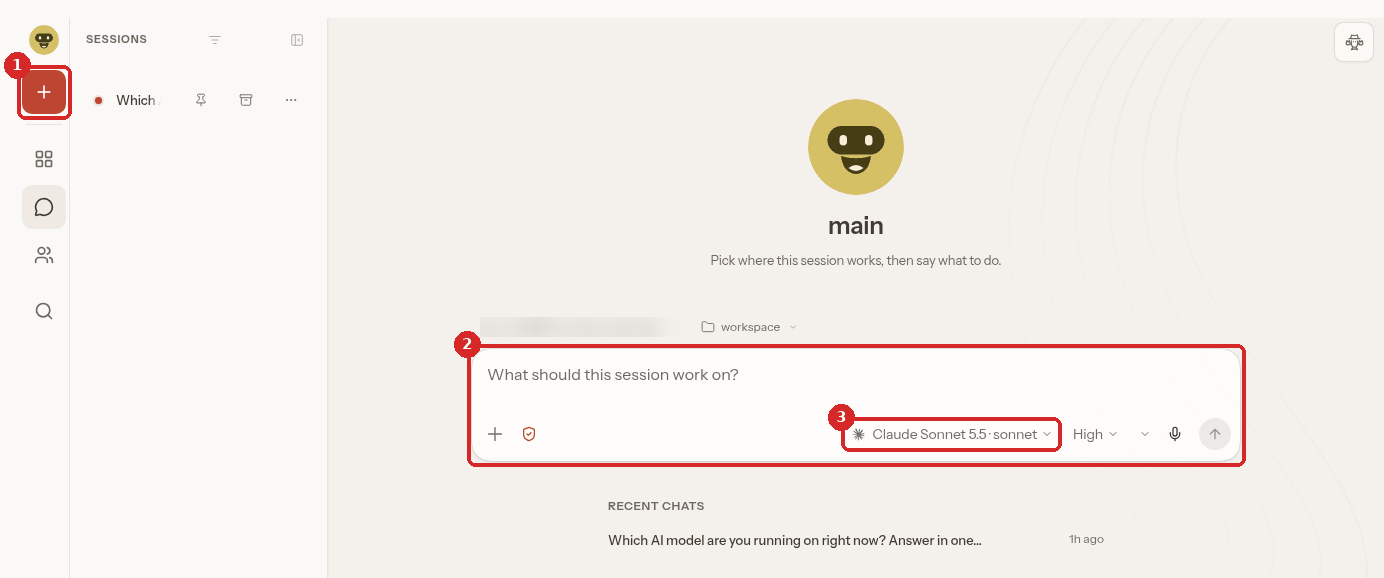
- Click the red + (New conversation) at the top left.
- The message box says What should this session work on?. Click it and type your question.
- The AI model that will answer (here Claude Sonnet 5.5). You can leave it as it is.
Under the box, RECENT CHATS lists your last conversations.
3. Send your question
Type a short, clear question. We asked:
Give me 3 short ideas to get more customers into a small bakery in winter. One line each.
Press Enter or click the red arrow on the right to send it.
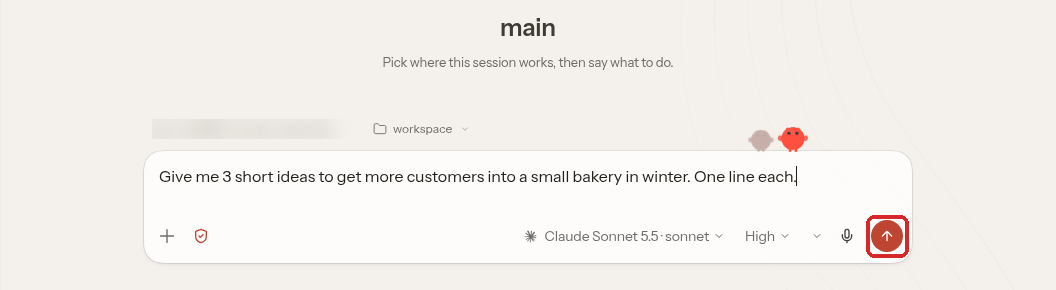
While the assistant works, the chat shows Waiting for a response and Assistant is working.... Do not close the page.
4. Read the answer
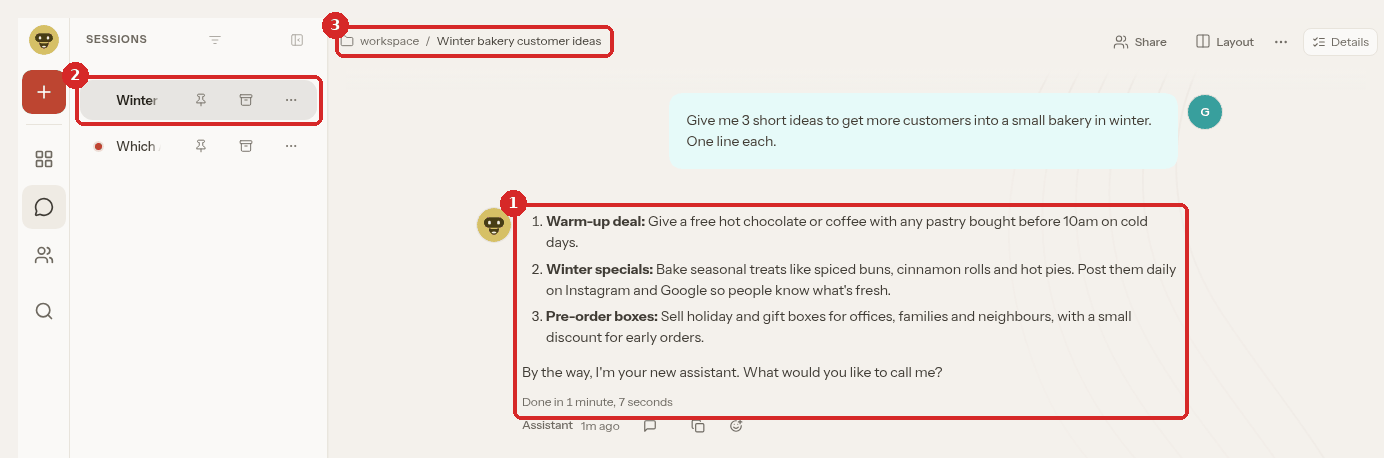
- The answer. Under it, OpenClaw shows how long it took: on our Lite test agent the first answer took 1 minute, 7 seconds (Done in 1 minute, 7 seconds).
- The new conversation in the SESSIONS list on the left. OpenClaw gives it a title by itself.
- The same title at the top of the page (here Winter bakery customer ideas).
To continue, type in the Message Assistant box at the bottom. The assistant remembers what was said earlier in the same conversation: we sent "Turn idea 1 into a short Instagram post, max 3 lines." and it wrote the post about the free hot chocolate from idea 1. That second answer took 2 seconds.
\"What would you like to call me?\"
A new OpenClaw assistant introduces itself and asks for a name, as you can see at the end of the answer above. You can give it a name, or ignore the question and keep asking what you need.
5. Find your conversations
There are two places:
- The SESSIONS list on the left of the chat (step 4). Click a conversation to open it again. Long titles are cut; point at one to see more of it.
- Pages → Sessions: all conversations in a table.
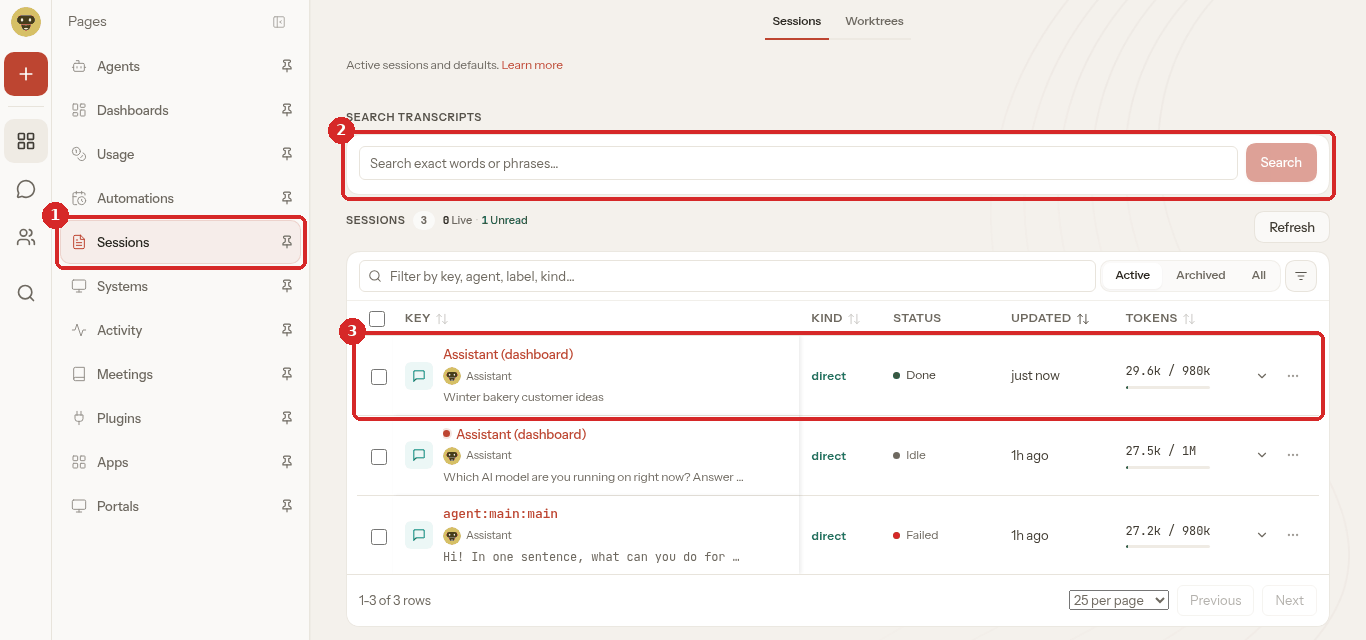
- Sessions in the Pages menu.
- SEARCH TRANSCRIPTS: find a word or a sentence in all your old conversations.
- Our conversation: Assistant (dashboard) with its title, STATUS Done, and TOKENS (how full it is). Even our short chat showed 29.6k tokens, because OpenClaw sends its own instructions with every message (see How much AI your OpenClaw uses).
6. Rename, archive or delete a conversation
In the SESSIONS list on the left, point at a conversation and click its ... button.
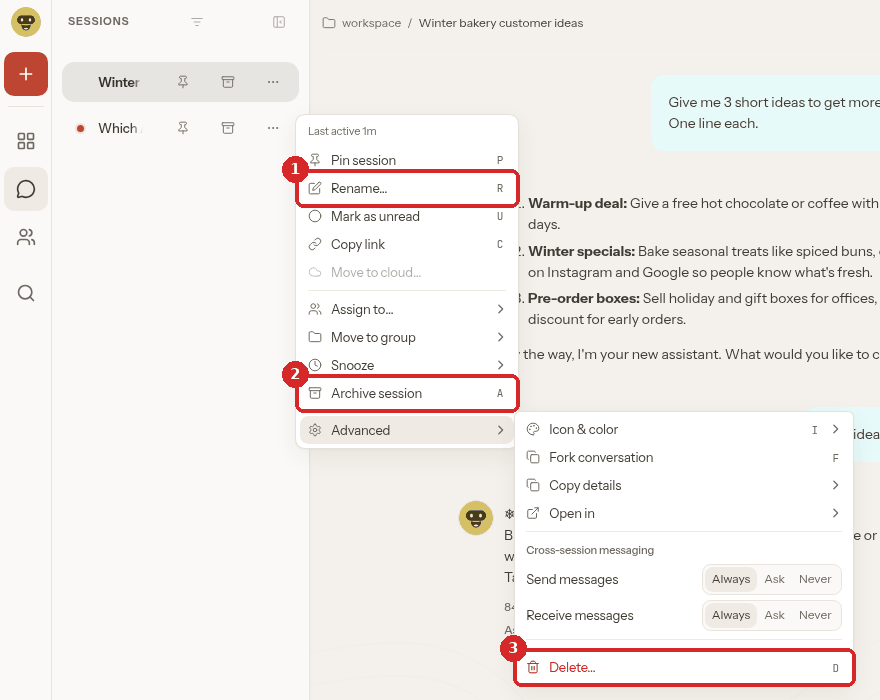
- Rename...: give it your own title.
- Archive session: hide it from the list without deleting it. Pages → Sessions shows it under the Archived filter, with a Delete all archived... button.
- Advanced → Delete...: delete it for good.
Delete... asks for confirmation:
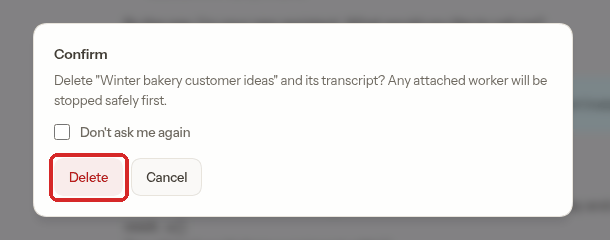
Click Delete. The conversation disappears from the dashboard, and the dashboard goes back to another conversation. We deleted our test conversations this way.
A compressed copy stays on the server
On our agent, each deleted conversation left a compressed copy in the agent's folder, agents/main/sessions (a file whose name contains .deleted). If a conversation held private data, delete that file too in the client area Files tab (see OpenClaw's files and memory).
Check that it worked
- Your question and the answer appear in the chat, with Done in ... under the answer.
- The conversation appears in the SESSIONS list and on Pages → Sessions.
Common problems
\"Unable to finish this reply: worker task timed out\"
The assistant did not finish in time. On our Lite agent this happened in a long, old conversation. Start a new conversation (red +) and ask again. If it keeps happening, restart the agent from the client area (Manage agent → Restart) and wait until the status is healthy (Logs and restart).
\"Interrupted before the agent started it\"
The message was not processed (for example, the agent restarted). As the message says, it will not run by itself: copy it and send it again.
The answer takes a long time
The first answer of a new conversation took over a minute on our Lite agent; the next one took 2 seconds. Wait for Done in .... If nothing happens after a few minutes, reload the page: the answer may already be there.
\"This Gateway expects its token\" or the chat does not load
Your browser is no longer signed in. Go back to the client area and click Open dashboard again (A tour of the dashboard).