Find and continue past conversations
Every conversation with Hermes is saved as a session: chats in the dashboard, messages from Telegram, WhatsApp or Discord, and the runs of your scheduled jobs. The SESSIONS page lets you find an old conversation, read it, and continue it where you left off.
| Time needed | 5 minutes |
| You need | A Hermes agent you have already talked to (see Chat with Hermes in the dashboard) |
| Result | You find a past conversation and continue it in the dashboard Chat |
1. Open the Sessions page
In the client area, click Open dashboard, then click SESSIONS in the menu.
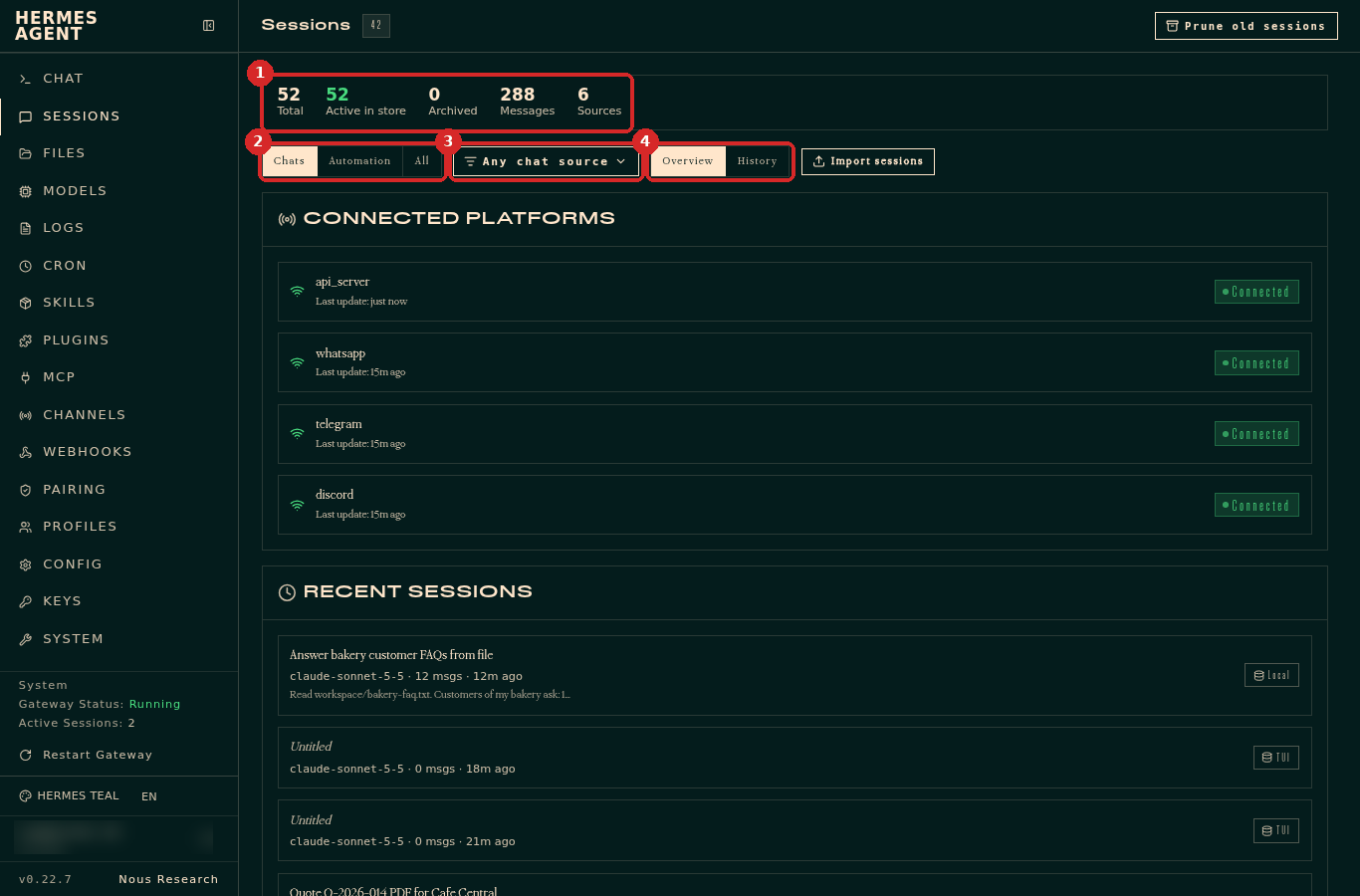
- The counters: Total sessions, Active in store, Archived, the number of Messages and of Sources (places the conversations came from).
- What to show: Chats (your conversations), Automation (runs of scheduled jobs) or All.
- Any chat source: show only the conversations from one place.
- Overview shows your connected apps (CONNECTED PLATFORMS) and the RECENT SESSIONS. History shows the full list, with search.
2. Show only one app
Click Any chat source. The list shows each source with its number of sessions; untick the ones you do not want to see.
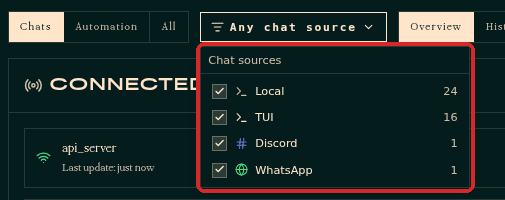
On our test agent: Local (the dashboard Chat), TUI (also the dashboard Chat), Discord and WhatsApp. Only the sources you have actually used appear here.
3. Find a conversation
Click History. Each line is one session, newest first, with its title (Hermes gives each conversation a short title), the AI model, the number of messages and tools used, and when it was last used. The small label on the right shows the source (Local, TUI, Cron…). The conversation that is open right now has a green Live label.
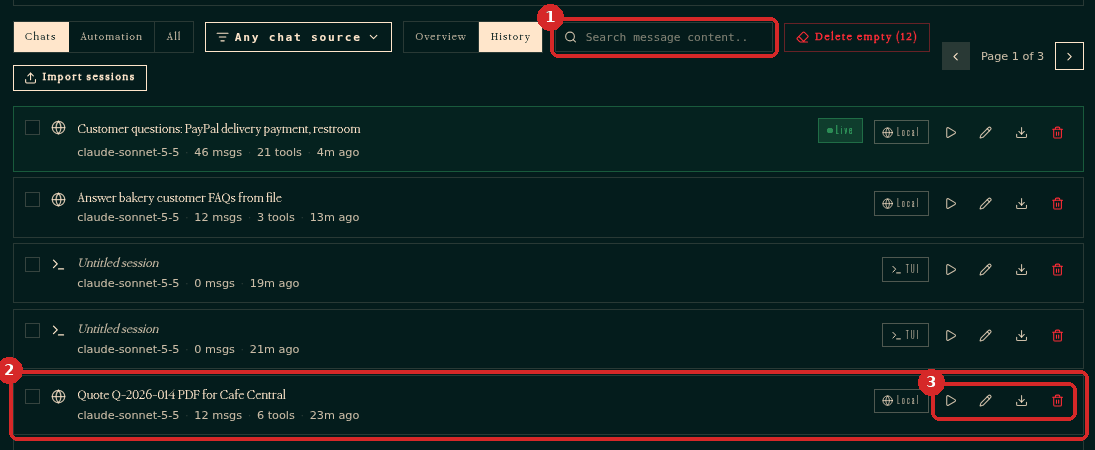
- Search message content: searches inside the messages, not only the titles.
- A session. Click its title to read it.
- The icons of each session: Resume in Chat (▷), Rename session (pencil), Export session (arrow down) and Delete session (bin).
The list shows 20 sessions per page: use the arrows at the top right (Page 1 of 3) to see older ones. An Untitled session with 0 msgs is a chat that was opened but never used.
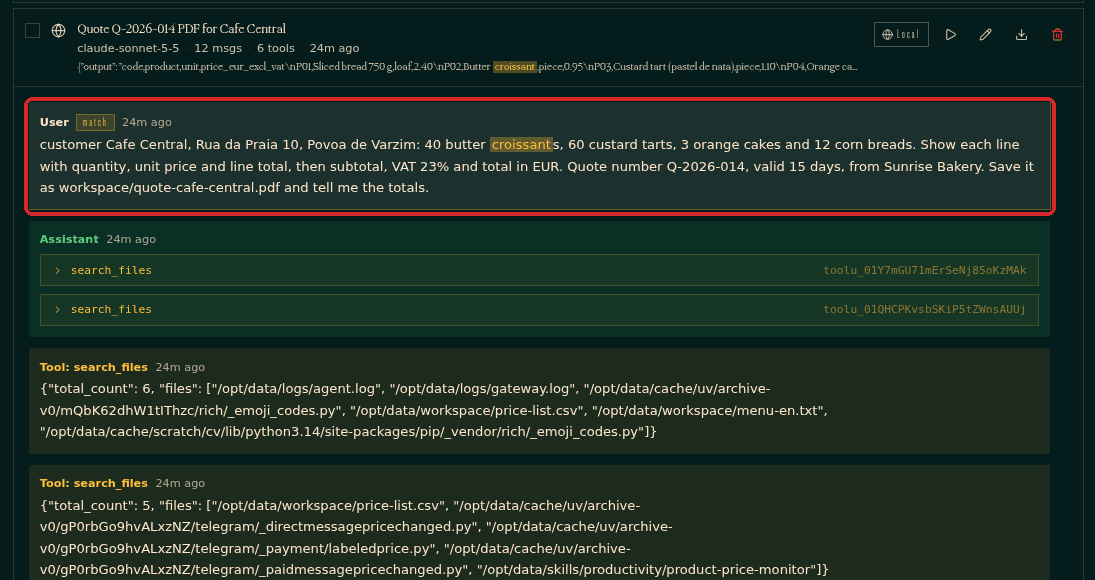
Search. Type a word in the search box. We searched for croissant: three sessions matched, and each shows the piece of text with the word highlighted.
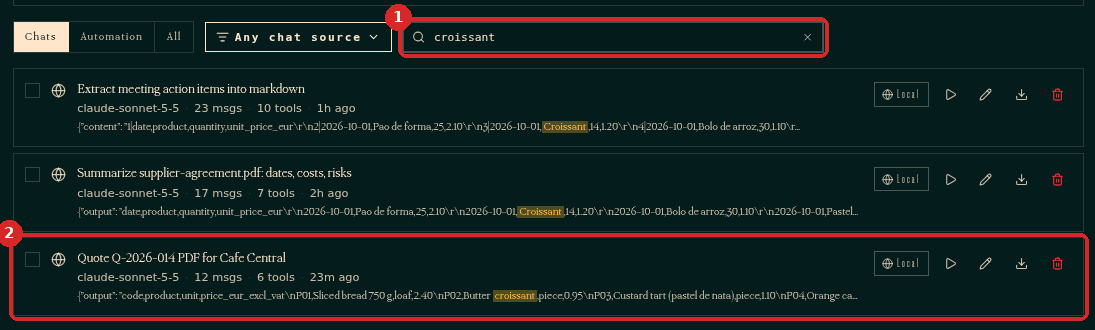
- The search box. Click the × to clear it.
- A matching session, with the highlighted word.
Read a session. Click a session's title. The whole conversation opens under it: your messages (User), Hermes' answers (Assistant) and the results of the tools it used (Tool: …). The message that matched your search is marked match.
Export. The Export session icon downloads the conversation as a .json file (ours was called session-local-….json). It is a technical format, useful as a copy or to send to support.
4. Continue a conversation in Chat
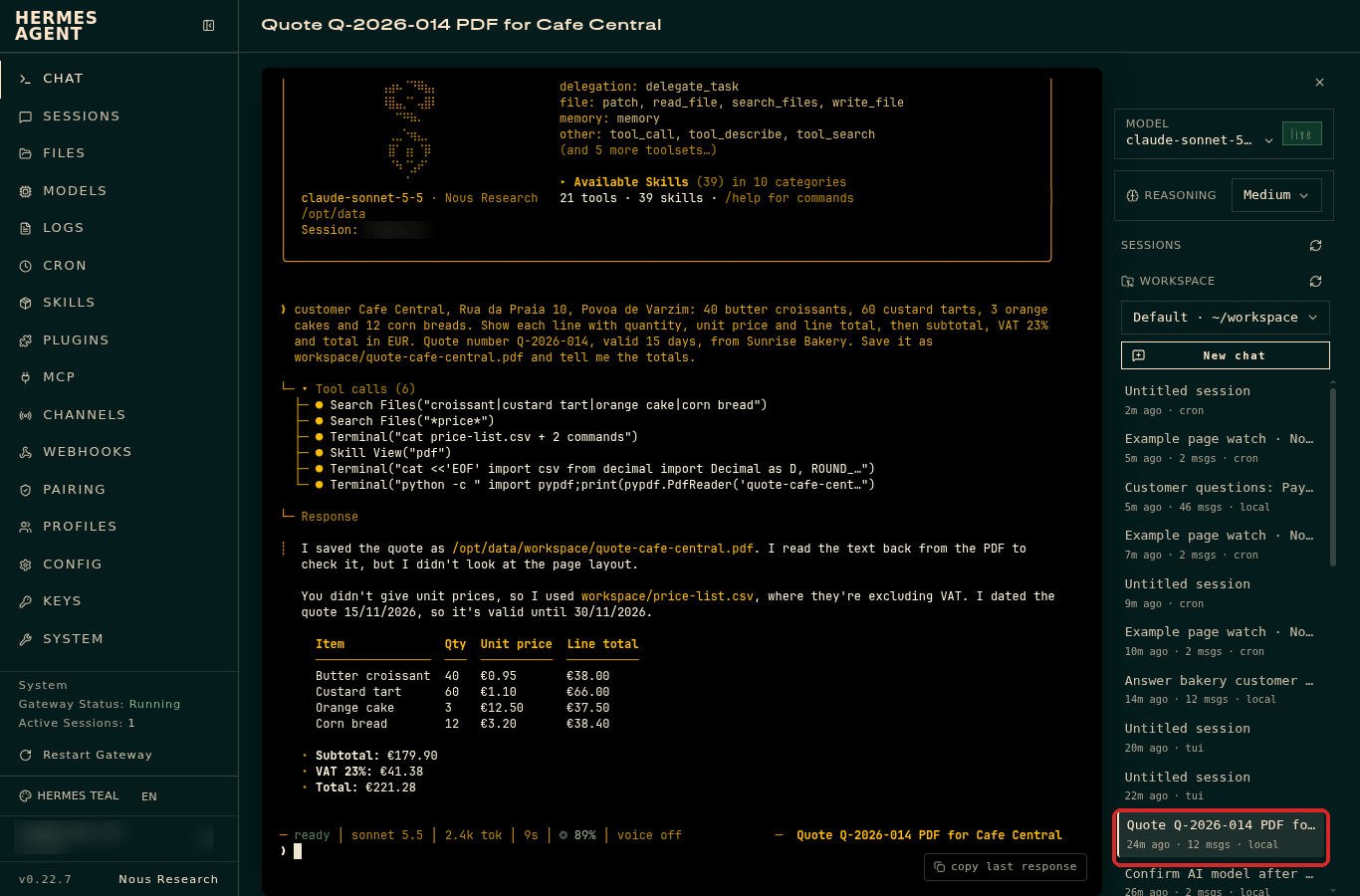
Click Resume in Chat (▷) on the session. The CHAT page opens with the whole conversation, and the session is highlighted in the SESSIONS list on the right:
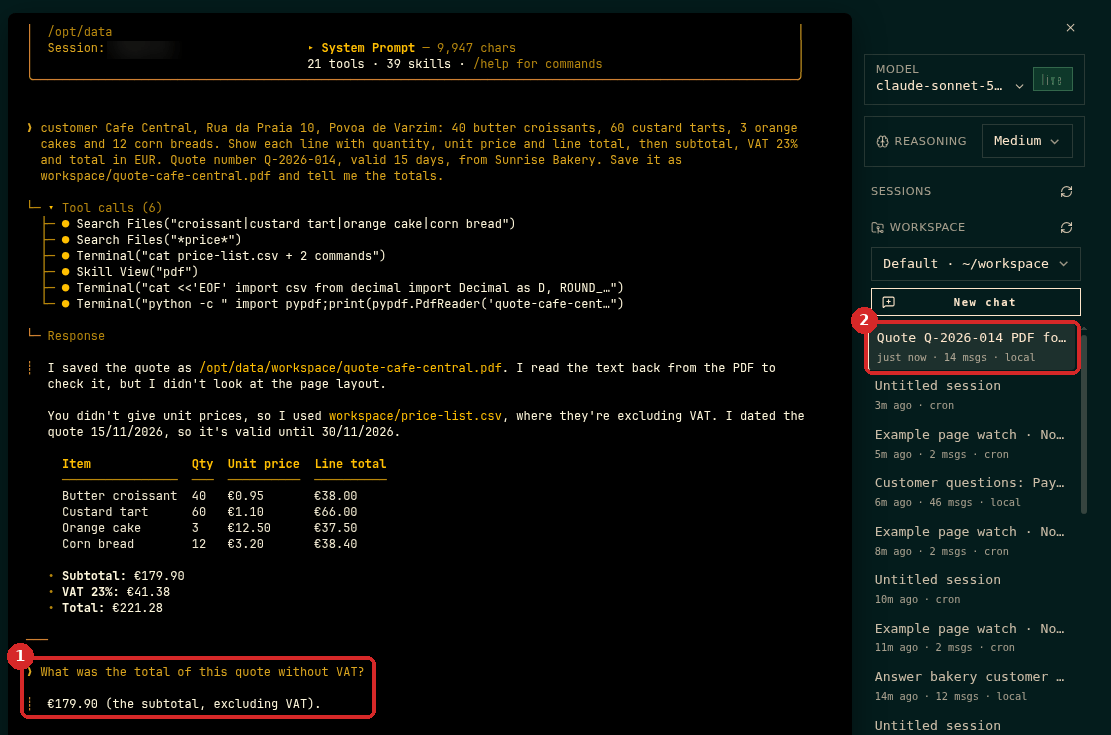
Type your next message as usual. Hermes remembers everything in that conversation. We asked What was the total of this quote without VAT? and Hermes answered from the quote it had made earlier in the same conversation (1). The session jumped to the top of the list, now with 14 msgs (2).
From the Chat page directly
You do not have to go through SESSIONS: on the CHAT page, click any conversation in the SESSIONS list on the right to reopen it. New chat starts an empty one.
5. See what your scheduled jobs did
Click Automation. Each run of a scheduled job is a session, named after the job with the date and time of the run, with the label Cron. Click one to read what Hermes did and answered in that run.
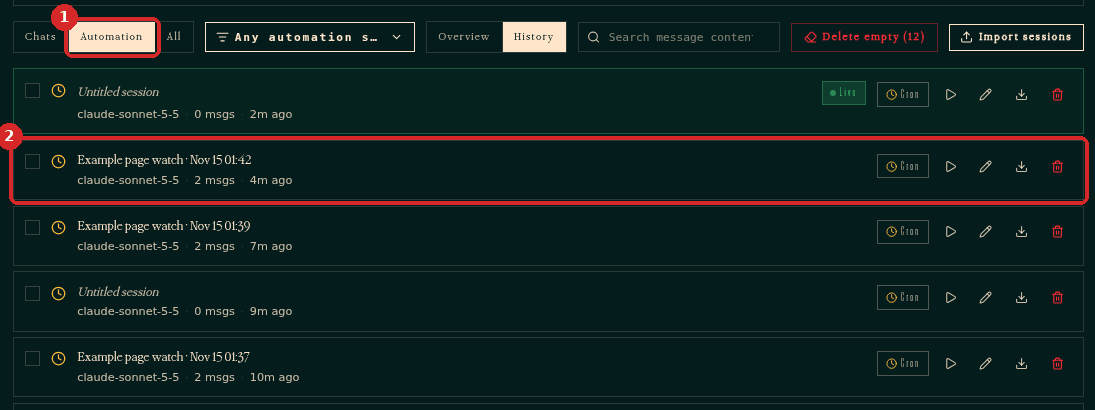
- Automation.
- One run of our Example page watch job (see Recipe: watch a web page for changes).
Check that it worked
Resume a conversation and ask something about it ("what did we decide?"). Hermes answers using that conversation.
Common problems
I cannot find a conversation from Telegram or WhatsApp
Check that Chats is selected and that its source is ticked in Any chat source. Then use History and the search box with a word you remember from the conversation.
Hermes does not remember something from another conversation
Each session is a separate conversation. Resume the right session, or ask Hermes to remember important facts for good (see What Hermes remembers about you).
Should I delete old sessions?
You do not have to. We did not test the Delete session, Delete empty, Prune old sessions and Import sessions buttons for this guide. Before deleting anything, keep a copy: see Back up your Hermes agent.