Recipe: use a free web API (tomorrow's weather every evening)
Every evening at 19:00, n8n asks a free weather service for tomorrow's forecast and sends it to you on Telegram. On the way you learn the two things you need to use almost any web service in n8n: the HTTP Request step and expressions that pick values out of the answer.
| Time needed | 20 minutes |
| You need | An n8n agent from LusoVPS (Sign in to n8n), your Telegram bot saved in n8n (step 1 of the contact form recipe) and your numeric Telegram ID (from @userinfobot) |
| Result | Every evening a message like Weather in Porto tomorrow (2026-11-15): Min 14.7 °C, max 16.4 °C, Chance of rain: 100%, Take an umbrella! |
This recipe uses Open-Meteo, a weather service that is free for non-commercial use and needs no account or key. It does not use AI, so it needs no Claude key.
This is the finished workflow:
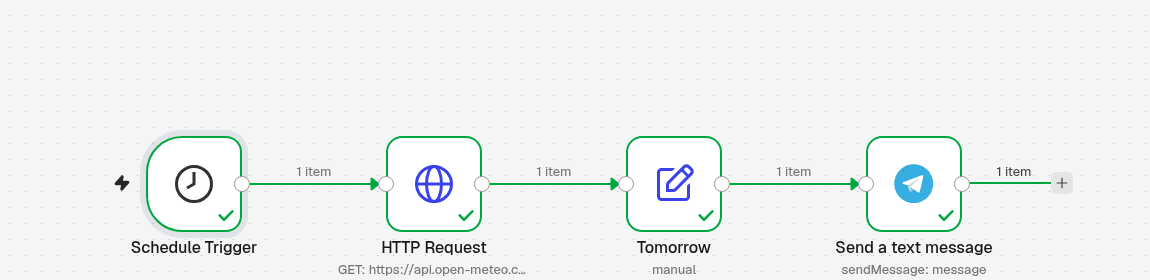
Schedule Trigger (every day at 19:00) → HTTP Request asks Open-Meteo for the forecast → Tomorrow (an Edit Fields step) keeps only tomorrow's values → Send a text message sends them to Telegram.
What is an API?
An API is a web address made for programs instead of people. You open it with the right details in the address (here: which place, which values, how many days) and it answers with data, usually in a format called JSON. n8n reads JSON for you and shows it as a list of fields.
1. Run it every evening at 19:00
- Click the + at the top of the menu on the left, choose New workflow and name it, for example Tomorrow's weather.
- Click Add first step and choose On a schedule.
-
Set it:
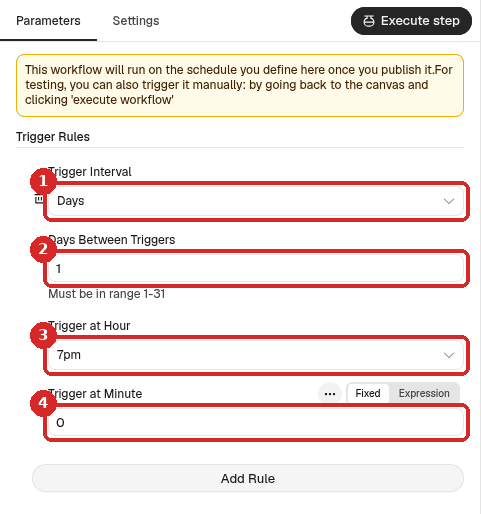
- Trigger Interval: Days.
- Days Between Triggers:
1(every day). - Trigger at Hour: 7pm.
- Trigger at Minute:
0.
The time is in the time zone of your n8n. Ours showed Europe/Lisbon in the test output. To check or change yours, see Run a workflow on a schedule.
2. Ask the weather service (HTTP Request)
- Close the panel. Click the small + at the right of the Schedule Trigger, search for
HTTP Requestand click it. -
Set it:
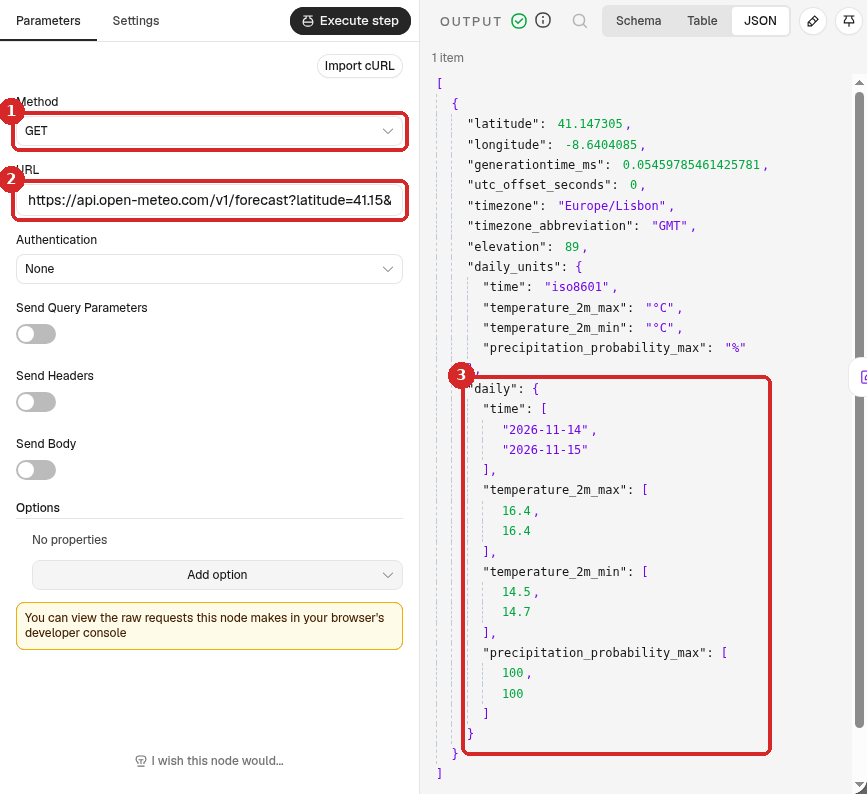
- Method: keep GET (we only read data).
-
URL: paste this address:
-
Click Execute step at the top of the panel to try it now. The OUTPUT shows the answer. Click JSON above the output to see it as in our picture. The part we need is daily.
What the address asks for:
| Part of the address | Meaning |
|---|---|
latitude=41.15&longitude=-8.61 |
The place: Porto. Use the coordinates of your town (right-click a place in Google Maps to copy them). |
daily=temperature_2m_max,... |
The values we want for each day: highest temperature, lowest temperature, highest chance of rain. |
timezone=Europe%2FLisbon |
Days start and end at midnight Lisbon time (%2F is how a / is written inside an address). |
forecast_days=2 |
Two days: today and tomorrow. |
In the answer, each value under daily is a list with two entries, one per day, in the same order as time. In our test, time was 2026-11-14 (today) and 2026-11-15 (tomorrow). n8n counts from zero: entry [0] is today and entry [1] is tomorrow.
3. Keep only tomorrow's values (Edit Fields)
- Close the panel. Click the + at the right of HTTP Request, search for
Edit Fieldsand click it. We renamed it Tomorrow (click the name at the top of the panel). -
Set it:
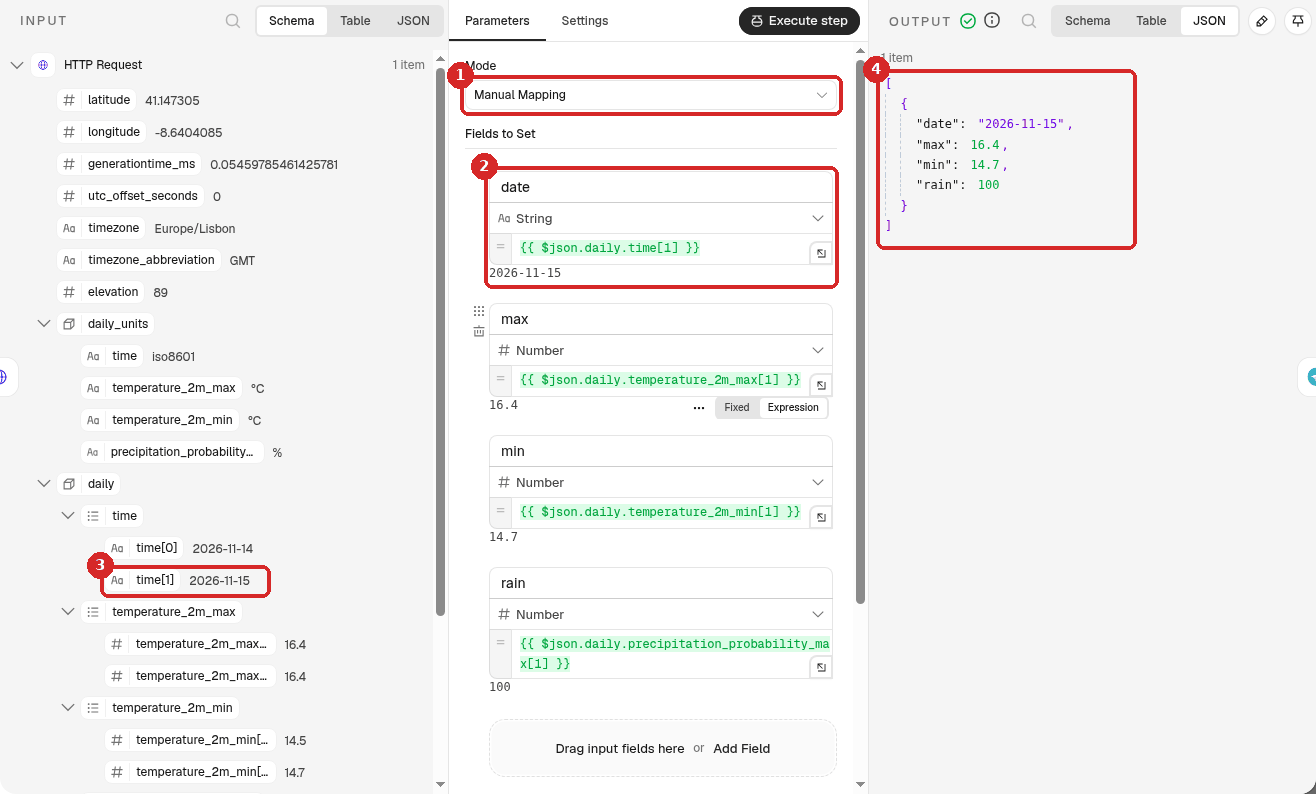
- Mode: Manual Mapping.
- Click Add Field. Each field has three boxes: the name, the type and the value. For the first one, type
dateas name, keep String, and paste{{ $json.daily.time[1] }}as value. Under the box, n8n shows the result: 2026-11-15. - On the left (INPUT), open daily → time:
time[1]is tomorrow's date. That is what[1]in the expression picks. - After Execute step, the OUTPUT has only four simple fields.
Add the four fields like this:
| name | type | value |
|---|---|---|
date |
String | {{ $json.daily.time[1] }} |
max |
Number | {{ $json.daily.temperature_2m_max[1] }} |
min |
Number | {{ $json.daily.temperature_2m_min[1] }} |
rain |
Number | {{ $json.daily.precipitation_probability_max[1] }} |
How to read {{ $json.daily.time[1] }}
{{ }} means this is an expression, work out the value. $json is the data that comes into this step (the answer of HTTP Request). .daily.time walks down into daily, then time. [1] takes entry number 1 of the list, tomorrow. More in Use data from earlier steps (expressions).
4. Send the forecast to Telegram
- Close the panel. Click the + at the right of Tomorrow, search for
Telegramand choose Send a text message (under MESSAGE ACTIONS). -
Set it:
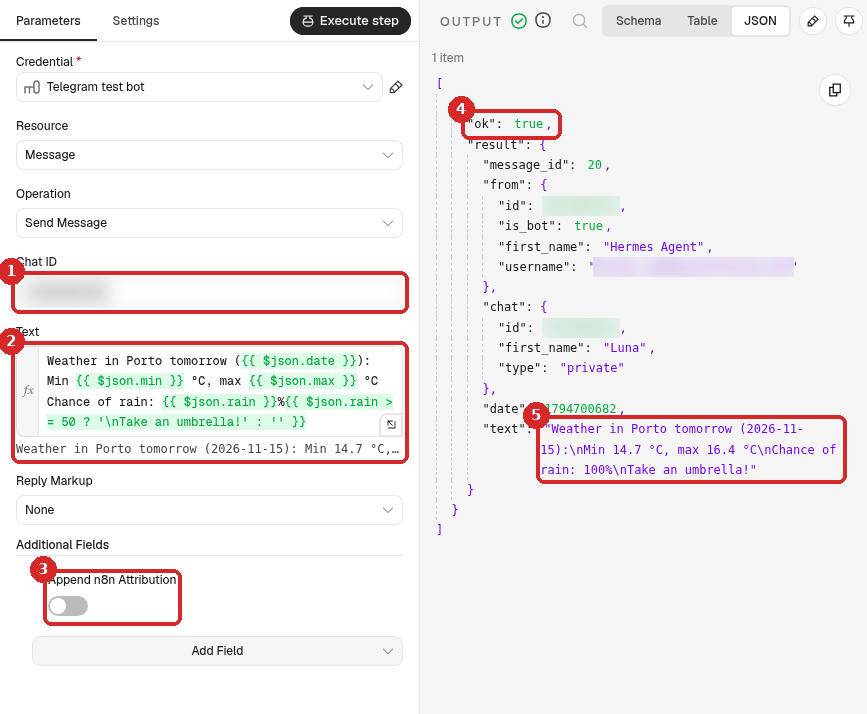
- Chat ID: your numeric Telegram ID. (Credential: your Telegram bot.)
-
Text: click Expression and paste:
Weather in Porto tomorrow ({{ $json.date }}):
Min {{ $json.min }} °C, max {{ $json.max }} °C
Chance of rain: {{ $json.rain }}%{{ $json.rain >= 50 ? '\nTake an umbrella!' : '' }}
The last expression is a small if: when the chance of rain is 50% or more, it adds the line Take an umbrella!, otherwise nothing.
-
Additional Fields → Add Field → Append n8n Attribution, switch off.
- After a test, the OUTPUT shows "ok": true...
- ...and the exact text that was sent.
5. Test it
Close the panel and click Execute workflow at the bottom of the canvas. You do not have to wait until 19:00. All steps get a green tick and the message arrives on Telegram.
In our test the message was:
Weather in Porto tomorrow (2026-11-15):
Min 14.7 °C, max 16.4 °C
Chance of rain: 100%
Take an umbrella!
We compared it with the daily values in the HTTP Request output: entry [1] of each list, correct.
6. Publish it
Click Publish at the top right, then Publish in the window. From now on it runs every day at 19:00, even when n8n is closed in your browser. To stop it, click the arrow next to Published and choose Unpublish (details).
Check that it worked
- Execute workflow gives green ticks on all four steps and a Telegram message with tomorrow's date.
- After 19:00, the Executions tab of the workflow has a new run that Succeeded.
Make it yours
- Your town: change
latitudeandlongitudein the URL. Open-Meteo also has many more values (wind, sunshine hours, UV index): see the list on open-meteo.com and add their names todaily=in the URL, then a field for each in Tomorrow. - Only when it will rain: add an If step before Telegram with
{{ $json.rain }}Number → is greater than or equal to50, and connect Telegram to the true exit. - Other free APIs: the same three steps (HTTP Request → Edit Fields → Telegram) work with most web services. Look at the answer in the HTTP Request OUTPUT, then pick the values you need with expressions.
Common problems
The Edit Fields values are empty or wrong
The path in the expression does not match the answer. Open HTTP Request, look at the OUTPUT and follow the names from the top: daily → temperature_2m_max → [1]. Names must match exactly, including _ and capitals.
The date is today, not tomorrow
Use [1], not [0], and keep forecast_days=2 in the URL.
HTTP Request fails with an error about the address
Copy the URL again in one piece, with no spaces or line breaks. Paste it into your browser: you should see the same JSON text.
Telegram says: Bad Request: chat not found
The Chat ID is wrong, or you never pressed Start in your bot. See the contact form recipe.